A Xiaomi Tag that won’t connect is usually a Fast Pair issue: the tag is asleep, Bluetooth or Location is off, or it’s bound to another account. Wake it, then re-pair.
The Xiaomi Tag pairs through Google Fast Pair on Android and Apple Find My on iPhone, but never both at once. Xiaomi’s official Tag FAQ confirms that the Tag can only be bound to 1 account at a time, which is the single most common reason a second phone sees nothing when you try to pair.
- One account only — Xiaomi confirms the Tag binds to a single account; a tag already paired elsewhere won’t show a Fast Pair card on a new phone until it’s removed and reset.
- Fast Pair needs 3 things on — Bluetooth, Location, and “Scan for nearby devices” must all be enabled, or the pairing popup never appears within the usual few seconds.
- The button wakes it — press and hold the Tag button until the piezo buzzer chirps to force pairing mode; a Tag left untouched for minutes drops out of advertising.
- CR2032 is the floor — a Tag with a weak or missing CR2032 coin cell can’t advertise; the Tag ships with a pull tab over the battery that must be removed first.
- Reset clears a stuck bind — removing the battery, holding the button, and re-inserting it returns the Tag to factory pairing mode so a new network can claim it.
Why Won’t the Xiaomi Tag Show a Fast Pair Popup?
On Android, the Tag is supposed to surface a Fast Pair card the moment it enters pairing mode near your phone. When that card never appears, the cause is the Fast Pair pipeline, not the Tag’s hardware. Google’s Find Hub setup guide states that Bluetooth tracker tags are automatically added to Find Hub after pairing completes, so the goal is simply to get the pairing prompt to fire.
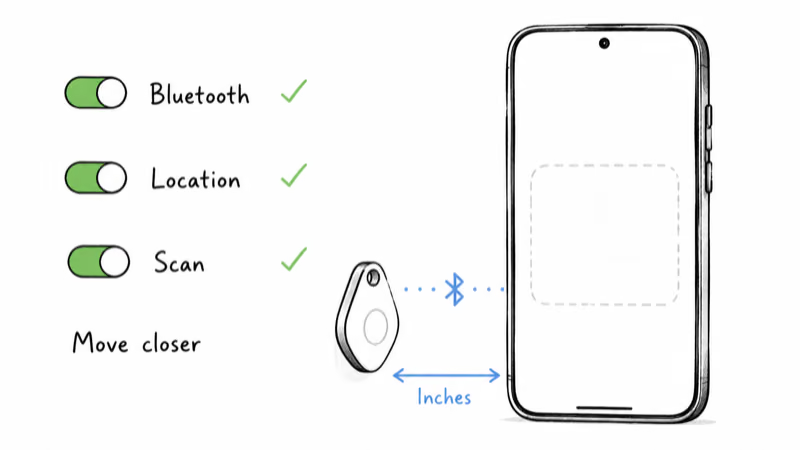
Fast Pair relies on 3 switches working together. Android Authority’s explainer on Fast Pair states that 1 window pops up when you put an accessory into pairing mode next to an Android phone. If you see nothing, walk this checklist in order:
1. Turn Bluetooth on. A Tag in pairing mode can’t connect with Bluetooth disabled.
2. Turn Location on. Fast Pair uses Bluetooth Low Energy plus Android location services to detect the Tag, so a phone with Location off won’t scan for it, and the card never appears.
3. Enable scanning. Open Settings, Google, Devices and sharing, Devices, and confirm “Scan for nearby devices” is on.
4. Move within inches. Hold the Tag against the back of the phone for the first handshake; range stretches once paired, but the initial Fast Pair scan wants the tag almost touching the device, and any gap larger than a few centimeters can starve the handshake before it completes.
Toggling “Scan for nearby devices” off and back on often clears a stubborn no-popup case more reliably than restarting Bluetooth alone. If the card still refuses to appear, the Tag is likely asleep or already bound, which the next 2 sections cover in turn.
How a Sleeping or Cross-Network Tag Breaks Pairing
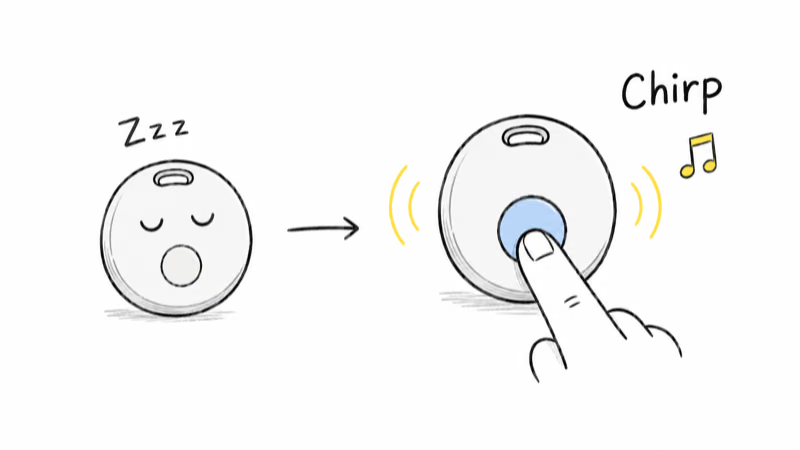
A Xiaomi Tag stops advertising after sitting idle, and it advertises to only 1 ecosystem at a time. Both states look the same from the phone’s side: no card, no connection.
Press and hold the button on the Tag until the piezo buzzer chirps. That chirp is the signal that the Tag has re-entered pairing mode and is broadcasting again. A Tag left idle can stop advertising until you do this, because it drops its Bluetooth broadcast to save the coin cell, and there is no on-screen indicator to tell you the tag has gone quiet until you wake it.
Network mismatch is the quieter failure. The Tag pairs through Find Hub on Android and Find My on iPhone, and it won’t appear in the wrong app.
If you’re on Android, open the Google Find Hub app, not the Find My app, and watch for the Fast Pair prompt rather than hunting through a menu. Switching the Tag from an iPhone to an Android phone means the iPhone bind has to be cleared first, which is the same reset described below. Our walkthrough of Google Find Hub versus Apple Find My covers how the 2 networks differ on detection range and unknown-tracker alerts.
How to Add the Tag Manually in Find Hub
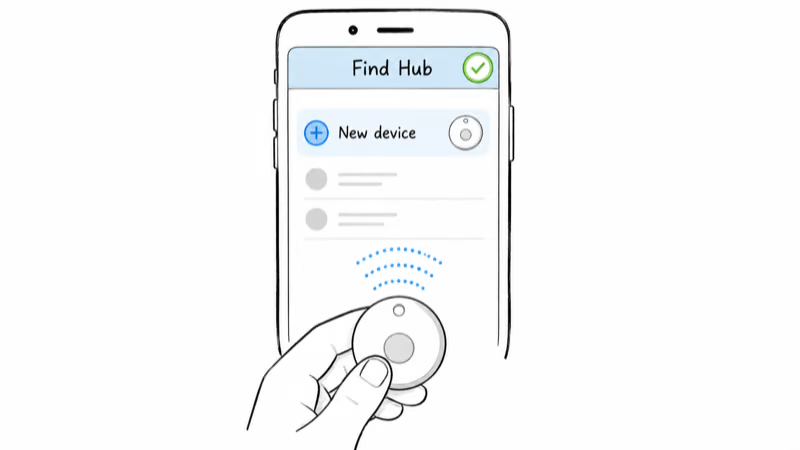
When Fast Pair is dead on a particular phone, Find Hub still lets you add the Tag from inside the app. This bypasses the automatic popup.
Open the Find Hub app, tap the add-device control, and select New device when the list of accessory types appears. Hold the Tag in pairing mode against the phone and the app runs the same handshake the popup would have, then registers the Tag to your account.
The manual add often succeeds on a Tag that ignored every Fast Pair card, since it runs the same handshake without depending on the popup. If the manual flow also comes up empty, the Tag is out of battery or still bound elsewhere.
The manual route is also how you confirm a registration that “completed” but never showed the Tag on the map. If the Tag pairs over Bluetooth yet doesn’t appear in your Find Hub device list, the registration step didn’t finish, and re-running the add flow forces it. If your tag pairs but never updates its position, our guide to a Find Hub tracker not updating walks through the offline-finding and location-permission settings that gate map updates.
The CR2032 Battery and the Pull Tab
A CR2032 coin cell powers the Tag, and a weak cell is a silent killer. The Tag can’t advertise without enough voltage to drive its Bluetooth radio, so a Tag that pairs intermittently or drops connection within seconds usually needs a fresh CR2032. On a brand-new Tag, the first culprit is the plastic pull tab over the battery, which must be removed before the Tag powers on at all.
Region and App-Version Snags
Region and app version cause a smaller but real share of failures. In some regions the Tag ties to the Mi Home app, while the actual tracking lives in Find Hub or Find My.
Make sure the Google Find Hub app is updated to its current Play Store version, since older builds shipped before full third-party tag support and can miss the pairing prompt. If your account region and the Tag’s intended region don’t match, the Fast Pair card can fail to populate even with everything else correct.
For a sense of how the Tag stacks up once it’s connected, our Xiaomi Tag review covers its range behavior and the trade-off of having no ultra-wideband precision finding, and our roundup of the best Find Hub trackers shows where it sits against Chipolo and Pebblebee on the Android side.
How Do I Reset a Xiaomi Tag That Won’t Pair?
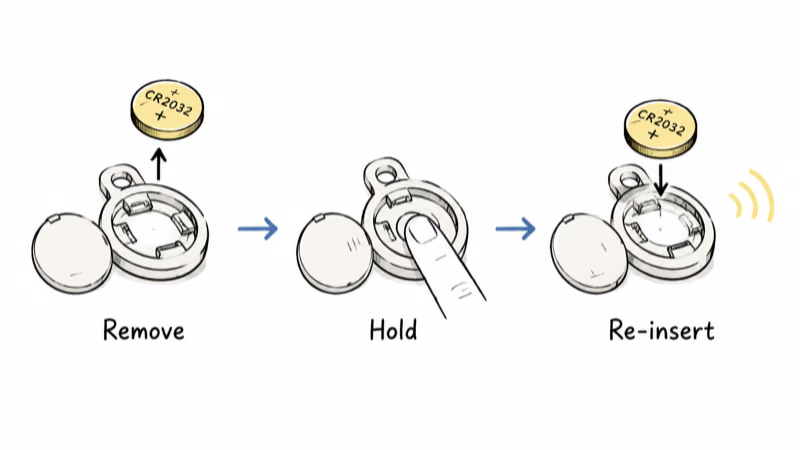
A reset is the cure for a Tag stuck on an old account or a half-finished pairing. It returns the Tag to factory pairing mode so a clean handshake can run.
Pop the back cover and remove the CR2032 battery. Press and hold the Tag button for several seconds with the battery out to drain residual charge, then re-insert the coin cell. The Tag should chirp and re-enter pairing mode, broadcasting to any nearby phone again. If you’re moving the Tag off an old phone, also delete it from that phone’s app first, because the cloud bind can survive a hardware reset and keep blocking new pairings.
If the reset Tag still won’t connect to any phone, the coin cell is the last suspect; swap in a fresh CR2032 before concluding the Tag is faulty. The same reset-then-re-pair sequence applies to most Fast Pair tags, and our general guide to resetting a Find Hub tracker covers the variations across brands. For the full lineup of Android-side options, the Find Hub hub collects every compatible tracker and its setup quirks.
Bottom Line
A Xiaomi Tag that won’t connect is rarely broken. In order of likelihood, it’s asleep, blocked by a Bluetooth or Fast Pair toggle, bound to another account, or running on a dying CR2032. Wake it with the button, confirm Bluetooth, Location, and scanning are on, and use the manual add inside Find Hub when the popup refuses to appear. A battery-out reset clears the rest.
FAQ
Why won’t my Xiaomi Tag show a pairing popup on my phone?
The Fast Pair card needs Bluetooth, Location, and “Scan for nearby devices” all turned on, plus a Tag that is awake and within a few inches of the phone. If any of those is off, the popup never fires. Toggle each setting on, hold the Tag against the back of the phone, and press the Tag button until it chirps to force it back into pairing mode.
Does the Xiaomi Tag work on both Apple and Android at the same time?
No. The Tag pairs to Apple Find My or Google Find Hub, but only one network at a time, and Xiaomi confirms it binds to a single account. You choose the network during setup based on which phone runs the pairing. To switch ecosystems, remove the Tag from the old account and reset it before pairing to the new one.
How do I put the Xiaomi Tag into pairing mode?
Press and hold the button on the face of the Tag until the piezo buzzer chirps. That chirp confirms the Tag has re-entered pairing mode and is advertising over Bluetooth. On a new Tag, remove the plastic pull tab over the CR2032 battery first, since the Tag ships powered off.
Why does my Xiaomi Tag pair but not appear in Find Hub?
The Bluetooth handshake succeeded but the registration step did not finish, so the Tag never reached your account. Open the Find Hub app and re-run the add-device flow to complete the registration. If it still does not show up, confirm the app is updated and that the Tag is not already bound to a different account.
Can a dead battery stop the Xiaomi Tag from connecting?
Yes. The Tag runs on a single CR2032 coin cell, and a weak cell can’t supply enough power to keep the Bluetooth radio advertising. A Tag that pairs and then drops within seconds, or never advertises at all, usually needs a fresh CR2032. Swap the battery before assuming the hardware has failed.
How do I reset a Xiaomi Tag that won’t connect?
Remove the CR2032 battery, hold the Tag button for several seconds to drain residual charge, then re-insert the cell. The Tag chirps and returns to factory pairing mode. If you are moving it off an old phone, delete the Tag from that phone’s app too, because the cloud bind can outlast the hardware reset and keep blocking new pairings.
Which app do I use to pair the Xiaomi Tag on Android?
Use the Google Find Hub app, not Apple’s Find My. On Android the Tag joins the Find Hub network, and Google confirms tracker tags are added to Find Hub automatically once pairing completes. Make sure the app is updated to its current Play Store version, since older builds can miss the Fast Pair prompt for third-party tags.