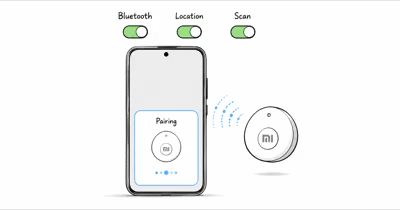
The Moto Tag 2 pairs through Fast Pair and then appears in Find Hub. Motorola states that setup requires Android 9 or later, Bluetooth, internet and a signed-in Google Account in its current Moto Tag 2 guide.
- Fast Pair needs internet and a Google Account before setup can finish.
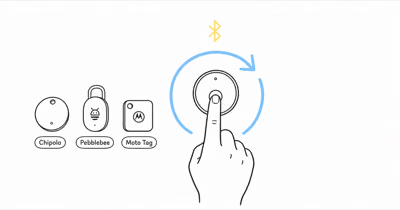
- One button press restarts Fast Pair when an unpaired tag’s card has been dismissed.
- Reset is press once, then hold for five seconds until a second beep confirms completion.
- Remove the tag from Find Hub and Bluetooth first to clear saved pairing information.
- Basic pairing and precision finding are different; compatible hardware is not required for ordinary Android 9+ setup.
The fixes below follow setup order: phone readiness, Fast Pair, account state, reset, Find Hub sync and battery checks.
Why Won’t My Moto Tag 2 Pair With My Phone?
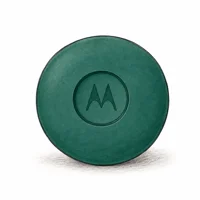
A new tag powers on when its protective film is removed. Keep an unlocked Android phone close. If the detection card was dismissed and does not return, Motorola says to press the button once to activate Fast Pair again.
Turn Bluetooth on, confirm the phone has internet, and keep the screen awake and unlocked. Motorola also recommends updating Google Play services if pairing still does not start.
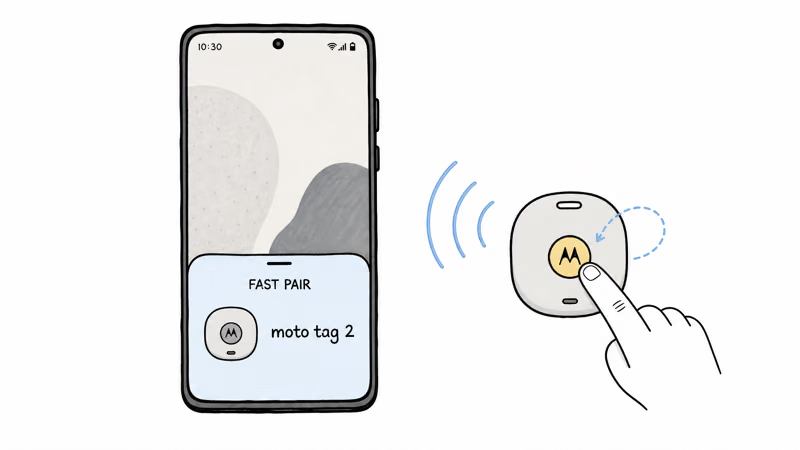
If nothing appears, open Settings and look under Connected devices. You can also go to Google, then Devices & sharing, then Devices, and check whether “moto tag 2” is listed.
Tapping the listed tag manually starts the same pairing flow the pop-up would have launched.
How Do You Fix the Moto Tag 2 “Unable to Connect” Error?
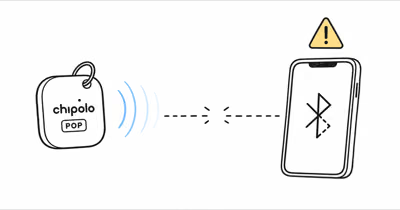
This error appears after the card is visible but setup can’t finish. Fast Pair needs a live internet connection and a signed-in Google Account. Our Moto Tag 2 versus Pebblebee Clip 5 comparison covers the ecosystem difference.
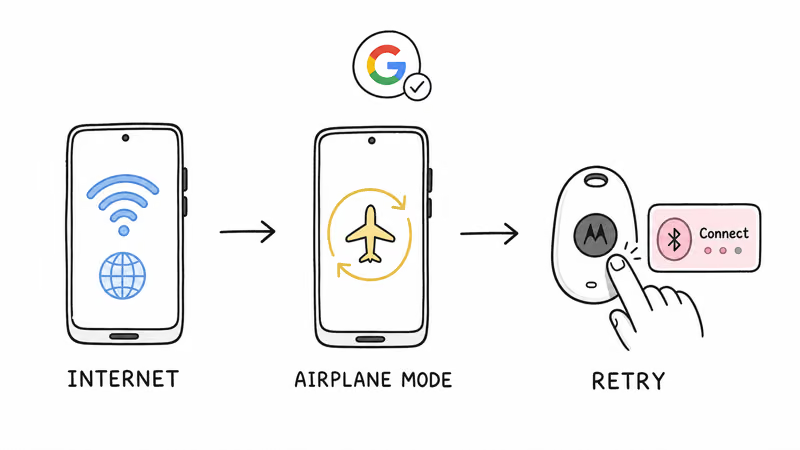
Step 1: Confirm your phone has working Wi-Fi or mobile data. Open a webpage to be sure the connection is actually live, not just showing a signal icon.
Step 2: Confirm the phone is signed in to the Google Account you want to use with Find Hub.
Step 3: Press the tag’s button once to re-trigger the broadcast, wait for the card to reappear, and tap Connect again.
If the failure continues, update Google Play services from its app-details page, restart the phone, and retry with the tag nearby.
When the Pop-Up Keeps Disappearing
If the card disappears, wake and unlock the phone, then press the tag once. You can also check Connected devices or Google > Devices & sharing > Devices for the detected tag.
Resetting a Frozen or Previously Paired Moto Tag 2
Use reset for an unresponsive tag or your own saved pairing conflict. It does not replace the previous owner’s responsibility to remove a secondhand tag from their account.
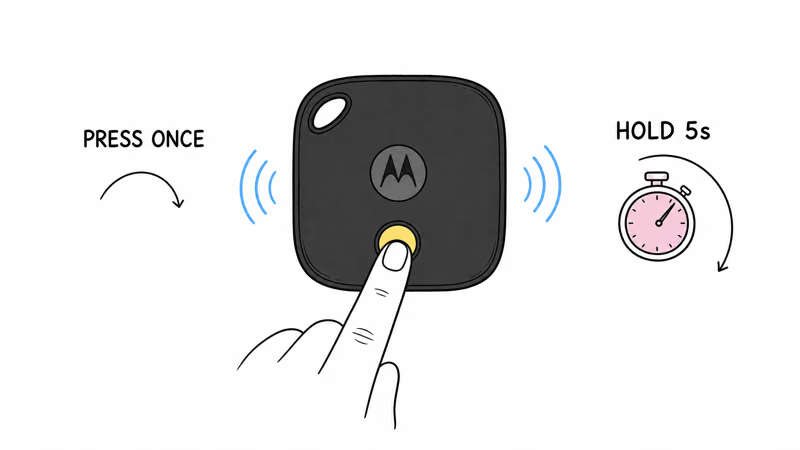
Step 1: If the tag is yours and connected, remove it from Find Hub and forget it in Bluetooth settings.
Step 2: Press the tag once. Immediately press and hold for five seconds until the first beep.
Step 3: Motorola confirms that the second beep completes the reset. Wait for Fast Pair, then reconnect.
A used tag may remain bound to the previous owner’s Google Account. Ask that owner to remove it in Find Hub before you reset and pair it. Don’t treat hardware reset as an account-lock bypass.
Moto Tag 2 Pairs but Find Hub Shows It Offline
For deeper map fixes, see our Moto Tag 2 not updating location guide.
Once pairing succeeds, an old or unavailable location is a Find Hub sync problem rather than a Fast Pair problem. Nearby Android devices relay tracker locations through the crowdsourced network.
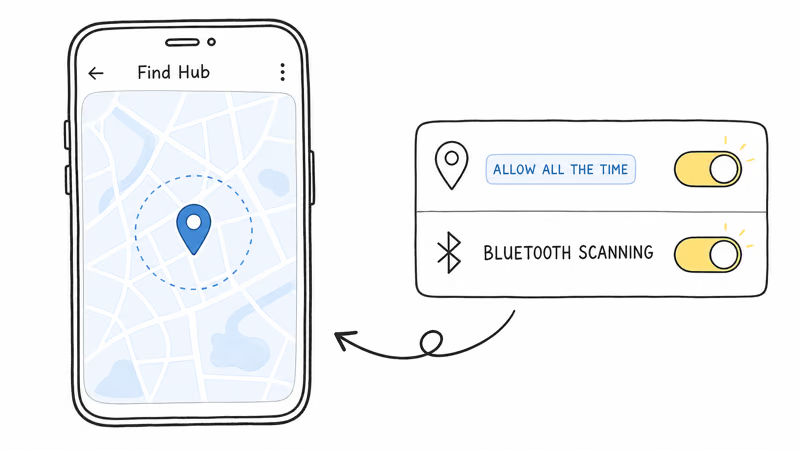
In Find Hub, select the tag and tap Sync recent location when offered. Google’s troubleshooting guide documents reset and reconnection when an accessory still won’t sync.
For remote areas, check Find your offline devices and consider With network everywhere. Google’s aggregation safeguard can delay a location when too few nearby devices detect the tag.
Android and Galaxy Phone Pairing Notes
Ordinary setup needs Android 9 or later. The tag also supports UWB and Bluetooth Channel Sounding for compatible phones, but those nearby-finding features are separate from basic Fast Pair registration.
A compatible Samsung Galaxy can pair through Google’s Find Hub like other supported Android phones. Don’t assume Android 16 alone guarantees Channel Sounding or UWB; the phone hardware must also support it.
Fast Pair also depends on Google Play services and a Google Account. A phone without those services may support ordinary Bluetooth yet still fail this setup flow.
The tag does not pair to iOS. Our guide to using Moto Tag 2 with iPhone explains the platform boundary.
Moto Tag 2 Still Won’t Connect? Try These Last Checks
Restart the phone, update Google Play services, and retry with the tag close by. Then check that the CR2032 is correctly seated with its positive side facing up.
If the tag stays silent with a fresh battery, our Moto Tag 2 battery guide covers the supplied-pin replacement sequence.
As a final test, try another compatible Android phone. Success there points to the original phone or account. Failure on multiple phones after a fresh battery supports contacting Motorola.
For a clean first-time flow, see our Moto Tag setup guide. Our Moto Tag 2 review covers the nearby-finding hardware separately.
Bottom Line
Start with Bluetooth, internet, an unlocked phone and the correct Google Account. Press once to restart Fast Pair. If you own the saved pairing, remove it, forget Bluetooth, and reset until the second beep.
FAQ
Why doesn’t the Moto Tag 2 pairing pop-up appear on my phone?
Wake and unlock the phone, turn on Bluetooth, hold it near the tag, and press the tag button once. If the pop-up stays missing, open Connected devices or Google > Devices & sharing > Devices and tap the listed tag.
How do I reset a Moto Tag 2?
Remove your tag from Find Hub and forget it in Bluetooth first. Press once, then immediately hold for five seconds. Keep holding until the second beep confirms the reset, then pair again.
Why does my Moto Tag 2 say “unable to connect”?
Confirm the phone has live Wi-Fi or mobile data and is signed in to a Google Account. Update Google Play services if needed, press the tag once, and tap Connect again.
Can I pair a Moto Tag 2 that someone else owned?
Not until the previous owner removes it from their Google Account in Find Hub. A hardware reset clears local configuration but should not be treated as a way around another person’s account binding.
Does the Moto Tag 2 work with a Samsung Galaxy?
Compatible Samsung Galaxy phones can pair through Find Hub when they run Android 9 or later and have Google services. Precision features still depend on compatible phone hardware; Android version alone is not enough.
Why is my Moto Tag 2 offline in Find Hub after pairing?
Tap Sync recent location in Find Hub. If it still fails, follow Google’s accessory recovery step: reset with Motorola’s instructions and reconnect. Remote-area updates can also be delayed by network aggregation.
Do I need the Moto Tag app to connect the tag?
Initial pairing happens through Google Fast Pair and Find Hub. Motorola then offers the Moto Tag app for extra controls such as ringtone and firmware management.