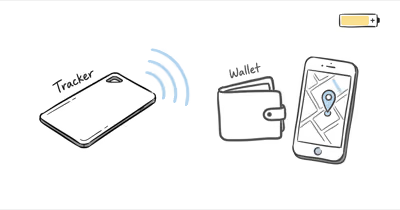
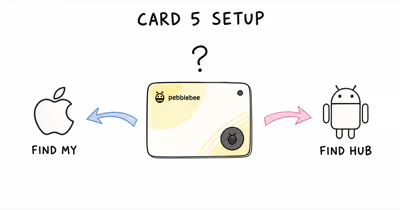
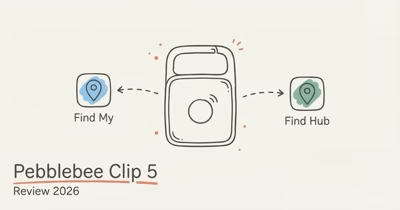
A Find Hub tracker keeps an account link in Google and pairing data on the tag. App removal and the maker’s button sequence are separate parts of a complete handoff.
- A factory reset alone does not transfer ownership; you must tap Remove device in Find Hub first, or the tag still shows in your account.
- Chipolo POP, LOOP, and CARD reset with a press, then a 10-second hold released right after the 5th beep.
- Pebblebee Clip Gen 5 resets with a triple-press followed by about a 10-second hold; earlier Clip, Card, and Tag instructions use a 15 to 20 second hold.
- Moto Tag resets with one press of the M button, then an immediate press-and-hold for 5 seconds, confirmed by two beeps.
- Account removal and factory reset are separate steps; follow the manufacturer’s current reset instructions after removing the tracker.
When Do You Need to Reset a Find Hub Tracker?
A reset is the right move in four situations, and not much else. Google’s support documentation states that removing a device clears the account link, while a manufacturer reset clears your data from the physical tag. Across all 3 brands, the most common reason owners reset is switching networks, where the tag is stuck advertising to the wrong account.
Reset when you’re selling or gifting the tag, when you’re switching it between Google Find Hub and Apple Find My, when the tag stops responding or pairing, or when a tag you bought used still shows a previous owner. If your tag simply stops reporting location, a reset is usually overkill. Start with the lighter fixes in our guide to a Find Hub tracker not updating its location before wiping the device.
One trap worth naming up front: a tag that’s still claimed by another Google account can’t be added to yours, and no button press on your end fixes that. The original owner has to remove it first. That’s the single most common reason a reset appears to fail.
Resetting a Chipolo POP, LOOP, or CARD
Chipolo’s Find Hub models are the Point line, but the company unified the consumer reset sequence for its current POP, LOOP, and CARD trackers. According to Chipolo’s factory-reset support article, the button sequence is the same whether the tag was on the Apple or Google network.
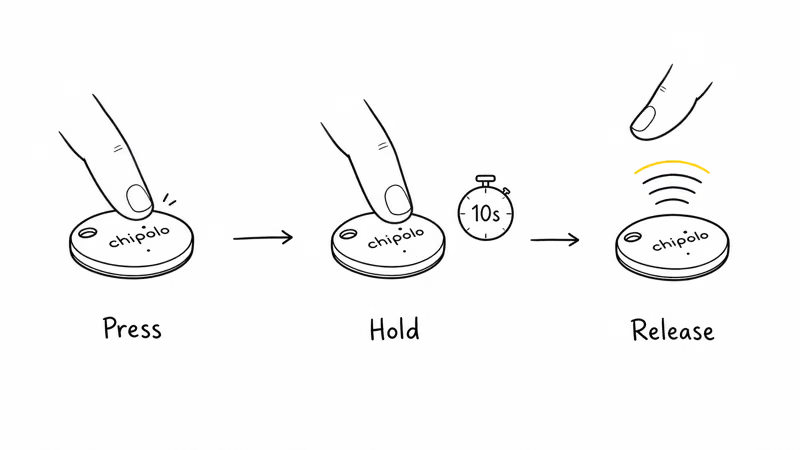
First, open Find Hub, select the Chipolo, and tap Remove device so the account link is cleared. Then run the physical reset:
1. Press the Chipolo POP, LOOP, or the button on your CARD once.
2. Press again and hold for 10 seconds. Keep holding through the beeps.
3. Release the button right after you hear the 5th beep. A confirmation sound means the reset worked.
The timing on the LOOP is the fussiest part: releasing too early on the 4th beep leaves the tag in its old pairing state, forcing you to repeat the sequence. If the tag won’t even respond to the button, the battery may be too low to complete a reset. Our walkthrough on a Chipolo LOOP that won’t charge covers how to confirm the cell still holds power before you keep retrying.
If you are moving a Chipolo from Apple Find My to Google Find Hub, you must also remove it from the Apple Find My app on the original device before re-adding it. The button reset does not release the Apple-side account claim by itself.
Resetting a Pebblebee Clip or Card by Generation
Pebblebee’s reset is the one most people get wrong, because the press pattern is unusual and the hold time changed for Clip Gen 5. The button sits under the Pebblebee logo on the front of the device.
Clip Gen 5: Hold for About 10 Seconds
Per Pebblebee’s Clip Gen 5 factory-reset guide, charge the tracker first, then use this sequence:
1. Triple-press the button, and on the fourth press, hold it for about 10 seconds with no pause.
2. Listen for three high-pitched beeps. Release during the third beep, before it ends.
3. A short jingle confirms the reset.
Earlier Clip, Card, and Tag Models: Hold 15 to 20 Seconds
Pebblebee’s general factory-reset instructions retain the longer hold for other generations.
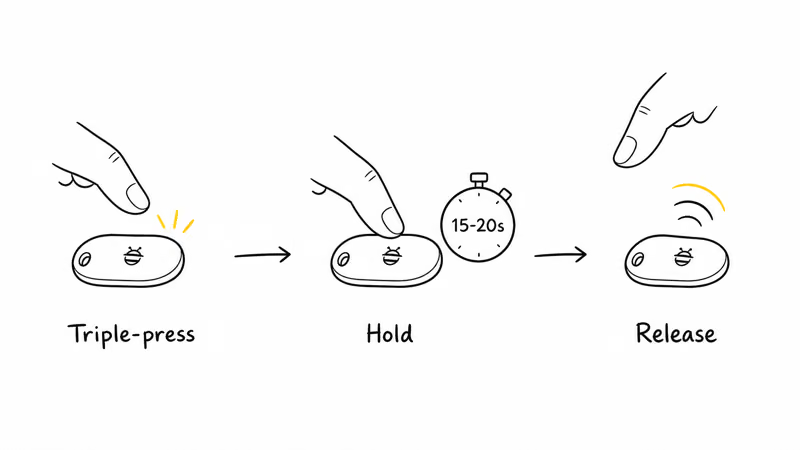
Charge the earlier Clip, Card, or Tag fully first; a low battery is the top reason the reset jingle never plays. Then:
1. Triple-press the button, and on the fourth press, press and hold for 15 to 20 seconds with no pause between the taps and the hold.
2. Listen for three high-pitched beeps. Release the button during the third beep, just before it ends.
3. A short jingle confirms the reset. Wait 30 seconds before pressing anything else, then double-press to enter pairing mode.
Removing the tracker from Find Hub clears the account association, but Pebblebee still directs owners to use its physical factory-reset sequence to return the device to an unlinked state. After resetting, forget any saved PB Bluetooth entry before pairing again.
One more Pebblebee-specific note: don’t pair it through the standard “Pair new device” Bluetooth menu. Pebblebee connects through Google Fast Pair, so a manual Bluetooth pairing breaks the relay. If you already did that, factory reset the tag and delete it from your phone’s paired-devices list before retrying.
Resetting a Motorola Moto Tag
The Moto Tag has the shortest sequence of the three, and it’s the one tag here that Motorola designed specifically around Google Find Hub from launch. Motorola’s unpair-and-reset support page confirms that one press followed immediately by a 5-second hold resets the tag after removal from Find Hub.
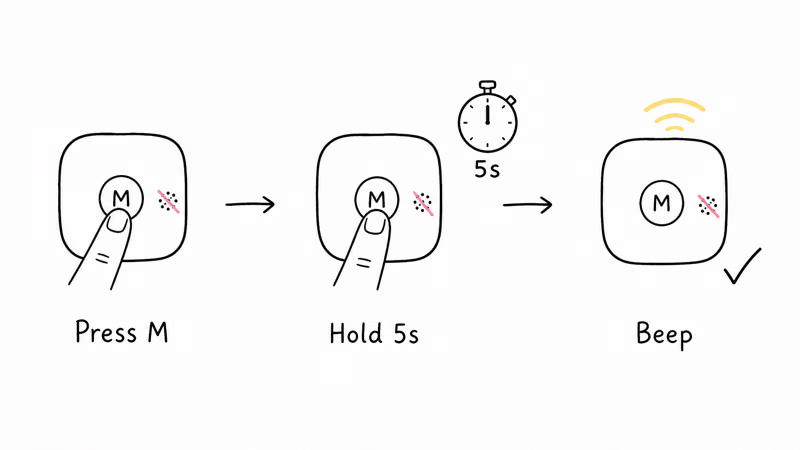
Open Find Hub, select the Moto Tag from your device list, and tap Remove from Find Hub to unpair it from your Google account. Then reset the hardware:
1. Press the M button on the tag once.
2. Press the M button again and hold it for 5 seconds.
3. Listen for the first beep while holding, then a second beep when the reset completes. The tag is now ready to pair again.
Motorola is specific that the reset uses the M button, not the buzzer hole; don’t insert a pin into the speaker opening. If you’re still learning the tag, our guide to setting up a Moto Tag covers the re-pairing flow after a reset, and if the tag refuses to reconnect afterward, the steps in fixing a Moto Tag that won’t connect apply to the original Moto Tag as well.
Does a Reset Remove It From Your Google Account?
This is the question that causes the most confusion, so here’s the precise answer: a button-only factory reset doesn’t remove the tag from your Google account. The tag still appears in Find Hub’s device list, still counts against your account, and a new owner still can’t claim it. Only the in-app Remove device action clears that account link.
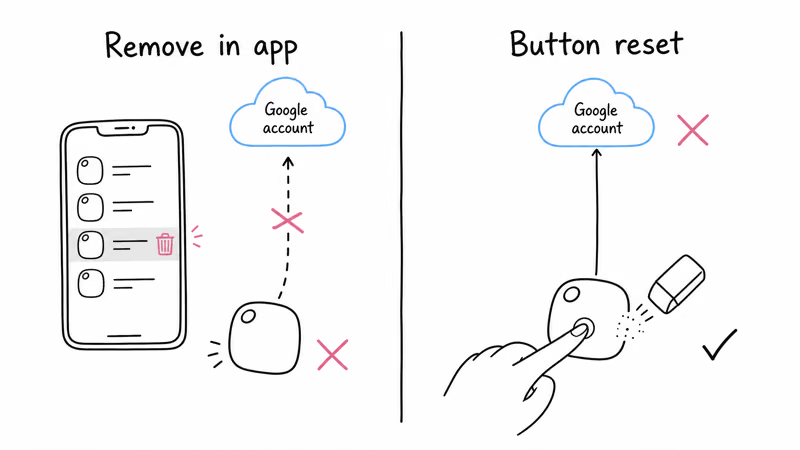
| Action | Clears account link | Wipes data off the tag |
|---|---|---|
| Remove device in Find Hub app | ✓ Yes | ✗ No |
| Physical button factory reset | ✗ No | ✓ Yes |
| Both, in order | ✓ Yes | ✓ Yes |
Apple’s cross-platform tracker rules add a wrinkle when a tag has lived on both networks. The same detection standards that power unwanted-tracker alerts, documented in Apple’s unwanted-tracker detection guide, mean a Find Hub tag can still trigger alerts on nearby iPhones until it’s fully released and reset. If you’re decommissioning a tag for good, do both steps so it stops advertising entirely.
If your tracker is an AirTag rather than a Find Hub device, the flow is different because Apple ties the reset to your Apple ID. Our separate walkthrough on resetting an AirTag covers that battery-removal sequence, and the same account-first principle applies to a Samsung SmartTag 2 reset on the Galaxy SmartThings Find network.
Troubleshooting a Reset That Won’t Take
When a reset appears to fail, it’s almost always one of three things, and none of them require a new tag.
The most common is a low battery. A reset is a power-hungry operation, and a weak cell may not complete the sequence or play the confirmation tone. Charge or replace the battery first, then retry. The second is release timing: on Chipolo and Pebblebee, letting go one beep early or late aborts the reset, so count deliberately and repeat with a steady one-press-per-second rhythm.
The third is an uncleared account claim. If you reset the hardware but never tapped Remove device, the tag re-binds to your account the next time it’s near your phone, making it look like the reset did nothing. Confirm the tag is gone from your Find Hub list before assuming the hardware is faulty.
Once both steps are clean, you can re-add the tag or hand it off. If you’re replacing one, our Google Find Hub tracker guide compares current models and power options.
Bottom Line
Resetting a Find Hub tracker is two steps, not one: remove it in the app to clear the Google account link, then run the brand’s button reset to wipe the tag. Chipolo POP, LOOP, and CARD hold for 10 seconds and release on the 5th beep; Pebblebee Clip Gen 5 holds about 10 seconds while earlier Pebblebee models hold 15 to 20 seconds; Moto Tag presses once then holds the M button for 5 seconds.
If a reset won’t take, check the battery, your release timing, and whether the account claim is actually cleared before blaming the hardware. For network setup after a clean reset, start at the Find Hub network hub.
FAQ
Does resetting a Find Hub tracker remove it from my Google account?
No. A physical factory reset only wipes your data from the tag itself; it does not remove the tag from your Google account or Find Hub device list. To clear the account link, open Find Hub, select the tag, and tap Remove device. For a full release before selling or gifting, do both: remove it in the app, then run the brand’s button reset.
How do I reset a Chipolo on the Find Hub network?
Press the Chipolo POP, LOOP, or the CARD button once, then press again and hold for 10 seconds, releasing right after the 5th beep. A confirmation sound means it worked. Remove the tag in the Find Hub app first so the account link is cleared, and remove it from Apple Find My too if it was previously on that network.
Why does my Pebblebee reset never finish?
Two reasons account for most failures. First, a low battery can’t complete the reset, so charge the tracker fully before trying. Second, the press pattern and generation-specific timing are precise: Clip Gen 5 uses a triple-press followed by about a 10-second hold, while earlier Clip, Card, and Tag models use 15 to 20 seconds. Release during the third beep; a short jingle confirms success.
Which button resets a Moto Tag?
The M button on the tag, not the buzzer hole. Press it once, then immediately press and hold for 5 seconds; Motorola says two beeps confirm the reset. Don’t insert a pin into the speaker opening. For a clean handoff, remove the tag from Find Hub before the button reset.
Do I need to reset a tracker to switch from Apple Find My to Find Hub?
Yes, for tags that support both networks. Remove the tag from Apple Find My on the original device, factory reset it with the brand’s button sequence, then add it to Find Hub. Skipping the Apple-side removal leaves the tag claimed on that network, so the Find Hub setup will fail to take ownership.
Can I reset a used tracker that still shows a previous owner?
Not from your end alone. A tag still claimed by someone else’s Google or Apple account can’t be added to yours no matter how many times you press the reset button. The original owner has to open their tracking app and remove the device first. After that, your button reset and re-pairing will work normally.
Will a factory reset stop a Find Hub tag from triggering iPhone tracker alerts?
Only if you do both steps. A tag that’s fully removed from its account and factory reset stops advertising and won’t trigger unwanted-tracker alerts on nearby iPhones. A tag that’s reset but still tied to an account can keep broadcasting, so complete the in-app removal as well as the button reset when decommissioning a tag for good.