Setting up a Moto Tag is one of the simpler Android device pairings, but a few things trip people up: the pairing card not appearing, the Find Hub app being out of date, or finishing setup without ever turning on left-behind alerts. Google’s Find Hub help center states that the network relays location through nearby Android devices, so a paired tag starts reporting as soon as setup finishes.
- Pull the tab and open Find Hub — the pairing card should appear when the tag is close and the app is ready
- You need an Android phone with the Google Find Hub app — Android 9 or later, with Bluetooth and Location turned on
- Moto Tag 2 setup is identical to the original — Bluetooth 6.0 and IP68 are hardware upgrades, but the pairing flow is the same
- Left-behind alerts are off by default — enable Separation Alerts per tag in Find Hub after pairing
- No monthly fee and no subscription required — the Find Hub network spans more than a billion Android devices at zero ongoing cost
What You Need Before Setting Up a Moto Tag?
Moto Tag setup requires an Android phone. The tag pairs only to Google Find Hub, so there’s no iPhone setup path for pairing, tracking, or configuration. If you carry an iPhone, you would need a different tracker entirely. Our deeper look at whether you can use the Moto Tag 2 with an iPhone explains exactly what breaks.
Here’s what needs to be ready before you pull the tab:
- An Android phone running Android 9 or later with the latest Google Find Hub app installed
- A Google Account signed in on the phone
- Bluetooth turned on — Settings > Connected devices > Bluetooth
- Location turned on — Settings > Location, with high-accuracy mode enabled
- The Find Hub app updated from the Play Store so it recognizes the tag
The Moto Tag ships with a pre-installed CR2032 battery. Motorola states that the gen-2 cell lasts more than 600 days, while the original is rated at about 365 days. Both use a swappable coin cell.
How to Pair a Moto Tag With Your Android Phone (Step by Step)
The pairing process is proximity-based, similar to how Pixel Buds pair. There are no menus to dig through once the Find Hub app is open.
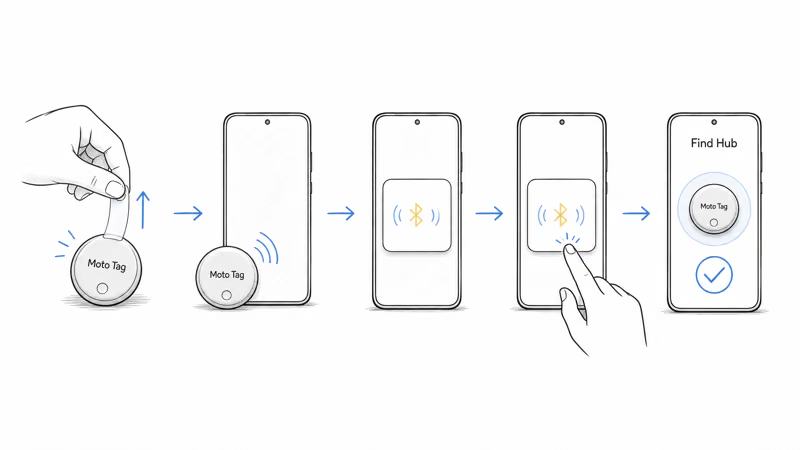
Step 1. Remove the battery tab. Flip the Moto Tag over and pull the small plastic tab out from under the battery cover. The tag plays a short chime confirming the CR2032 cell is now active.
Step 2. Open Find Hub and hold the tag close. Launch the Google Find Hub app and keep the tag close to your phone until a pairing card slides up. Tap Connect on that card.
Step 3. Name your Moto Tag. Find Hub offers presets like Keys, Wallet, Bag, and Luggage, or you can tap to enter a custom name. Pick something distinct if you plan to track several tags.
Step 4. Register to your Google Account. The tag links to the Google Account signed in on your phone, which is the account that will track it in Find Hub. Tap Continue to confirm registration.
Step 5. Tap Done. The Moto Tag now appears in the Find Hub app under your devices. You can ring it, see its last location, or get directions to it.
Keeping the tag close to the phone for the whole flow matters. Moving it more than a foot away mid-setup can make the pairing card disappear, forcing a fresh scan. For how the Moto Tag stacks up against rival Android pucks, our best Find Hub trackers guide ranks the full lineup.
If the pairing card doesn’t appear after a short wait, lock your phone, unlock it, and bring the tag close again. This forces Android to re-scan for nearby accessories.
Naming and Customizing Your Moto Tag
The name you choose during setup is not permanent. You can rename the tag anytime in Find Hub, which matters if you later move it from your own bag to a set of keys.
To rename: Open Find Hub, tap the Moto Tag, tap the name at the top of its card, type a new name, and confirm.
Find Hub provides preset item categories like Keys, Wallet, Bag, and Luggage, each with a default icon. If you track several tags, a naming convention helps a lot. Location-based names like “Car Keys - Black” and “Travel Bag - Gray” beat generic labels because once you pass three or four tags the plain names blur together.
For a wider view of how Find Hub organizes tags and devices on one map, our Google Find Hub trackers guide walks through the app layout and what each network does behind the scenes.
How Do You Share a Moto Tag With Family?
Find Hub lets you share a tag so other people can see its location without triggering unknown-tracker alerts on their phones. This is useful for a shared car key, a family suitcase, or a pet carrier.
To share: Open Find Hub, tap the Moto Tag, scroll to the sharing option, and add a person by their Google Account email. They accept the invite in their own Find Hub app, and the tag then appears on their map alongside yours.
Sharing is different from registering. A Moto Tag can only be registered to one Google Account as its owner, but that owner can grant view access to several people. When you stop sharing, the other person loses map access.
Setting Up Left-Behind Alerts and Notifications
Pairing the tag is only half the job. Configuring alerts is what turns a paired tracker into something that warns you before you leave a bag behind. None of these are on by default.
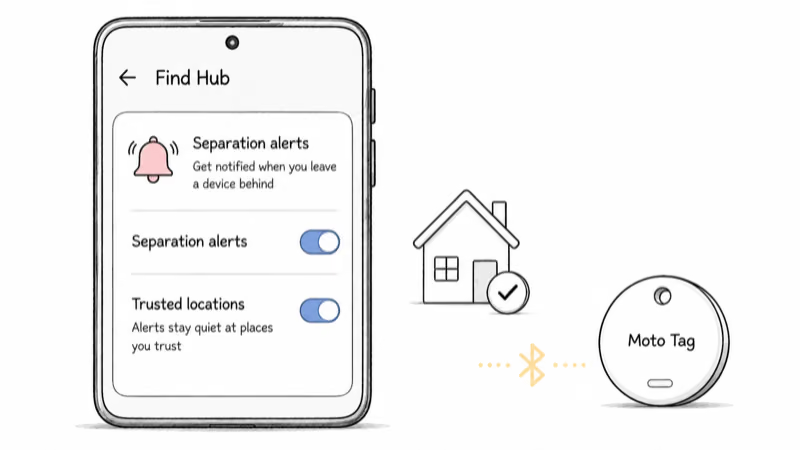
Separation Alerts. Open Find Hub, tap your Moto Tag, find the alerts section, and turn on the separation or left-behind notification. Your phone then alerts you when you walk away from the tag without it.
Trusted locations. Without exceptions, you would get an alert every time you leave home without that tag. Add your home, office, or gym as trusted places so the app stays quiet there. Setting two or three trusted spots sharply reduces false alerts.
Ring and locate. From the tag’s card you can play a sound to find it nearby, or open directions to its last known location. On a supported Android 16 flagship, the Moto Tag 2 adds Channel Sounding direction-finding for sub-meter precision indoors.
Setting Up Moto Tag 2 vs the Original Moto Tag
The setup process is identical on both generations. Same battery tab, same Find Hub pairing card, same naming screen, same Google Account registration. Motorola did not change any part of the onboarding for the gen-2 tag.
The differences are all hardware. The Moto Tag 2 adds Bluetooth 6.0 with Channel Sounding, steps water resistance up from IP67 to IP68, and extends the battery from about 365 days to more than 600. The Bluetooth SIG’s Channel Sounding page confirms that the standard is designed for secure, accurate distance measurement between devices.
One practical note during setup: Channel Sounding only activates on Android 16 paired with a Snapdragon 8 Elite or newer chip. On older phones the Moto Tag 2 pairs and works exactly like the original, just without the sub-meter precision feature, so the pairing steps above don’t change.
Fixing Common Moto Tag Pairing Problems
Most Moto Tag setup failures fall into a few categories. Here’s what to check for each one.
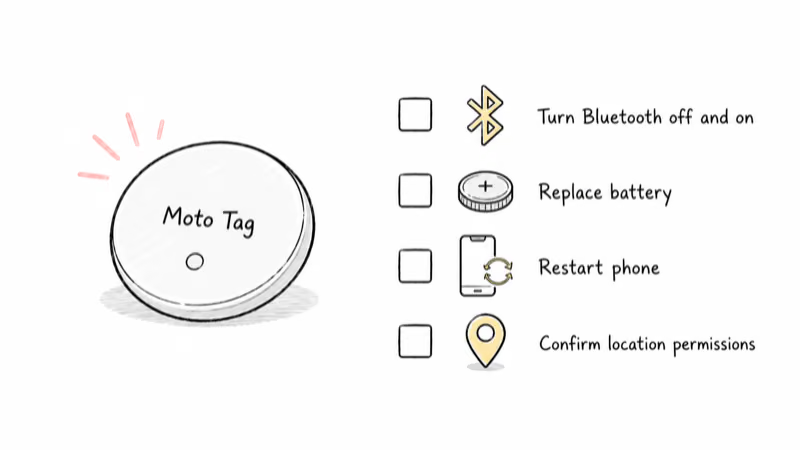
The pairing card doesn’t appear. Make sure Bluetooth and Location are on, the Find Hub app is updated from the Play Store, and the tag is close to the phone. Lock and unlock the phone to force a fresh scan. If nothing happens, restart the phone.
The tag is already registered. A secondhand Moto Tag may still be linked to a previous owner’s Google Account. They need to remove it from their Find Hub first. If that’s not possible, a factory reset of the tag plus a wait for automatic disassociation usually clears it.
The Find Hub app is out of date. An old app version may not recognize a newer Moto Tag 2. Update Find Hub from the Play Store, then reopen it and try again with the tag held close.
The tag won’t connect after the card appears. Toggle Bluetooth off, wait briefly, toggle it back on, and retry. If it still fails, press firmly on the battery cover until you hear a click, since the cell may not have made contact when the tab came out.
The tag pairs but never updates location. Confirm Location is set to high accuracy and the tag is within range of other Android phones to relay through. For deeper fixes on a tag that stays stuck on an old location, our Find Hub tracker not updating guide covers the full checklist.
Bottom Line
Moto Tag setup is quick: pull the tab, open Find Hub, hold the tag close, name it, done. The part most people skip is turning on Separation Alerts and adding trusted locations afterward.
That extra alert setup is what separates a tag that sits in Find Hub doing nothing from one that warns you before your bag walks off. Both Moto Tag generations use the same pairing flow, and a single Google Account tracks all of your tags with no subscription fees.
FAQ
Can I set up a Moto Tag with an iPhone?
No. The Moto Tag pairs only to Google Find Hub and requires an Android phone for setup, tracking, and configuration. iPhone owners can detect a nearby unknown Moto Tag through Apple’s cross-platform anti-stalking standard and disable it, but they can’t pair, name, or track one. If you need a tracker that works on both platforms, look at a dual-network Pebblebee Clip 5 or Chipolo LOOP.
What app do I need to set up a Moto Tag?
You need the Google Find Hub app, installed and updated from the Play Store. Find Hub replaced the older Find My Device app and is the single app that pairs, names, locates, and shares a Moto Tag. Make sure it’s on the latest version before pairing, since an outdated app may not recognize a newer Moto Tag 2.
How many Moto Tags can I add to one Google Account?
You can add multiple Moto Tags to a single Google Account, and each appears as a separate device in Find Hub. There is no practical limit for typical use, and you can mix Moto Tags with other Find Hub trackers like the Chipolo Pop or Pebblebee Clip on the same account and map.
Why won’t my Moto Tag pair during setup?
The most common causes are Bluetooth or Location being off, an out-of-date Find Hub app, or the tag sitting too far from the phone. Turn both on, update the app, hold the tag close, and lock then unlock the phone to force a fresh scan. If the tag was used before, it may still be registered to a previous owner who needs to remove it first.
Can I rename my Moto Tag after the initial setup?
Yes. Open Find Hub, tap the Moto Tag, tap the name at the top of its card, and type a new name. The change takes effect immediately across your devices. Renaming is handy when you reassign a tag from one item to another, like moving it from your keys to a travel bag.
Is the setup process different for the Moto Tag 2?
The setup process is identical. Same battery tab, same Find Hub pairing card, same naming and Google Account registration. The Moto Tag 2’s upgrades are internal: Bluetooth 6.0 with Channel Sounding, IP68 water resistance, and more than 600 days of rated battery life. The precision feature needs compatible hardware, but it does not change any setup step.
How do I set up left-behind alerts for my Moto Tag?
Open Find Hub, tap your Moto Tag, find the alerts section, and turn on Separation or left-behind notifications. Then add trusted locations like home and work so the app stays quiet there. Without trusted-location exceptions, you would get a false alert every time you leave a place without that specific tag.