A SmartTag 2 reset is a hardware recovery step for a frozen or unresponsive tracker. Reassignment is separate: Samsung’s SmartTag support guidance says to remove the tag from SmartThings before connecting it to another phone.
- The battery tray is part of the reset — a simple button hold is not Samsung’s SmartTag 2 procedure.
- Press once before reinserting — then hold the button while the tray goes back in.
- Keep holding for more than 7 seconds — release after the tracker makes a sound.
- An immediate sound means retry — Samsung says that can indicate the battery was not recognized correctly.
- Reassignment happens in SmartThings — remove the tag from the app before adding it to another phone.
Whether your SmartTag 2 is frozen and unresponsive, you are transferring it to a new owner, or it suddenly says it belongs to someone else, the steps below cover the reset itself plus the account work that a reset alone can’t do.
How Do You Reset a Samsung SmartTag 2?
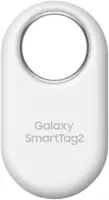
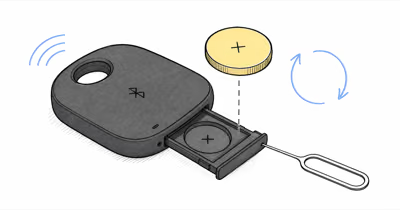
According to Samsung’s SmartTag 2 troubleshooting guide, the reset uses the removable battery tray and the tag button together. Don’t substitute the older SmartTag’s cover-removal sequence or a simple long press.
Step 1: Use the supplied ejection pin or a small paper clip to pull the battery tray out gently.
Step 2: Press and release the SmartTag 2 button once.
Step 3: Press the button again and keep holding it while you reinsert the battery tray.
Step 4: Samsung states that you should continue holding for more than 7 seconds, until the SmartTag 2 makes a sound, then release.
If the tag sounds immediately when the tray is inserted, Samsung says the battery may not have been recognized correctly. Check that the CR2032 positive terminal follows the + marking, then repeat the sequence.
Reassignment and SmartThings Removal
A successful hardware reset does not replace the SmartThings removal step. If the goal is to connect the tracker to another phone, remove it from the SmartThings device list first, then reset and add it on the destination phone.
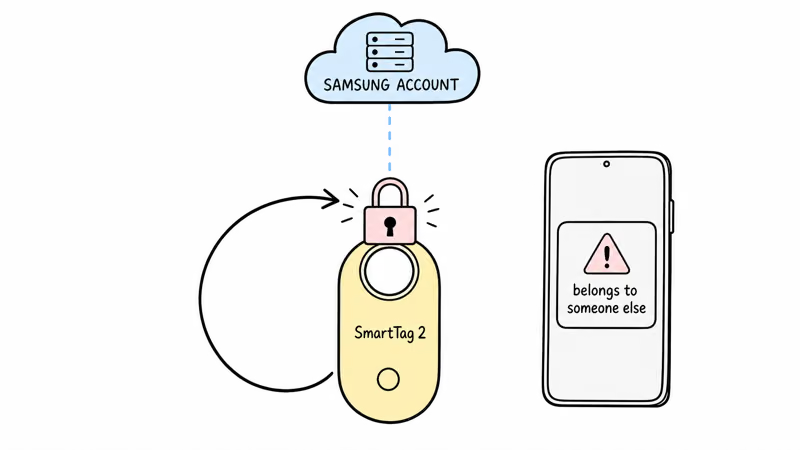
The practical sequence is remove, reset, then add. Samsung confirms that its current removal flow deletes the tracker from the SmartThings device list; the hardware reset is the separate recovery step that follows.
How Do You Remove a SmartTag 2 From SmartThings?
De-registration happens in SmartThings, not on the tag itself. The original owner has to do this from a device still signed into the account that owns the tag.
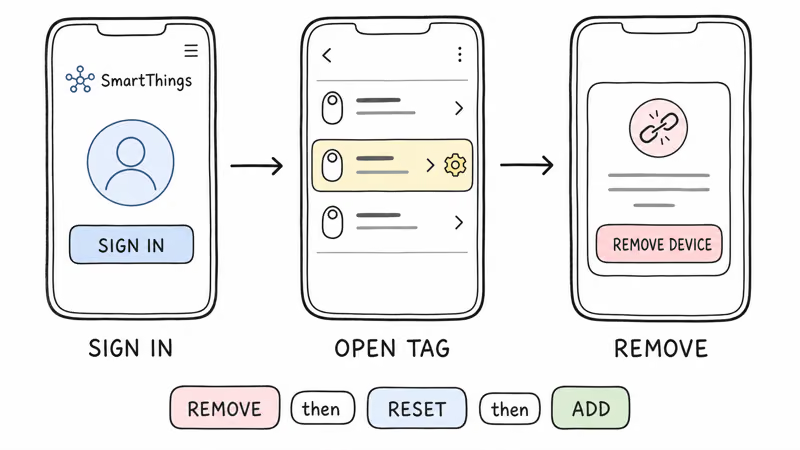
Step 1: Open SmartThings or SmartThings Find and sign in with the original Samsung account.
Step 2: Open the SmartTag 2 from the device list and its More options menu.
Step 3: Choose Remove device and confirm. Labels can vary slightly by SmartThings version and region.
Once it’s removed, the tag is free. Run the hardware reset, then open SmartThings on the new phone with Bluetooth on and add the tag as a fresh device. For wider connection problems beyond the account lock, our guide to diagnosing a SmartTag that won’t connect covers the permission and app-cache fixes that resolve offline tags.
When the Original SmartThings Account Is Unavailable
Don’t assume repeated hardware resets can replace account access. Samsung’s public instructions require removing the tracker in SmartThings before reassignment. If you can’t access the account that manages the tag, contact Samsung support with the model, serial details and proof of purchase; the public documentation does not promise a remote ownership release.
Battery Checks Before You Repeat the Reset
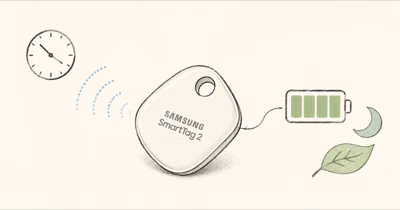
Samsung’s SmartTag 2 maintenance guide identifies a CR2032 battery and rates normal use at about 500 days and Power Saving Mode at about 700 days. A depleted or misaligned battery can prevent a response, so check the + orientation and wipe the terminals with a clean, dry cloth before repeating the forced reset.
After the Reset
Once the tracker sounds, open SmartThings on the intended Galaxy phone and add the SmartTag 2 through the normal device flow. If the tag was being reassigned, confirm that the previous SmartThings removal completed before repeating hardware steps.
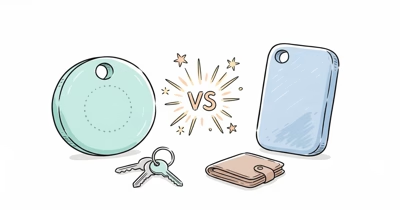
If you are deciding whether to keep fighting a stubborn tag or replace it, our SmartTag 2 review covers its reliability, and our Moto Tag versus SmartTag 2 comparison weighs the Find Hub alternatives.
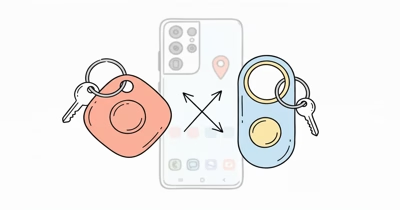
iPhone owners who inherited a tag should read our note on using a SmartTag 2 with an iPhone before resetting, since the cross-platform limits change what’s possible.
Bottom Line
A SmartTag 2 forced reset requires the battery tray: remove it, press the button once, then hold the button while reinserting the tray for more than 7 seconds until the tracker sounds. For reassignment, remove the tracker in SmartThings first, then reset and add it to the destination phone.
FAQ
How do I reset a Samsung SmartTag 2?
Remove the battery tray, press and release the button once, then press it again while reinserting the tray. Keep holding for more than 7 seconds until the SmartTag 2 makes a sound. If it sounds immediately on insertion, check the CR2032 orientation and repeat the sequence.
Why does my SmartTag 2 say it belongs to someone else?
Samsung requires a SmartTag to be removed from SmartThings before it’s connected to another phone. Ask the current account holder to open the tag’s More options menu, choose Remove device and confirm, then run the forced reset and add it on the destination phone.
Can I reset a secondhand SmartTag 2 without the previous owner?
Don’t rely on the hardware reset alone. Samsung’s public instructions require removing the tracker from SmartThings before reassignment. If the managing account is unavailable, contact Samsung support with proof of purchase, but the public guidance does not guarantee that support can release it remotely.
Why does my SmartTag 2 sound immediately when I reinsert the battery?
Samsung says an immediate sound during the forced-reset sequence can mean the battery was not recognized properly. Pull out the tray, confirm the CR2032 positive terminal follows the + marking, then repeat the press-once and hold-while-inserting sequence.
What battery does SmartTag 2 use?
SmartTag 2 uses one non-rechargeable CR2032 coin cell in its slide-out battery tray. Align the positive terminal with the + marking, don’t recharge the supplied cell, and replace a depleted battery before diagnosing the tracker as faulty.
What’s the correct order to transfer a SmartTag 2 to a new owner?
Use remove, reset, then add. The current account holder removes the tag in SmartThings, then performs the battery-tray forced reset, and the destination phone adds it as a new device. This keeps the account-management step separate from the hardware recovery step.