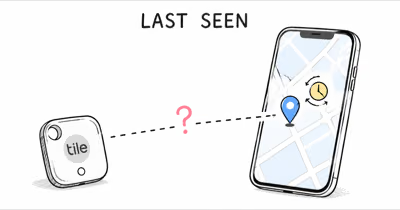
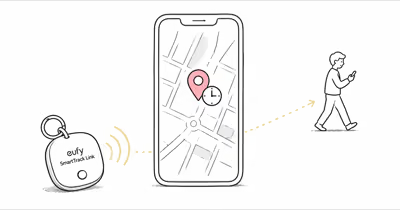
A SmartTag 2 that only updates near your phone is working as designed: it has no GPS and refreshes only when a Galaxy device passes in Bluetooth range. Turn on Offline Finding for both the phone and the tag.
The SmartTag 2 isn’t a real-time tracker. Samsung’s official SmartTag finding guide states that the Bluetooth connection maxes out at 120 metres, after which the Galaxy Find Network of other people’s phones takes over.
- No GPS, no self-updating — the tag refreshes only when a Galaxy device with Offline Finding passes within its 120-metre Bluetooth range.
- Two Offline Finding switches must be on — one for your phone (Find My Mobile) and a separate one for the tag in SmartThings Find.
- Location permission must be Allow all the time — background or while-using-app permission stalls offline updates.
- Density decides accuracy — in rural or low-Samsung areas the network is thin, so a tag can go hours between pings.
- A dead or near-dead CR2032 stops updates entirely — check the battery percentage before assuming a software bug.
Whether your SmartTag 2 only refreshes when you tap the screen, shows the same spot as your phone even when the tag is miles away, or has frozen on an old location entirely, the cause is almost always one of a handful of settings. The fixes below move from the most common to the rarest.
Why Does My SmartTag 2 Only Update Near My Phone?
This is the question that confuses most owners, and the answer is the core of how the tag works. The SmartTag 2 has no GPS chip of its own. It’s a Bluetooth beacon, so your phone reports its position only when the two are close enough to talk.
According to Samsung’s Offline Finding support page, that connection is capped at 120 metres in open space and far less indoors. Beyond that range, the tag depends entirely on other Galaxy devices acting as find nodes.
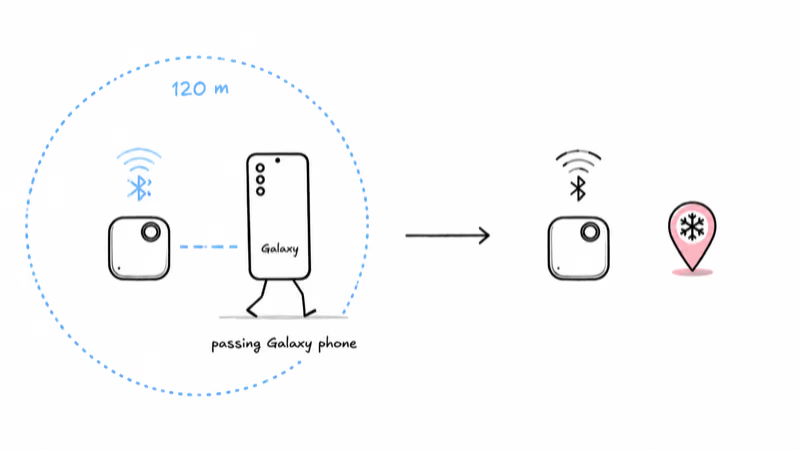
When the tag is out of your phone’s range, it relies on the Galaxy Find Network: a crowdsourced web of other Samsung devices that quietly detect the tag’s signal and report its position back to you. If no opted-in Galaxy phone walks past the tag, nothing updates.
That’s the single biggest reason a tag in a parked car or a checked bag sits frozen, and it’s why the tag always looks accurate at home where your own phone is nearby.
A SmartTag 2 left in a quiet residential area may sit frozen until a Galaxy phone happens to pass within range. The same tag in a busy shopping centre has more chances to refresh. The network is real, but it’s only as dense as the Samsung phones around your tag.
How Do You Force a SmartTag 2 Location Update?
You can’t force the tag itself to ping on command, because it waits for a phone to find it. What you can do is fix the phone side so updates actually arrive, then trigger a fresh look. Work through these in order.
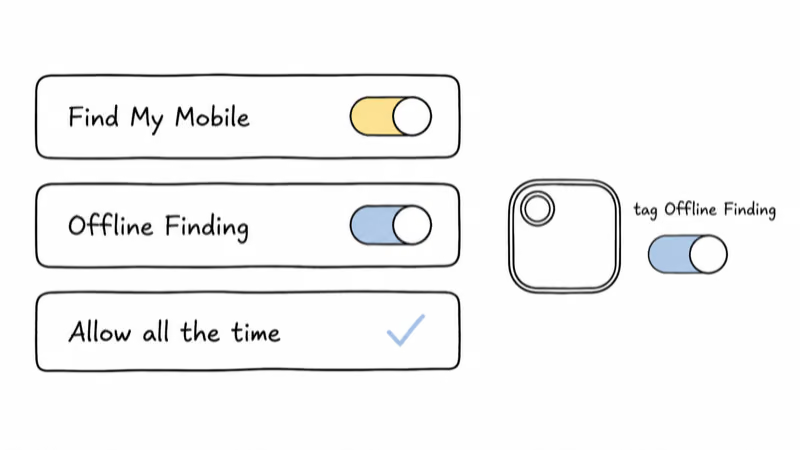
Step 1: On your Galaxy phone, open Settings, tap your Samsung account or Security and privacy, then Find My Mobile. Turn on both Find My Mobile and Offline Finding. This single switch opts your phone into the Galaxy Find Network as a relay node.
Step 2: Open SmartThings Find, tap your SmartTag 2, open its settings, and confirm Offline Finding is on for the tag itself. The phone toggle and the tag toggle are separate, and a tag with its own Offline Finding off will never update beyond Bluetooth range.
Step 3: In Android Settings, go to Apps, SmartThings, Permissions, Location, and set it to Allow all the time. While-using-app permission blocks the background scanning that offline updates depend on.
Step 4: Force-stop the SmartThings or SmartThings Find app and reopen it, then pull down to refresh the map. If any Galaxy device is in range of the tag, this gives the app a fresh chance to display the latest relay.
Enabling the tag-side Offline Finding toggle is often the fix that lets a stalled tag update away from the house. If the map updates after these steps, the problem was a missing toggle. If it still freezes, move on to the connectivity and battery checks below.
The SmartTag 2 Also Needs an Internet Connection
This trips up more people than the network density issue. The phone relaying the tag’s location must have a working data connection to send the update to Samsung’s servers. A SmartThings Community thread on a tag that only refreshed when manually refreshed traced the stall back to exactly this: without usable internet on the host phone, the position never reaches the map.
So if your tag updates on Wi-Fi at home but goes stale the moment you leave, check that your phone’s mobile data is on and that a VPN isn’t interfering. Some VPN configurations block the location handshake. Disable the VPN while you troubleshoot, then re-enable it once updates flow.
The same rule applies to the strangers’ phones helping you. A passing Galaxy device with Offline Finding on but no data connection can’t relay your tag’s position, which is another reason updates can lag even in a crowd.
Settings and Battery Traps That Freeze the Location
Two phone-side traps and one tag-side trap account for most of the remaining cases. Rule them out before you assume a software bug.
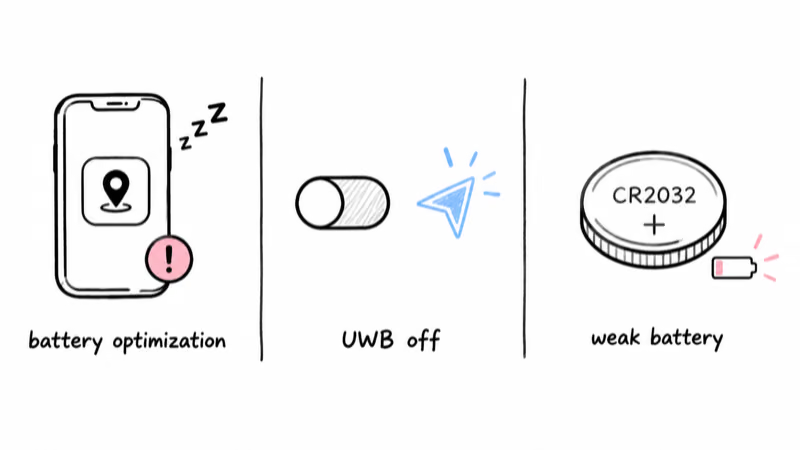
Battery optimization is the quiet killer. Samsung, OnePlus, and Xiaomi phones aggressively put background apps to sleep, and a sleeping SmartThings app stops scanning for nearby tags. In Settings, Apps, SmartThings, Battery, set it to Unrestricted so it can keep relaying in the background.
Ultra-wideband matters for precise finding. In Connections, make sure UWB is on. The SmartTag 2 uses both Bluetooth Low Energy and UWB, and disabling UWB can degrade how reliably nearby devices lock onto the tag.
A weak battery ends the conversation. Open the tag in SmartThings Find and check the battery percentage. A dying or dead CR2032 can’t broadcast, so the location simply stops. If you’re due for a swap, our guide to replacing the SmartTag 2 battery walks through the slide-out tray and the correct coin-cell orientation.
When the Location Is Still Stuck After Every Fix
If the alarm is silent too, our SmartTag 2 not ringing guide tackles that.
If you’ve confirmed both Offline Finding toggles, set location to Allow all the time, ruled out battery optimization, and the tag still won’t move on the map, the registration itself may be hung. A clean re-pair can clear that state.
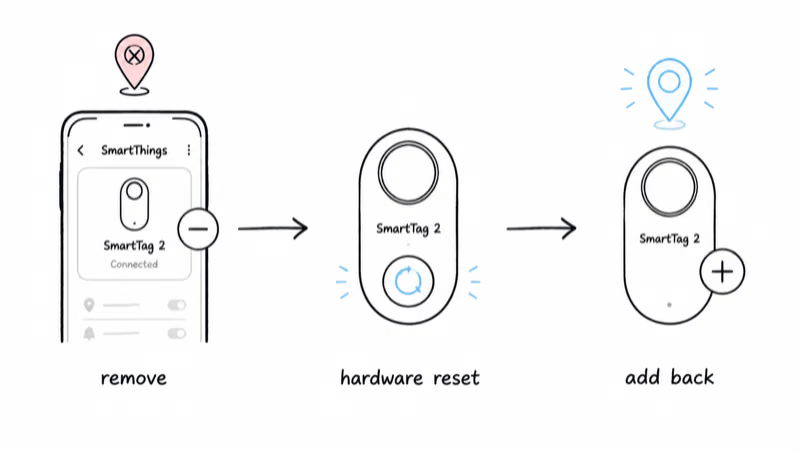
Open SmartThings, find the SmartTag 2, and remove it from the account. Then do a hardware reset on the tag and add it back as a fresh device. The full button sequence and the account-lock caveat are covered in our guide to resetting a frozen SmartTag 2, which matters because a hardware reset alone doesn’t clear the Samsung account registration.
One persistent pattern worth knowing: some owners on the Samsung Community thread on this exact problem reported that the stall survived a phone upgrade, pointing the finger at the Galaxy Find software rather than their hardware. If a re-pair and every setting check fails, it may be a server-side issue that only resolves with a SmartThings app update or a wait, not anything you can fix locally.
For a wider sweep of connection problems beyond stale location, our guide to diagnosing a SmartTag that won’t connect covers the permission and app-cache fixes, and the Find Hub network hub compares how the rival crowdsourced networks handle density.
When the SmartTag 2 Is the Wrong Tool
One limit here deserves an honest word, because no setting fixes it. Several owners bought the SmartTag 2 to track a child, a pet, or a vehicle in real time and were disappointed, because crowdsourced Bluetooth finding isn’t live GPS.
If you need a location that updates every few seconds regardless of who is nearby, a Bluetooth tag of any brand is the wrong category. A cellular GPS tracker reports its own position over LTE without depending on a passing phone. The SmartTag 2 is excellent for finding keys, a wallet, or luggage that drifts within reach of other Galaxy users, and frustrating for anything that needs continuous, density-independent tracking.
Bottom Line
A SmartTag 2 that only updates near your phone is behaving normally: it has no GPS and refreshes only when a Galaxy device with Offline Finding passes within 120 metres. Turn on Offline Finding for both the phone and the tag, set SmartThings location to Allow all the time, disable battery optimization, and confirm the host phone has data.
If the map still freezes after a clean re-pair, suspect a server-side Galaxy Find issue, or accept that crowdsourced finding can’t match real-time GPS.
FAQ
Why does my SmartTag 2 only update when it’s near my phone?
The SmartTag 2 has no GPS. It’s a Bluetooth beacon, so your phone can only report its position when the two are within about 120 metres of each other. Beyond that range it depends on other Galaxy phones in the Galaxy Find Network to detect it and report its location. If no opted-in Galaxy device passes the tag, the map stays on the last known pin.
How do I turn on Offline Finding for a SmartTag 2?
There are two separate switches. On your phone, open Settings, your Samsung account or Security and privacy, then Find My Mobile, and turn on both Find My Mobile and Offline Finding. Then open SmartThings Find, tap the SmartTag 2, open its settings, and confirm Offline Finding is on for the tag itself. A tag with its own toggle off will never update beyond Bluetooth range.
Does the SmartTag 2 need an internet connection to update?
Yes. The phone relaying the tag’s location, whether yours or a stranger’s, needs a working data connection to send the update to Samsung’s servers. A tag that updates on Wi-Fi at home but freezes when you leave usually means the host phone lost data. Check mobile data and disable any VPN that might block the location handshake while you troubleshoot.
Why is my SmartTag 2 showing the same location as my phone?
When the tag is within Bluetooth range of your phone, the app reports the tag at your phone’s position because that is the device detecting it. If the tag is actually somewhere else but still shows your location, it usually means no other Galaxy device has detected it since it left your side, so the network has no newer data to display. The map updates once an opted-in Galaxy phone passes the tag.
Can battery optimization stop a SmartTag 2 from updating?
Yes. Samsung, OnePlus, and Xiaomi phones put background apps to sleep by default, and a sleeping SmartThings app stops scanning for tags. In Settings, Apps, SmartThings, Battery, set it to Unrestricted so it keeps relaying in the background. Check this when updates work only while the app is open.
How do I fix a SmartTag 2 location that is completely frozen?
First confirm both Offline Finding toggles, set SmartThings location permission to Allow all the time, and disable battery optimization. If the location still won’t move, remove the tag in SmartThings, perform a hardware reset, and add it back as a new device. If a clean re-pair fails, it may be a server-side Galaxy Find issue that resolves with a SmartThings app update rather than a local fix.
Is the SmartTag 2 good for tracking a child, pet, or car?
Not for real-time tracking. The SmartTag 2 relies on crowdsourced Bluetooth finding, so it updates only when a Galaxy device passes nearby, not continuously. For something that needs a live position every few seconds regardless of who is around, a cellular GPS tracker that reports over LTE is the right category. The SmartTag 2 is best for keys, wallets, and luggage that stay near other Galaxy users.