If your Tile location is not updating, the map is showing the last place a phone detected it over Bluetooth, not a live position. Open the Tile app to force a refresh, set the app’s location permission to Always with Bluetooth on, and stay near the tracker so your phone can reconnect and drop a fresh pin.
A Tile that shows an old location feels broken, but it usually is not. Tile has no GPS inside. According to Tile’s support team, in its find guide the map only refreshes when a phone running the app passes within Bluetooth range of the tracker.
Across Mate, Pro, and Slim units, a stale pin almost always comes down to how Tile reports its location rather than a faulty tracker. Let’s walk through why the map freezes and how to get it refreshing again.
- Tile shows a last-seen location, not live GPS — the pin updates only when a phone with the app passes within Bluetooth range of the tracker.
- Opening the app forces a fresh scan — a foregrounded Tile app can reconnect and update the pin when you are near the tracker.
- Location must be set to Always with Precise on — “While Using” stops background updates so the map freezes the moment you close the app.
- Out of your range, the Tile Network does the updating — if no other Tile or Life360 user passes the tracker, the location simply won’t move.
- A frozen timestamp even when you are next to the Tile points to a permission, Bluetooth, or app-state problem you can clear in a few minutes.
Why Is My Tile Showing the Wrong Location?
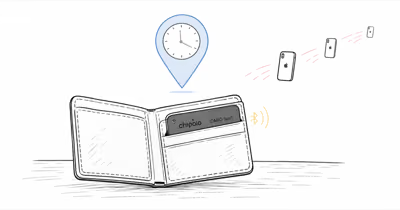
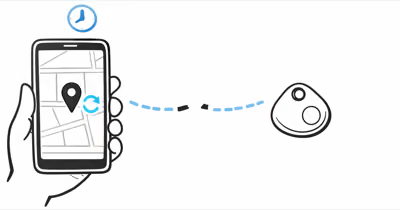
The single biggest source of confusion is expecting Tile to behave like a GPS tracker. It does not. A Tile broadcasts a Bluetooth signal, and the location you see is wherever a phone last heard that signal and reported it to Tile’s servers.
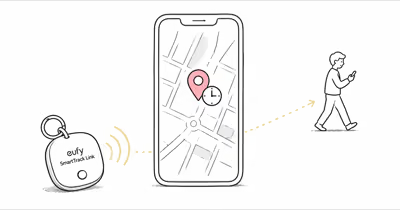
The timestamp under the map is the key. If it says the Tile was seen an hour ago, the map is an hour old. Nothing is wrong with the tracker; no phone has simply been close enough to it since then to update the position.
Leave a Tile in a parked car overnight and walk away, and the map holds the parking-spot location until a household phone passes back by the car the next morning. The pin updates once a phone hears the tracker again. That gap is the system working as designed, not a fault.
How Tile Updates Its Location
Tile refreshes a location two ways, and understanding both tells you exactly why a pin is stale. The first is your own phone. When your phone comes within Bluetooth range of the Tile with the app allowed to run in the background, it reconnects and reports the position.
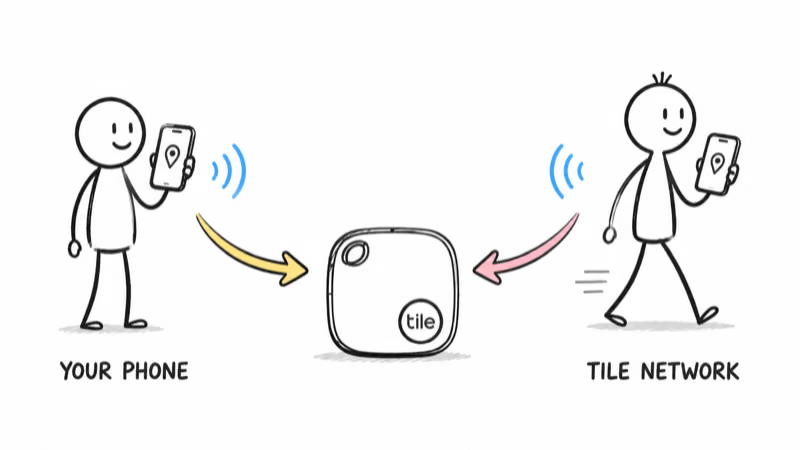
The second is the Tile Network, a crowd-finding system. According to Tile’s community find overview, any other phone running the Tile or Life360 app that passes your lost Tile anonymously reports its location to you.
This means location updates depend entirely on Bluetooth proximity. If neither your phone nor a stranger’s phone gets close to the tracker, the map can’t and won’t move. A Tile sitting alone in an empty house all day is invisible to the network until someone walks back in.
Force the Tile App to Refresh
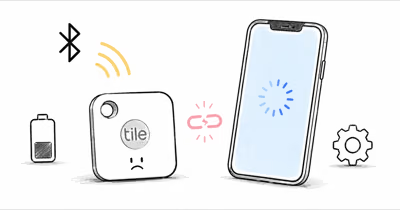
The fastest fix when you are near the tracker is to wake the connection up by hand. Tile holds a background link, but it can drift into a stale state where the app shows an old pin even though the Tile is right beside you.
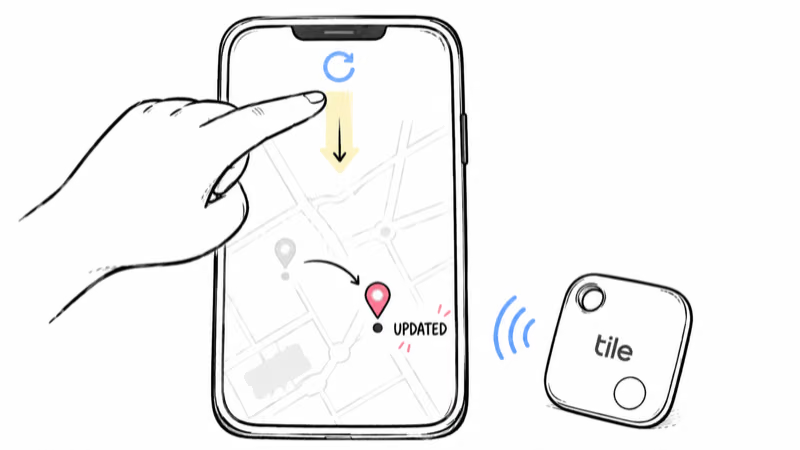
Open the Tile app and let it sit on the map screen. Foregrounding the app triggers a Bluetooth scan, and if the Tile is in range, the pin and timestamp can update after the app reconnects. This single step clears many stale pins when the tracker is actually nearby. Pull down on the map to manually trigger a re-scan on most app versions.
If the pin still won’t move with the Tile in your hand, press the Tile’s button so it plays its tune. A Tile that responds to the button but won’t update the map is connected but stuck, which the next steps clear. If it stays silent, jump to the battery and reset section in our Tile troubleshooting walkthrough.
Check Location and Background Permissions
A location that never updates in the background is the classic symptom of a permission set too low. Tile needs constant location access to report positions while the app is closed, and a single wrong toggle freezes the map.
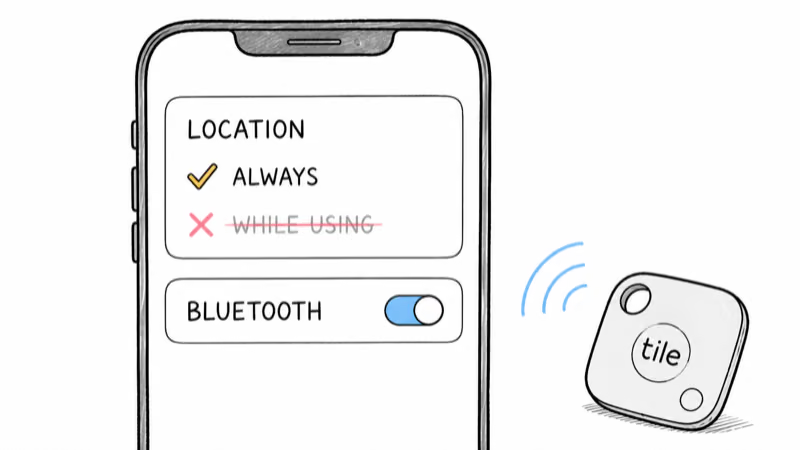
On iPhone, open Settings, tap the Tile app, and set Location to Always with Precise Location turned on. “While Using the App” looks fine until you close Tile, at which point background updates stop dead. Confirm Bluetooth is enabled for Tile in the same screen.
On Android, grant Location set to “Allow all the time,” plus Nearby Devices and Bluetooth permissions. Apple documents the same requirement for any accessory in its Bluetooth accessory guide: without explicit background access, the app can’t keep reporting. Battery-optimization settings on Android can also suspend the Tile app, so exempt it from aggressive power saving.
When the Last-Seen Location Stays Stale
Sometimes everything on your phone is correct and the location is still old. This happens when the Tile is somewhere your phone can’t reach and the Tile Network has no nearby users to do the updating for you.
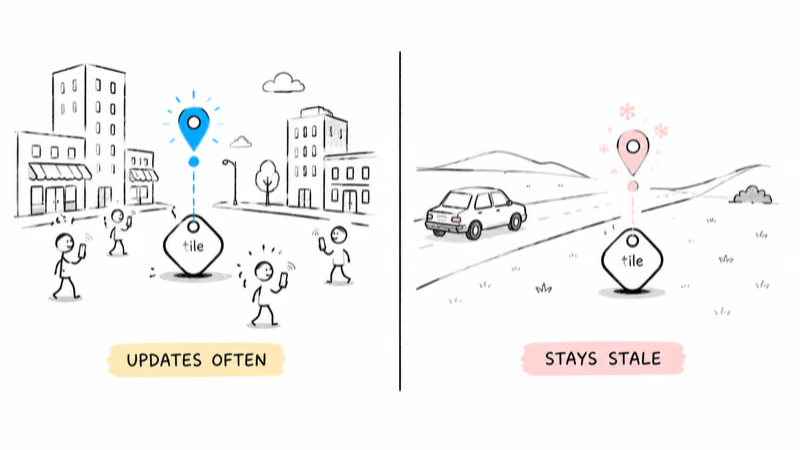
Network density is the hidden variable. In a busy city, other Tile and Life360 users pass a lost tracker often, so updates land frequently. In a rural area, a parked car on a quiet street, or inside a locked building, hours can pass with no one near the Tile, and the pin holds its last position the whole time.
Turn on “Notify When Found” for the Tile in the app. Instead of staring at a frozen map, you get an alert the moment any network phone detects the tracker, which is far more useful for a lost item than refreshing the screen yourself.
How Can I Make My Tile Update More Often?
You can’t force strangers to walk past your Tile, but you can remove every obstacle on your own side so updates land the instant they’re possible. Start with the permission and Bluetooth checklist above, then keep the app installed and signed in at all times.
Range also shapes how reliably your own phone refreshes the pin at home. According to Tile, the Pro is rated up to 500 feet while the Mate reaches 350 feet.
Through interior walls, both drop well below those rated numbers before the app loses the link, since drywall, appliances, and furniture all absorb the signal. If your Tile keeps losing the connection indoors, our Tile Mate versus Tile Pro breakdown compares their effective range so you can pick the right unit.
If the location problem is really a connection problem in disguise, the tracker may not be reaching your phone at all. Our guide to fixing a Tile that won’t connect covers the Bluetooth, range, and account causes that stop a Tile from ever reporting in the first place.
Restart, Reinstall, and Re-Add the Tile
When permissions are correct, Bluetooth is on, and you are standing next to the tracker but the timestamp still won’t move, the app’s local state is the likely culprit. A clean restart usually shakes it loose.
Try this sequence: force-close the Tile app, toggle your phone’s Bluetooth off and back on, then reopen the app on the map screen. If the pin stays frozen, restart the phone to clear the Bluetooth stack entirely, which resolves most stubborn update failures.
As a last resort, remove the Tile from your account and re-add it as a new device. This forces a fresh pairing handshake and clears any corrupted link data. If even a re-added Tile refuses to update while in range, treat it as a hardware or battery fault rather than a software glitch.
Bottom Line
A Tile that is not updating location is almost always showing a correct last-seen position rather than failing. The map moves only when a phone passes the tracker over Bluetooth, so open the app to force a refresh, set location to Always with Bluetooth on, and stay near the Tile to let your own phone update the pin.
If the timestamp stays frozen even with the Tile in your hand and permissions correct, work through a restart, reinstall, and re-add before blaming the hardware. And if Tile’s crowd-finding network feels too thin where you live, it’s worth comparing networks in our roundup of the best Bluetooth trackers before your next purchase.
FAQ
Why is my Tile not updating its location?
Tile has no GPS, so the map shows the last place a phone detected the tracker over Bluetooth. If no phone with the app has passed the Tile since the timestamp shown, the location can’t update. Open the app while near the Tile to force a refresh, and confirm location permission is set to Always so background updates keep working.
Does Tile track in real time?
No. Tile is not a live GPS tracker. It reports a last-seen location whenever your phone or another Tile Network user comes within Bluetooth range of the tracker. Between those moments the pin holds its previous position, which can look like a tracking failure but is normal for a Bluetooth tracker.
How do I refresh my Tile location?
Open the Tile app and sit on the map screen so it scans for the tracker, and pull down on the map to trigger a manual re-scan on most versions. If you are within range, the pin and timestamp update after the app reconnects. If nothing changes, check that Bluetooth is on and the app has Always location permission.
Why does my Tile show an old location?
An old location means no phone running the Tile or Life360 app has been near the tracker since that timestamp. In quiet or rural areas the crowd-finding network is thin, so updates are rare. Turn on “Notify When Found” so you get an alert the moment any network phone detects the Tile rather than watching a frozen map.
Does the Tile app need Always location to update?
Yes. With location set to “While Using the App,” background updates stop the moment you close Tile, so the map freezes. Setting location to Always with Precise Location on lets the app keep reporting positions in the background. On Android you also need Nearby Devices permission and an exemption from aggressive battery optimization.
Will Tile update if my phone is not near it?
Only through the Tile Network. If your own phone is not near the tracker, the location updates when any other Tile or Life360 user passes it and anonymously reports the position. In areas with few Tile users, that may not happen for hours, and the pin stays put until someone gets close.
Why is my Tile location frozen even when I am next to it?
If the Tile is in your hand and the pin still won’t move, the app is connected but stuck. Force-close the app, toggle Bluetooth off and back on, and reopen it on the map screen. If that fails, restart the phone, then remove and re-add the Tile to force a fresh pairing. A persistent freeze in range points to a battery or hardware fault.