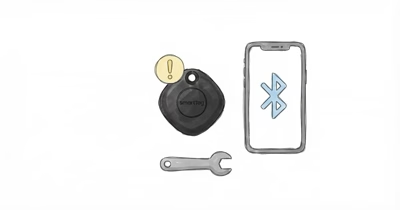
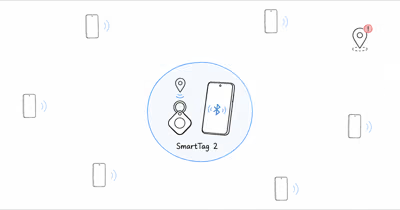
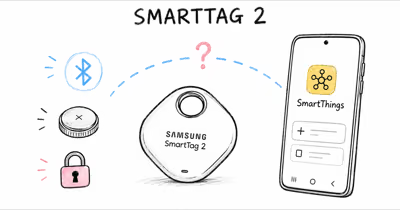
The ring feature is purely a Bluetooth function, so it fails the moment the tag and phone lose contact. Samsung’s official troubleshooting page states that a phone won’t ring on a double-press most likely because the SmartTag is not connected to your phone.
- The ring is Bluetooth-only — both phone-ring and tag-ring stop working the instant the two devices drop their ~120-metre connection.
- Two-way ringing needs two switches — double-press phone ringing requires Let tag find your device, and tag ringing requires the tag to be paired and in range.
- DND and volume kill the phone ring silently — but the tag’s own ring plays at maximum volume for one minute even on mute.
- A weak CR2032 silences the tag — a battery marked Sufficient can still be too low to drive the speaker; swap it to test.
- A clean re-register is the last step — removing and re-adding the tag can clear a hung SmartThings Find link.
There are two separate failures hiding under “not ringing”: the tag double-press won’t ring your phone, or the tag itself won’t play a sound when you tap Ring. The fixes differ, so this guide splits them and starts with the connection checks.
Why Wont My SmartTag 2 Ring My Phone?
The double-press feature is a Bluetooth handshake, not a cloud command, so it only works while the tag and phone are connected. Samsung’s support guidance for this symptom states that the cause is most likely a SmartTag that isn’t connected to your phone. The fix is to confirm the connection, then turn on the Let tag find your device option.
That connection lives or dies inside roughly 120 metres of Bluetooth range, and far less indoors. The Let tag find your device toggle is what makes the double-press work, and it sits off by default on a freshly added tag.
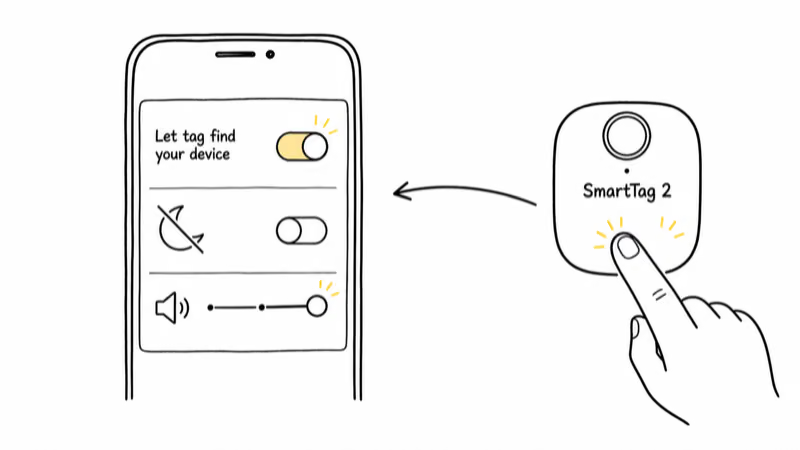
Fix 1 — turn on Let tag find your device. Open SmartThings, tap the SmartTag 2, open its settings, and enable Let tag find your device. Without this switch, double-pressing the tag does nothing to your phone no matter how close the two sit.
Fix 2 — clear Do-Not-Disturb and raise the volume. The phone rings through your normal ringer, so an active Do-Not-Disturb (DND) schedule, a muted profile, or a volume set to zero all swallow the alert. Disable DND and turn the media and ringer volume up before you test again.
Fix 3 — reconnect the Bluetooth link. If the tag shows Disconnected in SmartThings, the double-press has nothing to talk to. Toggle the phone’s Bluetooth off and on, then open the tag and wait for it to read Connected. Bring the tag within a few metres of the phone while it reconnects.
If the tag refuses to ring the phone from farther away, move within line of sight before retrying. Walls cut the usable Bluetooth range far below the open-air maximum.
Why Wont the Tag Itself Ring?
The other half of the problem is the reverse: you tap Ring in the app and the tag stays silent. This too depends on a live connection. As one owner put it on a SmartThings Community thread about ringing a SmartTag, “Until you are Connected you can’t ring the tag.”
When the tag is in range and paired, the sound is loud and time-boxed. Samsung’s SmartThings Find documentation states that the Ring option makes the device ring at maximum volume for 1 minute, and it will ring even if it’s set to mute or vibrate. So if the tag is connected and still silent, the speaker, battery, or registration is the suspect, not your phone’s audio settings.
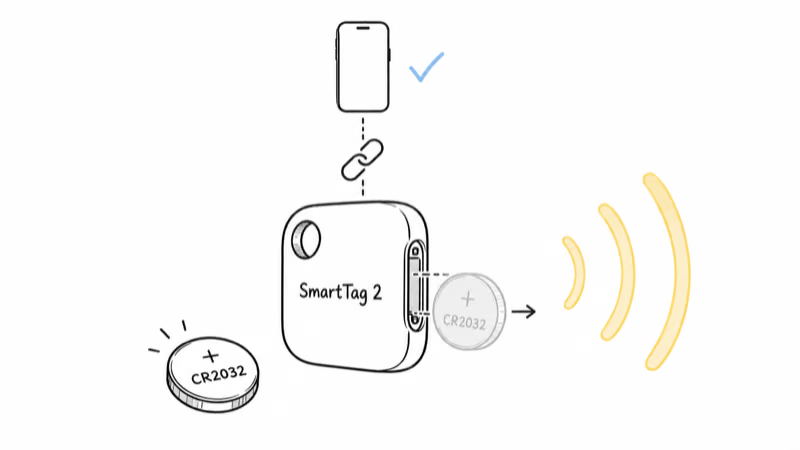
Fix 4 — confirm the tag is connected, then ring from the right screen. Open SmartThings Find, select the SmartTag 2, and check that it reads Connected before you press Ring. A tag relying on the crowdsourced Galaxy Find Network rather than your own phone can’t play a live sound, because the ring command needs a direct Bluetooth path to the tag.
Fix 5 — check the ring volume and ringtone settings. The SmartTag 2 has low, medium, and high ring volumes plus a selectable ringtone. A tag accidentally set to low can sound silent in a noisy room or buried in a bag. Open the tag, raise the ring volume to high, and re-test in a quiet space.
Fix 6 — replace the battery even if it reads Sufficient. A coin cell can hold enough charge to report Sufficient yet still be too weak to drive the speaker at volume. Several owners found a fresh CR2032 restored the ring when nothing else did. Our walkthrough for replacing the SmartTag 2 battery covers the slide-out tray and the correct coin-cell orientation, which matters because an upside-down cell makes no contact at all.
A Clean Re-Register Fixes a Stubborn Ring
If both the phone-ring and the tag-ring still fail after the connection, volume, and battery checks, the registration link to SmartThings Find has likely hung. A clean re-register clears it.
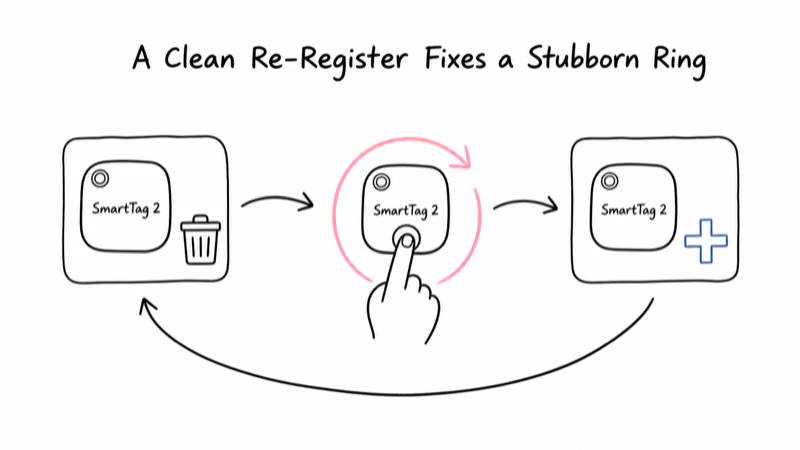
Fix 7 — remove and re-add the tag. Open SmartThings, find the SmartTag 2, and delete it from the account. Then perform a hardware reset on the tag and add it back as a fresh device. The full button sequence and the account-lock caveat live in our guide to resetting a stuck SmartTag 2, which matters because a hardware reset alone won’t clear the Samsung account registration.
When Every Tag Stops Ringing at Once
One overlooked culprit is account-level: a phone that has quietly fallen out of SmartThings Find will refuse to ring for every tag at once. If none of your tags ring your phone, signing out of your Samsung account and back in re-registers the device with the find service and can restore ringing across the board.
If the silence comes with other oddities, the fault may be broader than the ring feature. A tag that chirps on its own rather than refusing to ring is a different problem, covered in our guide to a SmartTag that keeps beeping. A tag that won’t connect at all, ring included, points to the permission and app-cache fixes in our walkthrough for a SmartTag that won’t work.
The Ring Only Works at Bluetooth Range
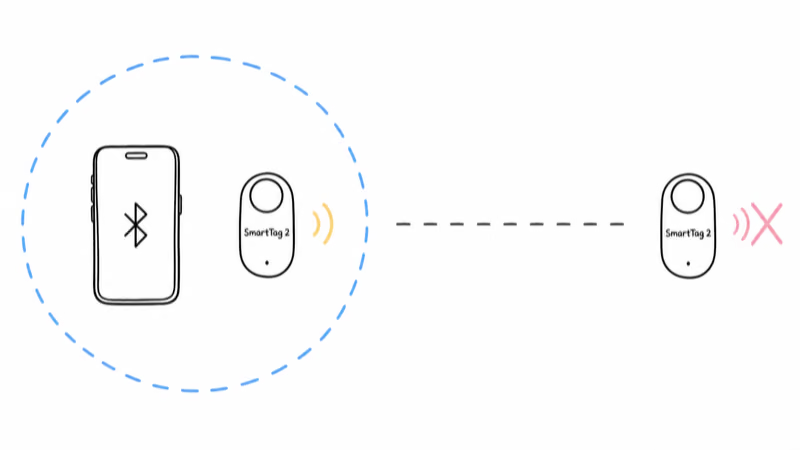
One honest limit deserves stating, because no fix changes it. The ring only ever works at Bluetooth range. If the tag is across town, neither the phone-ring nor the tag-ring will help you, because the crowdsourced network can show a location but can’t trigger a live sound from a distance.
When the SmartTag 2 Is the Wrong Tool
If your real goal is to find something far away rather than locate keys in a sofa, a Bluetooth tag is the wrong category. A cellular GPS tracker reports its own position over LTE without depending on a nearby phone to ring or report.
The SmartTag 2 shines for items that stay within reach of you or other Galaxy users, and frustrates for anything that wanders out of range. The Find Hub network hub compares how the rival crowdsourced networks handle that range gap.
Bottom Line
A SmartTag 2 that won’t ring is almost always a connection problem. For the phone ring, turn on Let tag find your device, clear DND, raise the volume, and reconnect the Bluetooth link. For the tag ring, confirm it reads Connected, raise the ring volume, and swap a weak CR2032 even if it reads Sufficient.
If both still fail, remove and re-add the tag, or sign out of your Samsung account and back in to re-register the phone. And remember the hard limit: the ring works only at Bluetooth range, never across town.
FAQ
Why won’t my phone ring when I double-press the SmartTag 2?
The double-press ring is a Bluetooth feature, so it only works when the tag is connected to your phone and in range. Samsung’s guidance is that a non-ringing phone usually means the tag is disconnected. Confirm the tag reads Connected in SmartThings, then turn on the Let tag find your device option for that tag. Also check that DND is off and the ringer volume is up, since the alert plays through your normal ringtone.
Why won’t the SmartTag 2 itself play a sound when I tap Ring?
The Ring command needs a direct Bluetooth connection to the tag, so it fails if the tag is out of range or relying on the crowdsourced Galaxy Find Network. Open SmartThings Find, select the tag, and confirm it reads Connected before pressing Ring. If it’s connected and still silent, raise the ring volume to high and suspect a weak battery or a hung registration rather than your phone’s settings.
Does the SmartTag 2 ring even if my phone is on silent?
The tag’s own ring does. Samsung’s documentation says the Ring option makes the device ring at maximum volume for one minute and will ring even if it’s set to mute or vibrate. That refers to the device being rung, including the tag. The double-press phone ring, however, uses your phone’s normal ringer, so a silent profile or DND will mute that direction.
Can a low battery stop the SmartTag 2 from ringing?
Yes, and it can happen even when the app shows Sufficient. A coin cell can hold enough charge to report its status yet be too weak to drive the speaker at volume. If the tag connects but won’t ring, replace the CR2032 with a fresh one and test again. Make sure the cell sits the correct way up, because an inverted battery makes no contact and the tag stays dead.
Why won’t any of my SmartTags ring my phone?
When every tag fails to ring the same phone at once, the problem is usually account-level rather than per-tag. Your phone may have quietly dropped out of SmartThings Find. Sign out of your Samsung account on the phone and sign back in to re-register the device with the find service.
How far away can the SmartTag 2 ring?
Only as far as Bluetooth reaches, roughly 120 metres in open air and far less indoors through walls. Neither the phone ring nor the tag ring works once the tag is beyond that range. At a distance, SmartThings Find can show a crowdsourced location on the map, but it can’t trigger a live sound. If you need to locate something across town, a Bluetooth tag is the wrong tool.
Will resetting the SmartTag 2 fix a ring that still won’t work?
It can. If the connection, volume, and battery checks all pass and the tag still won’t ring, the SmartThings Find registration may be hung. Remove the tag from your account, perform a hardware reset, and add it back as a new device. Remember that a hardware reset alone does not clear the account registration, so you must delete the tag in the app first for a truly clean re-pair.