The Pebblebee Clip 5 reports its position through Google’s Find Hub network, so a location that won’t refresh is usually a permission or connectivity problem rather than a broken tag. Pebblebee’s Find Hub permissions guide calls location access the single most important setting for your tracker to appear at all.
- Start with current Find Hub permissions — Pebblebee recommends allowing location while using the app, keeping Bluetooth on, and enabling the broadest offline-network setting.
- Updates depend on foot traffic — the network relies on passing Android phones, so a quiet area refreshes slowly even when everything works.
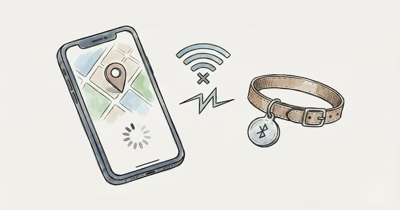
- Bluetooth must stay on — a phone with Bluetooth off can’t detect the tag or relay its position to the network.
- The factory reset is a triple-press then hold — hold through the fourth press for 15 to 20 seconds until three beeps and a jingle confirm it.
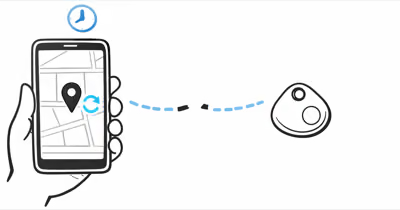
- Pebblebee lists up to 500 feet of open-air Bluetooth range — beyond direct range, the Clip 5 depends entirely on the crowd-sourced network to report a location.
Whether your Clip 5 is frozen on an old location, never updates after setup, or drops off the map entirely, the six fixes below work through the failure points in the order they actually cause a stale reading.
Why Is My Pebblebee Clip 5 Location Stale?
Start with the settings Pebblebee currently documents: allow location while using Find Hub, keep Bluetooth on, and enable the broadest Find Hub offline-network option. Remote updates come from participating Android devices that pass near the tracker, so the map can stay old in a quiet area even when your phone is configured correctly.
Google’s Find Hub troubleshooting guide explains that aggregation is one of its safety protections and that this can affect Bluetooth-tracker detection in remote areas. A Clip 5 left in a quiet garage can therefore show an old location without a hardware fault.
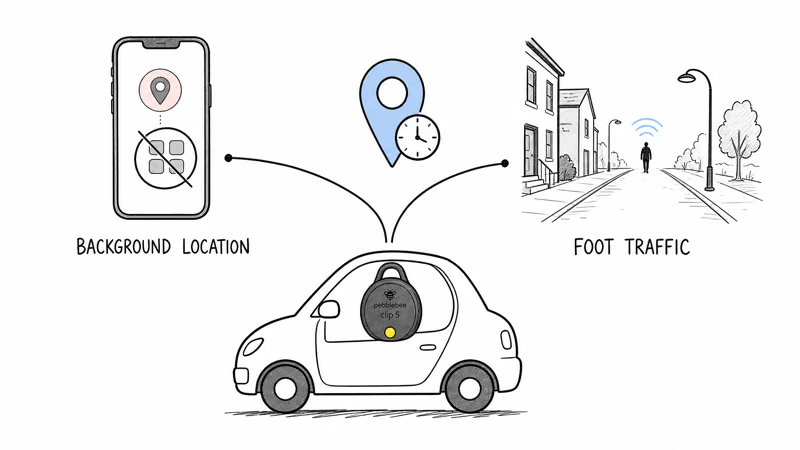
A Clip 5 left in a parked car overnight on a quiet residential street may stay stale until enough participating Android phones pass nearby. That’s the network behaving as designed, not a fault.
How Do You Fix Pebblebee Clip 5 Permissions?
Fixing the permission is the highest-value step. Open Settings on your phone, search for Location, then tap App permissions.
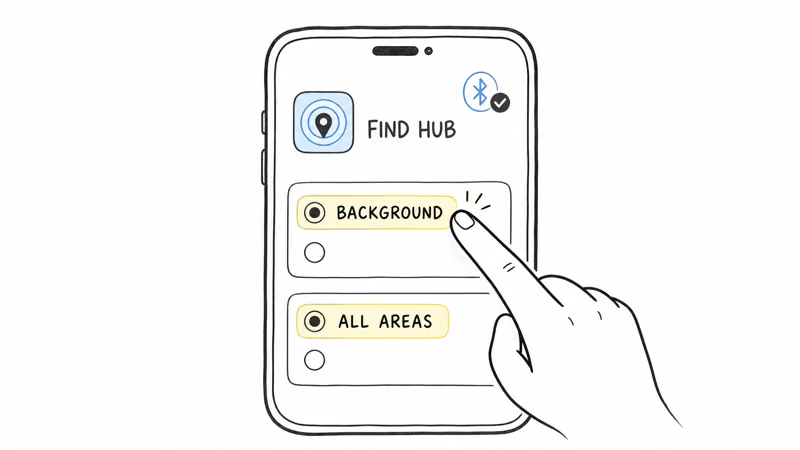
Step 1: Find Find Hub in the app list and tap it.
Step 2: Select “Allow only while using the app,” which is the current option in Pebblebee’s setup guide.
Step 3: In Find Hub settings, choose the broadest offline-finding option. Pebblebee calls it “With network in all areas,” while current Google help may show “With network everywhere.”
If you share the tracker with someone, ask them to enable the same “all areas” setting and keep Bluetooth on. Each person who does adds another relay device that can refresh the Clip 5 as they move around.
Checking Bluetooth and Connectivity
Permissions only help if the radios are working. Confirm your phone’s Bluetooth is on, since Find Hub needs it to detect the tag within range. Then check that you have a stable Wi-Fi or mobile connection by loading a webpage, and temporarily disable any VPN, which can interfere with how location data reaches the network.
Pebblebee Clip 5 Still Not Updating After Permission Fixes
If permissions are correct and the location is still stale, the next layer is software. Stale data often traces back to an outdated app or Google Play services, which handle the background scanning Find Hub depends on.
Open the Play Store and update both Find Hub and Google Play services, then reboot the phone. Pebblebee states that Find Hub requires Android 9 or newer, so on an older phone the network simply won’t function regardless of permissions.
When that doesn’t clear it, refresh the pairing. In Find Hub, open the Clip 5, tap the settings gear, and choose Remove from Find Hub. Factory reset the tag, then pair it again from scratch. This clears a corrupted registration that can pin the tag to an old location indefinitely.
The Pebblebee Clip 5 Factory Reset Procedure
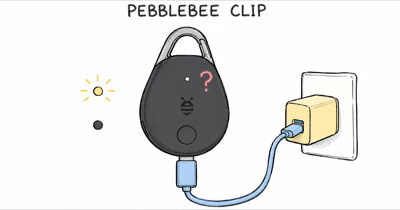
A factory reset clears almost any stuck state, but the button sequence is specific. Make sure the Clip 5 is charged first, since a reset on a low battery can fail partway.
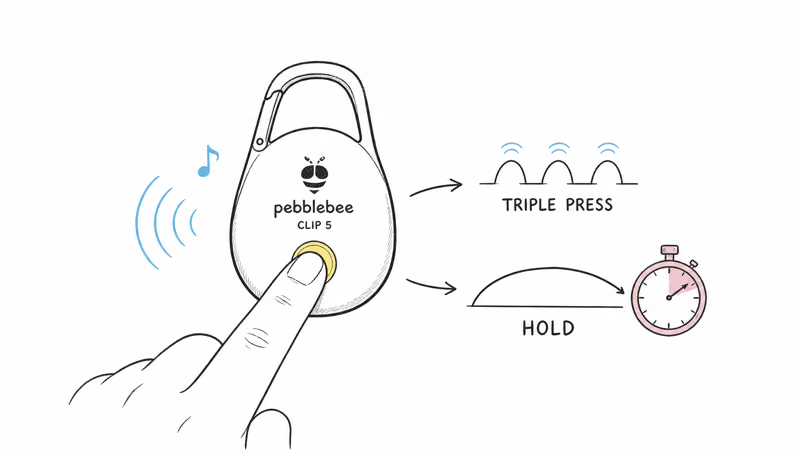
Step 1: Locate the button under the Pebblebee logo on the front of the device.
Step 2: Triple-press the button, and on the fourth press hold it down for 15 to 20 seconds.
Step 3: Listen for three high-pitched beeps, and release the button during the third beep, just before it ends.
Step 4: A short jingle confirms the reset worked. Wait 30 seconds before pressing anything, then double-press to enter pairing mode.
If the jingle doesn’t play, repeat the sequence carefully. The timing on releasing during that third beep is the part that matters.
Clip 5 Location Still Frozen: Account Checks
If the tag still won’t refresh after a reset, check the account layer. Confirm the Clip 5 is claimed under the right network, since the Clip 5 uses either Find Hub or Apple Find My but only one at a time, and a tag half-claimed on the wrong one won’t report.
If you run multiple Google accounts, open Find Hub, tap your profile icon, and confirm you’re viewing the account the Clip 5 is registered to. A tag claimed under a different account is invisible from the one you’re checking.
Understanding the Clip 5 Range Limit
Some “stale” readings are really just range. Pebblebee’s Clip 5 product page lists Bluetooth range as up to 500 feet in open space, and past direct range the tracker depends entirely on the crowd-sourced network, so distance alone can explain a lagging fix.
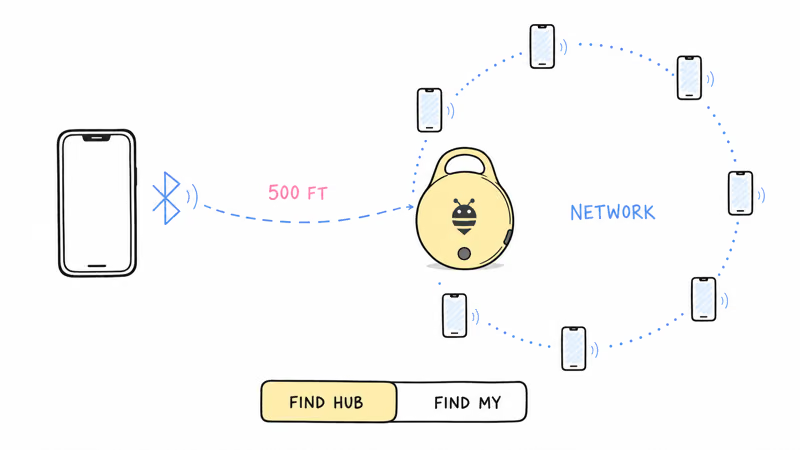
It also matters which network you’re on. A walkthrough from 9to5Google reported that Pebblebee’s universal trackers work on Apple Find My or Google’s Find Hub but not both at once, and switching requires a reset. If you switched networks recently, confirm the Clip 5 finished re-pairing before assuming the location is broken.
For a deeper look at how this tracker performs day to day, our hands-on Pebblebee evaluation covers its range and battery. If you’re still deciding which platform to commit to, our Find Hub versus Find My breakdown walks through the trade-offs.
To compare the Clip 5 against the broader field, our roundup of the top Find Hub trackers for Android ranks the alternatives by how reliably they report location.
Bottom Line
A stale Pebblebee Clip 5 usually comes down to Find Hub settings, Bluetooth, or a quiet network area. Allow location while using Find Hub, select the broadest offline-network option, and keep Bluetooth on. Use Sync recent location first; remove and reset the tag only if the documented account and sync steps fail.
FAQ
Why does my Pebblebee Clip 5 show an old location?
The usual causes are incomplete Find Hub settings or low network traffic. Pebblebee currently says to allow location while using Find Hub, keep Bluetooth on, and select the broadest offline-network option. In a quiet area, an old location can still be normal even when the tag works.
How do I factory reset a Pebblebee Clip 5?
Charge the tag, then locate the button under the logo. Triple-press it, and on the fourth press hold for 15 to 20 seconds until you hear three high-pitched beeps. Release during the third beep, just before it ends, and a short jingle confirms the reset. Wait 30 seconds, then double-press to enter pairing mode.
What location permission does Find Hub need for the Clip 5?
Open Settings, search Location, tap App permissions, choose Find Hub, and select Allow only while using the app. Then keep Bluetooth on and select With network in all areas, or With network everywhere where that newer label appears.
How often should the Pebblebee Clip 5 update its location?
There is no fixed interval. Participating Android devices can update the tag when they pass nearby, so busy places can refresh more often while quiet areas take longer. Keep Bluetooth on and select the broadest offline-network option to improve the chance of a report.
Does turning off Bluetooth stop the Clip 5 from updating?
Bluetooth is how nearby phones detect the tag, so a phone with Bluetooth off can’t contribute that detection. Turn Bluetooth back on and reopen Find Hub to check the most recent available location; this can’t force a remote report when no participating device is near the tag.
Why is my Clip 5 missing from Find Hub entirely?
A tag that disappears completely is usually claimed under a different account or network. Check that you’re signed into the Google account the Clip 5 was registered to by tapping your profile icon in Find Hub. Also confirm it’s on Find Hub rather than Apple Find My, since the Clip 5 can only use one network at a time.