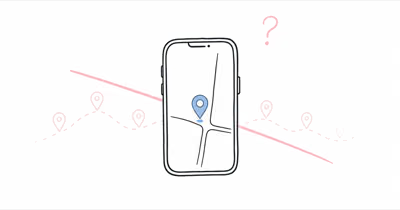
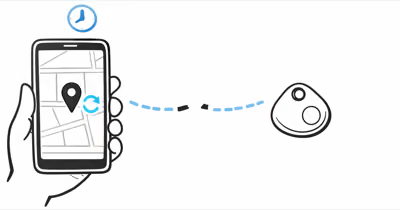
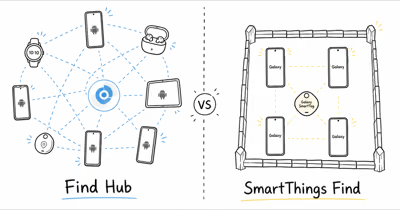
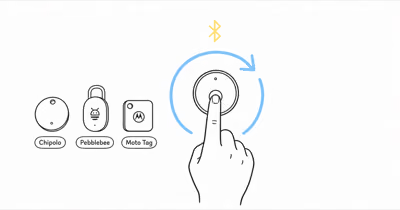
An unknown tracker alert is Android’s anti-stalking warning: a Bluetooth tag that isn’t yours has been traveling with you over time. Google’s unknown tracker alerts documentation states that this feature is only available for devices with Android 6 and up, and it covers Find Hub tags and Apple AirTags alike.
- The alert fires only after a tracker moves with you over time — a tag sitting near your home doesn’t trigger it; sustained travel away from its owner does.
- Playing a sound stays private — Google confirms you won’t notify the owner of the tracker if you’ve played the sound to locate it.
- You can read the tracker’s identifier — on-screen steps reveal its serial or device ID plus the last 4 digits of the owner’s phone number for a police report.
- The detection standard is cross-platform — the same Detecting Unwanted Location Trackers spec alerts both Android 6.0+ and iOS 17.5 users, regardless of which app the tag is paired to.
- Disabling needs the physical tag — you remove its battery or follow maker-specific steps, so you must locate it first; a software toggle alone won’t stop it.
What Does an Unknown Tracker Alert Mean?
It means a Bluetooth tracker that isn’t registered to you has been detected moving with you over a period of time, not just sitting nearby once. Google’s Android unknown tracker alerts documentation states the feature is only available for devices with Android 6 and up, and it covers both Find Hub tags and Apple AirTags.
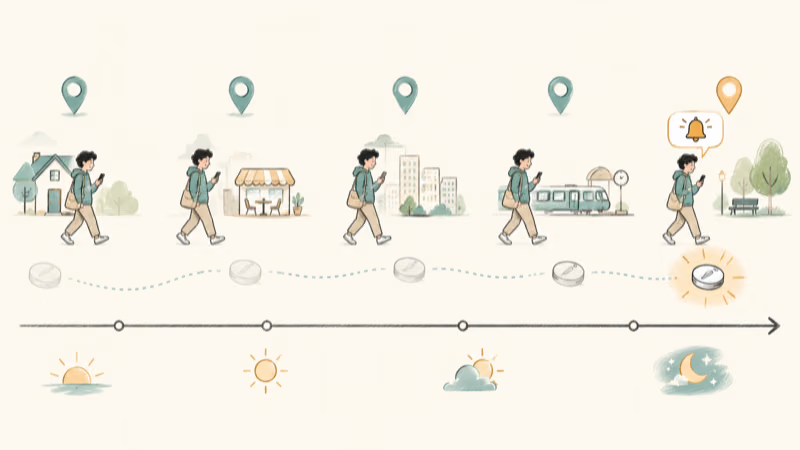
The notification surfaces only after a separated tag travels with your phone across multiple locations, not from a stationary tag passed once in a store. That delay is deliberate: it filters out the dozens of trackers you walk past every day so the warning actually means something.
The alert is the consumer face of an industry safety standard. Apple and Google jointly built the Detecting Unwanted Location Trackers specification, and their 2024 joint announcement confirms that it shipped in iOS 17.5 and on Android 6.0 and later. That cross-platform reach is the point: an Android phone can warn you about an Apple AirTag, and an iPhone can warn you about a Find Hub tag, no matter which ecosystem the device belongs to.
Why Did the Alert Fire?
Usually it’s harmless. A friend’s keys with a tag rode in your car, a borrowed bag has a tracker, or a roommate’s tag traveled with you. The system can’t identify whose tracker triggered the alert, only that one is moving with you and is separated from its owner.
The serious case is unwanted tracking. If you don’t recognize the tag and it keeps reappearing across days and locations, treat it as a possible stalking attempt and work through the steps below to identify and disable it.
How Do You Find and Disable the Tracker?
The flow is the same on every Android phone: open the alert, map the detections, play a sound to home in on the tag, read its identifier, then physically disable it. Work the steps in order, because you can’t disable a tracker you haven’t found.
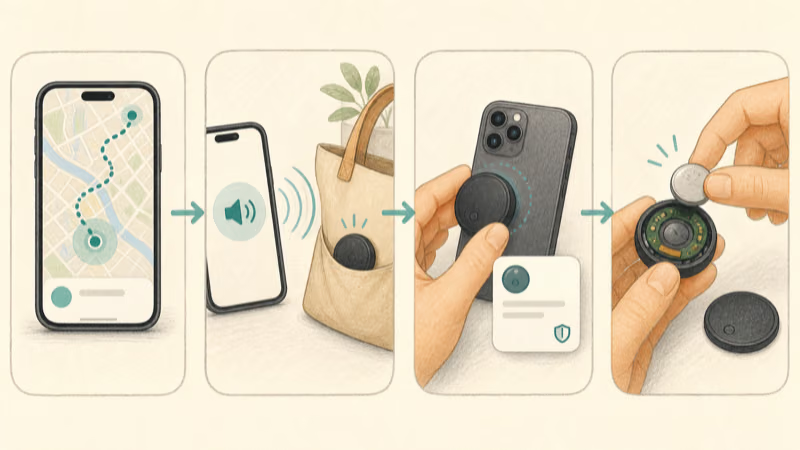
1. Open the alert and view the map. Tap the notification. Android shows a map of where the tracker was detected with you, so you can see how long it has been traveling along your route.
2. Play a sound to locate it. Select Play sound and listen. The chirp can be faint, so a quiet room makes it easier to pin down. Google confirms you won’t notify the owner of the tracker if you’ve played the sound, so you can search without tipping anyone off.
3. Read the tracker’s identifier. Follow the on-screen identification steps. For an AirTag, you hold the tag near the back of your phone to read it over NFC; for a Find Hub tag, the app walks you through finding the device identifier and the last 4 digits of the owner’s registered phone number. Save that detail for a police report.
4. Disable the tracker. Android gives maker-specific instructions, usually removing the coin-cell battery or following steps for that brand. One caution from Google’s documentation: some trackers, if turned off, may be factory reset and no longer be linked to their original owner, which can erase the very identifier you need as evidence. Read the identifier before you disable.
If you believe someone is using a tracker to follow you, don’t disable it before recording its identifier and detection map, and contact local law enforcement. Removing the tag too early can destroy the evidence that ties it to an owner.
What If You Can’t Find the Tracker?
Sometimes the sound is muffled or the tag is buried in a lining or seam. Move slowly through your bag, jacket, and vehicle while the sound plays, and check seams, wheel wells, and under seats. A weak coin-cell battery can make the sound faint, so search in a quiet room.
If a tag keeps generating alerts but you can’t locate it, that itself is worth a report. Keep the detection map, note the identifier if you captured it, and treat the pattern as evidence rather than a one-off glitch.
How Cross-Platform Detection Protects You
Before 2024, an Android user could be tracked by an AirTag with no automatic warning, and an iPhone user could be tracked by an Android tag the same way. The joint specification closed that gap. Now the detection logic runs on both operating systems and recognizes tags from either network.
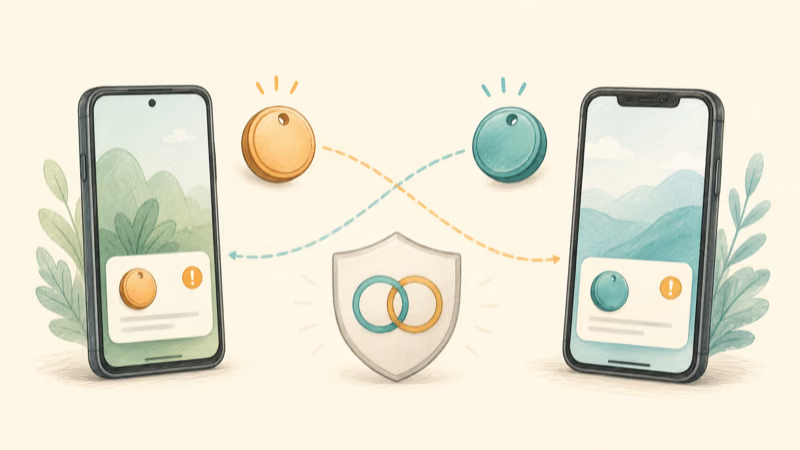
That matters because a stalker can’t dodge detection by picking a tracker from the “other” ecosystem. Apple’s guidance on unwanted tracking alerts states that the iPhone flow mirrors Google’s: play a sound, read the details over NFC, and follow the steps to disable it. It adds the same warning that turning off Bluetooth or Location Services on your own phone won’t stop the owner from seeing the tag’s location.
If your concern is AirTags specifically, our explainer on how Apple’s anti-stalking technology works covers the iPhone side in depth, and our walkthrough of the iPhone “unknown accessory” alert handles the related Apple notification.
Trackers the Alert Can Detect
The warning isn’t limited to one brand. Google’s documentation notes that unknown tracker alerts cover Find Hub network tags, compatible headphones, and Apple AirTags. That spans the tags certified for Android plus Apple’s own hardware.
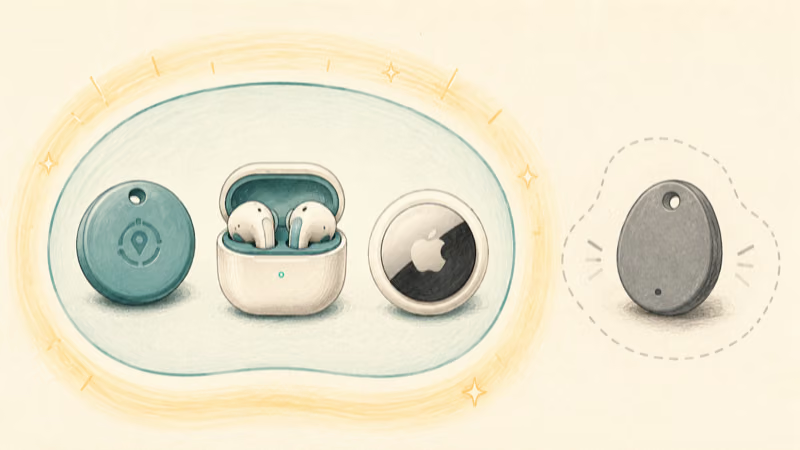
What it does not cover is the long tail of cheap, off-standard Bluetooth beacons that ignore the shared specification. A no-name tracker that never adopted the standard can stay silent, which is the real limitation of any detection system. If you suspect a non-standard device, a physical search and a Bluetooth scanner app remain your fallback.
When the Tracker Turns Out to Be One of Yours
Plenty of these alerts are false alarms about your own gear. Find Hub can flag a tag you set up if it has been separated from your phone for a while, or a household member’s certified tag riding along with you. In that case there’s nothing to disable, you just dismiss the alert.
If you own Android tags and want to understand which ones are certified to work with the network in the first place, our list of Find Hub compatible trackers and the deeper Find Hub hub cover the supported devices.
And if one of your own tags is the one going quiet or behaving oddly, our fixes for a Find Hub tracker that is not updating walk through the common causes.
When to Involve Law Enforcement
If you don’t recognize a tag and it keeps reappearing across days and locations, stop troubleshooting and start documenting. Save screenshots of the detection map, the tracker’s identifier, and the owner’s partial phone number while you still have them.
Both Apple and Google advise contacting local law enforcement if you feel your safety is at risk. Officers can use the identifier and the registered phone digits to trace the owner, which is something you can’t do on your own. Don’t destroy that evidence by factory-resetting the tag before they have it.
Bottom Line
An unknown tracker alert is a safety feature working as designed: it tells you a Bluetooth tag that isn’t yours has been moving with you. The right response is methodical, not panicked. Open the alert, map the detections, play a sound to find the tag, and read its identifier before you do anything else.
Most alerts trace back to a friend’s or family member’s tracker and end with a quick dismissal. When one doesn’t, you now have the device identifier, the detection map, and the disable steps, which is exactly what local law enforcement needs if the tracking is unwanted.
FAQ
What does a Google Find Hub unknown tracker alert mean?
It means an Android phone has detected a Bluetooth tracker that isn’t registered to you moving with you over time. The tag is separated from its owner and traveling along your route. The alert covers Find Hub tags and Apple AirTags, and it only appears on devices running Android 6 and up.
Will the owner know if I play a sound on the tracker?
No. Google confirms you won’t notify the owner of the tracker if you’ve played the sound to locate it. Playing the sound is the safe first move to find a hidden tag, since it lets you search your bag, clothing, or vehicle without alerting whoever placed it.
How do I find out who owns the tracker?
Follow the on-screen identification steps in the alert. For an AirTag, you hold it near the back of your phone to read its details over NFC. For a Find Hub tag, the app reveals the device identifier and the last 4 digits of the owner’s registered phone number, which you can give to law enforcement.
How do I disable an unknown tracker on Android?
Open the alert and follow the maker-specific disable instructions, which usually means removing the coin-cell battery. Read and save the tracker’s identifier first, because some trackers may be factory reset when turned off and lose the link to their owner. That detail is your evidence if the tracking is unwanted.
Does the alert work across iPhone and Android?
Yes. Apple and Google built a shared Detecting Unwanted Location Trackers standard that shipped in iOS 17.5 and on Android 6.0 and later. An Android phone can warn you about an AirTag, and an iPhone can warn you about a Find Hub tag, regardless of which network the tracker is paired to.
What should I do if I can’t find the tracker?
Search slowly while the sound plays, checking bag seams, jacket linings, wheel wells, and under vehicle seats in a quiet space. A weak battery can make the sound faint. If a tag keeps triggering alerts but stays hidden, keep the detection map and any identifier you captured and treat the pattern as evidence worth reporting.
Can turning off Bluetooth or Location Services stop the tracking?
No. Disabling Bluetooth or Location Services on your own phone does not stop the tracker’s owner from seeing its location. The tag reports through nearby phones, not yours. To actually stop it, you have to find the physical tracker and disable it with the maker-specific steps in the alert.