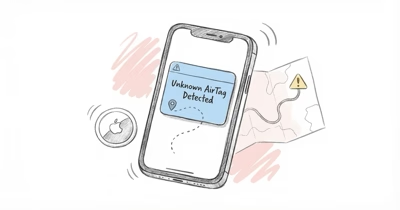
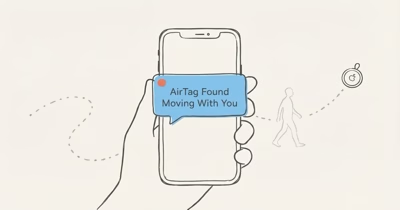
Your iPhone shows an "Unknown Accessory Detected" or "AirTag Found Moving With You" alert when a Find My accessory that isn't yours has been traveling with you for a while. The alert is often a false positive from a rental car, a partner's bag, or a coworker sitting nearby, so you don't need to panic. Apple's built-in tools let you investigate methodically: tap the notification, play the sound, NFC-tap the tracker, and disable it by pulling the CR2032 battery.
An unknown accessory detected iPhone notification lands without warning, usually late in the day. Before you assume the worst, understand what the alert does and doesn't mean.
Apple's anti-stalking system flags any unowned Find My device that moves with you past a threshold, and the most common triggers are benign. This guide walks through the three alert wordings, the five reasons you likely saw one, and the exact 4-step response that either confirms it's nothing or gives you clean evidence if it isn't.
- The alert fires once an unowned tag has been moving with you over time (the timing is randomized so stalkers can’t time around it)
- Three alert wordings exist as of iOS 17.5 (“AirTag Found Moving With You,” “Unknown Accessory Detected,” and “Item Detected Near You” each map to a different trigger)
- Most alerts are false positives (rental cars, a partner’s bag, and coworker proximity are common benign triggers)
- The 4-step response is simple (tap the notification, play the sound, NFC-tap for owner info, pop the battery)
- Android users get equivalent alerts under the 2024 Apple/Google cross-platform spec (you aren’t missing warnings just because you use Android)
What Does the "Unknown Accessory Detected" Alert Mean?
iOS runs a background scan for Find My-compatible trackers it doesn't recognize as yours or your household's. When one has been moving with you for a threshold period without its owner nearby, the system fires a notification.
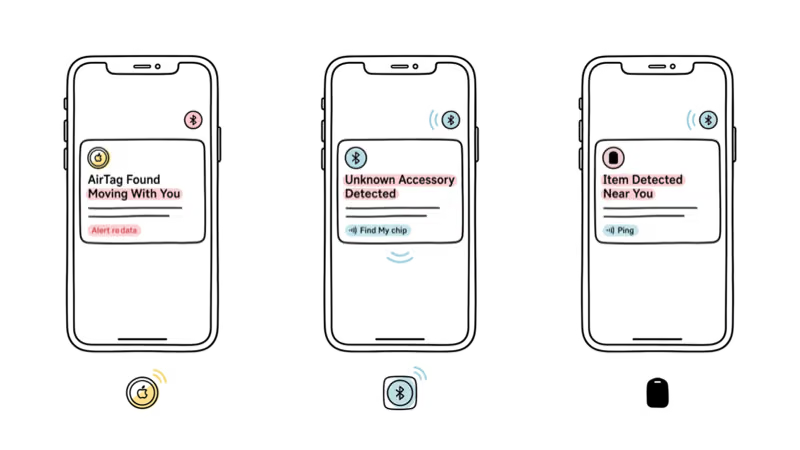
According to Apple's unknown-accessory alert overview, an unknown tracker separated from its owner and moving with you over time triggers an alert on your iPhone.
The alert has three different wordings in iOS 17.5, and the phrasing tells you what the system found. "AirTag Found Moving With You" means iOS positively identified an Apple AirTag.
"Unknown Accessory Detected" means a non-AirTag Find My accessory (a Chipolo Spot, Pebblebee Find My, or similar third-party device on Apple's network). "Item Detected Near You" is the newest variant and typically triggers during a cross-platform detection event, where a non-Apple tracker fell inside the shared unwanted-tracker standard.
On iOS 17.5, the "Item Detected Near You" wording generally appears only after a third-party tracker such as a Chipolo One Spot has been traveling with you over time. The wording isn't cosmetic.
The exact phrase is the fastest way to decide your next step. An Apple-branded AirTag, a third-party Find My tracker, and a cross-platform hit each map to slightly different owner-identification paths. For broader context on what an AirTag actually is, the product basics help frame why this alert looks the way it does.
Apple's Apple and Google cross-platform spec confirms that the 2024 unwanted-tracker standard covers both ecosystems, so the same detection logic fires on iPhone and Android. Your iPhone keeps scanning in the background, which is why the alert can land hours after you first picked up whatever is carrying the tracker.
Why Did Your iPhone Show This Alert?
Five cause buckets account for nearly every alert pattern, and four of them are benign. Walk through them in order before jumping to stalking-panic.
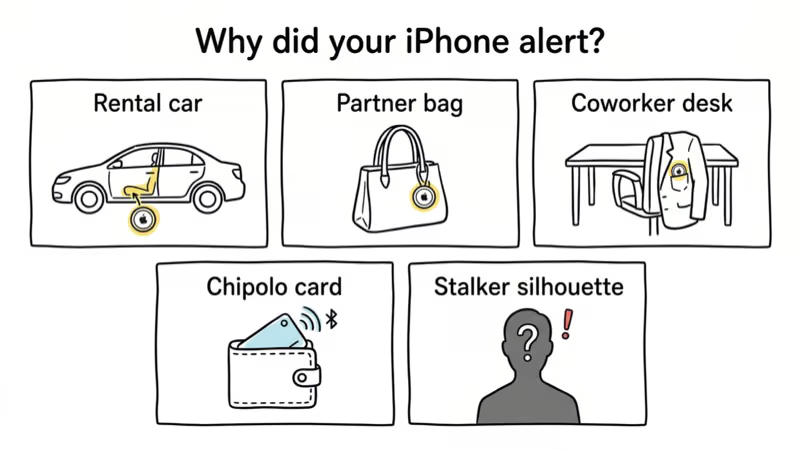
1. A rental car with a leftover AirTag. Rental fleets get tagged by previous renters, fleet managers, or operators tracking inventory. On a multi-day rental, the alert often fires once the car has sat with you for many hours, such as overnight in a hotel lot, because that sustained co-travel is exactly what the system looks for.
The tag belonged to the previous renter and had never been unpaired. This scenario is common enough that car-rental chains now have standard counter scripts for it.
2. A shared household or partner's bag. If your spouse, roommate, or family member has an AirTag on their keys or in their backpack, and you're apart from them for long enough that their AirTag counts you as a stranger, you'll get the alert. The fix is to add their Apple ID to the AirTag's sharing list in Find My so iOS stops flagging it.
3. A coworker's AirTag near you for hours. Open-plan offices and long meetings create plenty of eight-hour proximity windows. The coworker two desks over has an AirTag on their laptop bag, you sit within Bluetooth range all day, and the alert fires on your commute home.
4. A non-AirTag Find My accessory you didn't know existed. Chipolo Spot cards in wallets, Pebblebee Find My clips on luggage tags, and eufy SmartTrack stickers on TV remotes all ride the Apple Find My network and can trigger the "Unknown Accessory Detected" wording specifically.
5. An actual stalking attempt. The least common scenario, but the one that matters most if it happens to you. Signs that push this up the priority list: repeating alerts with different tracker serial numbers, alerts that keep firing after you've moved between locations, or an environment where no one you know should have been tagging anything you own. For the broader context, our AirTag stalking safety overview covers the pattern recognition in depth.
Your next move doesn't change based on which bucket you suspect. The investigation flow is the same whether the AirTag belongs to Hertz or to a person who wants to track you, because the goal at this stage is identification and disablement, not diagnosis.
How to Investigate an Unknown AirTag Alert
The four-step investigation gives you everything you need to decide whether the alert is a nothing-burger or a serious situation.
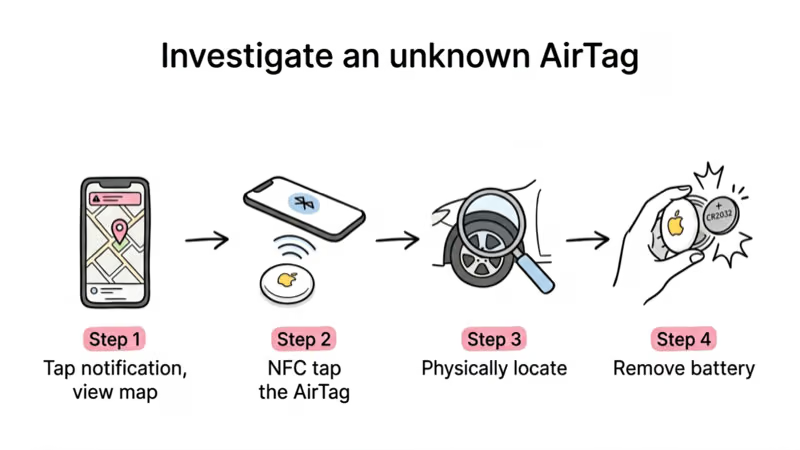
Step 1: Tap the notification. This opens the Find My app directly to the unknown tracker's detail view, showing the device's serial number, a map of where it was first detected near you, and two buttons: "Play Sound" and "Find Nearby."
Tap Play Sound first. The tracker chimes briefly, which is usually enough to locate it if it's in the car or a bag you're currently holding.
Step 2: Use NFC tap to read the owner's phone digits. Once you've found the physical tracker, hold the top of your iPhone near the white plastic side of the AirTag (the NFC antenna is behind that face). Safari opens found.apple.com automatically.
If the owner has marked the AirTag as Lost, the page displays the last 4 digits of their phone number plus any message they've left. If Lost Mode isn't enabled, you'll still see the full serial number, which matters for the police-report path. For the full walkthrough, our how to identify the AirTag's owner guide covers every variation.
Step 3: Physically locate and inspect. If the tracker is in your car, this step follows a predictable search pattern: wheel wells first, then undercarriage, bumper recess, and OBD-II port area.
With a hidden AirTag on a vehicle, Precision Finding on an iPhone 11 or newer can guide you toward the tag, narrowing the search to the right area such as a wheel well. Our find a hidden AirTag in your car guide walks through the complete search order.
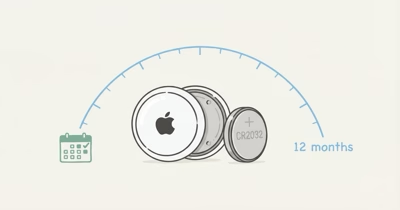
Step 4: Disable by removing the battery. Press down on the polished silver back of the AirTag, rotate counterclockwise, and pop the cover. The CR2032 battery slides out and the AirTag goes inert immediately. Keep both pieces.
If this becomes a police matter, the battery-removal timestamp matters, and the serial number on the inside of the case matters more. Even a silenced AirTag speaker still triggers the iPhone alert, because detection is Bluetooth-based, not sound-based.
How to Tell a Real Tracker From a False Positive
Time and context do most of the work here. After you've completed the investigation steps, use these signals to sort the alert into one of three confidence buckets.
Almost certainly a false positive: the alert first fired in a rental car, the serial number corresponds to a tracker sitting openly in a coworker's or partner's bag, or an NFC tap reveals an owner you recognize. The best move here is to dismiss the alert, add the tracker to your sharing list if it's a household item, or ignore it and let iOS stop flagging after the tracker leaves your proximity.
Probably benign but worth watching: the alert fired in a familiar environment, you can't identify the owner via NFC, but the tracker's "first detected near you" map shows it appeared somewhere you regularly visit. Document the serial number, keep the original alert screenshot, and watch for a repeat alert over the next week.
Investigate fully: you can't physically find the tracker, the alert keeps firing across different locations, or you notice multiple unknown accessories with different serial numbers over days. This pattern is less common than the internet makes it sound, but when it does happen, it's the clearest indicator that an alert isn't coincidental. Our guide on AirTag tampering and theft covers related scenarios where a tracker's behavior departs from the normal false-positive pattern.
According to Apple's iOS Tracking Notifications settings, the alert threshold itself resets when the tracker leaves your proximity for several hours, which is why rental-car alerts usually don't repeat once you've returned the car. A repeat alert in a new context is a meaningful signal. A single alert in a known context, even a scary-looking one, usually isn't.
What to Do After You Find the AirTag
Don't touch the tracker with bare hands if you think this might go to police. Use gloves, a plastic bag, or a shirt sleeve. Photograph the tracker in place before you move it, then photograph both sides after you remove it.
The serial number printed on the back is the single most valuable piece of evidence, because police can subpoena Apple for the registration record tied to that serial.
Screenshots matter too. Take one of the original notification, one of the Find My detail view showing first-detected-near-you map data, and one of the found.apple.com NFC result. Together those three screenshots form a clean evidentiary package.
If you may report the incident, keep the disabled AirTag, the battery, and all screenshots in a single evidence bag rather than throwing any of it away. The CR2032 cell is easy to damage during extraction, so seat it into a small paper envelope rather than letting it roll around a ziplock with the AirTag casing.
If you don't plan to involve police, the right move is usually to drop the disabled AirTag at an Apple Store, where staff can look up the owner internally and either contact them or add the serial number to Apple's misuse database.
When to Contact Law Enforcement
Three escalation triggers make a police report the right call rather than a lost-and-found run: repeat alerts with new AirTags over days or weeks, inability to physically find the tracker despite following the investigation steps, and a pattern that matches documented stalking behavior (ex-partner context, harassment in other forms, or threats preceding the alert).
Apple's law-enforcement process is narrow and specific. Apple confirms in public transparency reporting that the company does not proactively share owner identity with anyone.
Apple responds only to valid legal requests (subpoena, court order, or emergency disclosure request) from law enforcement agencies. That's different from the expectation you might have picked up from TV drama: you can't call Apple yourself and ask who owns the AirTag, and a police officer can't either without a formal legal instrument.
The police report you file needs to trigger a case file that justifies a subpoena. Bring your screenshots, the physical AirTag in an evidence bag, and the serial number.
Most jurisdictions classify the placement of a tracker on a person or their property without consent as either a stalking offense or a dedicated electronic-tracking violation. Apple's Transparency Report confirms that it received over 30,000 law-enforcement requests for device data worldwide in a recent reporting period, so the subpoena path is documented and routine from Apple's side.
If local police are slow to respond and you fear ongoing danger, a civil attorney can seek emergency injunctive relief to compel Apple to preserve the registration record. Apple states it retains AirTag registration data for a limited window, so acting promptly matters for the evidence chain.
What the Alert Is About: AirTag 2
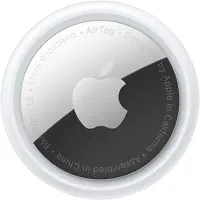
The physical object the alert describes is almost always an Apple AirTag or a Find My-compatible third-party tracker. Here's what the current-generation AirTag looks like, in case it helps you recognize one during a physical search. This is the current AirTag hardware, not a purchase recommendation.
Apple's AirTag 2 announcement confirms that the second-generation unit ships with a noticeably louder speaker compared with the 2021 original, which affects how quickly you'll hear one during a physical search.
Bottom Line
Most "Unknown Accessory Detected" alerts come from a rental car, a partner's bag, or a coworker sitting near you for hours, and the four-step investigation is usually enough to confirm it.
Work the four steps in order: tap the notification, play the sound, NFC-tap for owner info, and pop the CR2032 battery. Then decide whether the alert is nothing or something. When the pattern includes repeat alerts across locations or trackers you can't physically find, that's the moment to take screenshots, bag the evidence, and file a police report while the registration record is still available.
FAQ
What does "Unknown Accessory Detected" mean on iPhone?
It means iOS detected a Find My-compatible tracker that isn't paired to your Apple ID or your household's shared devices, and the tracker has been moving with you over time. The wording "Unknown Accessory Detected" specifically indicates a non-AirTag tracker like a Chipolo Spot or Pebblebee Find My. If iOS detected an Apple AirTag, the alert wording would be "AirTag Found Moving With You" instead.
How long before my iPhone alerts me about a nearby AirTag?
Apple keeps the timing randomized to prevent predictable evasion and hasn't published the exact formula. The randomization is deliberate anti-stalking design so someone placing an AirTag can't simply move it on a fixed schedule to stay under the threshold. A brief shared trip usually won't trigger an alert.
Will I get the alert if the AirTag's owner is in the same car?
No. The alert triggers only when the tracker is separated from its registered owner. If your spouse is in the car with their AirTag-tagged keys, iOS sees the AirTag as owned and nearby, and doesn't flag it. The alert fires when you're moving with the tracker but the owner is somewhere else, which is why carpooling usually doesn't trigger alerts but a forgotten rental-car tracker does.
Can I find out who owns the AirTag that followed me?
Only if the owner has marked the AirTag as Lost. Tap the white face of the AirTag with your iPhone's top edge. If Lost Mode is on, found.apple.com shows the last 4 digits of the owner's phone number and any message they've left. If Lost Mode is off, you see the serial number but no personal data. Apple does not release owner identity to the public. Law enforcement can request it via subpoena.
How do I disable an AirTag I don't own?
Press down on the polished silver back of the AirTag and rotate counterclockwise. The back cover lifts off and the CR2032 battery pops out. The AirTag goes inert the moment the battery separates. Keep both the AirTag casing and the battery if you plan to file a police report, because the serial number is the key piece of evidence.
Is the alert a false positive if I am in a rental car?
Usually yes. Rental fleets frequently carry leftover trackers from previous renters or fleet managers. If the alert fires during a rental and disappears after you return the car, the causal chain is obvious. Mention it to the rental counter on return so they can remove the tracker from the vehicle.
Should I call the police if I keep getting the alert?
Yes, if the alert keeps firing across multiple locations, if you can't physically find the tracker, or if the pattern includes different serial numbers over days. Bring your screenshots, the disabled AirTag in an evidence bag, and the serial number. Apple responds to valid legal requests with the owner's Apple ID details, so the police report is what unlocks the identification path.