In Find Hub, tap the tracker, tap Share device, then send the invite by text, email, or Quick Share. Each person accepts on Android, and up to 10 family members can locate it.
Find Hub lets one tracker be located by the whole household instead of just the person who paired it. Google’s support page confirms that you can share an accessory or tracker tag with up to 10 loved ones, and each person gets 24 hours to accept the invite before it lapses.
- Up to 10 family members can locate one shared Find Hub tracker, each added by a separate invite.
- Invites expire after 24 hours, so a person who misses the window needs a fresh invite sent again.
- Sharing happens in the app, not by web link — the 7-day web link is the separate airline lost-luggage feature.
- A 4-digit PIN appears under the shared device for each member, an optional security check Google adds on acceptance.
- The owner removes any share anytime from Settings, and the person loses location access after removal.
Find Hub Tracker Sharing Explained
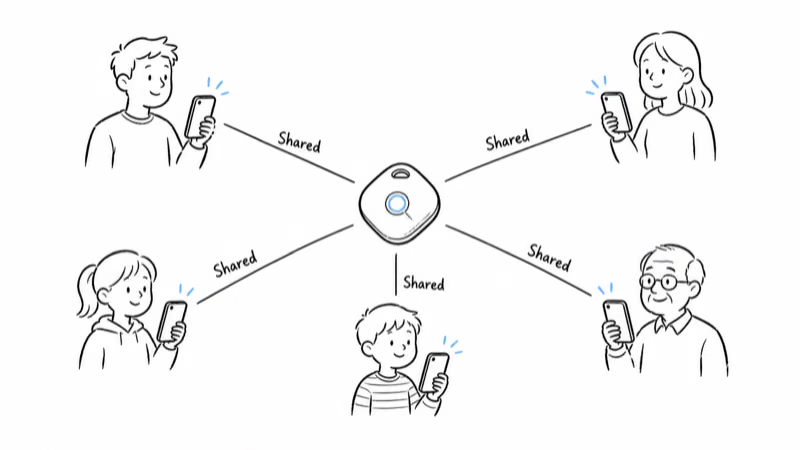
Find Hub tracker sharing lets the owner of a Bluetooth tracker grant trusted people ongoing access to that tracker’s live location inside the Find Hub app. Google’s own documentation states that a shared tracker can reach up to 10 loved ones, and each invited person sees the tracker on their own map after they accept. The Share device option sits on the tracker’s own card in the Find Hub app, not in a separate sharing menu.
This is different from the airline link people often confuse it with. Family sharing is account-to-account inside the app: each member needs the Find Hub app and an Android device, and the tracker shows up alongside their own items.
The lost-luggage web link, by contrast, is a read-only page anyone can open in a browser, and it auto-expires after 7 days. Our walkthrough on how to share a Find Hub tracker location with an airline covers that separate flow in full.
The use case is everyday and practical. A shared house key tracker, a shared car tag, a kid’s backpack tracker, or a TV remote tag can all sit in one parent’s account but be findable by both parents and any older child who needs it. Each person rings it, sees it, and locates it without bothering the owner.
If you are weighing Find Hub against Apple’s ecosystem, the iPhone equivalent works differently. Our guide on how to share an AirTag with family explains Apple’s version, which is capped at five contacts rather than ten.
How Many People Can Share a Find Hub Tracker?
A single Find Hub tracker can be shared with up to 10 people, the owner plus nine additional members, for 10 total who can locate it. That ceiling is per tracker, so a family with several tagged items can build a different sharing group around each one. There is no household account that auto-shares everything at once. You invite people tracker by tracker.
Each invite is a one-to-one action. You select the tracker, tap Share device, and send one invitation per person. The recipient has 24 hours to accept before the invite lapses, after which you simply send another. 9to5Google’s Find Hub coverage notes that the same sharing framework that powers tracker sharing also drives Find Hub’s People tab, so the app treats item sharing and people sharing as parallel features.
Two limits are worth setting expectations on before you start. Every member needs an Android device with the Find Hub app, because there is no browser-based view for ongoing family sharing. And the 10-person cap counts everyone with active access, so if you hit the ceiling you remove an existing member before adding a new one.
Sharing a Find Hub Tracker Step by Step
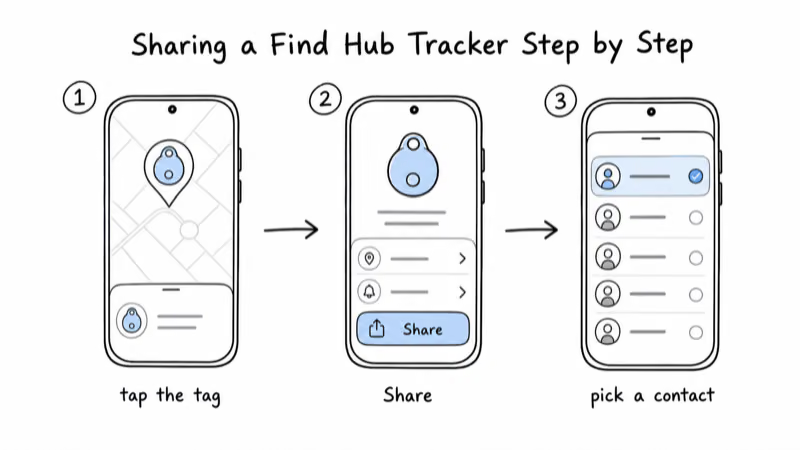
The owner sends the invite, and each family member accepts on their own phone. Confirm everyone has the Find Hub app installed and is signed in to their Google account before you start, since the recipient flow assumes both.
1. Open Find Hub and tap the tracker you want to share. The device card shows its last known location and the controls for that tag.
2. Tap Share device and follow the on-screen prompt to create an invitation. Find Hub generates a fresh invite each time.
3. Send the invite with any messaging app, text, email, or Quick Share, to the family member you want to add. Each person needs their own invitation.
4. Have the recipient open the invite on their Android device. They’re prompted to install the Find Hub app if it’s missing, then they tap Accept.
5. Note the 4-digit PIN shown under the shared device after acceptance. Google adds it as an optional security check, so the member can confirm they’re looking at the right shared tracker.
6. Repeat for each person, up to the 10-member ceiling. The tracker now appears on every accepted member’s map and can be rung or located by any of them.
One detail trips people up: the invite expires in 24 hours. If a family member is traveling or slow to respond, the invitation lapses and the Accept button does nothing. Sending a new invite is the fix, and there is no penalty for resending.
Per-Brand Notes: Moto Tag, Chipolo, Pebblebee, Eufy
The core sharing flow lives in the Find Hub app, so it’s the same regardless of which certified tracker you own. The differences are small and brand-specific, mostly in wording and one ownership wrinkle on Motorola’s tag.
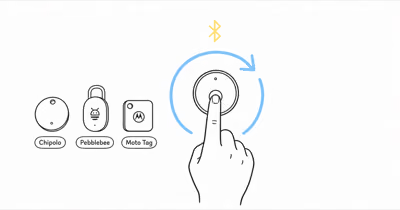
- Motorola Moto Tag — shares through Find Hub like any other tag, and Motorola also exposes a Share ownership path so a tag can move to a new primary owner rather than just adding a viewer. Motorola’s Find Hub support page confirms that Moto Tag is managed entirely inside the Find Hub app.
- Chipolo Pop — shares through Find Hub identically, but it pairs to one network at a time, so a tag set up on Apple Find My must be reset to Find Hub before any Android family member can be invited.
- Pebblebee Clip 5 — shares through Find Hub the same way once it’s set up in its Find Hub mode rather than its Apple Find My mode.
- Eufy — Find Hub-compatible Eufy tags share through the Find Hub app like the others, while Eufy’s own app handles its separate non-Find-Hub trackers.
The practical takeaway is that the brand barely matters for sharing itself. What matters is that the tag is in Find Hub mode and not paired to a competing network. For a full breakdown of which tags are certified and what each one trades off, see our guide to Google Find Hub compatible trackers.
Moto Tag’s Share ownership option is the one genuine outlier. Ordinary sharing adds people who can locate the tag while you stay the owner. Share ownership instead hands the tag itself to someone else, which is what you want when you give a tagged item away rather than just letting family help find it.
What Can Shared Members See?
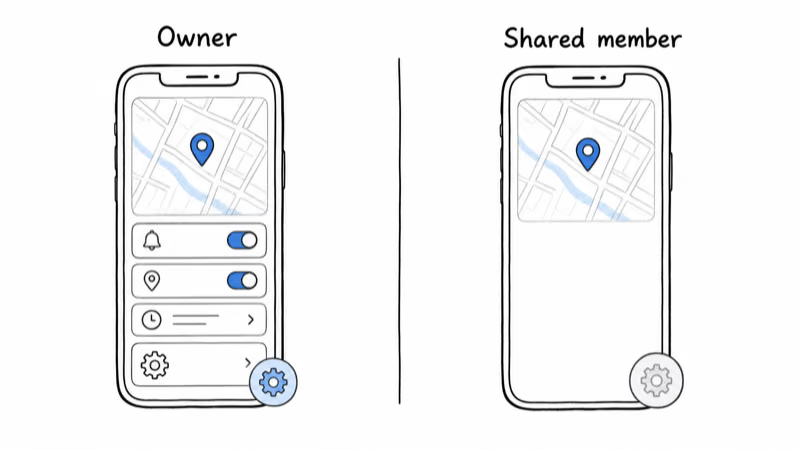
A shared family member sees the tracker’s live location on their own Find Hub map, can ring it, and can go to it, exactly as the owner can for that one tag. They don’t see your other trackers, your account details, or your phone’s own location. The share is scoped to the single tracker you invited them to.
Members get the location while the tracker is relaying. Find Hub trackers update by pinging off nearby Android phones on a network Motorola describes as over a billion devices, so a tag sitting in a dead zone shows a stale pin for everyone, owner and members alike. The shared view is not a privileged feed. It’s the same crowdsourced location the owner sees.
What members can’t do is reshare or take over. Only the owner can invite more people or remove existing ones, and ordinary sharing never transfers ownership. The exception is Motorola’s deliberate Share ownership action, which is a separate, intentional handover rather than something a shared member can trigger.
If you want to understand how the underlying network decides when a tracker reports at all, our explainer on Google Find Hub offline finding settings breaks down the modes that govern updates in quiet areas, since those settings affect what every shared member sees.
Removing a Find Hub Share
Removing a family member takes a few taps and cuts their access after you confirm the change. There’s no notice you have to give. The owner controls the list at all times.
1. Open Find Hub and select the shared tracker, then open its Settings.
2. Select the person you want to remove from the list of people the tag is shared with.
3. Tap Confirm. That person loses access to the tracker’s location and the tag disappears from their app.
Removing a share is also how you free up a slot. Because the cap counts every active member, dropping someone who no longer needs the tag, an adult child who moved out, say, makes room to invite a new person without hitting the 10-member ceiling. Once removed, the tag drops out of the former member’s app rather than lingering as a dead entry.
Bottom Line
Find Hub family sharing turns a single tracker into a tag the whole household can locate, up to 10 people, with the owner keeping full control of who is on the list. Send one invite per person, have each accept within 24 hours on an Android device, and you are done.
The honest limits to remember: every member needs the Find Hub app on Android, ordinary sharing never transfers ownership unless you deliberately use Moto Tag’s Share ownership path, and the in-app share is a different feature from the 7-day web link you hand to an airline. Set it up once and the right people can always find the shared item. For every other setup and troubleshooting guide on the network, the Find Hub hub collects them in one place.
FAQ
How many people can I share a Find Hub tracker with?
You can share a single Find Hub tracker with up to 10 loved ones, the owner plus nine more members. The cap is per tracker, so each tagged item in your home can have its own sharing group. There is no household account that shares every tracker at once, so you invite people tag by tag. If you reach the 10-person ceiling, remove an existing member before adding a new one.
Does each family member need the Find Hub app?
Yes. Ongoing family sharing works only inside the Find Hub app on an Android device, so every member needs the app installed and a Google account signed in. There is no browser-based view for this kind of sharing. The browser link people sometimes think of is the separate lost-luggage feature for airlines, which is read-only and expires after 7 days. For day-to-day family locating, the app is required for everyone on the share.
How long does a Find Hub share invitation stay valid?
An invitation expires 24 hours after you send it. If your family member does not accept within that window, the Accept button stops working and you simply send a fresh invite. There is no limit on how many times you can resend, so a missed invite is never a permanent problem. Once a person accepts, their access is ongoing until you remove them, so the 24-hour clock only applies to the acceptance step.
What can a shared family member actually see?
A shared member sees only the one tracker you invited them to, on their own Find Hub map, and they can ring it and go to it. They can’t see your other trackers, your account details, or your phone’s own location. They also can’t reshare the tag or remove other people, since only the owner controls the share list. The location they see is the same crowdsourced pin the owner sees, so a tracker in a dead zone looks stale to everyone at once.
How is sharing a Moto Tag different from other trackers?
Ordinary sharing is identical across certified tags because it runs in the Find Hub app. Motorola’s Moto Tag adds one extra option called Share ownership, which transfers the tag itself to a new primary owner rather than just adding a viewer. You use that when you give a tagged item away for good, not when you simply want family to help find it. For everyday family locating, the standard Share device flow is the same on Moto Tag, Chipolo Pop, and Pebblebee Clip 5.
How do I stop sharing a Find Hub tracker?
Open Find Hub, select the shared tracker, and go to its Settings. Pick the person you want to remove from the list, then tap Confirm, and their access ends after removal. The tracker also disappears from their app rather than lingering as a dead entry. Removing someone is also how you free a slot when you have hit the 10-member cap, so dropping a member who no longer needs the tag lets you invite a new person.
Can a shared member take over my tracker?
No. Standard sharing only grants the ability to locate the tag, never to transfer ownership or change the share list. The owner remains in full control and is the only person who can add or remove members. The single exception is Motorola’s deliberate Share ownership action on Moto Tag, which is an intentional handover started by the owner, not something a shared member can trigger on their own.