Google’s current documentation states that busy-places mode waits for multiple Android detections, while everywhere mode can use one participating device; see the Find Hub privacy details.
- Find Hub offers 4 offline finding modes — Off, Without network, With network in busy places only, and With network everywhere.
- “Busy places only” uses aggregation — multiple devices must detect a tag before Find Hub shows an aggregated location.
- “With network everywhere” lets a single passing Android relay a location — the more reliable choice for rural roads, parks, and driveways.
- The “everywhere” mode requires a screen lock — a PIN, pattern, or password must be set on your phone before it will activate.
- Supported phones such as the Pixel 8 series can be found for several hours after power-off — but only when offline finding is set to busy places only or everywhere.
Offline Finding in Find Hub, Explained
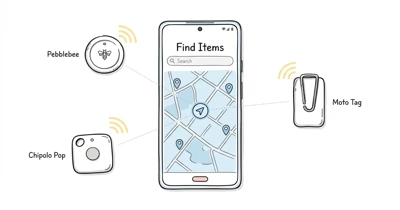
Offline finding locates a tracker when it’s out of Bluetooth range of your own phone. A Find Hub tag has no GPS and no cellular radio, so it can’t report its own position. Instead it broadcasts an encrypted Bluetooth signal that any nearby Android phone can forward to Google.
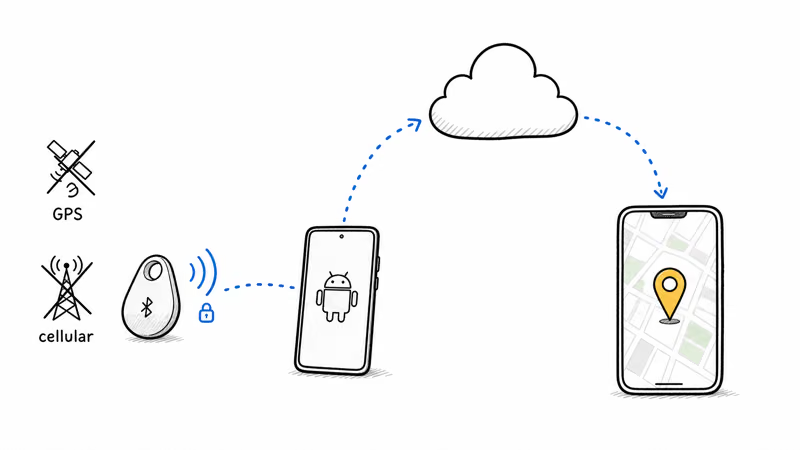
Per Google’s “Be ready to find a lost Android device” support page, your phone stores its own encrypted recent locations and, by default, joins the crowdsourced network that relays other Android users’ lost items. The “Find your offline devices” setting controls how aggressively your tracker is found.
Google currently documents the setting under Settings, Google, All services, Find Hub, then Find your offline devices. The exact path and label can vary by phone maker, Android version, and Google Play services release.
The key fact most people miss: the offline setting is a coverage-versus-privacy dial, not an on/off switch. The mode you pick decides whether a single passing phone updates your map, or whether several phones must detect the tag at once first.
The Four Find Hub Offline Finding Settings
Google’s documentation lists four modes under “Find your offline devices.” In practice, the three you actually choose between are Without network, busy places only, and everywhere. The fourth, Off, disables stored locations entirely.
| Setting | What it does | Coverage |
|---|---|---|
| Off | No encrypted locations stored; phone does not join the network at all | None |
| Without network | Locate using your own stored recent locations only; no crowdsourced relays | Last-known point only |
| With network in busy places only | Crowdsourced relays, but a tag is only reported when multiple devices detect it together | Crowds, airports, transit hubs |
| With network everywhere | A single passing Android can report the tag, even in low-traffic areas | Broadest, including quiet streets |
The “busy places only” default exists for privacy. Requiring multiple devices before showing an aggregated location reduces reliance on a single report. That protection is real, but it can also leave a tag on its last pin longer in a quiet area.
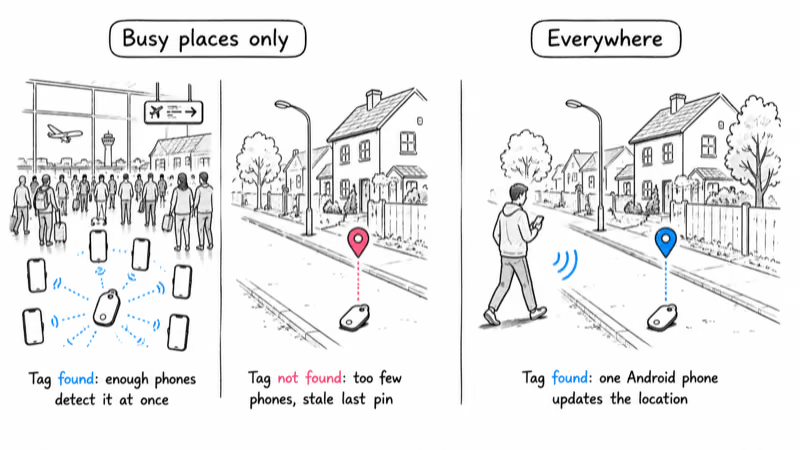
The naming has shifted with the rebrand. Android Central’s report on the Find Hub launch confirms that Google renamed these options in 2025 but did not change how they work; “busy places only” is the same mode previously labeled “high-traffic areas only.”
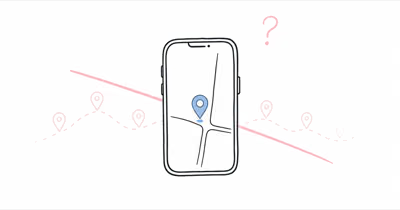
If you want to understand what a tag actually stores beyond this live point, our guide to Find Hub location history explains why the map only ever shows a single most-recent location, never a route.
Which Find Hub Offline Setting Should You Use?
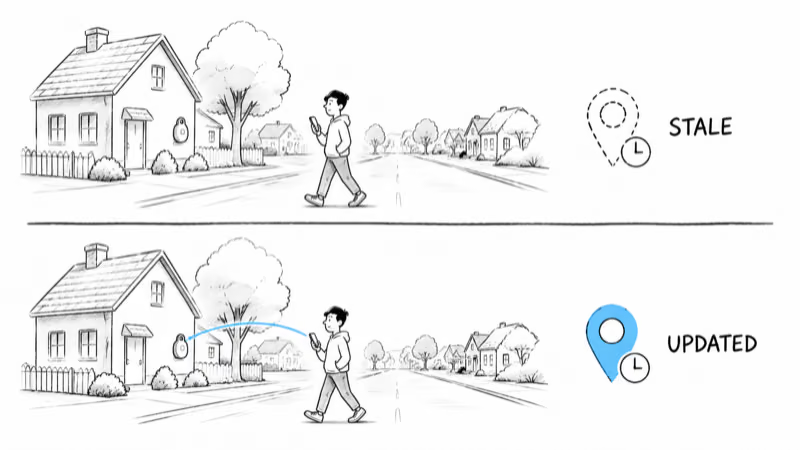
For most people who actually want to find lost things, the answer is “with network everywhere.” It’s the only mode where a single Android walking past your tag is enough to update the map. On a quiet street, switching from busy places only to everywhere is the difference between a stale point that can sit for half an hour or more and one that refreshes the moment any phone passes by.
The trade-off is symmetry. To get everywhere coverage for your own tags, your phone also relays other people’s tags everywhere, including when yours is the only device that detected them. Google requires a screen lock (PIN, pattern, or password) before the everywhere mode activates, because the lock is what gates the encryption keys that keep those relays anonymous.
Choose your mode by where you lose things:
- Everywhere: Best for keys, wallets, luggage, and pet tags that may end up in driveways, parks, rural roads, or parking decks. Most readers should pick this.
- Busy places only: Fine if you only ever lose items in airports, malls, offices, or transit, and you prefer the stricter privacy posture. This is the default, so leaving it untouched means accepting weaker coverage.
- Without network: Only useful if you object to crowdsourcing entirely. Your tag becomes a last-known-pin device, with no live relay help.
If a tag still refuses to update after you switch to everywhere, the problem is usually a permission or background-service issue rather than the network mode. Our Find Hub tracker not updating guide walks through the six most common causes in order.
Changing Offline Finding on Pixel and Galaxy
The setting moved when Google rebranded Find My Device to Find Hub in 2025, so the path differs slightly by phone and Android version. The destination is the same: a screen called “Find your offline devices” with the four radio buttons.
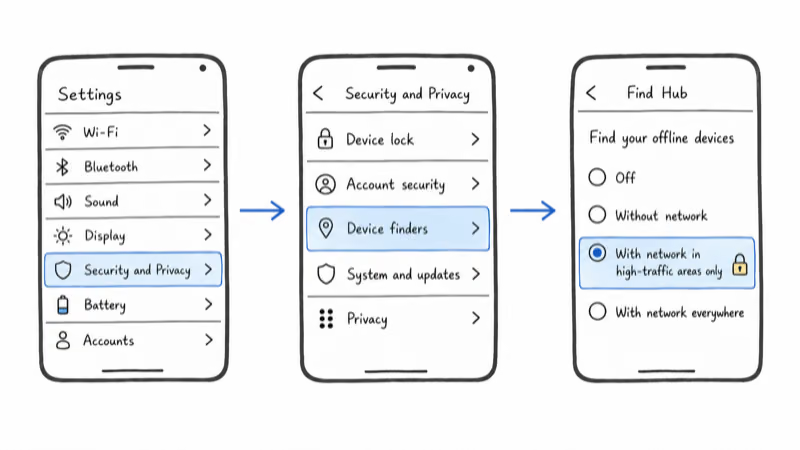
On a Pixel (Android 14 and newer):
- Open Settings, then tap Security and Privacy.
- Tap Device finders, then Find Hub (older builds still say “Find My Device”).
- Tap Find your offline devices.
- Select With network everywhere, then confirm the screen-lock prompt if asked.
On a Samsung Galaxy:
- Open Settings, then tap Security and privacy.
- Tap Find Hub (or open the Find Hub app and tap your profile, then settings).
- Tap Find your offline devices and choose your mode.
Samsung phones add a wrinkle: SmartThings Find runs alongside Find Hub, and the two can show different last-known locations. If you use Galaxy SmartTags, you are partly on Samsung’s own network, not just Google’s. Google’s Find Hub troubleshooting page states that the offline setting governs the Find Hub network alone, not any manufacturer overlay.
Why Find Hub Says “Current Location Only”
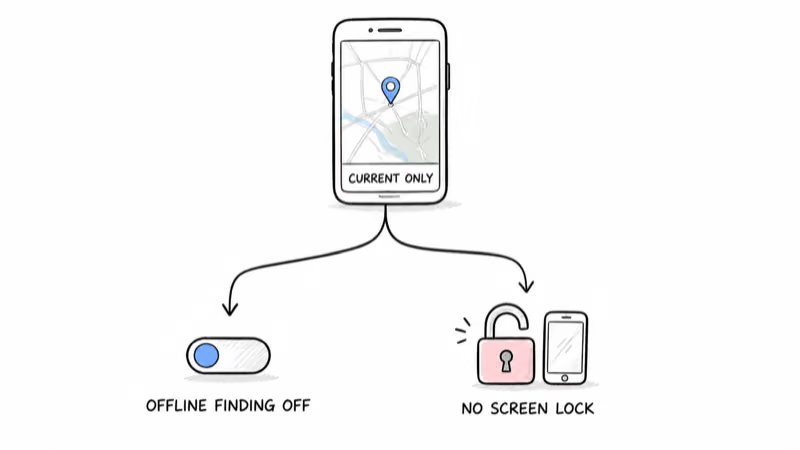
If your tracker shows “current location only” or refuses to offer network finding, the cause is almost always one of two things: offline finding is set to Off or Without network, or your phone has no screen lock set.
Google’s Find Hub setup guidance states that With network everywhere uses stored, encrypted recent locations and requires a PIN, pattern, or password for the network to help locate a device in busy and remote areas. If your phone has no screen lock, set one before selecting that mode.
Set a screen lock first, then return to Find your offline devices. Google requires a PIN, pattern, or password before your account can use the crowdsourced network to find its own items.
The other trigger is a phone that has not finished the Find Hub migration. After the rebrand, some devices kept the old “Find My Device” toggle until a Google Play services update landed. If your Settings still says Find My Device and offers fewer than four offline modes, update Google Play services and reboot, then re-check.
Does Offline Finding Drain Battery or Data?
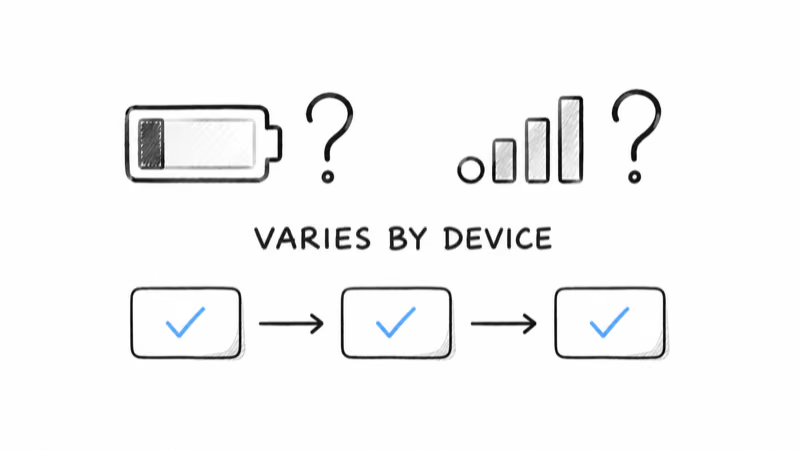
Google does not publish a universal battery or mobile-data figure for these modes, and the result varies by phone and software build. Treat the cost as device-dependent rather than assuming a fixed percentage.
If Find Hub stops updating, use Google’s documented troubleshooting flow: confirm Location and Bluetooth are available, check the selected offline mode, and re-initialize that mode if recent-location sync fails. For a deeper look at how trackers report through this network, see our Google Find Hub tracker guide.
How This Setting Ties Into Not-Updating Problems
Offline finding mode is the first thing to check when a tag stops updating, because the symptom of “busy places only” in a quiet area is identical to a hardware fault: a map stuck on the last pin. The difference is that the network mode is a one-tap fix, while a true fault needs a reset.
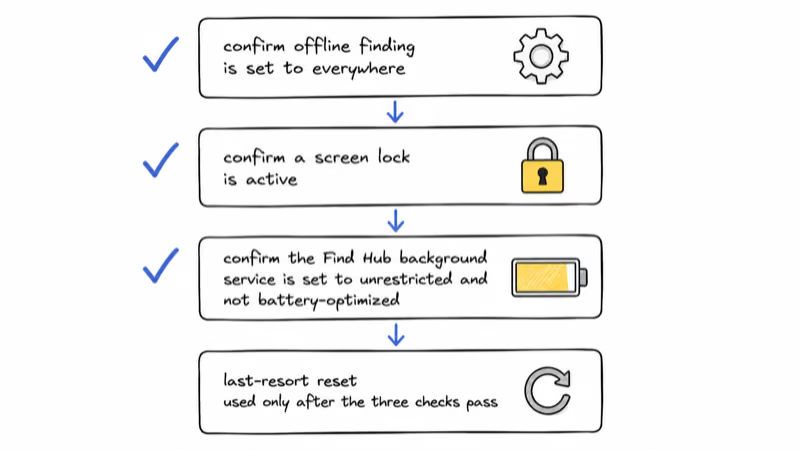
Run the diagnostic in order. Confirm the selected offline mode, screen lock, Location, and Bluetooth, then retry recent-location sync. Only after those checks pass should you suspect a firmware hang and reach for a reset.
Following this order matters because most stalled tags clear at the settings stage, before any reset is needed. Our Find Hub reset guide covers the brand-by-brand steps once you have ruled out the settings.
One honest limitation remains: even on everywhere mode, a tag in a truly empty area with no Android phones passing by won’t update. The setting maximizes your odds, but it can’t conjure a relay node where none exists.
That is the structural trade-off of any crowdsourced Bluetooth network. It’s also the central reason a cellular GPS tracker remains the only option for real-time tracking in remote terrain. You can compare the full Android tracker lineup in our Find Hub hub.
Bottom Line
If you want Find Hub to actually find things, change “Find your offline devices” from the default “busy places only” to “with network everywhere,” and make sure your phone has a screen lock so the option is available. That single change is the difference between a tag that updates only in crowds and one that updates almost anywhere an Android phone walks past.
Keep busy places only if you prefer the stricter aggregation posture and mainly lose items in high-traffic places. And remember that no setting overcomes an empty area with no participating Android devices; for that use case, a cellular GPS tracker is the honest answer.
FAQ
What is the difference between busy places only and everywhere in Find Hub?
Busy places only waits for multiple Android devices to detect an item before it shows an aggregated location. With network everywhere can use a single participating Android device, including in low-traffic areas. The everywhere mode requires a screen lock and exchanges stricter aggregation for broader finding coverage.
Which Find Hub offline finding setting is the most reliable?
With network everywhere offers the broadest coverage because one participating Android device can report your tag’s location. Busy places only waits for multiple detections before it shows an aggregated location, which can limit coverage in rural areas, driveways, and parking decks. For most people who prioritize finding coverage, everywhere is the better choice.
How do I change offline finding settings on my Pixel?
Open Settings, tap Google, then All services, Find Hub, and Find your offline devices. Choose With network everywhere. If the option is unavailable, set a PIN, pattern, or password first. Menu names can vary by Pixel software release, so use Settings search for Find Hub if the documented path has moved.
Why is the With network everywhere option greyed out?
The everywhere mode is unavailable until you set a screen lock on your phone. Google ties the network’s anonymity protections to your lock, so a phone with no PIN, pattern, or password can’t opt into the strongest relay mode. Add a screen lock under Settings and Security, then return to Find your offline devices and the everywhere option becomes selectable.
Does Find Hub offline finding drain my battery?
Google does not publish one battery-use figure that applies to every Android phone and mode. Usage varies by hardware, software, radio conditions, and how often the phone participates in finding. If battery use changes noticeably, check your phone maker’s battery dashboard rather than assuming one universal impact.
Will offline finding locate my phone after the battery dies?
On supported devices such as the Pixel 8 series, Google says Find Hub can locate the phone for several hours after it powers off. This requires busy places only or everywhere mode, with Bluetooth and Location on when the phone shuts down. Support depends on the phone model; check the manufacturer’s current documentation.
Why does Find Hub only show my tag’s current location and not a history?
Find Hub stores a single most-recent encrypted location and overwrites it on every update, so it never builds a route or timeline. The offline finding setting controls how often that single point refreshes, not whether a history is kept. If you need an actual location history, you need a cellular GPS tracker with a logging plan rather than a Bluetooth tag on Find Hub.