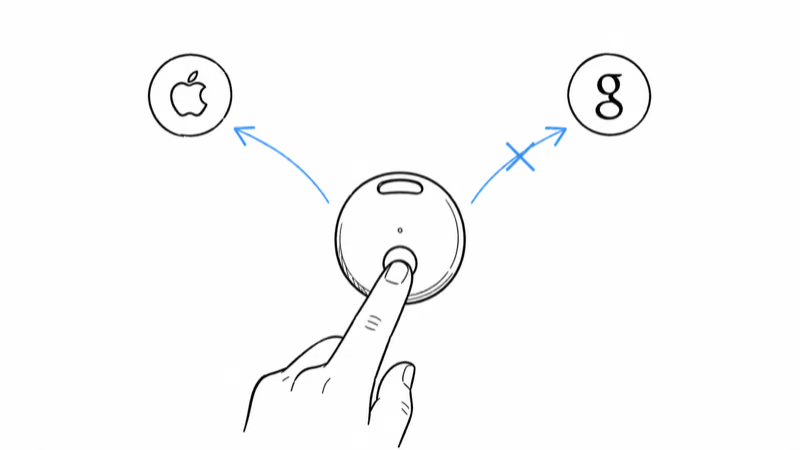
Pebblebee Clip 5 and Card 5 ship with a setup choice that no other major tracker forces on owners: at first pairing, you pick Apple Find My or Google Find Hub and live with that choice until you reset the tag.
That dual-network design unlocks broader coverage than Tile or any Find My-only tag, and it also creates a beeping pattern owners don’t see on AirTag or Chipolo Pop. Pebblebee’s Clip 5 setup page confirms that switching networks requires a factory reset before re-pairing.
- Press the Pebblebee button once to silence any active ring instantly, even with your phone in another room.
- Pebblebee Clip 5 and Card 5 run on a sealed rechargeable cell with up to 12 months (Clip) or 18 months (Card) between charges, per Pebblebee’s published specs.
- A Left Behind chirp fires the moment your phone walks out of Bluetooth range, separate from any anti-stalking alarm.
- Apple’s anti-stalking standard requires Find My-paired Pebblebees to chirp once separated from the owner for a period of time; Apple doesn’t publish a fixed window.
- Switching between Find My and Find Hub requires a full factory reset; a half-reset is a common cause of phantom chirps.
Why Your Pebblebee Keeps Beeping: 5 Causes
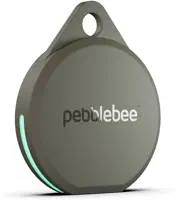
The Clip 5 and Card 5 share the same firmware family, but the chirp triggers behave a little differently between the two form factors. The five patterns below cover almost every unexpected beep owners run into.
Pebblebee’s official sound-pattern help describes the same buckets, so the labels here line up with anything you’ll see if you open a warranty claim later.
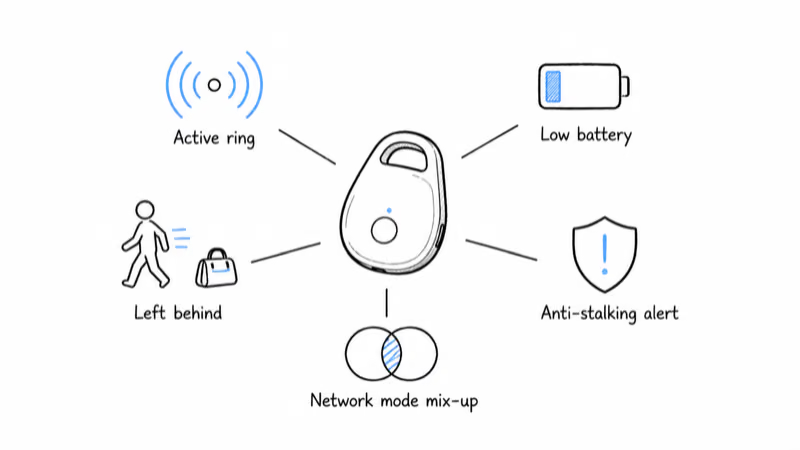
1. Active Ring From Find My or Find Hub
The most common trigger is a Ring command someone sent through the network the tag is paired to. On a Find My Pebblebee, the source is Apple’s Find My app; on a Find Hub Pebblebee, it’s Google’s Find Hub app. Press the cover button once and the speaker stops within a second, even if you can’t see your phone.
In a household with shared Find My access, accidental Rings from family members are a common source of surprise chirps. The fix isn’t on the tag, it’s on the account: prune shared access you don’t need.
2. Left Behind Notification Chirp
Both Clip 5 and Card 5 fire a short chirp when they fall out of Bluetooth range of the paired phone, separate from any anti-stalking alarm. Pebblebee’s Clip product page states that the Left Behind feature is on by default for the first item you pair, and the tag plays a single confirmation tone the moment the connection drops.
On Find Hub, the chirp pattern is two short tones; on Find My, it’s a single longer tone. The alert waits for the network to confirm the tag is truly out of range before chirping.
3. Low Rechargeable Battery
Clip 5 ships with a rechargeable cell rated at up to 12 months per charge; Card 5 ships with a wireless-charging cell rated at up to 18 months. Both fire a low-battery chirp once voltage drops past the firmware threshold, plus a notification in the Pebblebee app and the paired tracking network.
The chirp pattern is the same as Chipolo’s: a single short tone roughly every 30 to 60 seconds. If the tone keeps coming back after you ring the tag, charging is the right next step. Card 5 charges on any Qi wireless pad.
Charging behavior across Pebblebee 5 series:
| Model | Battery | Rated Runtime | Charging |
|---|---|---|---|
| Pebblebee Clip 5 | Sealed Li-Po | Up to 12 months | USB-C cable |
| Pebblebee Card 5 | Sealed Li-Po | Up to 18 months | Qi wireless pad |
| Pebblebee Tag 5 | Sealed Li-Po | Up to 12 months | USB-C cable |
4. Network Mode Mix-Up (Find My vs Find Hub)
This is the failure mode owners of AirTag, Tile, or Chipolo Pop rarely run into. Pebblebee Clip 5 and Card 5 can pair to Apple Find My or Google Find Hub, but not both at the same time. If you reset the tag to switch networks and the reset only partially completes, the cover button can fire phantom chirps because the firmware is still in pairing mode.
Symptoms include a long 5-tone setup chime that repeats every few minutes, a tag that won’t show up in either app, or a slow flashing LED under the cover. The cure is a full reset: hold the button until you hear the second confirmation pattern, then re-pair from scratch in the network you actually want.
5. Anti-Stalking or Unknown Tracker Alert
Pebblebee participates in Apple’s and Google’s cross-platform anti-stalking detection. Apple’s unwanted-tracker detection guide states that compliant tags must alert someone they may be traveling with and play a sound once separated from their owner. Find Hub uses a parallel system on Android. Google’s Unknown Tracker Alerts help confirms that Android 6.0 and later phones can flag an unknown tracker traveling with you.
If you handed a Pebblebee to a friend on purpose, share it through Find My (Share Item Location) or hand off the tag through the Pebblebee app before they walk away. Otherwise the tag will eventually chirp on the carrier even though you both know it’s there.
How Do You Stop a Pebblebee From Beeping?
Work through these steps in order. The first three resolve the large majority of phantom-chirp complaints.
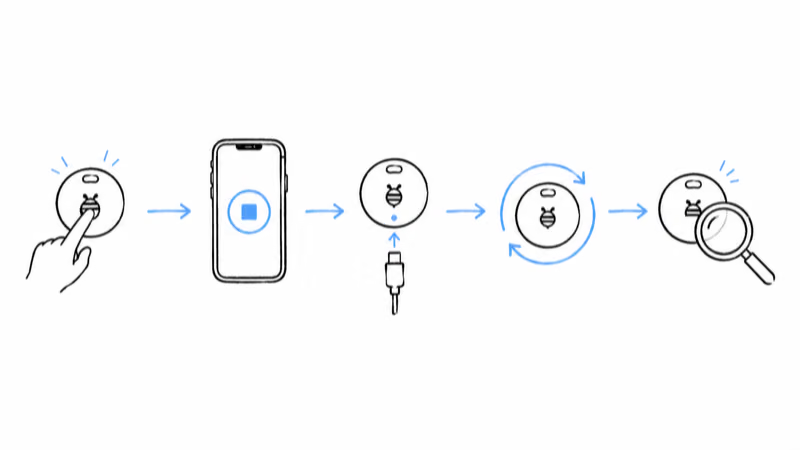
- Single-press the cover button. One press silences an active Ring within a second. This works on both Clip 5 and Card 5.
- Stop the ring in Find My or Find Hub. If the button doesn’t help, open the app the tag is paired to and tap Stop on the active Ring banner.
- Charge the tag. Plug Clip 5 into USB-C or drop Card 5 on a Qi pad. Low-battery chirps quit once voltage clears the firmware threshold.
- Disable Left Behind. Open the Pebblebee app, pick the tag, and toggle Left Behind off if the chirp fires during normal commutes.
- Run a full factory reset and re-pair. Hold the cover button about 12 seconds until you hear the second confirmation pattern. Re-pair in the network you want (Find My or Find Hub).
- Run an Unknown Tracker scan. If the tag isn’t yours, follow Apple’s Tracker Detect or Google’s Unknown Tracker Alert flow to identify the owner and silence the tag.
What Does Each Pebblebee Sound Mean?
The five patterns above map neatly to the chirps you’ll hear, so identifying the rhythm usually narrows down the cause in seconds.
| Sound Pattern | What It Means | Action |
|---|---|---|
| Loud melody, repeating | Active Ring from app | Press cover button once or Stop in Find My / Find Hub |
| Single short chirp at disconnect | Left Behind notification | Toggle off in Pebblebee app or re-pair phone |
| Single chirp every 30 to 60 sec | Low battery | Charge via USB-C (Clip 5) or Qi pad (Card 5) |
| 5-tone setup chime repeating | Network mode mix-up (incomplete reset) | Full factory reset, re-pair from scratch |
| Loud alarm after a period of time away | Anti-stalking alert | Run Unknown Tracker scan, identify owner, disable |
Find My vs Find Hub: Why Network Mode Matters
Pebblebee’s dual-network design is unusual in 2026. Chipolo Pop offers the same pick-one-network setup, but most trackers commit to a single network in hardware. The trade-off: broader coverage on either side at the cost of a one-way migration unless you reset.
If your Pebblebee chirps without a clear cause and you recently switched a household’s main phone from iPhone to Android (or vice versa), the tag’s paired network probably no longer matches the phone that should be controlling it. The chirp is the tag asking for a phone it can talk to. Re-pair on the network the new phone uses, not the old one.
For a deeper look at how Pebblebee’s tag family compares to Apple and Google’s first-party hardware, see our Pebblebee review and the dedicated Card 5 review for thin-form-factor details.
Why Pebblebee Sounds Quieter Than Chipolo Pop
Pebblebee’s published speaker rating sits below Chipolo Pop’s 120 dB and below Tile Pro’s mid-90s dB output. The Card 5 in particular trades loudness for thinness; the speaker is sealed inside a 1.8 mm card body, so pockets, sleeves, and stacked cards can muffle it.
If your Pebblebee chirp sounds quieter than expected, check whether the tag is wedged inside a thick silicone sleeve or buried in a wallet pocket between credit cards. Moving the tag to a more exposed slot gives the speaker a clearer path. For a side-by-side on chirp volume across brands, our Chipolo beeping guide covers the same trigger patterns on Chipolo’s lineup.
When Pebblebee Beeping Is Working as Intended
Two chirp patterns sound like faults but are actually correct behavior:
- The setup confirmation tone. A 5-tone ascending chime when you pair the tag in the Pebblebee app, Find My, or Find Hub is intentional. No action needed.
- The reset confirmation pattern. A double-pattern chirp marks a successful factory reset; you’ll need to re-pair the tag in your chosen network.
Persistent chirping that survives a full charge, a factory reset, and a fresh network pairing usually points to a speaker hardware fault. Pebblebee covers tags under a 12-month warranty, so a replacement is the right next step. If you also own AirTags or Chipolos in the same household, our AirTag beeping guide shares most of the same trigger logic across brands.
Bottom Line
If your Pebblebee keeps beeping, press the cover button once first. It silences any active ring within a second on both Clip 5 and Card 5. If the chirp returns, check the Pebblebee app for a low-battery banner, look for a Ring you didn’t trigger, and confirm the tag is paired to the network your current phone actually uses.
If a full charge, a factory reset, and a clean re-pair don’t end the chirp, the speaker is the most likely culprit and Pebblebee’s warranty replacement is the cleanest fix.
Frequently Asked Questions
Why does my Pebblebee keep beeping on its own?
Random beeping usually traces to one of three things: a low-battery chirp once the rechargeable cell dips below the firmware threshold, an active Ring you didn’t trigger because someone with shared Find My or Find Hub access tapped Ring, or a Left Behind chirp the moment your phone walks out of Bluetooth range. Check the battery indicator in the Pebblebee app first, then look for an active Ring banner, then toggle Left Behind off if you don’t need the alert.
How do I stop my Pebblebee from ringing?
Press the cover button on the tag once. The ring stops immediately, even if your phone is in another room. If the tag is too far to reach, open Find My (for Find My-paired tags) or Find Hub (for Find Hub-paired tags) and tap Stop on the active Ring banner. The Pebblebee app can also stop the ring directly from the device card.
Does Pebblebee Clip 5 work on both Find My and Find Hub at the same time?
No. Pebblebee Clip 5 and Card 5 pair to one network at a time: Apple Find My or Google Find Hub. You pick at first setup, and switching networks requires a full factory reset before you re-pair. An incomplete reset is a common cause of phantom chirps because the tag’s firmware is left in pairing mode and the cover button keeps firing setup tones.
Why does my Pebblebee Card 5 chirp once a minute?
A periodic single chirp is the low-battery alert pattern. Card 5 uses a sealed Li-Po cell rated for up to 18 months between charges. Drop the card on any Qi wireless pad; the chirp stops once voltage clears the firmware threshold.
Can a stranger’s phone trigger my Pebblebee to beep?
Yes. Find My-paired Pebblebees participate in Apple’s anti-stalking detection, and Find Hub-paired Pebblebees participate in Google’s parallel Unknown Tracker Alerts system. A tag separated from its owner and traveling with another person’s phone for a period of time fires a chirp on the tag and a notification on the carrier’s phone. The carrier can run Unknown Tracker Alert (iOS) or Tracker Detect (Android) to identify and disable the tag.
How do I disable Left Behind notifications on Pebblebee?
Open the Pebblebee app, tap the tag, and toggle Left Behind off. You can also do this from Find My on the tag’s settings card (Notify When Left Behind) or from Find Hub on Android. The toggle is per-tag, so turning it off on one Pebblebee doesn’t affect other tags in your account.
Does Pebblebee Clip 5 use a replaceable battery?
No. Clip 5 and Card 5 both ship with sealed Li-Po cells that recharge over USB-C (Clip) or Qi wireless (Card). The older Pebblebee Found and Pebblebee Tag models used CR2032 coin cells, but the 5-series moved to rechargeable for thinner profiles. Pebblebee rates Clip 5 at up to 12 months per charge and Card 5 at up to 18 months.
How do I factory reset a Pebblebee Clip 5 that won’t stop beeping?
Hold the cover button for about 12 seconds. The tag plays a first confirmation pattern at roughly 5 seconds and a second one at 12 seconds. Release after the second pattern. The tag is now fully reset and ready to pair fresh on either Find My or Find Hub. If you release too early, the reset can be partial, and the cover button may fire phantom setup chirps until you complete a full reset.