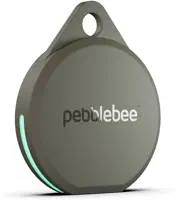
Most Pebblebee Clip pairing failures come from three things: a drained rechargeable battery, the wrong app, or a tag still tied to a previous account. Charge it over USB-C, double-press the button to enter pairing mode, and use Find My on iPhone or the Pebblebee app on Android. If it still won't appear, factory reset and re-pair.
The Pebblebee Clip locks to one network at setup, so a tag that won't connect is usually pointed at the wrong app rather than broken. Pebblebee's Find Hub connection guide notes that the Clip pairs through Google's Fast Pair, not standard Bluetooth, which is why manual pairing from your Bluetooth menu often fails.
- You pick one network at setup — the Clip works with Apple Find My OR Google Find Hub, never both at once, so the wrong app means it never shows up.
- A dead battery looks like a connection fault — the Clip is USB-C rechargeable and needs 4 to 5 hours for a full charge before it can pair.
- Pairing mode is a double-press — the button below the logo makes the tag beep and flash continuously when it’s ready to connect.
- A previous owner’s account blocks pairing — a tag registered elsewhere won’t connect until it’s removed from that account and reset.
- The factory reset is a triple-press then 10-second hold — a short jingle confirms it, and then you re-pair from scratch.
Did You Pick the Right Network at Setup?
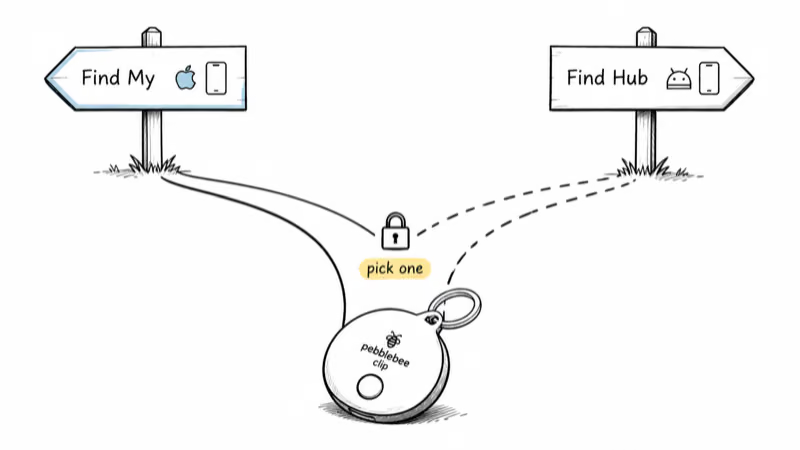
The single most common reason a Pebblebee Clip won't connect is a network mismatch. The Clip is a dual-network tracker, but you choose one network during setup and it commits to that choice. According to Pebblebee's product documentation, the Clip works with Apple Find My OR with Google's Find Hub, and a Clip configured for Android won't work with Apple Find My.
That means the app you pair from has to match the tag's network. On an iPhone, you add it through Apple's Find My app. On Android, you pair through Google Find Hub via the Pebblebee app. Trying to add an iOS-locked Clip to an Android phone simply produces a tag that never appears.
Picking the wrong app is the fastest way to convince yourself a working tag is defective. If you bought a Clip variant for the wrong platform, you'll need to switch networks, which on the Clip means a factory reset and re-pair through the correct app.
Charge the Rechargeable Battery First
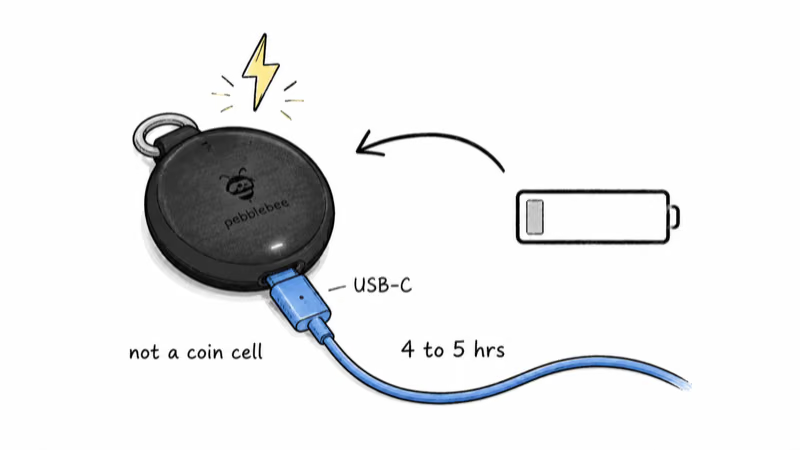
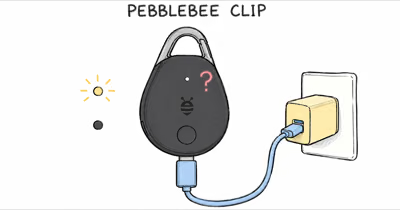
Unlike an AirTag, the Pebblebee Clip does not use a coin cell. It has a built-in rechargeable battery you top up over USB-C, and a Clip that arrives or sits unused for months can be flat enough that it can't enter pairing mode at all.
Plug the Clip into any USB-C cable that charges your phone. Pebblebee's support team states that a full charge takes about 4 to 5 hours, and the device blinks while charging and goes dark once it's full. The battery lasts up to 12 months on a charge, so once it's topped up you rarely think about it again. If the Clip shows no charging light, our Pebblebee Clip not charging guide covers dead-port fixes.
Here's the quick diagnostic Pebblebee recommends: press and hold the button. If the Clip doesn't light up at all, the battery is drained and needs charging before anything else will work. A freshly unboxed Clip that has never been charged may refuse to flash until it has sat on the cable for a while.
Enter Pairing Mode With the Right Button Press
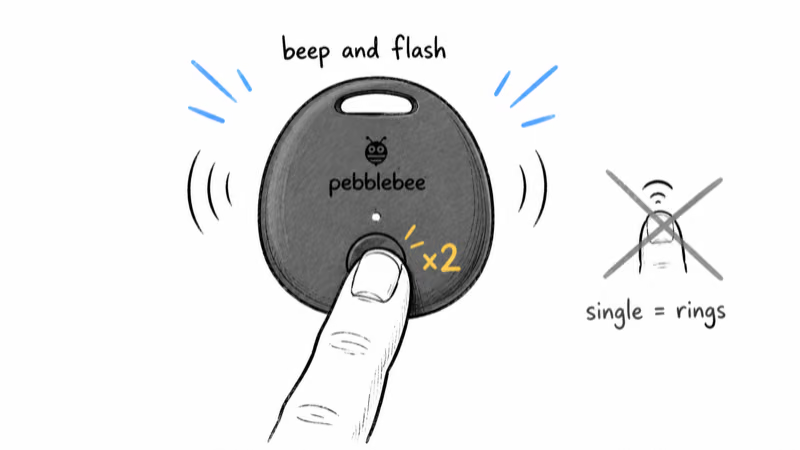
Pebblebee uses one physical button, located just below the logo on the front of the Clip. The press pattern decides what happens, so the count matters.
Double-press the button to enter pairing mode. Pebblebee's setup instructions say the device should beep and flash continuously once it's discoverable. If you only get a single chirp, you likely single-pressed it, which rings the tag instead of opening pairing.
On iPhone, open Find My, tap the plus button, choose Add Other Item, and follow the prompts while the Clip flashes. On Android, the Pebblebee app drives a Fast Pair popup. The Clip relies on Google Fast Pair rather than manual Bluetooth pairing, so wait for that popup instead of digging through your phone's Bluetooth settings.
Check Bluetooth, Location, and App Permissions
A tag in pairing mode still needs a phone that's actually allowed to see it. Two settings block more pairings than any other: Bluetooth and location permissions.
Make sure Bluetooth is on, since the phone has to detect the tag over Bluetooth before any network takes over. On Android, the Pebblebee app and Find Hub both need location access. Pebblebee's Find Hub guide lists missing location permission as a common reason a Clip never completes pairing or appears in the app.
If you're on Android, enable nearby-device scanning under Settings, Google, Devices and sharing. If the Fast Pair popup appeared once and you dismissed it, clearing the cache for Google Find Hub and Google Play Services and restarting the phone usually brings it back. Google's own Fast Pair documentation confirms accessories are tied to your Google Account once they connect this way.
Is the Tag Still Registered to Someone Else?
A Pebblebee Clip that was paired before, whether by a previous owner or your own earlier setup, can refuse to connect because it's still claimed. This is a security feature shared across modern trackers, and it's a frequent cause of a secondhand or returned-and-resold Clip that won't pair.
First, check your phone's Bluetooth list for a stale entry. Pebblebee's troubleshooting notes that a previously connected tag shows up as PB followed by the last four digits of its MAC address, and you should forget that device before retrying. A lingering pairing from an old account quietly hijacks the connection.
If the tag was registered to a different account entirely, the cleanest fix is to delete it from the relevant app, factory reset the Clip, and pair it as a new device. The same applies to your own account if you're moving the Clip from Find My to Find Hub or back, since each network owns the tag exclusively.
Factory Reset and Re-Pair the Clip
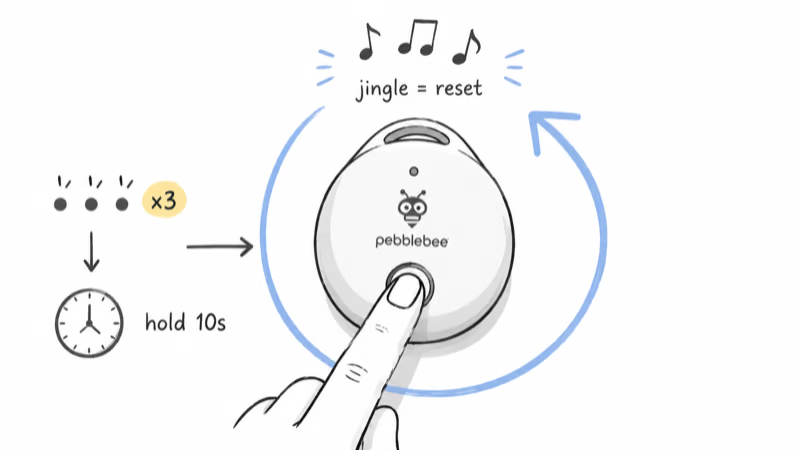
When nothing else works, a factory reset clears the tag's pairing state and lets you start clean. This is also the required step for switching the Clip between Apple Find My and Google Find Hub.
Pebblebee's reset guide describes the sequence for the current Clip: locate the button below the logo, triple-press it, then press and hold for about 10 seconds. A short jingle confirms the reset succeeded. If you don't hear the jingle, repeat the steps carefully, since a partial press leaves the tag in its old state.
After the reset, double-press to re-enter pairing mode and add the Clip through the correct app for your network. If you've owned several trackers, our guide to the Find My versus Find Hub decision can help you commit to the network that fits your phone before you re-pair. Pebblebee's official reset instructions cover the same triple-press-and-hold pattern if you want to follow along step by step.
When the Clip Pairs but Still Won't Show a Location
Sometimes the Clip connects fine but never reports a useful position, which feels like a connection failure even though pairing worked. That's a network coverage issue, not a pairing one.
Both Apple Find My and Google Find Hub are crowd-sourced. The Clip's position only updates when another nearby phone on the same network detects it, so a quiet street or a drawer at home can leave the last location hours stale. If your Clip pairs but the map looks frozen, our walkthrough on a stale Find Hub location covers the permission and coverage fixes in depth.
For a wider look at how Pebblebee stacks up against rivals on range and reliability, the Chipolo and Pebblebee comparison and our roundup of the best Bluetooth trackers put these connection quirks in context.
Android users weighing platforms can also check whether AirTags work with Android before settling on a network, since the network you commit to shapes every pairing decision afterward.
Bottom Line
A Pebblebee Clip that won't connect is usually fixable without a replacement. Charge the battery over USB-C, double-press for pairing mode, and make sure you're using the app that matches the network you chose at setup. If the tag is still claimed by an old account, forget it in Bluetooth and factory reset with a triple-press and hold. Those four checks cover the usual pairing blockers.
FAQ
Why won't my Pebblebee Clip connect to my phone?
The usual causes are a drained battery, the wrong app, or a tag still claimed by another account. Charge it over USB-C, double-press to enter pairing mode, and pair through Apple Find My on iPhone or the Pebblebee app on Android. If it was paired before, forget the PB entry in your Bluetooth settings and factory reset it.
How do I put a Pebblebee Clip in pairing mode?
Press the button below the logo twice. The Clip should beep and flash continuously to show it's discoverable. If it only chirps once, you single-pressed it, which rings the tag instead of opening pairing. Make sure the battery is charged first, because a flat Clip won't light up at all.
Does the Pebblebee Clip use a replaceable battery?
No. The Clip has a built-in rechargeable battery you top up with a USB-C cable, unlike an AirTag's swappable coin cell. A full charge takes about 4 to 5 hours and lasts up to 12 months. If the tag won't pair, charging it's the first thing to try, since a dead battery can't enter pairing mode.
Can a Pebblebee Clip work with both Find My and Find Hub?
Not at the same time. You pick one network when you set the Clip up, and it commits to either Apple Find My or Google Find Hub. To switch networks, you have to factory reset the tag and pair it again through the other platform. A Clip configured for Android won't appear in Apple Find My, and the reverse is also true.
How do I factory reset a Pebblebee Clip?
Locate the button just below the logo, triple-press it, then press and hold for about 10 seconds. A short jingle confirms the reset worked. If you don't hear it, repeat the steps carefully. After a reset, double-press to enter pairing mode and add the Clip through the app for your chosen network.
Why does my secondhand Pebblebee Clip refuse to pair?
It's likely still registered to the previous owner's account. Check your Bluetooth list for a device named PB plus the last four digits of its address and forget it. Then ask the prior owner to remove it from their app, or factory reset the Clip yourself and pair it as a new device.
My Pebblebee Clip paired but shows an old location, what now?
That's a coverage issue, not a pairing one. Both Find My and Find Hub update only when another phone on the same network passes near the tag, so a quiet area refreshes slowly. Confirm Bluetooth and location permissions are on, and expect stale positions in low-traffic spots even when the tag works fine.