A fresh Chipolo LOOP that won’t connect is almost always a pairing-flow problem, not a broken tag. The LOOP is added through your phone’s native setup, and Chipolo’s official pairing-popup guide confirms the setup sheet won’t appear at all while the Chipolo app is left open in the background.
- The Chipolo app must be closed — the Android Fast Pair sheet only fires when the Chipolo app is fully closed, not just minimized.
- Bluetooth plus Location are both required — the LOOP can’t be detected with either one off, even if the tag is fully charged.
- You pick one network at setup — Apple Find My or Find Hub, never both, and the tag is invisible from the other app.
- Fast Pair is the only way on Android — there is no manual “add” button, so a missing popup blocks the entire setup.
- A factory reset is the last step — it clears a half-finished pairing so you can start the LOOP over from scratch.
The seven fixes below walk through pairing failures in the order they actually happen, starting with the popup that never showed and ending with a full reset. If your LOOP pairs but later loses location, or won’t power on at all, those are separate issues covered elsewhere.
Why Won’t the Chipolo LOOP Pairing Popup Appear?
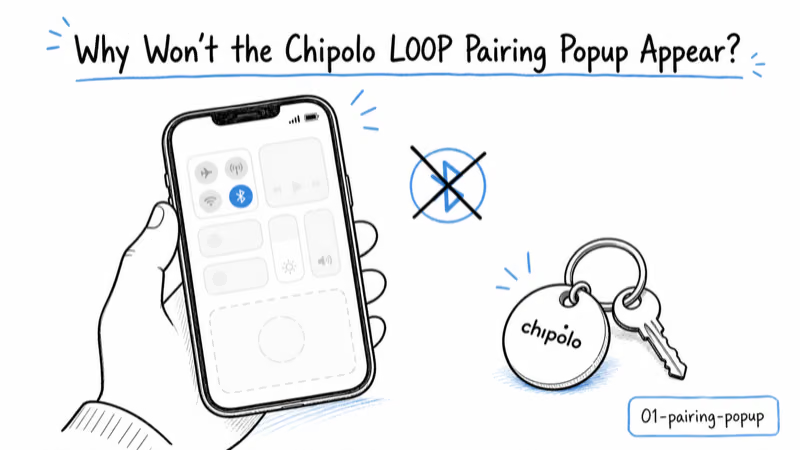
On Android, the LOOP is added through Google Fast Pair, which triggers a “half-sheet” popup the moment your phone detects the tag. When that sheet never shows, setup stalls because Fast Pair is the only way to add a Chipolo to Find Hub — there is no manual entry screen. Chipolo’s support team notes the popup most often fails to appear simply because the Chipolo app is open in the background.
Start with the basics in this exact order. Turn on both Bluetooth and Location, then fully close the Chipolo app, since the system won’t raise the pairing sheet while that app is running. Place the LOOP next to your phone and press it once until it beeps. Leaving the Chipolo app open in the background is the single most common reason the sheet never shows.
If the sheet still does not appear, enable Scan for nearby devices under Settings, Google, Devices and sharing. According to a 9to5Google hands-on with Chipolo’s Find Hub setup, Fast Pair detection is what carries the whole flow, so a disabled scan toggle leaves the tag invisible to the system.
As a fallback, restart the phone, give services a moment to load, and press the LOOP again. You can also open Bluetooth settings directly and tap the LOOP if it appears in the connected-devices list to force the pairing to begin.
Which Network Do You Pick at Setup?
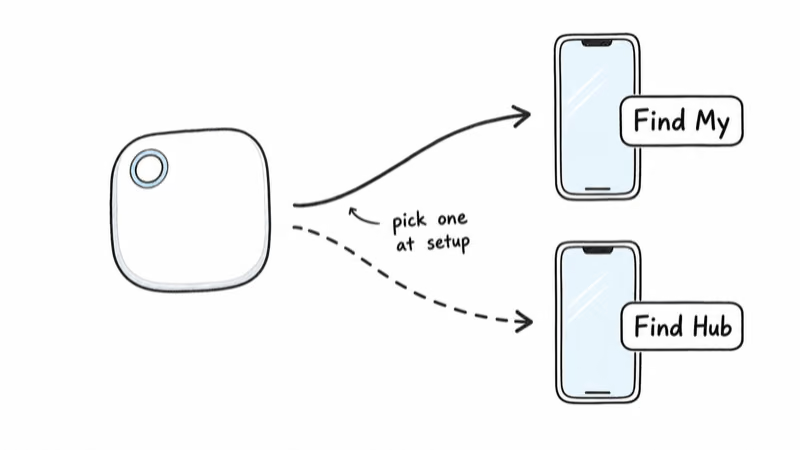
The LOOP is a dual-network tracker, but it joins only one network at a time — Apple Find My or Google’s Find Hub. This trips up new owners constantly: a LOOP claimed in Find My is completely invisible from Find Hub, and the reverse is equally true. So if the tag “won’t connect,” confirm you are even looking in the right app.
On iPhone, the steps are short. Apple’s guide to adding a third-party Find My item states that you open Find My, choose the Items tab, tap the plus icon, and select Add Other Item, then press the LOOP.
On Android, the Fast Pair sheet adds it to Find Hub first, and only after that can you add it inside the Chipolo companion app. Android Central’s hands-on with the universal LOOP confirms that you don’t even need the Chipolo app to locate the tag, since Find Hub manages it on its own.
Pick the network that matches your daily phone. An iPhone household should set the LOOP up in Find My for the widest finding network, while a Pixel or Galaxy owner should use Find Hub. Switching later means resetting the tag, so choose deliberately the first time.
App vs Network: Why the Chipolo App Alone Won’t Connect
A frequent point of confusion is treating the Chipolo app as the place where the tag connects. It isn’t. On Android, the LOOP must join Find Hub through the Fast Pair sheet first, and only then can you add it inside the Chipolo app using the Add a New Chipolo button.
The system popup can mislead you into thinking the tag was added everywhere at once. In reality it only joined Find Hub at that step; the Chipolo app needs a separate add. If you skip that order, the Chipolo app simply won’t find a tag that isn’t registered with the network yet.
The Chipolo app is optional for core finding but worth adding for extras like Out of Range Alerts and a louder ring. If you only care about locating the LOOP, Find My or Find Hub alone is enough, and a missing Chipolo-app connection is not actually a failure.
Fixing a LOOP That Pairs Then Drops
Sometimes the LOOP connects during setup but disappears moments later. This usually points to a stuck Bluetooth session rather than a bad tag. Restart your phone to clear the session, since a stale connection can block an otherwise healthy LOOP from re-registering.
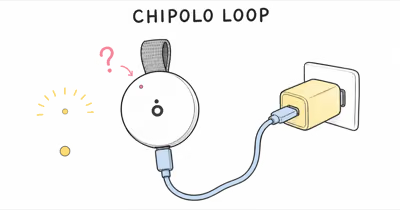
Confirm the tag has charge before blaming pairing. A LOOP shipped months ago can arrive low, and a near-dead battery can complete a handshake yet drop off. If the tag never lit or beeped at all, the problem may be power instead of pairing, which our Chipolo LOOP charging guide walks through step by step.
Keep the LOOP within a foot of your phone for the entire first setup. Pressing the button repeatedly and stepping away mid-pairing can drop the tag into a half-connected state that only a reset clears, so a slow, single-press setup close to the phone is the reliable path.
When to Factory Reset the Chipolo LOOP
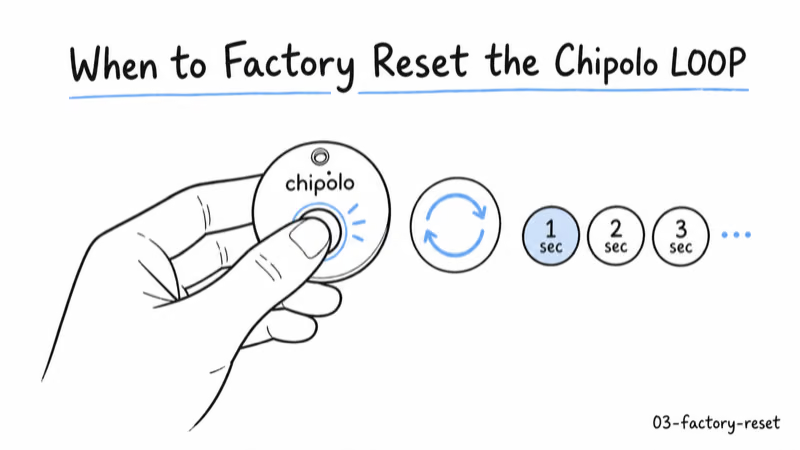
If the popup appeared but pairing never finished, a half-completed registration can block every retry. A factory reset clears that stuck state so the LOOP can start fresh. Treat it as the last move, because it wipes any partial setup and forces you to re-add the tag.
Step 1. Make sure the LOOP has enough charge that it beeps when pressed, since a reset on a dead tag won’t complete.
Step 2. Follow Chipolo’s reset sequence for the LOOP from the support site, then listen for the confirming beep that signals the reset finished.
Step 3. Close the Chipolo app, re-trigger Fast Pair on Android or Add Other Item on iPhone, and add the LOOP as a brand-new item.
The reset for the LOOP follows the same idea as other Find Hub tags. Our guide to resetting a Find Hub tracker covers the button timing for the LOOP alongside Pebblebee and Moto Tag, which is handy if the beep pattern is unclear.
What to Do If the LOOP Still Won’t Connect
Got the coin-cell sibling instead? See our Chipolo Pop not connecting fixes.
If you have closed the app, toggled Bluetooth and Location, enabled nearby-device scanning, restarted, and reset, and the LOOP still won’t pair, check your phone meets the floor: iOS 14.5 or later for Find My, or Android 9 or later with Google Play Services for Find Hub. An older or stripped-down phone can block Fast Pair entirely.
A LOOP that beeps on every press but never raises a popup or appears in either app may have a hardware fault. At that point, contact Chipolo support so they can confirm whether it’s a warranty case rather than continuing to retry the same steps.
If you are still deciding whether the LOOP is the right tag for your phone, our Chipolo LOOP review covers its pairing, range, and alarm trade-offs, and the broader Find Hub tracker hub compares it against the other rechargeable options on Android.
Bottom Line
A Chipolo LOOP that won’t connect is nearly always a setup-flow issue, not a defect. Close the Chipolo app, turn on Bluetooth and Location, and let the Fast Pair sheet appear, or use Add Other Item on iPhone. Remember the LOOP joins only one network at a time, and reset it only when a half-finished pairing blocks every retry.
FAQ
Why won’t my Chipolo LOOP pairing popup appear on Android?
The Fast Pair popup won’t appear while the Chipolo app is open, so fully close it first. Then confirm Bluetooth and Location are on, enable Scan for nearby devices under Settings, Google, Devices and sharing, and press the LOOP until it beeps. If it still fails, restart the phone, give services a moment to reload, and try again, or pair the tag directly from Bluetooth settings.
Can the Chipolo LOOP connect to both Find My and Find Hub?
No. The LOOP works with only one network at a time, either Apple Find My or Google’s Find Hub. A tag set up in Find My is invisible from Find Hub and the other way around. To move it between networks you must reset the LOOP and add it again in the other app, so pick the network that matches your everyday phone at setup.
Do I need the Chipolo app to connect the LOOP?
Not for basic finding. On iPhone the LOOP works in Find My alone, and on Android it works in Find Hub alone. The Chipolo app adds extras like Out of Range Alerts and a louder ring, but on Android it can only be added after the tag is already in Find Hub. So a LOOP that locates fine without the Chipolo app is not actually failing.
How do I add the Chipolo LOOP on an iPhone?
Open the Find My app, choose the Items tab, and tap the plus icon. Select Add Other Item, then press your LOOP once so the phone detects it. Follow the prompts to name the tag and assign it to your Apple ID. For extra features, open the Chipolo app afterward and add the same LOOP there as well, though it’s optional.
Why does my Chipolo LOOP pair then disconnect?
A LOOP that pairs then drops usually has a stuck Bluetooth session, so restart your phone to clear it. Also confirm the tag has charge, since a near-dead battery can complete a handshake yet fall off seconds later. Keep the LOOP within a foot of your phone during setup, because moving away mid-pairing can leave it half-connected and needing a reset.
What phone do I need to connect a Chipolo LOOP?
For Apple Find My you need an iPhone on iOS 14.5 or later. For Find Hub you need an Android phone on Android 9 or later with Google Play Services installed and the Find Hub app set up. An older phone or one missing Google services can block Fast Pair entirely, which is a common reason a brand-new LOOP refuses to pair at all.
Does resetting the Chipolo LOOP fix a connection problem?
Often, yes. A reset clears a half-finished pairing that blocks every retry, letting you add the LOOP as a new item. Make sure it has enough charge to beep first, follow Chipolo’s reset sequence, and listen for the confirming beep. Then close the Chipolo app and re-trigger Fast Pair on Android or Add Other Item on iPhone to start over cleanly.