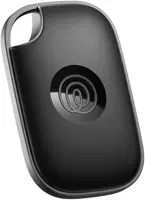
If your Tile won't connect, confirm Bluetooth is on, hold the Tile within a few feet of your phone, and press its button so it plays a tune. Most pairing failures come down to a sleeping Tile, Bluetooth being off, missing app permissions, or a Tile still linked to an old account.
A Tile that refuses to connect is frustrating because the app rarely tells you why. Tile's own support team notes in its connection troubleshooting guide that range and Bluetooth state cause the bulk of these failures.
Across Tile Mate, Pro, Slim, and Sticker units, the same handful of causes show up every time a tracker won't connect. Let's walk through them so you can pin down which one is blocking you.
- Bluetooth must be on and the Tile within range — pairing works best with the Tile close to your phone and a clear line of sight.
- The Tile app needs “Always” location and Bluetooth permission — “While Using” alone breaks background connection on iPhone and Android.
- A Tile already linked to another account won’t pair until the previous owner removes it or transfers it.
- A dead battery looks exactly like a connection failure — replaceable CR2032 cells last about a year, and sealed models can’t be swapped.
- A force-close or app reinstall clears many stuck states before you try anything more drastic.
Why Won't My Tile Connect to the App?
The Tile app talks to the tracker over Bluetooth Low Energy, so anything that interrupts that radio link shows up as "not connecting." According to Tile, a tracker can only hold a connection with one device at a time, which is the first thing worth checking.
If a second phone in your house is signed into the same Tile account and sitting closer to the Tile, it can grab the connection before yours does. With two phones on one account, the nearer phone typically wins the connection while the farther one shows the Tile as offline.
The fix is usually order-of-operations, not a broken Tile. Close the app on the other device, keep one phone near the tracker, and reopen the app. Below are the specific causes, each with a concrete fix.
Check Bluetooth and Range First
This is the single most common cause and the easiest to miss. The Tile app can be open while your phone's Bluetooth is quietly switched off, or while the Tile sits two rooms away behind a wall.
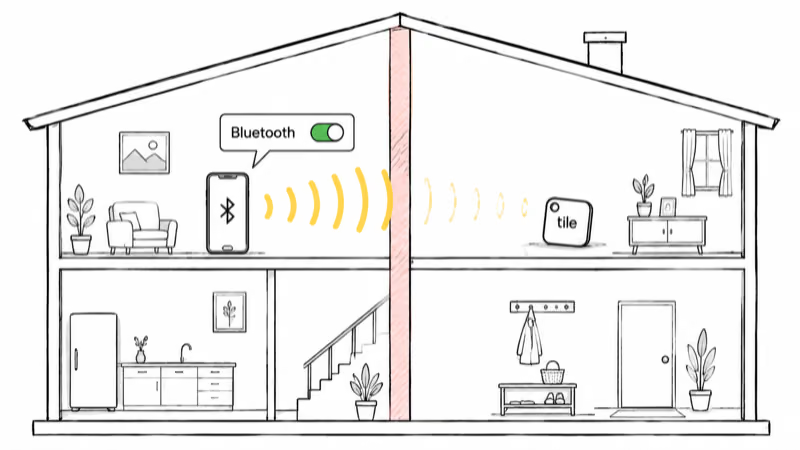
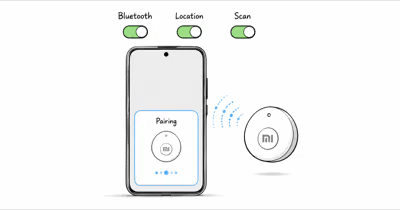
Check three things in order. First, open Settings and confirm Bluetooth is on at the system level, not just inside the app. Second, bring the Tile within a few feet of the phone. Third, press the Tile's button once so it plays its tune, confirming it's awake.
Range matters more than people expect. According to Tile, the Pro reaches up to 500 feet, but that figure assumes a clear line of sight, and interior walls and furniture cut it substantially before the app loses the link. For pairing specifically, stay close.
Grant the Right App Permissions
Tile relies on system permissions to keep a background connection alive, and a missed toggle silently kills the link. On iPhone, the location setting must be "Always," not "While Using the App."
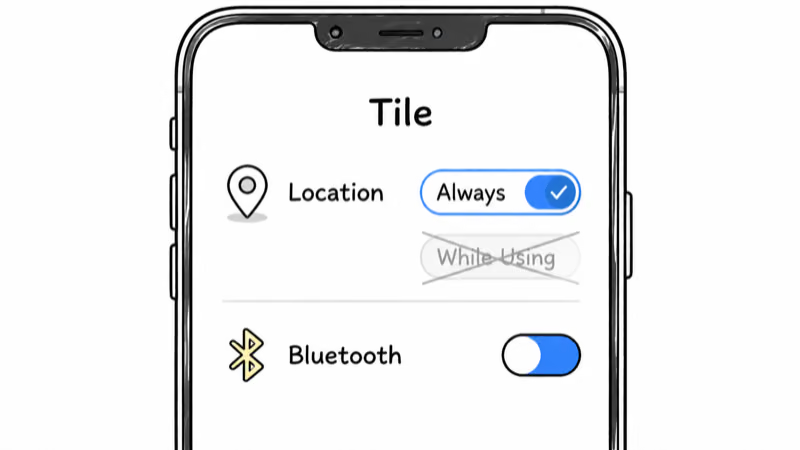
On iPhone, open Settings, tap the Tile app, and set Location to Always with Precise Location on, then confirm Bluetooth is enabled for Tile. On Android, grant Location ("Allow all the time"), Nearby Devices, and Bluetooth, since Android ties Bluetooth scanning to location access.
Apple documents the same logic for any accessory in its Bluetooth accessory guide: the connecting app needs explicit Bluetooth permission before it can talk to the device. If permissions look right and it still fails, move to the account check.
Is the Tile Linked to Another Account?
A Tile bought secondhand, returned, or gifted is often still tied to its previous owner's account. Tile binds each tracker to one account, so a new account simply can't activate it. According to Tile's activation troubleshooting page, this is a leading reason setup stalls at the "adding your Tile" screen.
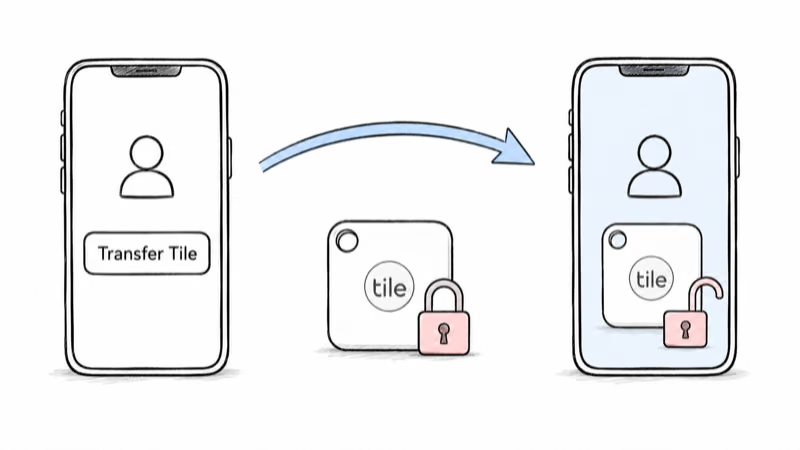
The previous owner needs to open their Tile app, find the device, and either remove it or use the Transfer Tile option to send it to your email. Once they do, the Tile frees up and your account can claim it. There's no way around this from your side alone.
A unit that has been returned to a store and resold will typically throw an activation error until the original account releases it. If you bought it new and still see this, contact Tile support with the proof of purchase.
Rule Out a Dead Battery
A Tile with a flat battery behaves exactly like one that won't pair: no tune, no Bluetooth signal, nothing in the app. Before assuming a connection fault, rule out power.
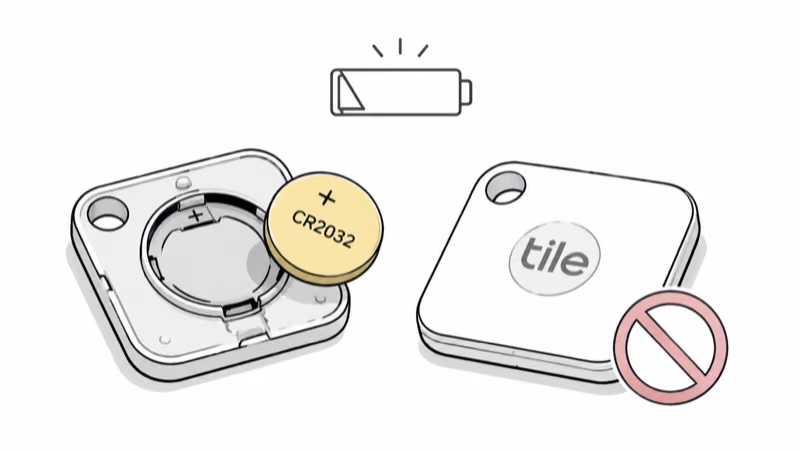
Older Tile Mate and Tile Pro units use a replaceable CR2032 coin cell that lasts about a year. Pop the back off, swap the cell, and confirm the positive side faces up. The Tile should chirp when fresh power hits it.
Newer sealed Tiles complicate this. Many 2022-and-later models seal the case with a roughly three-year non-replaceable battery, so a "dead" sealed Tile has simply reached end of life. If a recently bought sealed Tile goes silent early, treat it as a warranty case. For a deeper look at how connection problems and hardware faults overlap, our [Tile troubleshooting walkthrough](/tile-tracker-not-working/) covers the full diagnostic order.
Restart, Reinstall, and Factory Reset
When hardware and permissions check out but the app stays stuck, the app's own state is usually the culprit. A force-close clears most temporary glitches.
Try this sequence: force-close the Tile app, toggle your phone's Bluetooth off and back on, then reopen the app. If that fails, restart the phone, which clears the Bluetooth stack entirely. As a last resort, delete and reinstall the Tile app and sign back in.
If none of that works, factory-reset the Tile itself by removing it from your account and re-adding it as a new device. Apple's support team confirms that for stubborn accessories, unpairing and re-pairing from scratch resolves most lingering connection faults.
Update the App and Firmware
App and firmware mismatches occasionally surface after an OS update. An outdated Tile app on a freshly updated iOS or Android version can fail to scan correctly.
Open your app store and update the Tile app to the latest version. With the tracker connected, the app pushes any pending firmware update automatically, so keep the Tile nearby for a minute after updating. A stale app version is a common cause of "sudden" disconnects that a quick update fixes.
If you're weighing whether to keep troubleshooting or switch ecosystems, it helps to know how Tile stacks up. Our [AirTag versus Tile comparison](/airtag-vs-tile/) and roundup of the [best Bluetooth trackers](/best-bluetooth-tracker/) lay out where each network is strongest.
If you've decided the unit is failing and want a like-for-like swap, the [Tile Mate versus Tile Pro breakdown](/tile-mate-vs-tile-pro/) compares range and battery so you pick the right replacement.
Bottom Line
Most Tile connection failures trace back to four things: Bluetooth being off, the Tile sitting out of range, missing "Always" location permission, or a tracker still bound to another account. Work down the list in that order and you'll usually find the culprit in a few minutes. If the Tile connects fine but its position is stale, that's a different fix, and our Tile not updating location guide covers the refresh steps.
If the Tile stays silent after a battery swap and a full reinstall, the hardware is likely the issue, and a sealed model at end of life simply needs replacing. When that day comes, weigh whether Tile's network still fits your phone, especially if you've moved to Android where you can check whether AirTags and Android coexist.
FAQ
Why won't my Tile connect to my phone?
The usual causes are Bluetooth being switched off, the Tile sitting out of range, the app lacking "Always" location permission, or a dead battery. Confirm Bluetooth is on, bring the Tile within a few feet, press its button to wake it, and check your app permissions before assuming the tracker is broken.
How do I pair a Tile that was used before?
A previously owned Tile stays linked to its old account. The previous owner has to remove it or use the Transfer Tile option in their app to send it to your email. Once it's released, you can activate it normally. There's no way to claim a linked Tile from your side alone.
Can two phones connect to the same Tile?
Both phones can be signed into the same Tile account, but only one holds the Bluetooth connection at a time. Whichever device is closest and connected first wins, and the other shows the Tile as offline. Close the app on the second phone if you want the first to connect reliably.
Does the Tile battery affect connecting?
Yes. A flat battery looks identical to a connection failure because the Tile stops broadcasting entirely. Replaceable CR2032 models last about a year and are easy to swap. Sealed models last around three years and can't be opened, so a silent sealed Tile is usually at end of life.
Why does my Tile keep disconnecting?
Intermittent drops point to a permission set to "While Using" instead of "Always," a weak Bluetooth signal at distance, or a near-dead battery. Set location to "Always," keep the Tile within its effective range, and replace the cell if it's old. An outdated app version can also cause repeated drops.
How do I reset a Tile that won't connect?
Remove the Tile from your account in the app, then re-add it as a new device, which forces a fresh pairing handshake. Before that, force-close the app, toggle Bluetooth off and on, and restart your phone. A delete-and-reinstall of the app clears any corrupted local state.
Does the Tile app need to be open to connect?
No, the app doesn't need to be in the foreground, but it does need background permission to keep the connection alive. That's why "Always" location and Bluetooth access matter. If you've fully force-closed the app and revoked background access, the Tile won't connect until you reopen it and restore permissions.