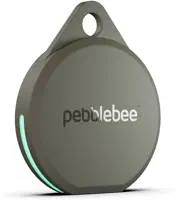
If your Pebblebee Clip won’t charge, watch the light: it blinks while charging and goes dark once full. No light at all usually means a cable, adapter, or port fault, so try a different USB-C cable and a 5V wall adapter. A deeply drained Clip can stay dark for several minutes before it wakes, so leave it plugged in before assuming the battery is dead.
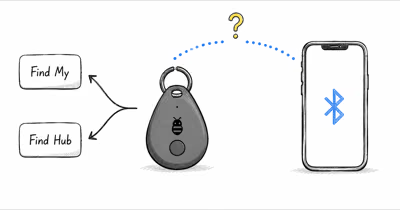
The Pebblebee Clip 5 is a rechargeable Find My and Find Hub tracker, so a charging problem is far more often a cable or adapter issue than a failed battery. Pebblebee’s official Clip 5 documentation notes the device tops up over USB-C and the apps send low-battery alerts well before it ever goes dark.
- The light tells you everything — a blinking light means charging, no light when plugged in means a cable or adapter fault, not a dead tag.
- No charger is in the box — you supply a USB-C cable, and a 5V, 1W or higher wall adapter charges more reliably than a weak laptop port.
- A full charge takes about 4 to 5 hours — and a single charge is rated to last up to 12 months of normal use.
- A dead battery needs patience — a fully drained Clip can sit dark for several minutes before the light wakes up.
- Factory reset is a triple-press then 10-second hold — use it only as a last resort, since it unlinks the tag from Find My or Find Hub.
Whether your Clip shows no light, won’t hold a charge, or charges but still won’t connect, the six fixes below work through the causes in the order they actually happen, starting with the cheapest things to rule out.
Why Won’t My Pebblebee Clip Charge at All?
The first thing to check is the light, because it’s the main feedback the Clip gives you while charging. A blinking light means it’s drawing power, and no light at all when it’s plugged in points to a break somewhere in the charging chain rather than a dead tag.
A Clip that stays dark on a laptop port with a worn cable but blinks instantly on a wall adapter with a fresh one points straight to the most common culprits: a damaged USB-C cable, a weak power source, or debris in the port.
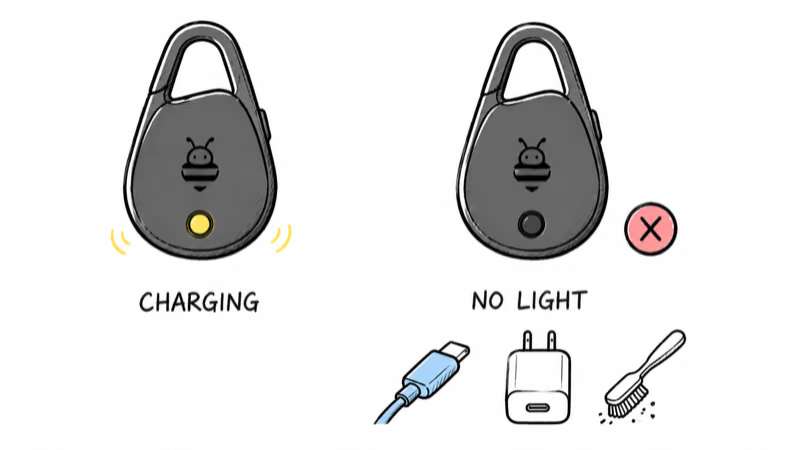
Work through them in order. Swap to a known-good USB-C cable, plug into a wall adapter rated at 5V and 1W or higher instead of a low-power laptop port, and gently clear any lint from the Clip’s charging contacts before retrying. Pebblebee’s quick diagnostic is to press and hold the button: if the Clip doesn’t light up at all, the battery is drained and needs charging before anything else will work.
How Long Should a Pebblebee Clip Take to Charge?
Knowing the normal timing helps you tell a slow charge from a real fault. Pebblebee’s support team states that a full charge takes about 4 to 5 hours, and the device blinks while charging and goes dark once it’s full.
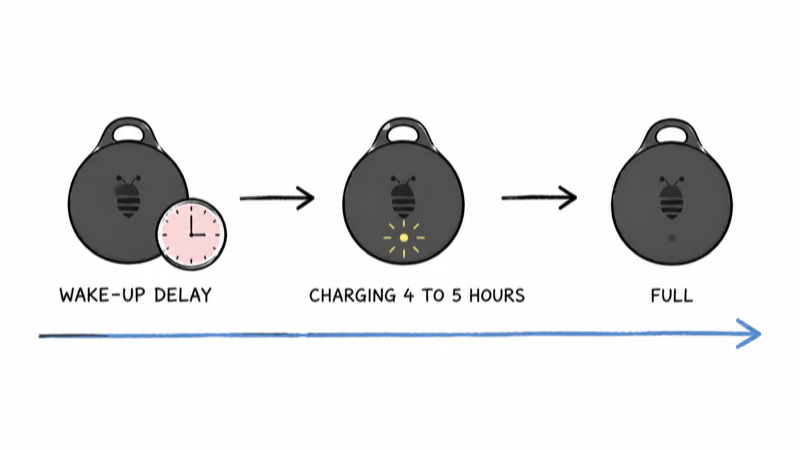
A deeply drained battery is the exception that trips people up. If the Clip was left to hit absolute zero, it can sit dark for several minutes after you plug it in before the light finally starts blinking. A flat Clip may stay unlit for a while as it sits on the cable before it behaves normally, so don’t unplug too early.
For long-term health, top the Clip up before it runs all the way flat. Deep discharges are hardest on any built-in cell, so a Clip charged on a low-battery alert will hold its rated runtime far longer than one repeatedly run dead.
What a Single Charge Should Last
Knowing the expected runtime helps you tell a faulty battery from a normal one. Pebblebee rates the Clip 5 at 12 months per charge, a major step up from the previous generation’s six-month rating.
So if your Clip needs topping up roughly once a year, that’s exactly the spec, not a defect. The Find My and Find Hub apps both send low-battery alerts well before it goes dark, according to Pebblebee’s official documentation, so you rarely get caught out.
Checking the Battery Level Without Guessing
You don’t have to guess how much charge is left. Apple’s Find My support documentation confirms that you can view a Find My accessory’s battery status directly in the app, and the Clip reports its level there on iPhone, or in Find Hub on Android. If the app shows a healthy level but the tag is unresponsive, the problem is connectivity, not charge.
Pebblebee Clip Charges but Still Won’t Connect
Sometimes the light behaves perfectly but the tag still won’t show up. A Clip that charges yet won’t pair points to a software or registration issue rather than a power one. Start by confirming Bluetooth and location are both on, since the Clip needs both to connect.
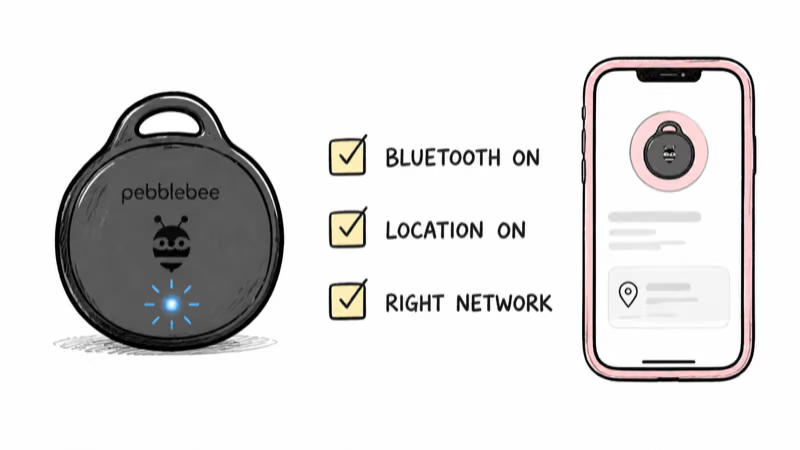
Make sure you’re checking the right network too. The Clip works with only one network at a time, either Apple Find My or Google Find Hub, so a tag claimed on one is invisible from the other. Confirm which app you set it up in before assuming it failed. If it still won’t appear, our full Pebblebee Clip pairing walkthrough covers the double-press pairing mode and permission fixes in detail.
The Pebblebee Clip Factory Reset Procedure
When charging is fine but the tag stays stuck, a factory reset clears its state. Be aware of the trade-off first: resetting unlinks the Clip from your Apple Find My or Find Hub account, so you’ll need to set it up again from scratch.
Step 1: Charge the Clip enough that it lights up when you press the button, since a reset on a dead battery won’t complete.
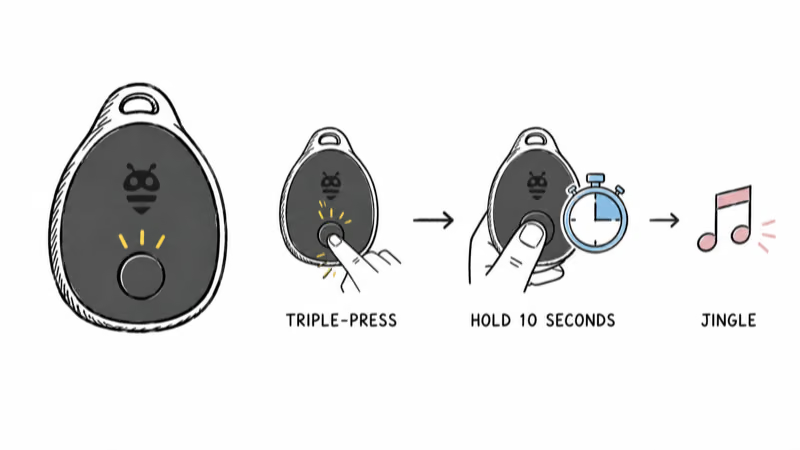
Step 2: Find the button below the logo, triple-press it, then press and hold for about 10 seconds. A short jingle confirms the reset finished.
Step 3: Double-press to re-enter pairing mode, then re-add the Clip through Find My or Find Hub as a new item. Pebblebee’s official reset instructions cover the same triple-press-and-hold pattern step by step.
Remember that a reset removes all existing pairing and switches are one-way until you re-add it. Only use it once the cable, adapter, and connectivity checks have all failed, not as a first move.
Pebblebee Clip Still Dead: When to Contact Support
If you’ve tried multiple cables and adapters, given a drained battery plenty of time, and the Clip still shows no light and makes no sound, the battery or hardware may have failed. A tracker that stays completely silent and dark after a long charge is the signal to stop troubleshooting.
At that point, reach out to Pebblebee support so they can confirm whether it’s a warranty case. A Clip that won’t charge at all despite good equipment is exactly the kind of fault they can verify and replace.
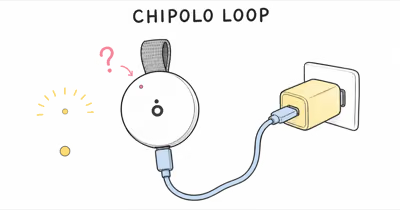
If you’re weighing a replacement, our Pebblebee Clip 5 review covers its battery spec and charging trade-offs, and our Clip 5 versus Chipolo LOOP comparison weighs the two rechargeable keyring trackers.
For more USB-C options, our rechargeable tracker roundup ranks every model by battery design.
Bottom Line
A Pebblebee Clip that won’t charge is usually a cable, adapter, or deep-discharge problem, not a dead battery. Watch the light: blinking means charging, and no light means you should swap the cable and use a proper 5V wall adapter. Give a drained Clip several minutes to wake up, and only factory reset or contact support once the power chain checks out.
FAQ
How do I know if my Pebblebee Clip is charging?
Watch the light on the Clip. It blinks while the tracker is drawing power and goes dark once it’s full. If you see no light at all when it’s plugged in, the Clip isn’t receiving power, which usually points to a faulty cable, a weak adapter, or dirty charging contacts rather than a dead battery.
How long does a Pebblebee Clip take to charge?
A full charge takes about 4 to 5 hours, after which the light goes dark. If the battery was completely drained, it can take several minutes to start blinking after you plug it in, so leave it connected. A single full charge is rated to last up to 12 months of normal use.
What charger does the Pebblebee Clip need?
The Clip charges over USB-C, but no cable or adapter comes in the box. Use any USB-C cable with a wall adapter rated at least 5V and 1W. A low-power laptop USB port can be too weak to charge it reliably, so a proper wall charger is the safer choice if the light won’t come on.
My Pebblebee Clip shows no light when plugged in. Is it dead?
Not necessarily. First try a different USB-C cable and a different wall adapter, and clean the charging contacts. A deeply drained Clip can also stay dark for several minutes before the light responds. Only after a long charge with good equipment produces no light and no sound should you treat it as a hardware fault and contact Pebblebee.
Will resetting my Pebblebee Clip fix a charging problem?
No. A factory reset clears pairing and registration, not charging. Charging issues come from the cable, adapter, or battery, so a reset won’t help a tag that won’t take power. Reset only when the Clip charges normally but refuses to connect, and remember it unlinks the tag from your Find My or Find Hub account.
How do I check the Pebblebee Clip battery level?
Open the Find My app on iPhone or the Find Hub app on Android, select your Clip, and look for the battery status on its detail screen. If the app reports a healthy level but the tag still seems unresponsive, the issue is connectivity rather than charge, so check Bluetooth and location permissions next.