A kids GPS watch can combine calls, messages, location, school controls, and caregiver help. It can’t prove safety or replace responsible adults, school procedures, emergency services, or a missing-child response.
This guide replaces an obsolete ranking that mixed old models, fixed prices, carrier shortcuts, age prescriptions, and incompatible emergency claims. It compares five current systems as documented by their makers: TickTalk 5, Gabb Watch 3e, Gizmo Watch 4, Garmin Bounce 2, and Xplora X6Play.
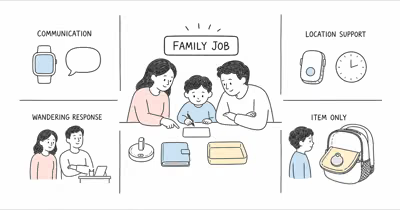
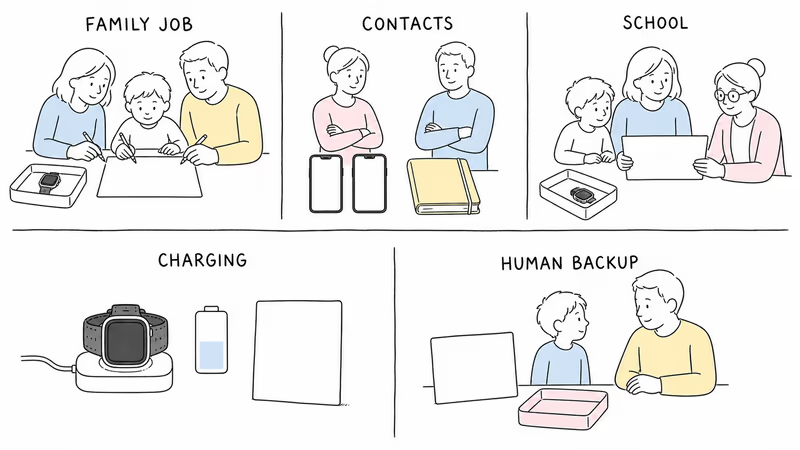
- Start with the family job. Decide who communicates, who may view location, who receives a help request, what the school allows, and when the watch comes off.
- The current systems are not interchangeable. They use different caregiver apps, contact roles, school controls, location records, service arrangements, and emergency semantics.
- Every location point is conditional. Power, signal, positioning method, buildings, settings, app delivery, timestamps, and whether the watch remains with the child all affect the result.
- SOS, Assistance, and 911 are different paths. Identify the actual recipient and teach a separate public-emergency and nearby-adult fallback.
- Run a reversible trial. Test ordinary communication, school behavior, location, a non-emergency help drill, charging, privacy, account recovery, and offboarding before relying on the system.
What Does This Guide Actually Compare?
It compares family systems, not safety scores.
The watch is only one part of the setup. The complete system includes the child, caregivers, approved contacts, companion app, accounts, cellular service, school rules, location permissions, help recipients, charging routine, privacy boundaries, and a human fallback when the device fails.
According to Verizon Family, Gizmo Watch 4 supports up to 40 trusted contacts under its current FAQ. That number describes an account limit, not how many people a family should authorize.
The five current systems emphasize different jobs:
- TickTalk 5 centers voice and FaceTalk video calls, richer approved-contact messaging, caregiver permissions, School Mode, location tools, caregiver SOS, and a separately configurable U.S. 911 path. See the current-model TickTalk and Gabb system comparison.
- Gabb Watch 3e centers MyGabb management, approved contacts, current OS2 messaging, Focus Mode, Safe Zones, a selected caregiver SOS contact, and a restricted software environment. The current Gabb Watch 3e review covers that setup.
- Gizmo Watch 4 centers Verizon Family roles, up to 40 trusted contacts, voice and video communication, School Mode, geofence and removal alerts, and a preset caregiver SOS contact. The current Gizmo system guide explains the GizmoHub migration.
- Garmin Bounce 2 centers Garmin Jr. family management, two-way calls and messages, check-in, location history, activity and chore tools, School mode, and Assistance contacts. See Bounce 2 and Ace LTE compared.
- Xplora X6Play centers the Xplora Guardian App, approved communication, camera and voice features, School Mode, Safe Zones, activity tools, and a two-contact SOS sequence. See the TickTalk 5 and X6Play comparison.
None of those descriptions makes one system universally better. A camera can help one family communicate and violate another school’s policy. Location history can support an agreed route check and create unnecessary surveillance if the purpose and viewers are undefined.
Define the Family Job Before Comparing Watches
Write the job in one sentence before opening a product page.
For example: “This watch lets our child call two caregivers after school, lets those caregivers check the watch’s latest location during the trip home, and stays in School Mode during class.” That statement is more useful than “we need the safest watch.”
List the child, primary caregiver, backup caregiver, ordinary contacts, school permission, intended location viewers, help recipients, public-emergency fallback, charging owner, review date, and stop conditions. Involve the child in rules they can understand. Don’t hide the device, force wear, or expand location review beyond the agreed purpose.
Confirm the child can operate the controls, tolerate the band and alerts, keep the watch charged, and report loss, heat, breakage, discomfort, or confusing data.
Current Kids GPS Watch Systems at a Glance
Use this table to choose what to test, not what to buy.
| System | Communication emphasis | School control | Location and help path | Trial focus |
|---|---|---|---|---|
| TickTalk 5 | Voice, FaceTalk video, SMS and app messaging with approved contacts | Scheduled School Mode | Current location and history; caregiver SOS plus separately configured U.S. 911 | Coverage, roles, camera policy, Safe Zone availability, help configuration, charging |
| Gabb Watch 3e | Calls and current OS2 messaging within a managed contact system | Focus Mode preserves selected caregiver access and SOS | Refresh and Safe Zones; SOS calls one selected contact, not 911 | MyGabb roles, location timing, group contacts, Focus Mode, charging |
| Gizmo Watch 4 | Voice, video, text, voice notes, photos and video with trusted contacts | School Mode blocks games and interactive features | Verizon Family location and alerts; SOS calls a preset contact, not 911 | Verizon Family roles, 40-contact limit, alerts, migration, charging |
| Garmin Bounce 2 | Two-way calls, texts and voice messages through Garmin Jr. | Silent or Silent & restricted; Assistance remains | Refresh, check-in and history; Assistance alerts configured contacts | LTE coverage, family roles, history viewers, Assistance recipients, charging |
| Xplora X6Play | Calls, voice messages, camera and messages with approved contacts | School Mode pauses ordinary calls and messages while SOS remains | Guardian App map and Safe Zones; SOS calls two preset family contacts in sequence | Region and plan, app roles, camera policy, alerts, SOS sequence, charging |
Feature names that look similar can behave differently. Verify the current manual and software on the exact device rather than assuming every “School Mode,” “safe zone,” or “SOS” leaves the same controls available.
Compare Setup, Accounts, Service, and Caregiver Roles
A powered watch without the right account and service is not a working system.
The TickTalk 5 product page describes TickTalk Wireless and the TickTalk Parent app. The Gabb Watch 3e page describes a Gabb service plan and MyGabb.
Gizmo Watch 4 uses Verizon service and Verizon Family; older GizmoHub instructions are being retired. Bounce 2 uses a Garmin-managed LTE Subscription and Garmin Jr.
X6Play availability, activation, plan, app compatibility, and regional service must be confirmed for the country where it will be used.
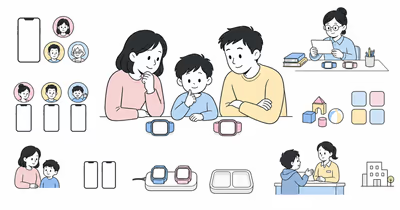
For each candidate, identify who owns the billing account, who is the primary administrator, which adults can change settings, which people can view location, and which people can only call or message. Test caregiver-phone replacement, password recovery, a lost phone, an expired payment method, service cancellation, and removal of an obsolete contact.
Don’t infer compatibility from the carrier name on a parent’s phone. Check the current watch plan, supported country, coverage map, taxes, activation, renewal, cancellation, return, warranty, replacement, and app requirements directly. A fixed two-year total becomes stale when device promotions, plans, and fees change.
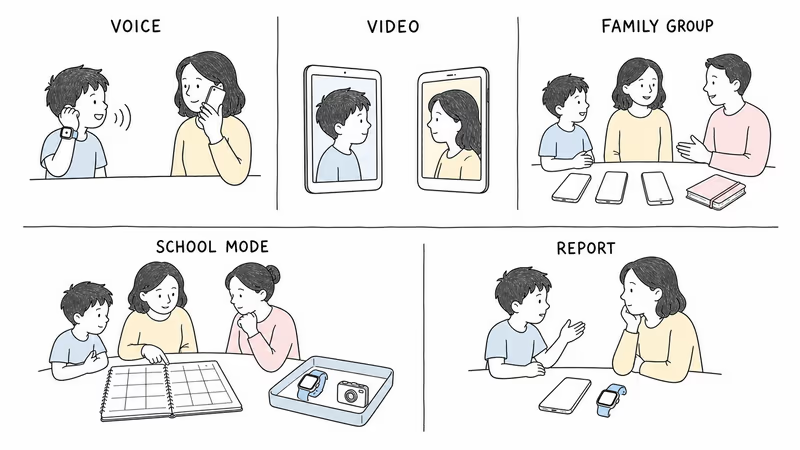
Compare Contacts, Calls, Messages, and Cameras
Approved contacts reduce exposure; they don’t eliminate permission and privacy decisions.
According to TickTalk, administrator and limited-access roles separate settings and location access from ordinary communication.
The Gabb setup guide documents up to 100 approved contacts, while current OS2 materials add group messages, presets, custom text, audio, and Speech-to-Text. Gizmo Watch 4 supports up to 40 trusted contacts under Verizon Family, with role-specific calling, messaging, location, and administration permissions.
Garmin distinguishes approved family access from Assistance contacts. Bounce 2 adds two-way calling to text and voice messages. Xplora’s Guardian App manages the people allowed to communicate with X6Play, while the watch’s camera and media features add school and privacy decisions.
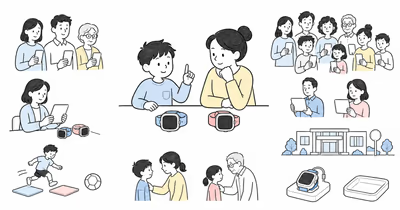
Test every necessary adult, a missed call, a delayed message, a blocked or removed contact, group membership, weak signal, microphone and speaker clarity, and what the child sees when nobody answers. If the watch has a camera, agree where it may be used and stored. School, camp, sports, care, and other settings may restrict watches, cameras, microphones, or recordings.
What Do the School Controls Actually Leave Available?
A scheduled restriction is not permission to wear the watch.
TickTalk says School Mode suspends most interactive functions while location and its help controls remain subject to the current configuration. Gabb says Focus Mode silences notifications, disables app access, and restricts calls and texts to primary and guardian contacts while SOS remains. Verizon says Gizmo School Mode blocks games and interactive features and leaves emergency-contact access.
Garmin offers Silent and Silent & restricted modes on Bounce 2; Assistance remains available. Xplora describes a School Mode that pauses ordinary calls and messages while the clock, location, and SOS remain.
Ask the school what may be worn, rung, messaged, photographed, recorded, stored, or location-shared. Then test the schedule, time zone, sync, allowed contacts, help control, and exit behavior. A caregiver should know what happens if a child needs help while the watch is restricted, loses the watch, or is instructed by staff to remove it.
Treat Location, History, and Safe Zones as Conditional Signals
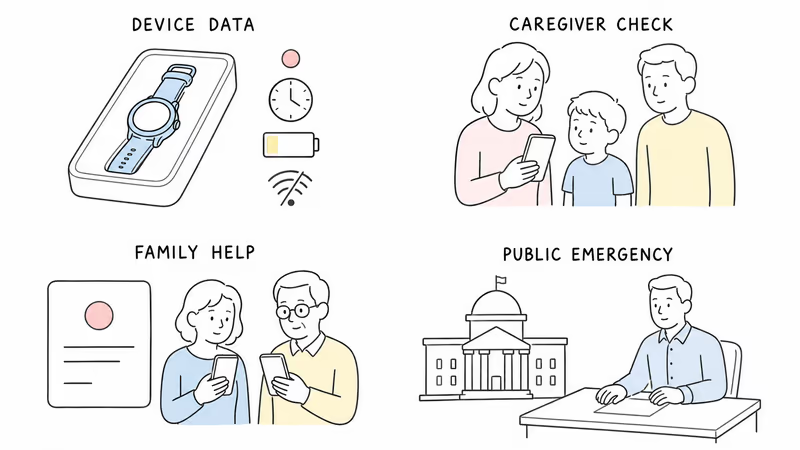
A watch location is a device observation, not proof of the child’s route, attendance, intent, or safety.
GPS, Wi-Fi, cellular positioning, signal, buildings, vehicles, terrain, battery, power-saving settings, update intervals, server delivery, app permissions, and whether the watch remains with the child all affect what a caregiver sees. Always read the timestamp and whether the screen shows a current request, last report, area, route history, or boundary alert.
TickTalk documents the last confirmed location, fresh requests, and history; its current Safe Zone descriptions should be confirmed on the exact software. Gabb says Watch 3e automatically updates about every 15 minutes and can be manually refreshed.
Safe Zone alerts may follow the most recent update rather than continuous tracking.
Verizon Family real-time tracking, geofence, scheduled-location, check-in, and watch-removal alerts still depend on the full system. The Bounce 2 manual documents refresh, check-in, and location history for approved family members. Xplora documents Guardian App location and Safe Zones using multiple positioning methods.
If a point is missing or unexpected, check its timestamp, request one refresh, contact the child or responsible adult, and use the agreed human fallback. In an immediate emergency or missing-child situation, follow the applicable official process without waiting for another device update.
Separate SOS, Assistance, Caregiver Calls, and 911
The label on the button does not identify who answers.
TickTalk’s current materials separate a caregiver SOS sequence from a configurable direct 911 control in the United States. Gabb says holding the Watch 3e control calls one selected SOS contact and doesn’t call Emergency Services. Verizon says Gizmo watches can’t call 911; Gizmo Watch 4 SOS calls a preset emergency contact.
Garmin’s Bounce 2 Assistance starts a cancelable alert to configured contacts and requires active LTE service and coverage. Garmin says its app does not contact public emergency services on the family’s behalf. Xplora says holding the X6Play SOS control calls two preset family members in sequence until one answers.
Teach the child the actual control, recipient order, cancellation behavior, and accidental-alert response. Include a nearby-adult fallback.
Test only a planned non-emergency drill with every recipient informed. If the job requires monitored dispatch, clinical response, fall detection, or reliable direct public-emergency access, choose an appropriate system rather than inferring it from a consumer watch’s SOS label.
Compare Charging, Fit, Durability, and Water Guidance
Published battery numbers are planning inputs, not household guarantees.
TickTalk publishes up to 48 hours of typical use under stated conditions. Verizon publishes up to three days for Gizmo Watch 4, while the Garmin announcement states up to two days for Bounce 2.
Gabb’s current public materials used here describe a 500 mAh battery without a directly comparable typical-use claim. The X6Play product page should be checked for the exact regional model and current guidance.
These figures don’t predict one family’s battery life.
Test the actual routine: charger ownership, safe cable placement, heat, full-charge time, low-battery alerts, shutdown, overnight location, morning handoff, one school day, one active day, and a day with weak signal. Verify whether the child can remove the watch safely and report discomfort.
Water-resistance ratings are not interchangeable with permission to swim, shower, or expose the watch to soap, heat, impact, or salt water. Follow the current maker instructions, warranty, Water Lock behavior, drying guidance, and band care for the exact model.
Review Privacy, Participation, and Data Boundaries
A closed device still collects and shares family data.
Review every caregiver, guardian, trusted contact, app permission, call or message record, photo, video, voice recording, location viewer, location-history window, Safe Zone, school schedule, activity record, chore, reward, backup, analytics setting, account-recovery path, export, retention rule, and deletion process.
The FTC recommends reviewing location sharing, contacts, privacy settings, parental controls, media access, and family responsibilities.
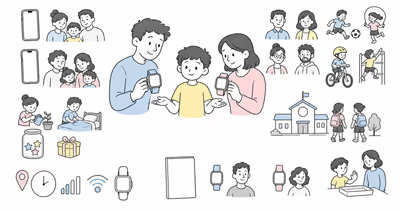
Tell the child who can see what and when. Set a review date. Remove obsolete viewers. Pause if the child objects, the purpose changes, school rules conflict, alerts create distress, or the family starts checking location without an agreed reason.
Use location features only with legal authority and appropriate consent. If a child or caregiver receives an unknown-tracker alert, stop and follow Apple or Google’s official unwanted-tracker detection and safety instructions; contact local authorities when the situation may be unsafe.
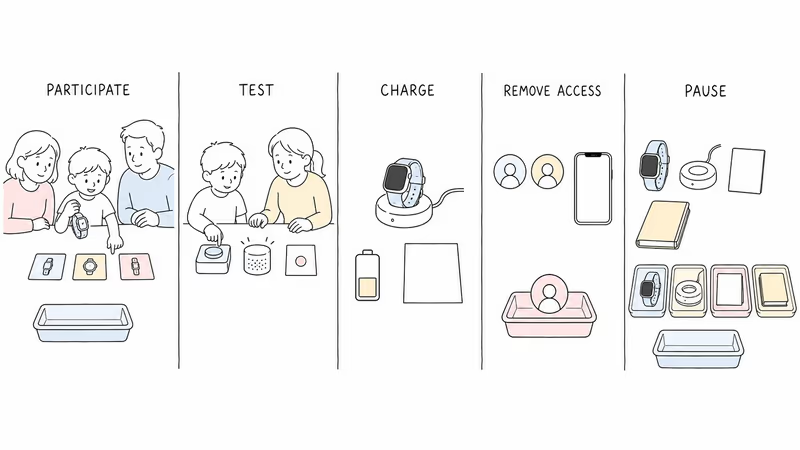
Run a Reversible Family Trial
Trial the whole system before depending on it.
Use the return window and current service terms to run a short, ordinary-life test:
- Pair the exact watch and update its software.
- Add only the necessary caregivers and contacts.
- Test calls and messages in both directions, including a missed call.
- Confirm School Mode or Focus Mode behavior with school permission.
- Compare a displayed location and timestamp with a known, consented route.
- Run one announced, non-emergency SOS or Assistance drill.
- Observe charging, fit, heat, alerts, signal, and battery over normal days.
- Replace or sign out of a caregiver phone and confirm account recovery.
- Remove a contact and verify access is actually revoked.
- Practice pausing the system, canceling service, resetting the device, and deleting unneeded data.
Write the fallback for a flat battery, lost watch, no signal, unavailable caregiver, failed app, school removal request, and immediate emergency. A reversible trial can reveal a mismatch without turning a purchase into a permanent family rule.
When Is a Tracker or Item Tag a Different Tool?
An item tag is not a child communication or emergency system.
A consensually used tag on a backpack can help locate the item through its supported network. It does not let a child call a caregiver, describe a problem, or activate a watch help path. It may also report the bag after it has been separated from the child.
If the job is finding an agreed family item, compare item trackers for that item. If the job is child communication, a route check, or a help request, compare systems designed for those functions. Don’t hide an AirTag or another tracker on a child or treat an item-network point as proof of a child’s location or safety.
For the broader boundary between phones, watches, trackers, and human plans, see the family location and communication guide and the kids tracker guide.
Bottom Line
There is no responsible one-line “best kids smartwatch with GPS” winner. TickTalk 5, Gabb Watch 3e, Gizmo Watch 4, Garmin Bounce 2, and Xplora X6Play each combine communication, school controls, location, help paths, service, charging, and data differently.
Define the family job, confirm the current model and service, involve the child, obtain school permission, test every necessary contact, read location timestamps, identify the actual help recipient, keep an official emergency fallback, and use a reversible trial. Stop if the system does not match the child, family, school, privacy boundary, or response need.
Short on time? Tracker Finder can narrow the device category, but the family trial still decides whether a specific system fits.
FAQ
Do kids GPS smartwatches require a cellular plan?
Current calling and location watches generally require an active watch service or managed LTE subscription. Confirm the exact plan, supported region, coverage, renewal, cancellation, and companion-app requirements before activation. A Wi-Fi connection alone does not make every cellular feature work.
Which kids GPS smartwatch is best?
There is no universal winner. Choose by the agreed family job, caregiver roles, approved communication, school policy, conditional location, help recipient, service, charging, privacy, and fallback. Trial the complete system rather than relying on a ranking or age label.
Can a kids GPS watch call 911?
It depends on the exact device and configuration. TickTalk documents a separately configurable U.S. 911 path. Gabb and Verizon say their watch SOS paths call selected caregivers rather than 911. Garmin Assistance alerts configured contacts, and Xplora describes a family-contact SOS sequence. Keep a separate public-emergency plan.
Is a kids GPS watch location always accurate?
No. Location depends on power, signal, positioning method, buildings, settings, update timing, app delivery, and whether the watch remains with the child. Read the timestamp, confirm unexpected data with the child or responsible adult, and don’t treat a point as proof of safety.
Do School Mode and Focus Mode work the same way?
No. Each maker restricts different features and preserves different contact or help paths. Confirm the exact current behavior, test the schedule, and obtain school permission before assuming the watch can remain on during class.
How long should a kids smartwatch battery last?
Maker estimates vary and are not directly comparable. Calls, video, location requests, games, screen use, weak signal, settings, and temperature can reduce runtime. Test the actual family routine and keep a fallback for a flat battery.
Can an AirTag replace a kids GPS smartwatch?
No. An AirTag is an item-network tag without child calling, messaging, or a watch help path. It may help find an agreed backpack, but the tag can separate from the child and its location is not proof of the child’s safety. Never hide a tracker on a child.