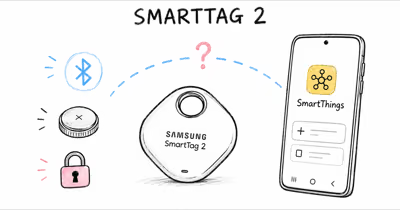
Power Saving Mode stretches the SmartTag 2 battery to about 700 days by scanning less often. The trade-off is slower updates and no instant ring or precise finding.
Power Saving Mode is the setting most SmartTag 2 owners turn on without knowing what they give up. According to Samsung’s official SmartTag2 announcement, the battery lasts up to 700 days in this mode, against 500 days in Normal Mode.
- Roughly 700 days of battery — Power Saving Mode pushes runtime past 700 days, up from about 500 days in Normal Mode.
- One toggle in SmartThings Find — you switch it per tag in the SmartTag 2 settings, not globally for the account.
- Slower updates, not no updates — the tag scans less frequently, so its map position can lag minutes behind where it actually is.
- Close finding turns off — Ultra-wideband Compass View and instant Bluetooth ring stop working while the mode is on.
- Best for stash-and-forget items — use it for luggage, seasonal gear, or a spare-key fob you rarely move, not for daily-carry keys.
This guide explains exactly what the mode changes, the menu path to turn it on or off, and how to decide which mode each of your tags should run.
What Does Power Saving Mode Do?
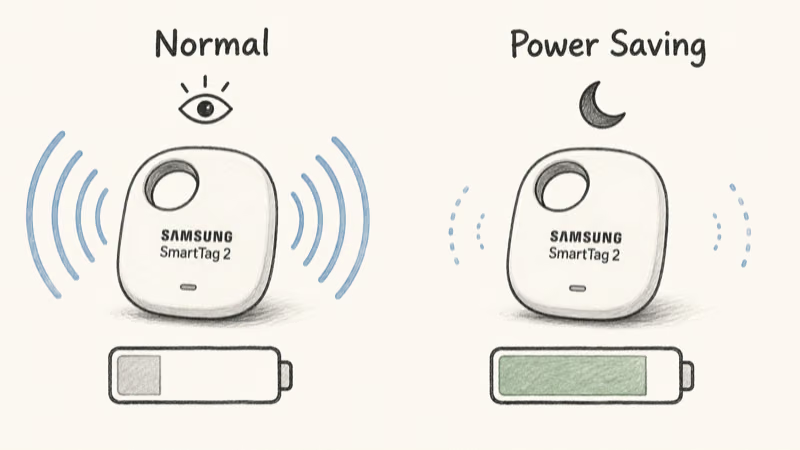
Power Saving Mode lengthens battery life by making the tag scan and advertise its presence less often, which cuts the radio activity that drains a coin cell. Samsung confirms that the battery “now lasts up to 700 days” in this mode, against a Normal Mode rating of 500 days. That’s a 200-day gain straight from the manufacturer’s spec.
SamMobile’s battery-life report on the SmartTag 2 states that the feature is “designed for users who need to track items continually and hope for low energy consumption.” By design, switching to Power Saving Mode keeps the tag appearing on the SmartThings map but can delay its response to the Ring button: location reporting continues, real-time interaction does not.
The reason is how the SmartTag 2 talks to your phone. In Normal Mode it holds a near-constant Bluetooth link and keeps Ultra-wideband ready, so taps and rings happen instantly. In Power Saving Mode it drops that constant connection and only wakes the radio periodically, so it spends most of its life asleep.
That sleep is where the battery savings come from, and also where the limitations come from. A tag that’s asleep can’t ring on command, can’t drive the precise UWB Compass View, and can’t refresh its map pin the moment it moves.
How to Turn Power Saving Mode On or Off
The toggle lives inside each tag’s own settings in SmartThings Find, not in a global menu. You set it per tag, so one SmartTag 2 can run Power Saving Mode while another stays in Normal Mode.
Step 1: Open SmartThings Find on your Galaxy phone and tap the SmartTag 2 you want to change.
Step 2: Open that tag’s settings, usually behind the gear or menu icon on its detail screen.
Step 3: Find the Power Saving Mode switch and turn it on or off. The label may read Battery saver depending on your app version.
Step 4: When you turn the mode off, the app may ask you to wake the tag by pressing its button until it chimes, because a sleeping tag doesn’t reconnect on its own.
Expect a short delay either way. Because a power-saving tag isn’t holding a live connection, the app may need time to reach it and apply the change. If the switch seems stuck, walk the phone close to the tag and try again so Bluetooth can re-establish.
The Trade-Off You Accept With the Mode On
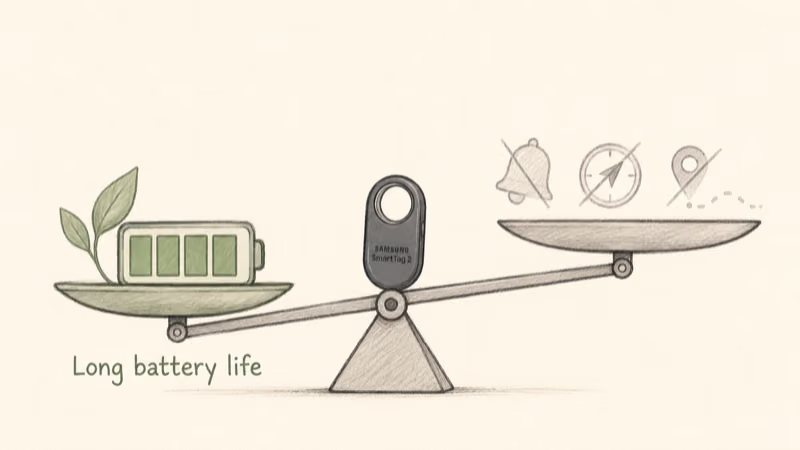
The honest trade-off is responsiveness. Power Saving Mode does not turn the tag into a different product, but it does quietly disable the features people buy a SmartTag 2 for in the first place.
Instant ring goes away. A sleeping tag can’t sound on demand, so the Ring button may do nothing until the tag next wakes. Samsung’s own Galaxy SmartTag2 newsroom announcement positions the mode as the option for items you “continually track” rather than ones you ring on demand, and owner boards repeatedly flag the surprise: the map still shows the tag at home, but Ring and Bluetooth find stay silent.
Precise finding goes away. The Ultra-wideband Compass View needs the live radio link, so it’s unavailable in Power Saving Mode. You fall back to a last-known map pin rather than a real-time arrow.
Map updates lag. Because the tag advertises less often, the position you see can be older than the tag’s current location. For an item in motion, that delay is the trade-off you accept for longer battery life.
None of this is a defect. It’s the literal mechanism that buys you the extra 200 days of battery. The question is simply whether the item on that tag needs instant interaction or not.
How Update Frequency Changes Between Modes
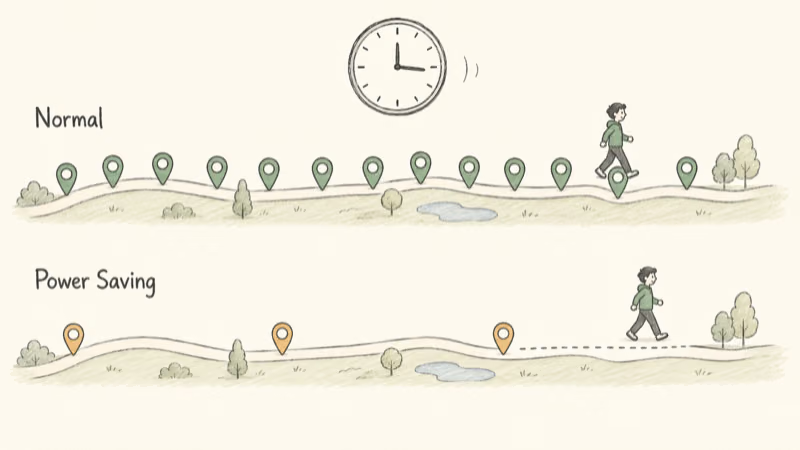
The visible symptom of Power Saving Mode is staleness, not silence. The tag keeps reporting through the Galaxy Find Network, but each report is spaced further apart, so the pin you see is an older snapshot rather than a live reading.
Normal Mode keeps the radio more responsive, while Power Saving Mode spaces out reports to conserve the coin cell. SamMobile’s reporting puts a number on why that gap is worth it: the mode roughly doubles runtime over the original Bluetooth SmartTag, which is the payoff you accept for the lag.
So the practical rule is simple. If a stale position would frustrate you, that item belongs in Normal Mode. If an older position is fine, Power Saving Mode costs you nothing you’ll miss.
Should You Leave It On?
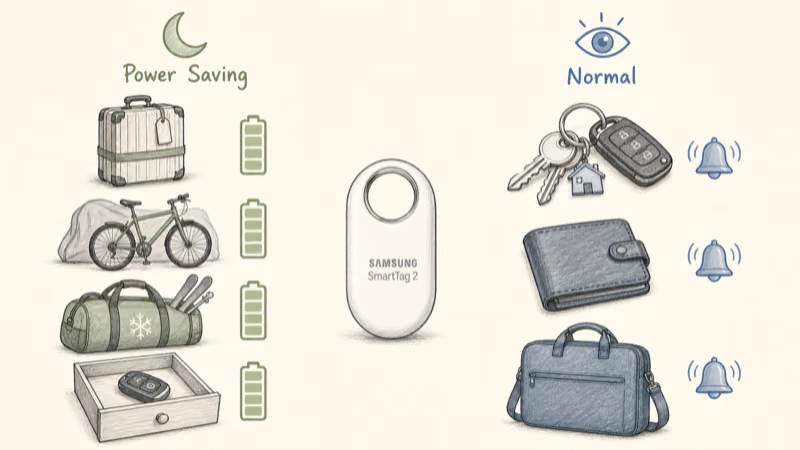
Match the mode to how the item behaves, not to a blanket battery preference. The decision is really about whether you’ll ever need to find that item quickly and precisely.
Leave Power Saving Mode on for things that sit still for long stretches: checked luggage between trips, a stored e-bike, seasonal sports gear, a spare key fob in a drawer, or a tool case in the garage. You rarely ring these, you almost never need centimetre precision, and the doubled battery life means fewer CR2032 swaps.
Keep Normal Mode for daily carry: your everyday keys, a wallet, a laptop bag, or anything you might misplace inside the house and want to ring instantly. For these, the responsiveness is the whole point, and 500 days of battery is still long.
A practical middle path is to run a mixed setup, since the toggle is per tag. Put the travel suitcase and the rarely-touched gear in Power Saving Mode and keep the keys and wallet in Normal Mode. If a power-saving tag ever stops showing fresh positions entirely rather than just lagging, that’s a different problem, and our guide to a SmartTag 2 location not updating walks through the offline-finding toggles that cause it.
Power Saving Mode and the CR2032 Battery
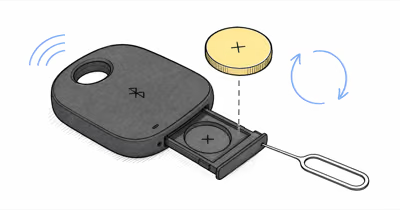
Power Saving Mode doesn’t change the battery itself. The SmartTag 2 still runs on a single user-replaceable CR2032 coin cell in either mode, and the mode only changes how fast that cell drains, not its type or how you swap it.
What the mode does change is how often you’re back in the drawer with a fresh battery. At roughly 700 versus 500 days, a stash-and-forget tag in Power Saving Mode can go close to two full years between swaps, while a Normal Mode daily-carry tag lands nearer 16 to 17 months. When the percentage finally drops, our walkthrough on replacing the SmartTag 2 battery covers the slide-out tray and correct coin-cell orientation.
If you’re weighing the SmartTag 2 against rival tags before committing to its battery routine, our full Samsung SmartTag review and the Find Hub network hub compare how the Galaxy Find ecosystem stacks up against the alternatives.
Bottom Line
Power Saving Mode is a deliberate swap: about 700 days of battery in exchange for slower map updates and no instant ring or precise finding. It’s the right default for luggage, stored gear, and spare keys that sit still for weeks.
Keep daily-carry items in Normal Mode where instant ring and Ultra-wideband finding matter, and let the per-tag toggle give you both behaviors across your collection.
FAQ
What does Power Saving Mode do on the Samsung SmartTag 2?
It extends battery life by making the tag scan and advertise its location less frequently. Samsung rates the battery at about 700 days in Power Saving Mode versus 500 days in Normal Mode. The trade-off is that the tag drops its constant Bluetooth link, so location updates lag and instant features turn off until the tag next wakes.
How do I turn Power Saving Mode on or off?
Open SmartThings Find, tap the SmartTag 2, open its settings, and toggle Power Saving Mode there. It’s set per tag, not globally, so each tag can run a different mode. When you turn the mode off, the app may ask you to press the tag’s button until it chimes so it can reconnect.
Does Power Saving Mode stop my SmartTag 2 from updating its location?
Not entirely. The tag still reports its position through the Galaxy Find Network, but it scans less often, so the map pin can lag behind the tag’s real location. For a stationary item that lag rarely matters, but for something in motion it can change how useful the map is.
Why won’t my SmartTag 2 ring in Power Saving Mode?
A power-saving tag spends most of its time asleep, so it can’t sound on command. The Ring button only works once the tag next wakes and reconnects. If you need to ring a tag instantly to find it inside the house, switch that tag back to Normal Mode.
Does Power Saving Mode disable Ultra-wideband precise finding?
Yes. The Ultra-wideband Compass View needs the live radio connection that Power Saving Mode drops. While the mode is on you get a last-known map pin instead of a real-time arrow. Turn the mode off to restore UWB Compass View.
When should I use Power Saving Mode?
Use it for items that sit still for long stretches and that you rarely need to ring or pinpoint precisely: checked luggage, stored bikes, seasonal gear, or a spare key fob in a drawer. Keep daily-carry items like keys and wallets in Normal Mode, where instant ring and precise finding are the whole point.
Does Power Saving Mode use a different battery?
No. The SmartTag 2 uses the same user-replaceable CR2032 coin cell in both modes. Power Saving Mode only changes how quickly that cell drains, stretching it to roughly 700 days rather than 500. The battery type, tray, and swap procedure are identical regardless of which mode you run.