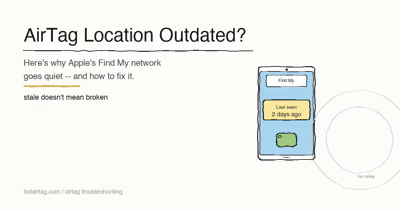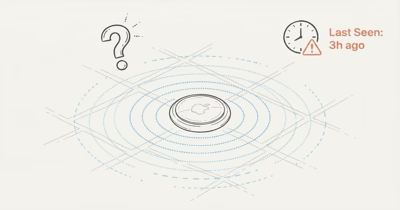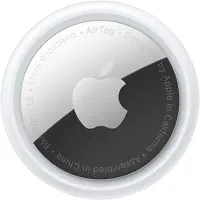
Find My usually stops updating a location because no Apple device has passed near your item to relay a fresh ping, not because anything is broken. The same crowdsourced network powers AirTags, third-party Find My trackers, iPhones, and AirPods, so the fix is almost always about coverage, settings, or battery rather than the gadget itself. Check that Location Services and the Find My network toggle are on, confirm the item still has power, then walk it near a phone to force an update.
A frozen pin in Find My almost never means the hardware died. According to Apple’s Find My network documentation, the feature relies on “a crowdsourced network of over a billion Apple devices” passing within Bluetooth range to relay a location, so a stale map is usually a coverage gap rather than a fault. This guide covers how that network refreshes a pin and the steps that reliably bring the map back to life.
- The Find My network spans over 1 billion Apple devices — but coverage is uneven, so an item parked in a dead zone simply stops getting fresh pings
- A frozen location is almost always a relay gap, not a broken device — the same cause applies to AirTags, Chipolo, eufy, iPhones, and AirPods
- After 7 days with no relay, Find My shows “No location found” instead of an old pin, per Apple’s documentation
- Two settings stop updates cold — Location Services switched off, or the Find My network toggle disabled on the relaying iPhone
- Walking the item near an Apple device is the fastest way to give the network another relay chance
How Does the Find My Network Refresh a Location?
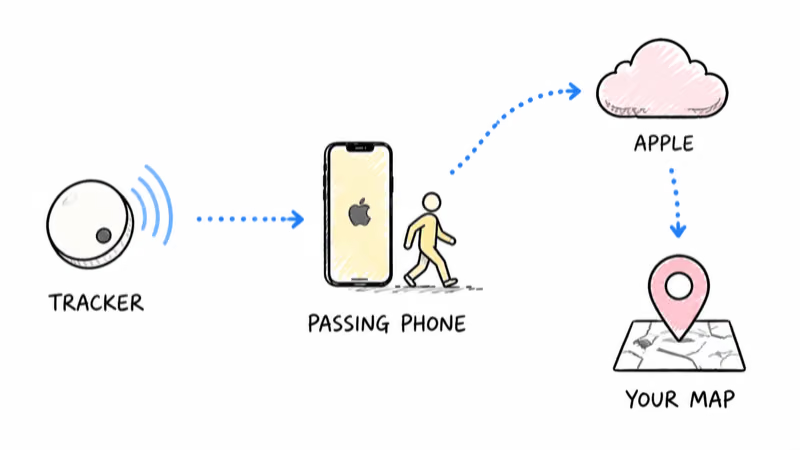
Find My is a relay, not a live GPS feed.
Your AirTag, Chipolo, or eufy SmartTrack broadcasts a short anonymous Bluetooth identifier every few seconds. Any nearby iPhone, iPad, or Mac that hears it encrypts a location estimate and forwards it to Apple, where it lands on your map. The item itself has no cellular, Wi-Fi, or GPS radio that reaches Apple directly, which is precisely why a quiet street can leave the pin sitting in one spot for hours.
That design has one big consequence: a location only updates when an Apple device physically passes close enough to overhear the broadcast. Apple states the network is “anonymous and encrypted,” which is great for privacy but means the timestamp on your map is really the last moment someone’s phone walked by.
No passing device, no update.
The same logic covers your own gear. An iPhone, iPad, or pair of AirPods reports through Find My too, except they can use their own connectivity while powered on. The instant any of these items lands somewhere quiet, the relay slows and the pin appears stuck.
Common Reasons a Find My Pin Freezes
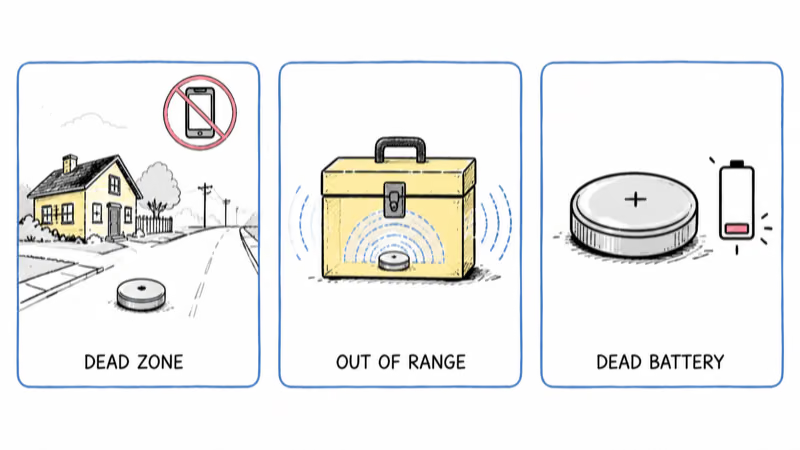
A frozen pin usually traces back to one of a handful of causes, and they apply across every item type. The pattern is consistent across AirTags and third-party Find My trackers: coverage and settings explain the overwhelming majority of cases. None of the three causes below require a repair, a reset, or a trip to the Apple Store, which is the reassuring part once you know what to look for.
Network dead zone. This is the most common reason by far. A garage, a rural road, a marine slip, or a quiet street overnight can go hours without an Apple device passing through, and the pin simply stays where the item was last overheard until traffic returns.
Out of Bluetooth range. The broadcast is short-range. If the item is buried inside a building, a metal toolbox, or a parking structure, even nearby phones can’t hear it.
Dead or dying battery. A tracker with a flat coin cell stops broadcasting entirely. An iPhone that’s fully powered off only stays findable for a limited window before the pin freezes for good.
The Two Settings That Quietly Break Updates
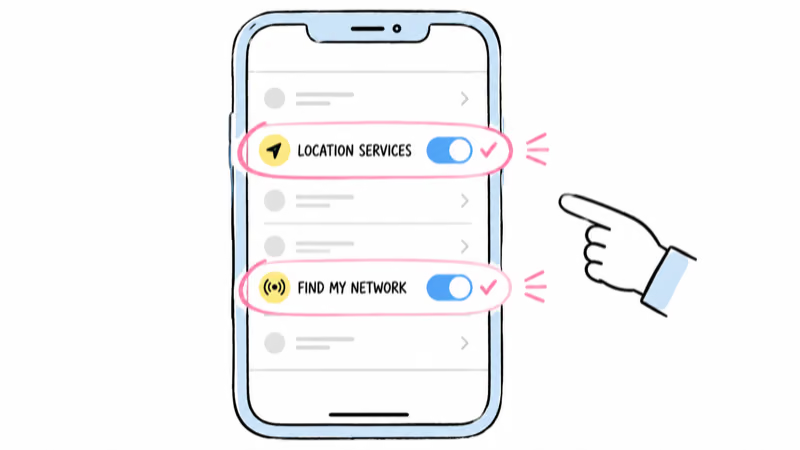
Two settings silently break updates, and they’re the first things to rule out. The catch: the relevant switch lives on the device doing the relaying, so check both your own phone and the item’s own configuration before you blame the hardware or assume the tracker has wandered off into a permanent dead zone.
First, confirm Location Services is on. According to Apple’s privacy and Location Services guide, the system uses cellular, Wi-Fi, GPS, and Bluetooth together to determine position; with Location Services off, your iPhone won’t contribute to or read from the Find My network. Open Settings, then Privacy and Security, then Location Services, and make sure the master toggle is enabled.
Second, confirm the Find My network toggle. Apple’s guide to turning on Find My notes that to “see your device even when it’s offline, turn on Find My network.” Open Settings, tap your name, tap Find My, then Find My iPhone, and make sure both Find My iPhone and Find My network are switched on. When that toggle is off, an offline item drops off the map the moment it loses its own connection.
How Do You Force a Find My Location to Update?
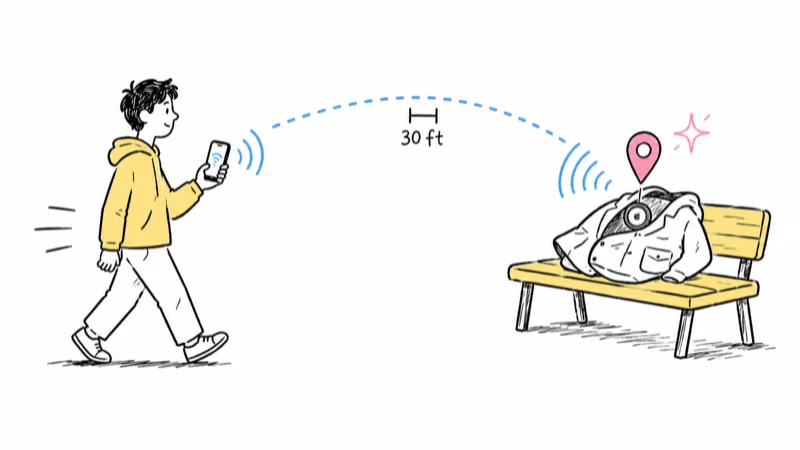
There’s no manual refresh button in Find My, but a few reliable moves push a new ping through. In a dead zone, the walk-it-closer trick is consistently the fastest.
1. Walk the item near a phone. This is the single most effective fix. Bring the tracker, AirPods, or device close to any iPhone, iPad, or Mac so the relay has another chance to hear it.
2. Pull to refresh the map. Open the Find My app, select the item, and swipe down. It won’t conjure a ping out of nowhere, but it re-syncs whatever the network has logged most recently, which sometimes surfaces a newer location your screen hadn’t caught up to yet.
3. Toggle Bluetooth and connectivity. A stalled radio sometimes just needs a nudge. On the relaying iPhone, switch Bluetooth off and on, or briefly toggle Airplane Mode.
4. Sign out and back in if the map is empty. A signed-out Apple Account stops the relay entirely, so verify you’re still signed in on the same account that owns the item.
When Software Updates and Privacy Settings Get in the Way
Sometimes the relay is fine but the map still misbehaves, and the culprit lives on the software side rather than in the network. A device stuck mid-update can pause Find My reporting until it finishes, so let any pending iOS or watchOS install complete and restart the device before you assume the worst, since a half-applied update is a surprisingly common cause of a pin that simply refuses to move.
Privacy features can also intervene. Significant Locations and other privacy controls govern how aggressively your phone logs and shares position data, and an overly locked-down configuration can quietly starve the relay until the map looks stuck even though every device involved is working perfectly. These settings live under Location Services in the privacy menu.
Finally, a signed-out Apple Account breaks the chain. If you swapped accounts or got signed out after a password change, the item can’t report to a map you can see until you sign back in on the original account.
Normal vs. Broken for Each Item Type
Not every stale pin is a problem, and the threshold for worry depends on the item. The single best signal is the gap between the last-seen timestamp and how busy the area is.
For Bluetooth trackers like AirTags, Chipolo, and eufy SmartTrack, a lag of minutes in a city or hours-to-days in the countryside is completely normal. The deep-dive on why an AirTag last-seen timestamp goes stale breaks down the specific staleness ranges for Apple’s own tag, while the eufy SmartTrack not-updating fix covers the quirks unique to that third-party model.
Want a full record of where a tag has been? The guide to reading AirTag location history explains what Find My actually stores, and how far back it goes.
For an iPhone or AirPods, the bar is higher because they can report on their own. A pin that’s hours old on a phone that’s powered on usually points to a settings issue, not a coverage gap. Apple’s documentation states that after 7 days with no relay, Find My drops the old pin and shows “No location found.”
That 7-day cutoff is your cue: the item is dead, off, or out of range for good rather than merely slow to update.
If you’re shopping for a tag that updates more reliably in your area, our roundup of the best Bluetooth trackers compares network coverage across brands. And if your household mixes platforms, the explainer on whether AirTags work with Android is worth a read, since a non-Apple phone can’t relay Find My pings at all.
Bottom Line
A Find My map that won't update is almost always a coverage or settings problem, not a dead gadget. Confirm Location Services and the Find My network toggle are on, make sure the item still has power and you're signed into the right Apple Account, then walk it near a phone to force a fresh ping. If you track items with a Tile instead, the same stale-pin problem has its own fixes in our Tile not updating location guide.
If the pin still won't budge after seven days and Find My shows "No location found," treat the item as out of reach and plan a replacement rather than chasing a ghost on the map.
FAQ
Why is my Find My location not updating?
The most common reason is that no Apple device has passed within Bluetooth range of your item to relay a fresh ping. Find My is a crowdsourced relay, not live GPS, so the pin only moves when someone's iPhone, iPad, or Mac walks by. Dead zones, a flat battery, Location Services being off, or a disabled Find My network toggle are the usual suspects.
How often does Find My update a location?
There's no fixed interval. An item reports a new location whenever an Apple device passes within Bluetooth range of it. Busy areas refresh more often than quiet or rural spots, where the gap can stretch to hours or even days. The timestamp you see is the last moment a device overheard the broadcast.
Does Find My work if no iPhones are nearby?
No. AirTags and third-party Find My trackers have no cellular, Wi-Fi, or GPS radio of their own, so they depend entirely on nearby Apple devices to relay a location. If no one passes within Bluetooth range, the last-seen timestamp stops moving until someone does. An iPhone or AirPods can report on their own only while powered on.
How do I force Find My to refresh?
Walk the item close to any iPhone, iPad, or Mac so the relay has another chance to hear it. You can also open the Find My app and swipe down to re-sync, toggle Bluetooth off and on, or briefly switch Airplane Mode on the relaying phone. There's no dedicated manual refresh button in the app.
Why does Find My show "No location found"?
Apple's documentation states that when more than seven days pass without the item sending its location through the network, Find My can't display a pin and shows "No location found" instead. It means no Apple device has overheard the item in a week, so it's likely off, dead, or somewhere no phones pass. At that point a replacement is usually the realistic plan.
Can a software update stop Find My from updating?
Yes. A device stuck mid-update can pause Find My reporting until the install finishes, so let any pending iOS or watchOS update complete and restart the device. Privacy controls like Significant Locations and an overly restrictive Location Services setup can also slow the relay, so it's worth reviewing those if the map stays conservative after the update.
Does turning off Location Services break Find My?
It can. With Location Services off, your iPhone won't read from or contribute to the Find My network, which can leave both your own devices and your trackers stuck on an old pin. Check Settings, then Privacy and Security, then Location Services and confirm the master toggle is on, along with the Find My network switch under your Apple Account.