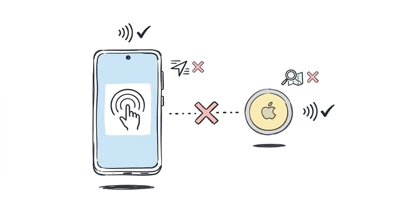
Yes, AirTags work with an iPad, with one caveat. An iPad running iPadOS 14.5 or later can set up an AirTag, see it on a map, play a sound, mark it lost, and get notifications through the Find My app. What an iPad can’t do is Precision Finding, the directional arrow that walks you to within inches of your item. That feature needs the Ultra Wideband chip, and no iPad has one. On an iPad you get the map and the sound, not the arrow.
If you have an iPad but no iPhone, an AirTag is still usable. iPadOS runs the same Find My app, so most everyday tracking works. The exception is the close-range arrow, which needs iPhone-only hardware in Apple’s AirTag tech specs.
- iPad setup works on iPadOS 14.5 or later — the original AirTag pairs straight from the Find My app
- AirTag 2 setup needs iPadOS 26.2.1 or later — the second generation requires a newer iPadOS build
- Map, Play Sound, Lost Mode, and notifications all work — the same Find My features you get on an iPhone
- Precision Finding does not work on any iPad — no iPad ships with the Ultra Wideband chip it requires
- Find My works across Apple devices — a shared AirTag stays visible on every iPad signed into the same Apple Account
Can You Set Up an AirTag With Only an iPad?
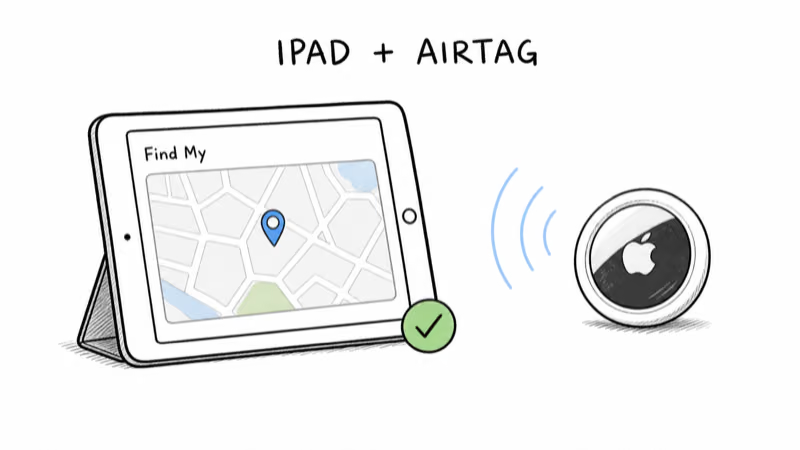
Yes, and no iPhone is needed to register an AirTag. According to Apple’s setup guide, you need iPadOS 14.5 or later for the original AirTag, and iPadOS 26.2.1 or later for an AirTag 2nd generation. Apple’s AirTag tech specs state the tag carries a “U1 chip for Ultra Wideband and Precision Finding,” but only the Find My pairing depends on the iPad. Pairing typically finishes in under a minute on a recent iPad.
The setup flow is the same one iPhone users see. Pull the tab to activate the battery, hold the AirTag near your iPad, and a Connect card slides up. Name the tag, register it to your Apple Account, and tap Finish. From that point the AirTag lives in the Items tab of Find My on your iPad, exactly as it would on a phone.
One requirement is easy to miss: the iPad needs Bluetooth and Location Services on, plus an Apple Account with two-factor authentication. A cellular plan is optional.
A Wi-Fi-only iPad sets up and manages AirTags the same way. Our full AirTag setup walkthrough covers every compatible device.
How to Set Up an AirTag on iPad, Step by Step
The flow is the same basic Find My setup used on iPhone. Here is each step:
1. Update the iPad to iPadOS 14.5 or later (iPadOS 26.2.1 or later for AirTag 2), then turn on Bluetooth and Location Services.
2. Pull the plastic tab from the AirTag to activate the battery. You’ll hear a chime.
3. Hold the AirTag a few inches from the unlocked iPad and wait for the Connect card to slide up from the bottom.
4. Tap Connect, pick a name from the list or set a custom one with an emoji, then register it to your Apple Account and tap Finish.
The Connect card usually appears within a few seconds of holding the tag near the screen. If it doesn’t show, lock and unlock the iPad once, or move the AirTag closer.
AirTag Features That Work on an iPad
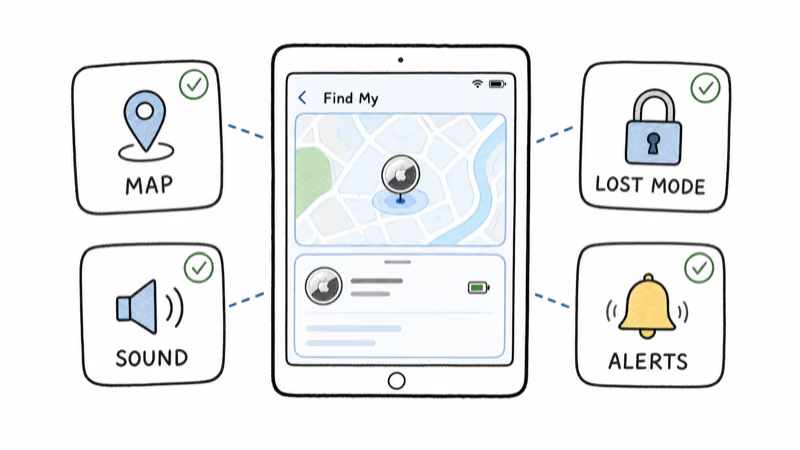
Most of them. The Find My app on iPadOS is close to a full match for the iPhone version, minus the one Ultra Wideband feature. Here is the practical breakdown.
| Feature | Works on iPad? | Notes |
|---|---|---|
| Initial setup and pairing | Yes | iPadOS 14.5+ for AirTag, 26.2.1+ for AirTag 2 |
| See location on a map | Yes | Same Find My map as iPhone |
| Play Sound | Yes | Pings the AirTag speaker when in Bluetooth range |
| Lost Mode | Yes | Get a notification when the network finds it |
| Notifications and alerts | Yes | Item-left-behind and found alerts |
| Share an item | Yes | Up to five people via Find My |
| Precision Finding | No | Requires Ultra Wideband, no iPad has it |
Play Sound is the iPad’s closest substitute for the arrow. When your tagged keys are somewhere in the house, you open Find My on the iPad, tap the item, and tap Play Sound. The AirTag chirps and you follow your ears. It’s not as exact as the directional arrow, but it covers most “I lost it in the couch” moments. The AirTag 2 speaker is also 50 percent farther audible than the first generation, per Apple.
The map view is the other workhorse. Leave a bag across town and the iPad shows its last known spot, relayed anonymously by nearby Apple devices.
Does Precision Finding Work on iPad?
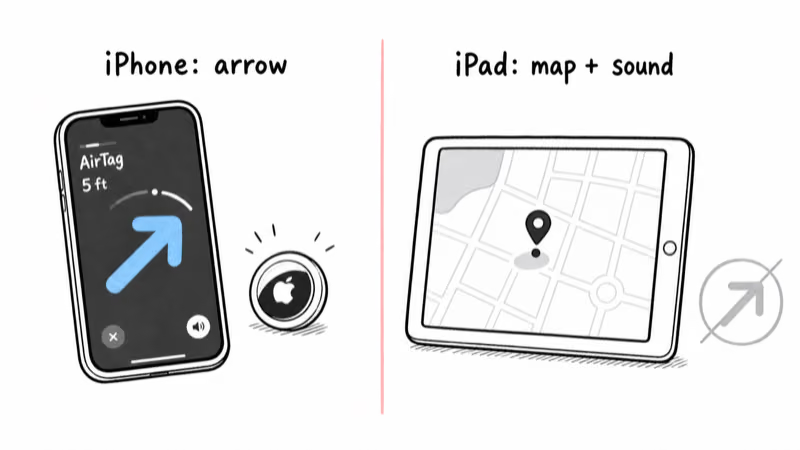
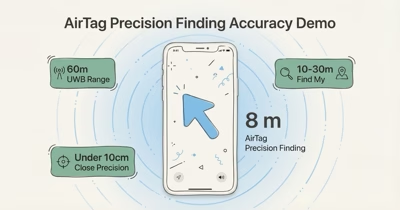
No, and this is the one real limitation. Precision Finding is the feature that puts a big directional arrow on screen and counts down the feet as you walk toward your AirTag. It depends on Ultra Wideband, the short-range radio that measures both distance and angle. No iPad has ever shipped with the U1 or U2 Ultra Wideband chip.
This is hardware, not a software lock. Macworld’s hands-on explainer on Apple’s Ultra Wideband rollout reported that even the iPad Pro line was left without the chip, while iPhone 11 and later carry it.
Apple’s spec footnote confirms that Precision Finding is compatible with iPhone 11 models and later, excluding the iPhone SE 2nd and 3rd generation and the iPhone 16e. The newer AirTag 2 chip pushes directional range to roughly 200 feet, but only on a paired iPhone 15 or later.
So if inch-by-inch finding is your main reason for buying an AirTag, an iPad alone won’t deliver it. Our AirTag review tests the full feature set across devices.
When an iPad-Only AirTag Is the Right Call
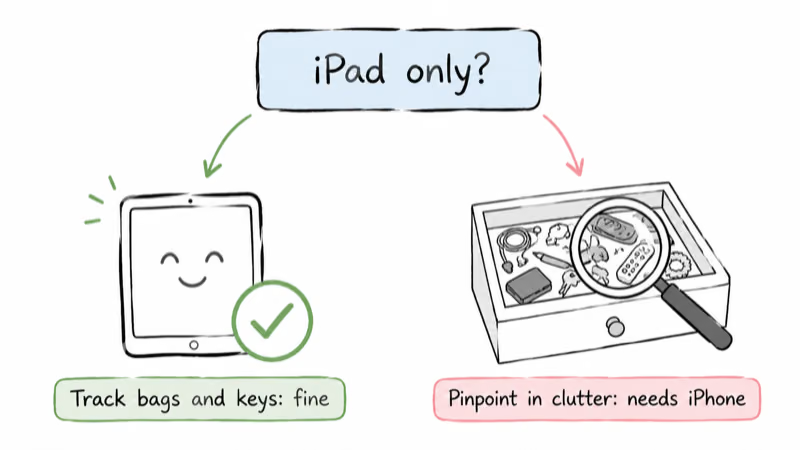
An iPad-only setup makes sense in a few clear cases. If you mostly need to know roughly where an item is, the map and Play Sound cover you. Tracking a checked bag, a backpack, or a coat at a coat check rarely requires the directional arrow. The map answers “is it still at the airport” and Play Sound answers “is it in this room.”
It also works well in a mixed-device household. Find My syncs every item across both devices on a shared Apple Account, so the iPad handles map checks and Play Sound while the iPhone handles Precision Finding.
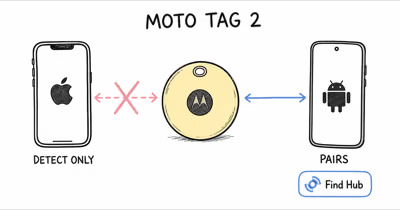
The setup is the wrong fit in only one case: you are solo, iPad-only, and you need to walk within inches of a small item in a cluttered space. There, the missing arrow is a genuine gap, and an iPhone or a different tracker fits better. AirTags stay Apple-only regardless, the same split our guide on whether AirTags work with Android reaches for that platform.
iPad-Only Edge Cases to Know
A few situations trip people up. A Wi-Fi-only iPad still works. You don’t need a cellular iPad. The AirTag uses the wider Find My network for location, not your iPad’s own connection, so a home Wi-Fi iPad manages tags fine. The only thing a Wi-Fi-only iPad can’t do is update the map while it’s itself away from a network.
Shared iPads and family setups need the right Apple Account. An AirTag is permanently tied to the Apple Account that set it up, not to the iPad hardware.
If a family iPad is signed into a child’s account when you pair the tag, the item registers under that child’s account, not on your own devices. To avoid that mix-up, sign into the right account before pairing. If a tag is on the wrong account, remove and re-pair it, or use Find My item sharing to let up to five people see the location.
Separation alerts behave the same as on iPhone. The “item left behind” notification works on iPad as long as notifications and location are enabled. You can also add trusted locations like home so the iPad does not nag you every time you leave a tagged item at your desk. For broader context on where AirTags fit among trackers, browse our Find My tracker hub.
Bottom Line
An AirTag works with an iPad for setup, map tracking, Play Sound, Lost Mode, and notifications through Find My, which covers most real-world tracking. The single missing piece is Precision Finding, the directional arrow, because no iPad carries the Ultra Wideband chip it needs. If you want rough location and a sound to follow, an iPad alone is enough. For inch-level finding, pair the tag with a compatible iPhone.
FAQ
Can I set up an AirTag with just an iPad?
Yes. An iPad running iPadOS 14.5 or later can set up the original AirTag with no iPhone involved, and iPadOS 26.2.1 or later is needed for the AirTag 2nd generation. Pull the battery tab, hold the AirTag near the iPad, and tap Connect on the card that appears. The iPad needs Bluetooth and Location Services on and must be signed into an Apple Account with two-factor authentication.
Does Precision Finding work on an iPad?
No. Precision Finding requires an Ultra Wideband chip, and no iPad model has ever included one. The feature is limited to iPhone 11 and later, excluding the iPhone SE 2nd and 3rd generation and the iPhone 16e. On an iPad you instead use the map to see the location and Play Sound to find the item by ear.
Can I track an AirTag on a map from my iPad?
Yes. The Find My app on iPadOS shows the AirTag’s location on the same map an iPhone would. Apple’s network of nearby devices relays the position anonymously, so the iPad does not need to be close to the item to display its last known spot. This works on both Wi-Fi-only and cellular iPads.
Does Play Sound work on an iPad?
Yes. Open Find My on the iPad, select the item, and tap Play Sound to ping the AirTag’s speaker when it’s within Bluetooth range. It’s the practical substitute for Precision Finding on an iPad. The AirTag 2 speaker is louder than the first generation, so it carries farther across a room.
Do I need a cellular iPad to use an AirTag?
No. A Wi-Fi-only iPad sets up and manages AirTags the same way a cellular one does. The AirTag relies on Apple’s Find My network for location rather than your iPad’s own data connection. A Wi-Fi iPad just can’t refresh the map while it’s itself off a network.
Will an AirTag I set up on my iPad also show on my iPhone?
Yes, as long as both devices are signed into the same Apple Account. Find My syncs items across every Apple device on the account, so the AirTag appears on your iPhone, iPad, and Mac at once. If the iPhone supports Precision Finding, you can use the arrow from that device even though the iPad set the tag up.
What is the best tracker if I only have an iPad?
For most iPad users the AirTag is still the best fit, since setup, map tracking, and Play Sound all work without an iPhone. The only scenario where it falls short is needing inch-level directional finding, which no iPad supports. If that close-range arrow matters most, plan to keep a compatible iPhone in the household for that one task.