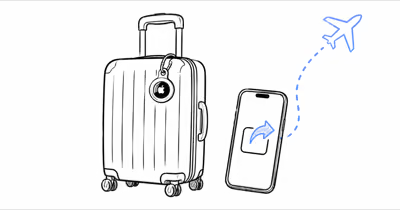
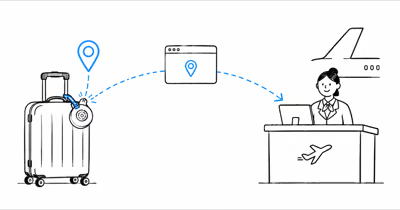
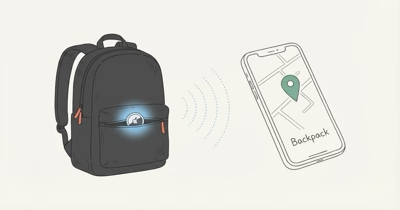
Apple’s Share Item Location feature lets you hand an airline or a trusted contact a live map link to a lost AirTag, but it ships with strict guardrails that quietly block the link when conditions aren’t met. Apple’s official sharing guide states plainly that you can’t share an item’s location while it sits within proximity of the device doing the sharing.
- The too-close rule blocks most failures — you can’t create a link while the AirTag is near your own iPhone, by design.
- You need iOS 18.2 or later — the option simply won’t appear on older software, including iPadOS 18.2 and macOS Sequoia 15.2.
- Links expire after 7 days — and auto-disable the moment Find My detects you have reunited with the item.
- One signed-in device must stay online — the shared map only refreshes while an Apple device on your account has internet.
- Recipients must authenticate — airlines and contacts open the link through an Apple Account or a registered Apple Partner email.
Whether the Share Item Location button is missing entirely, the link won’t generate, or the airline says the page won’t open, the six fixes below address each failure point in the order travelers actually hit them at the gate.
Why Won’t My AirTag Generate a Share Location Link?
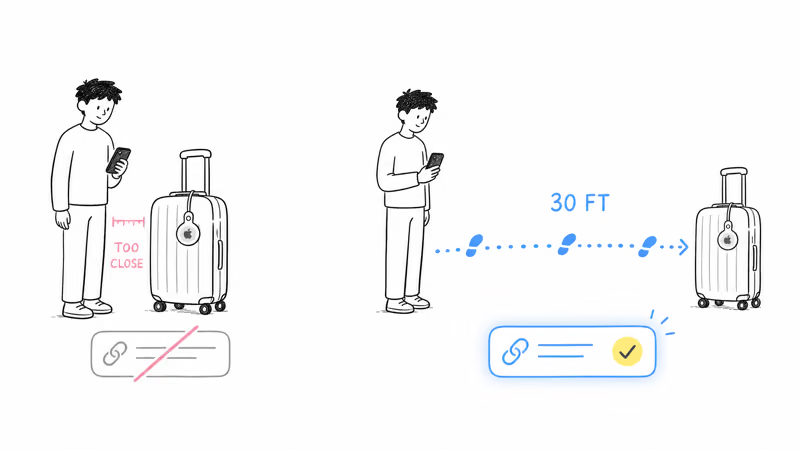
The most frequent reason is proximity. Apple deliberately prevents you from creating a share link while the AirTag is close to your iPhone, because the feature exists for items that are truly separated from you, not ones in your hand. If your bag is sitting next to you, the option grays out or the link refuses to build.
If the AirTag is nearby in your backpack, the proximity restriction can block sharing. If you are trying to use the feature for checked baggage, retry only after the bag is no longer within proximity rather than relying on a guessed Bluetooth distance.
The second proximity-related cause is a missing option altogether. If you don’t see Share Item Location when you tap the item, your device is on older software. Update to iOS 18.2 or later, iPadOS 18.2, or macOS Sequoia 15.2, since the feature did not exist before that release.
How Do You Create a Working Share Item Location Link?
Once the tag is far enough away, the flow itself is short. According to Apple’s documentation, you build a temporary webpage that the recipient opens in any browser.
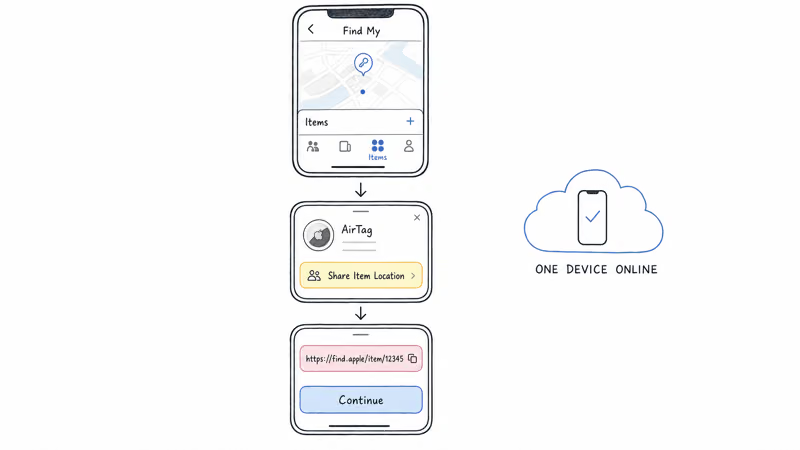
Step 1: Open the Find My app and tap the Items tab at the bottom.
Step 2: Tap the lost AirTag to open its detail card, then tap Share Item Location.
Step 3: Read the splash screen, which warns that your item’s serial number and your Apple Account email or phone number become visible to the recipient, then tap Continue.
Step 4: Copy the generated link and send it to the airline contact or person you choose.
One detail people miss: to keep the map updating, at least one Apple device signed into your Apple Account has to stay online. If your only iPhone is dead or in airplane mode with no Wi-Fi, the shared page freezes at the last known position even though the link itself is valid.
Re-Copying or Checking an Existing Link
If you already made a link and think it broke, you may just need to re-copy it. Reopen the AirTag in Find My, and the Share Item Location entry now shows an expiration date and time. From there you can copy the link again or choose Stop Sharing Item Location early. Seeing that expiration screen confirms the link is still live.
The Link Stopped Working After It Generated
A link that worked and then died almost always hit one of two automatic cutoffs. The first is reunion: Find My disables sharing the instant it detects you have been reunited with the item, so if you grabbed the bag and the agent later clicks a stale link, it’s already off.
The second is the seven-day expiration. Apple states that a share link automatically expires 7 days after creation if you don’t stop it sooner. For a bag that has been missing longer than that, generate a fresh link and resend it. Once a link expires, it shows an inactive page to anyone who opens it afterward.
There’s also a quiet third cause. The shared map only refreshes while a device on your account is online, so a recipient watching a frozen timestamp usually means your iPhone went offline, not that the link failed. Get any of your Apple devices back on the internet and the page resumes updating.
The Airline Can’t Open the AirTag Link
Sometimes your link is perfect and the problem is on the other end. The recipient has to authenticate to view a shared location, using either an Apple Account or, for carriers, a registered Apple Partner email. An agent who tries to open the page without signing in will be blocked.
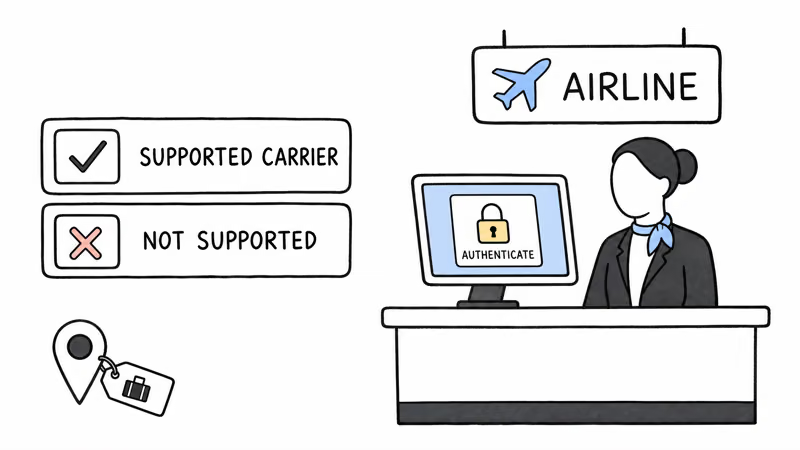
More fundamentally, an airline needs a workflow that accepts the shared link. Apple launched the feature with participating airlines and SITA WorldTracer integration, but partner support is not universal. According to Apple’s newsroom announcement, more than 15 airlines committed to support at launch, with others expected to follow. Ask the carrier whether its baggage team accepts Share Item Location links.
When an airline can’t process the link, fall back to a standard baggage claim and use the AirTag’s location yourself to tell the agent which airport your bag is sitting in. That single fact often speeds recovery more than the link would have.
What the Recipient Needs to Open Your Link
It helps to know exactly what happens on the other end before you blame your own phone. Apple’s Find Lost Item support page states that each shared link can only be opened by a small number of people, and every one of them must authenticate first through an Apple Account or, for carriers, a registered Apple Partner address.
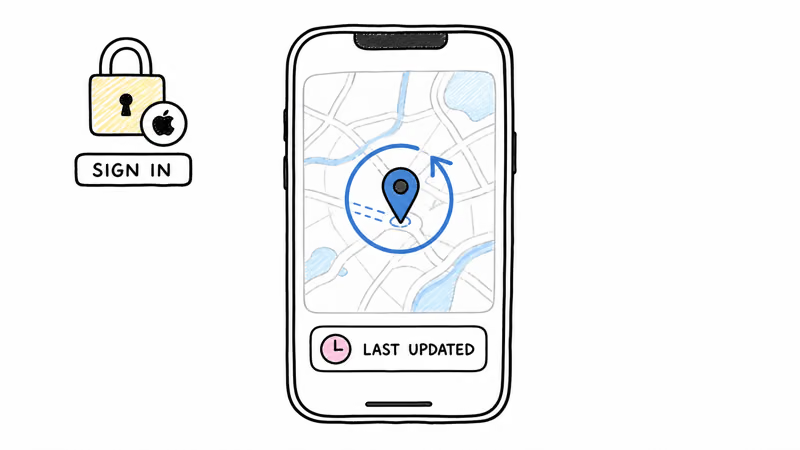
The recipient page can show the item’s current or last known location and the time of the last update. Treat that timestamp as the freshness signal; the page is not a continuous GPS feed.
AirTag Sharing Still Broken: Deeper Account Checks
If the basics are all correct and sharing still won’t behave, work through the account layer. Confirm you are signed into iCloud and that Find My iPhone is turned on under your Apple Account settings, because the share feature depends on the same Find My infrastructure.
Restart your iPhone to clear a stuck Find My session, then reopen the Items tab and try once more. A simple reboot resolves a surprising number of cases where the button taps but nothing happens.
Finally, make sure the AirTag still belongs to you and shows a normal location history. A tag that fell off the network entirely needs to reconnect before any sharing works. Our guide to diagnosing an AirTag that won’t connect covers that recovery.
If you are rethinking your travel setup, our roundup of the best trackers for checked bags compares how they report location. For Android travelers who can’t use Find My, our Android luggage tracker picks list alternatives.
Bottom Line
Most AirTag sharing failures trace back to one rule: you can’t generate a link while the tag is near you. Walk away from the bag, confirm you are on iOS 18.2 or later, and the link should build. If it generated but won’t open, check that the airline supports the feature and that the recipient signs in. Keep one Apple device online so the map keeps refreshing.
FAQ
Why is the Share Item Location button missing in Find My?
The feature requires iOS 18.2 or later, iPadOS 18.2, or macOS Sequoia 15.2, and it did not exist on earlier software. Update your device, then reopen the item in the Items tab. If the option still won’t show after updating, restart the phone and confirm you are signed into iCloud with Find My turned on.
Why won’t the AirTag link generate at the airport?
Apple blocks link creation while the AirTag is within proximity of your iPhone. If your bag is still beside you, wait until it’s no longer nearby and then try again. Apple does not publish a fixed distance for this restriction.
Does the AirTag share link expire?
Yes. A share link automatically expires seven days after you create it unless you stop sharing earlier. It also disables the moment Find My detects you have been reunited with the item. If your bag has been missing longer than a week, open the item in Find My and generate a fresh link to resend.
Why does the shared map show a frozen location?
The shared webpage only refreshes while at least one Apple device signed into your account is online. If your iPhone is off, dead, or in airplane mode without Wi-Fi, the recipient sees the last known position with an old timestamp. Get any of your Apple devices back on the internet and the map resumes updating.
Why can’t the airline open my AirTag location link?
Two reasons are common. The agent must authenticate through an Apple Account or a registered Apple Partner account, and the carrier needs a workflow that accepts Share Item Location links. Ask the baggage desk whether it supports the feature; if it does not, continue through the carrier’s normal baggage-claim process.
Can I share an AirTag location with a friend instead of an airline?
Yes. The same Share Item Location flow works for any trusted contact, as long as they have an Apple Account to authenticate the link. The too-close rule, seven-day expiry, and online-device requirement all still apply. This is useful when a friend is closer to the lost item than you are and can go retrieve it.