The speaker is part of AirTag’s finding and unwanted-tracking protections. Apple’s current safety guidance describes sounds, Play Sound, Find Nearby, identifier access, and device-specific disabling, but it doesn’t provide an owner mute switch.
Lost Mode is not a documented workaround for silencing the speaker.
- There is no official speaker-off control. Find My does not offer a permanent mute setting for an AirTag.
- Phone notifications and AirTag sounds are different. Notify When Left Behind changes an alert on your iPhone, not the safety behavior of the tracker.
- Lost Mode is for recovering an item. It can add return information and recovery notifications; Apple does not document it as a speaker mute.
- Don’t modify or muffle the hardware. That weakens a safety feature and can create risk for anyone who encounters the tracker.
- Use the official path for an unknown AirTag. Locate it, save its identifier information, consider your safety, and follow the onscreen disabling instructions.
Why There Is No Speaker Mute Setting
AirTag is designed to help find objects the user owns or has permission to track. The speaker supports owner-requested finding sounds and helps alert people when an AirTag has been separated from its owner for a period of time and is moved.
Apple doesn’t publish one complete five-sound taxonomy or a guaranteed 8-to-24-hour timer. Treat any fixed list or countdown as an unsupported simplification.
The current AirTag moves in the opposite direction from silent operation. Apple announced that the 2026 AirTag is 50 percent louder and can be heard from up to twice as far away as the prior generation.
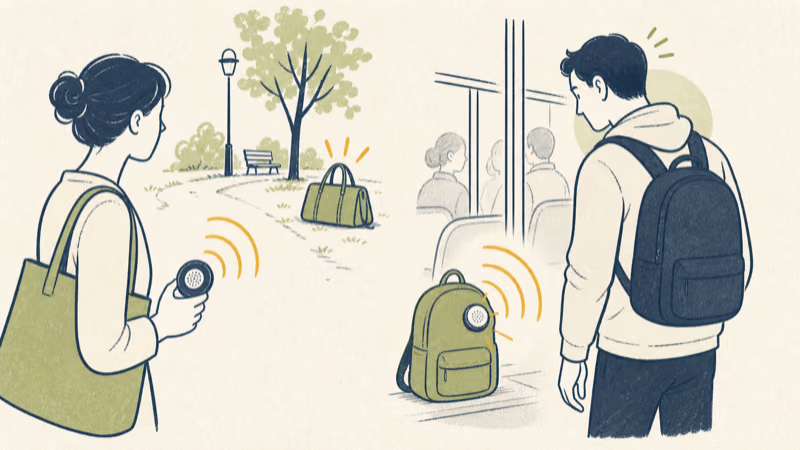
Hardware-removal or muffling instructions would undermine that purpose. This guide doesn’t provide them.
Which Controls Affect Notifications, Not the Speaker?
Play Sound is an owner-requested action in Find My. If you start it, stop the sound from the same item screen or wait for the sound to finish.
Notify When Left Behind is a phone notification. You can adjust it for an item and add trusted-location exceptions, but that change doesn’t disable the AirTag speaker.
Lost Mode helps recover a missing item. According to Apple’s lost-item guidance, an AirTag owner can show contact information for a lost item and continue using Find My’s item-location tools. Apple doesn’t state that Lost Mode suspends unwanted-tracking sounds or guarantees silence in luggage, packages, or parked vehicles.
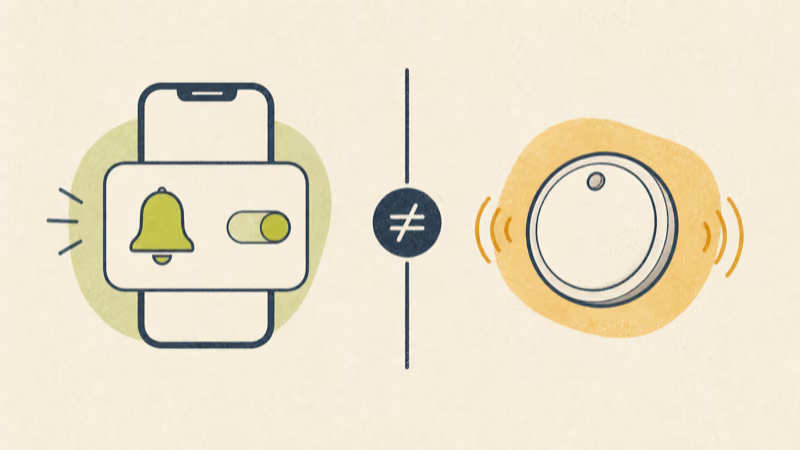
That distinction matters: changing a phone alert solves notification noise, while changing the tracker hardware weakens a separate safety layer.
What to Do When Your Own AirTag Makes a Sound
Open Find My and confirm that the AirTag appears under your Items tab. Check whether you or someone with access to the item used Play Sound, and bring the AirTag near the paired iPhone.
If it keeps making unexpected sounds, use the AirTag sound troubleshooting guide to separate documented owner actions from an unfamiliar-tracker safety context. Don’t assume a battery reset or speaker modification is the first fix.
Keep the hardware intact.
An AirTag that is connected to another Apple Account must be removed from that account before it can be paired to yours. A pairing problem is an ownership issue, not a reason to silence the device.
Safe Choices for Luggage, Vehicles, and Shared Items
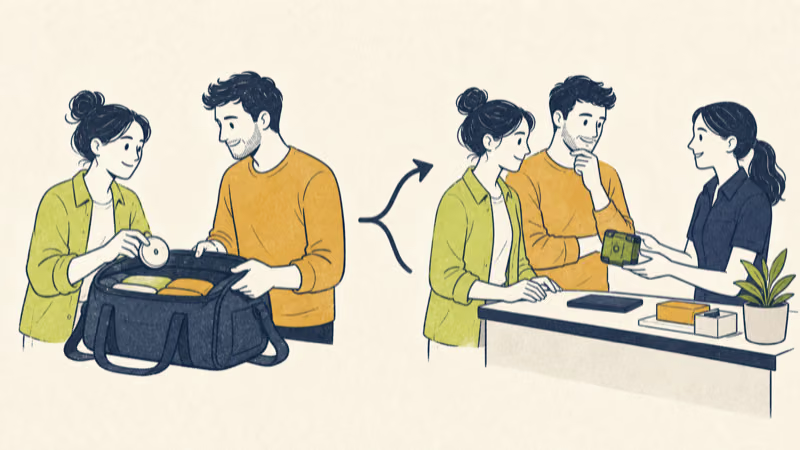
For checked luggage, shipped packages, borrowed objects, or shared vehicles, tell the person handling the item that a tracker is present. Don’t promise that Lost Mode will keep it silent.
Disclosure avoids surprises.
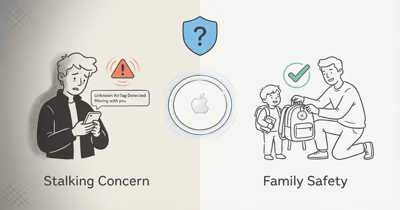
If an audible safety feature would disrupt the use case, choose another recovery or logistics workflow rather than defeating the speaker. AirTag is designed for objects, not covert monitoring of people or pets.
For your own vehicle, use the tracker only with the knowledge and permission of everyone whose location it could reveal. A dedicated fleet or cellular GPS system may be more appropriate when real-time reporting, driver consent, and account controls are required.
No legitimate use requires publishing speaker-removal steps.
What to Do With an Unknown AirTag
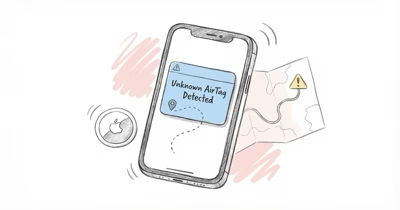
If an unfamiliar AirTag is moving with you, tap the alert and use Play Sound or Find Nearby when available. If you find it, hold an NFC-capable phone near the white side to view its serial number and limited registrant details.
The Apple Personal Safety User Guide recommends saving the available information, considering the possible impact on your safety, and using Instructions to Disable when appropriate. Turning off Bluetooth or Location Services on your phone does not disable the AirTag.
Your safety outranks the device.
If you can’t locate the item and feel unsafe, move to a safe public place and contact local law enforcement. Officers can work with Apple and might request the AirTag and its serial number.
Use the moving-with-you alert guide for the complete protective flow.
When Is AirTag the Wrong Tool?
Choose another device or process when you need guaranteed silence, continuous cellular reporting, formal fleet controls, or a system designed for a person’s consensual safety use. Those are different requirements from finding keys or luggage through the Find My network.
Avoid products marketed as modified or silent AirTags. They remove a safeguard without turning AirTag into a better GPS, fleet, or personal-safety device.
Bottom Line
You can’t disable the AirTag speaker through a supported setting. Notify When Left Behind affects your phone, and Lost Mode helps recover an item; neither is a documented permanent mute control.
The supported answer is not a hidden switch.
Keep the speaker intact. Fix the alert context, disclose the tracker on shared items, or choose a different device. For an unknown AirTag, follow Apple’s locate, record, safety, and onscreen disabling steps.
FAQ
Can you turn off the AirTag speaker in Find My?
No. Find My has no supported permanent speaker-mute control. Play Sound is a temporary owner action, while other sounds support finding and unwanted-tracking awareness.
Does Lost Mode stop an AirTag from making sounds?
Apple doesn’t document Lost Mode as a speaker-mute feature. Lost Mode helps recover an item by adding contact information and recovery notifications; don’t use it as a promise that luggage, a package, or a parked vehicle will stay silent.
Does Notify When Left Behind control the AirTag speaker?
No. Notify When Left Behind changes a notification on the owner’s iPhone. It does not disable the speaker or the unwanted-tracking protections built into AirTag.
Why did Apple make the newer AirTag louder?
Apple says the newer AirTag has a louder speaker and keeps cross-platform unwanted-tracking protections. The change improves findability rather than creating a silent mode.
Should I remove or muffle the AirTag speaker?
No. Modifying or muffling it weakens a safety feature and can create risk for anyone who encounters the tracker. Change the workflow or choose another device if sound is unacceptable.
What should I do if my own AirTag makes an unexpected sound?
Open Find My, confirm the AirTag is listed under your Items, check whether Play Sound was used, and bring it near the paired iPhone. Treat account-linking or pairing problems as ownership issues, not reasons to silence the device.
What should I do if an unknown AirTag is with me?
Use the alert’s Play Sound or Find Nearby option, save the available identifier information, consider your safety, and follow Instructions to Disable. If you feel unsafe, move to a public place and contact local law enforcement.