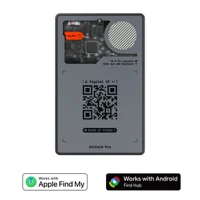
Center the AirCard Pro on a working Qi pad with nothing between the card and the coil, then give a drained battery several minutes to wake up before judging the attempt. Most "not charging" cases are coil misalignment, debris in the gap, or a deeply discharged cell, not hardware failure.
The Rolling Square AirCard Pro Dual has no charging port and no removable battery, so a card that won’t power up almost always comes down to how it sits on the wireless pad. According to Apple, the Find My network spans over 1 billion devices worldwide, but none of that crowdsourced reach matters until the card itself holds a charge again.
- Qi charging only — the AirCard Pro has no USB-C port and no coin cell, so it relies entirely on a working wireless pad with good coil contact.
- A full charge takes about 90 minutes — Rolling Square rates the 220mAh cell at roughly 1.5 hours to top up, so judge progress over the hour, not the first minute.
- Misalignment over 3cm can severely cut wireless power, so a card sitting at the pad’s edge may show nothing at all.
- A deeply drained card can sit on the pad for several minutes before its charging circuit wakes up, so don’t quit immediately.
- Reset and re-pair is the last step, used only after a clean, centered charge on a confirmed-good pad still fails.
Why Won’t My AirCard Pro Charge?
The AirCard Pro charges by induction, not by a cable, so a “dead” card is usually a coupling problem rather than a broken cell. The receiver coil and the pad coil have to overlap closely, and recentering the card is the first fix to try.
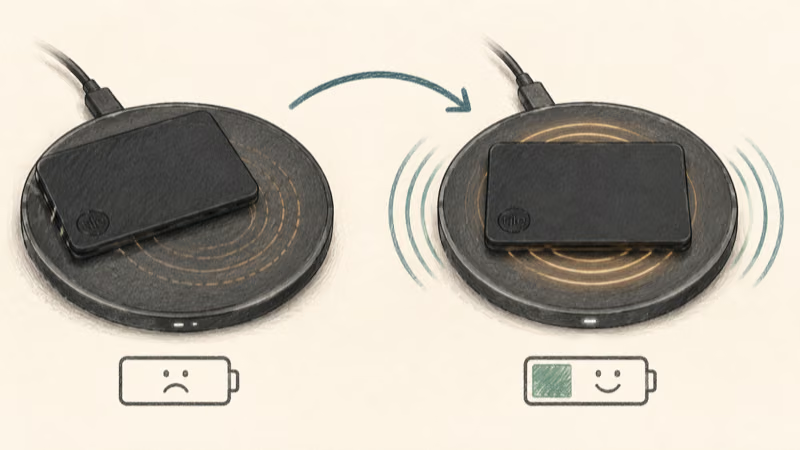
The card has no ports at all. Power only crosses the air gap between the card and the pad’s coil.
Wireless charging is unforgiving about position. Wikipedia’s overview of inductive charging notes that misalignment beyond about 3cm can severely lower power transfer. On a flat Qi pad with no magnets, even small drift can prevent a thin card receiver from charging.
Rule out the pad first. Set a phone or another Qi device on it and confirm that charges before you blame the card.
A worn cable, an underpowered USB port, or a multi-coil stand with awkward geometry can all starve a small card receiver even when a phone seems to charge fine. Card-sized receivers draw far less than a phone, so they’re the first thing a weak pad fails to wake.
Step-by-step alignment fix
1. Place your Qi charger on a flat, stable surface and confirm it charges a phone first, so you know the pad has power.
2. Set the AirCard Pro flat on the pad and slide it toward the center of the charging coil, not the corner or rim where coupling is weakest.
3. Leave it undisturbed and check back after several minutes. A drained cell needs a trickle of current before its charging circuit comes alive.
4. Nudge the card a few millimeters in each direction if nothing seems to happen, since the receiver coil and the pad’s coil have to overlap closely.
Because the card has no magnet array, it won’t snap into place the way a phone does on a MagSafe puck. You’re positioning it by hand, so patience and small adjustments matter more here than with a magnetic accessory.
Clearing Debris and Cases From the Coil
Because the card lives in a wallet, a common physical blocker is grit. Lint, sand, or sticky residue on the back of the card adds a millimeter or two of gap, and that small gap behaves exactly like misalignment even when the card looks perfectly seated on the pad. Wipe both the card and the pad surface with a dry microfiber cloth before every charge.
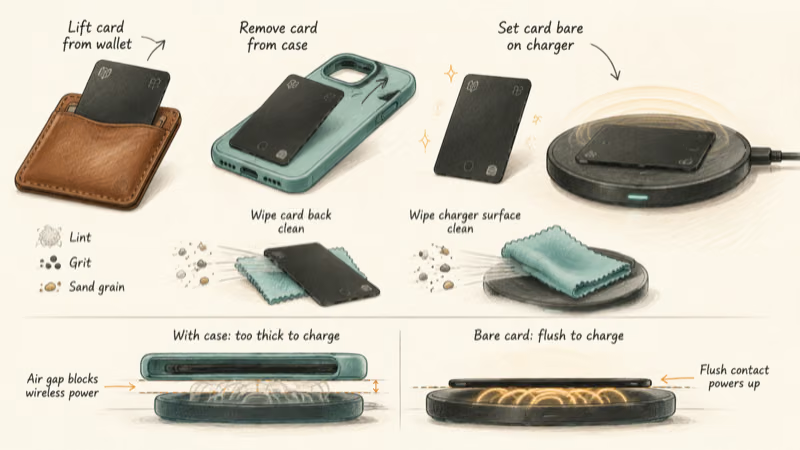
Thick charger cases and bumpers cause the same problem. A rugged wireless puck inside a silicone sleeve, or a charging stand with a raised lip, can hold the card far enough off the coil to stop charging entirely.
Remove the card from any wallet, sleeve, or pop-socket and set it bare on the pad. If you use a multi-device stand, move the card to a single flat single-coil pad to rule out stand geometry. The thinner and flatter the contact, the better a small card receiver couples.
Heat is the signal to stop, not push through. If the AirCard Pro swells, runs hot, or shows any physical damage, stop charging it right away. A sealed card that puffs up or grows warm has a failing cell rather than an alignment issue, and that’s a warranty case. The same caution applies across sealed rechargeable cards, including the others in our best wallet tracker card guide.
How Long Should a Drained AirCard Pro Take to Charge?
Rolling Square’s official AirCard Pro page states that the 220mAh battery reaches a full charge in about 1.5 hours on a wireless charger, and that figure assumes good coil contact the whole time. The catch is the start.
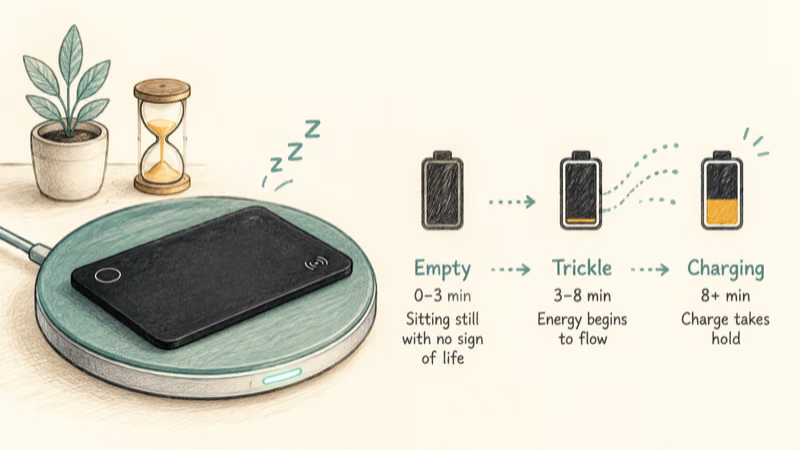
A deeply discharged card can sit on the pad for several minutes before anything appears to happen, because the battery needs a small trickle of current before its charging circuit wakes up. On a fully drained card, the indicator may stay dark for a few minutes before it finally begins to move, so give it time before assuming the card is dead.
Tom’s Guide, in a month-long hands-on test, reported that the AirCard Pro behaved as a normal everyday-carry tracker once charged. That doesn’t change the charging diagnosis: alignment and steady contact matter before you assume a failed cell.
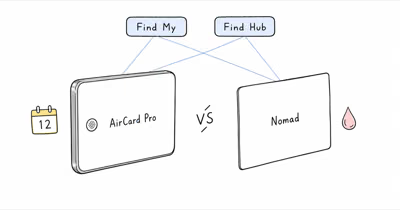
To confirm the charge is actually sticking, open the card in the Apple Find My app (or Google Find Hub, depending on how you set it up) and watch the battery indicator over the session. If the level climbs during a centered charge, power is reaching the cell. A card rated for 12 months per charge that drains within weeks of new is worth flagging to support as a possible defect.
Resetting and Re-Pairing the AirCard Pro
If alignment, a clean bare contact, and a full 90-minute session on a known-good pad all fail, the next step is to reset and re-pair. A reset clears a stuck firmware or pairing state that can occasionally make a card look unresponsive even when the cell is fine.
Follow Rolling Square’s in-app or printed instructions to remove the card from Find My or Find Hub, then re-add it as a new device. Because the AirCard Pro lets you choose Apple Find My or Google Find Hub at setup, re-pairing from a clean state is also how you confirm the card still talks to your phone after a charging scare.
If you’re weighing whether this dual-network card is the right pick at all, our roundup of the best Bluetooth trackers puts it in context against simpler battery-swap tags.
What Rolling Square’s Warranty Covers
Replacement is the honest call when nothing revives the card. The battery is sealed and not user-serviceable, so a card that won’t take a charge after a reset has no field repair. Once a sealed card still refuses a clean, centered charge, support or warranty replacement is the realistic path. Our full AirCard Pro review covers the card’s battery spec and wallet-tracker trade-offs.
A charging fault inside the warranty window is a support-and-replace job, not a DIY one, and Rolling Square sells the card direct with a 30-day trial.
Isolating the Card From the Charger
When you’ve tried everything and the card still seems dead, the fastest way to isolate the fault is to swap variables one at a time. Charge a different Qi device on the same pad to test the pad. Then place the AirCard Pro on a second, different Qi pad to test the card.
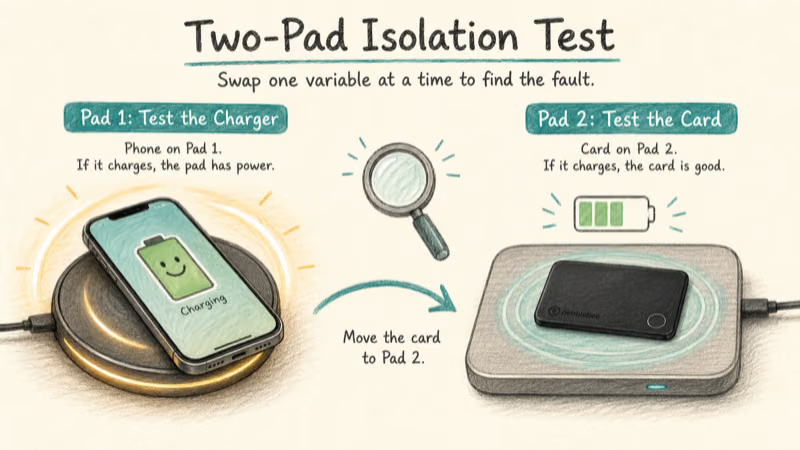
This two-pad check separates charger problems from card problems. If the card charges on a different pad, your original charger or its cable was the weak link, not the AirCard Pro itself.
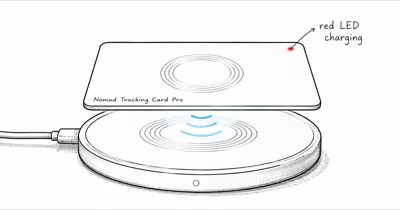
If the card refuses every pad and shows no rising battery level after a long, centered session, the cell has likely failed and the card needs a warranty replacement. Sibling cards with the same sealed design fail the same way, which is why we walk through identical isolation steps in our Nomad Tracking Card Pro charging fix.
Bottom Line
A Rolling Square AirCard Pro that won't charge is almost always a placement problem, not a dead battery. Center it on a confirmed-good Qi pad, clear any debris or case in the gap, and give a drained cell several patient minutes to wake up before judging the attempt. Only when a clean, well-aligned 90-minute charge still shows no rising battery level should you reset, re-pair, and then pursue a warranty replacement.
FAQ
Why won't my Rolling Square AirCard Pro charge?
The most common reasons are coil misalignment, debris or a case in the gap, or a deeply drained battery that has not woken up yet. The card charges only by Qi induction, so it has to sit centered and bare on a working pad. Confirm the pad charges a phone first, then place the card by hand over the coil.
How long does the AirCard Pro take to charge?
Rolling Square rates a full charge at about 1.5 hours on a wireless pad. A deeply drained card can take several minutes of contact before charging even begins, so give it a continuous, well-aligned session of at least that long before concluding it's broken.
Does the AirCard Pro have a charging port or removable battery?
No. The AirCard Pro is a sealed 2.2mm card with no USB-C port and no replaceable coin cell. It charges only through a Qi wireless pad, and its 220mAh lithium battery is not user-serviceable. That sealed design keeps the card thin and durable but means there is no cable workaround if wireless charging fails.
How do I know if the card is actually charging?
Open the card in the Apple Find My app or Google Find Hub, depending on which network you set it up on, and watch the battery indicator over the charging session. If the level climbs during a centered charge, power is reaching the cell. A level that never moves after a long, centered charge points to a failed cell.
Why does my card charge fine on one pad but not another?
Small card receivers are sensitive to coil position and power output. A multi-coil stand, an underpowered USB port, or a thick case on the pad can all starve the card while still charging a phone. Try a single-coil flat pad with the card placed bare and centered, and test a second pad to isolate whether the fault is the charger or the card.
Should I reset the AirCard Pro if it still won't charge?
Reset only after alignment, a clean bare contact, and a full 90-minute session on a known-good pad all fail. Follow Rolling Square's instructions to remove the card from Find My or Find Hub, then re-add it as a new device. A reset clears a stuck firmware or pairing state, but it can't revive a battery that has truly failed.
Can I replace the battery if the card stops charging for good?
No. The AirCard Pro is a sealed unit with no replaceable battery and no serviceable parts. If a clean, centered charge on a confirmed-good pad still shows no rising battery level after a reset, the card needs replacement through Rolling Square's warranty rather than a battery swap. Stop charging immediately if the card swells or runs hot.