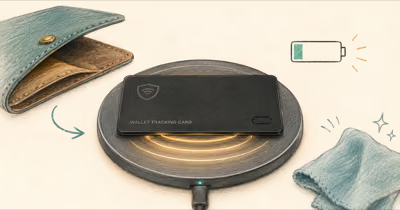
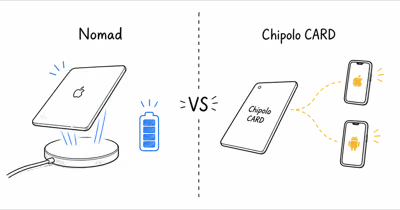
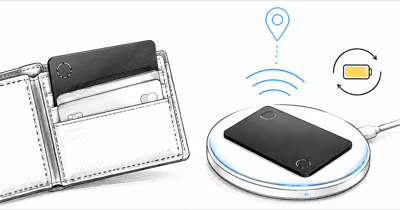
Center the card’s circular graphic over the Qi or MagSafe coil and wait for a red LED. Most “not charging” cases are coil misalignment, debris between card and pad, or a fully drained battery.
The Nomad Tracking Card Pro has no charging port and no battery door, so a card that won’t power up almost always comes down to how it sits on the pad. The fix is far more often repositioning than replacement. According to Apple, the Find My network spans over a billion Apple devices, but none of that helps until the card itself holds a charge.
- Red LED means charging — a red light confirms power is flowing; green means full; no light at all means no coupling.
- Center the circular graphic — Nomad says to align that printed circle over the pad’s coil for at least 2 hours.
- Misalignment over 3cm can severely cut wireless power transfer, so a card sitting at the pad’s edge may show nothing.
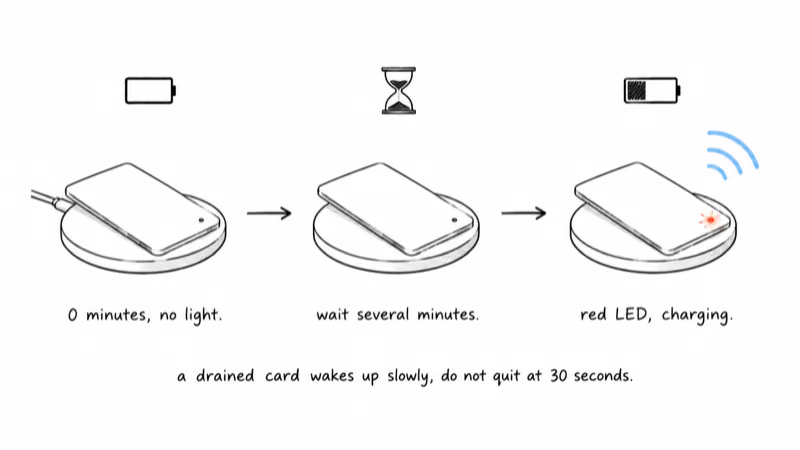
- A fully drained card may need a patient wake-up period before the red LED appears, so don’t judge the attempt immediately.
- Reset is a last resort — press the Find My button 5 times quickly, holding on the 5th press, only after charging fails.
Why Won’t My Nomad Card Pro Charge?
The Tracking Card Pro charges by induction, not by a cable, so a “dead” card is usually a coupling problem rather than a broken battery. Nomad’s official instruction is specific: “Align the card’s circular graphic on any Qi or MagSafe charger for at least two hours, or until the LED indicator turns green.”
That printed circle marks where the receiver coil sits inside the 2.5mm card. It has to line up with the transmitter coil in your charging pad.
Wireless charging is unforgiving about position. Wikipedia’s overview of inductive charging states that misalignment of more than 3 cm can severely lower power transfer. On a flat Qi pad with no magnet array, small placement errors can read to you as a card that just won’t charge.
The LED tells you which state you’re in. Red means charging, green means full, blue means pairing. No light during a charge means the coils aren’t coupling, so reposition rather than wait it out.
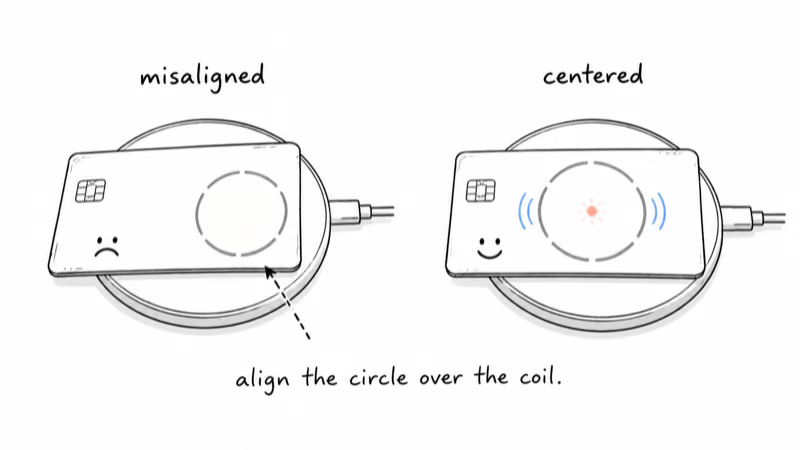
Step-by-step alignment fix
1. Set your Qi or MagSafe charger on a flat, stable surface and confirm it powers a phone first, so you know the pad itself works.
2. Place the card face-up with the printed circular graphic directly over the center of the pad’s coil, not over the corner or edge.
3. Watch for a red LED in the top-right corner. Red means coupling is good and the battery is taking power.
4. Leave it for the full two hours Nomad recommends, or until the light turns green. Nudge the card a few millimeters if no light appears.
Nomad notes the card may sit slightly off center, and that’s normal as long as you get the red light. The card has enough metal to receive a charge on a MagSafe puck, but with no magnet array, it won’t snap into perfect position the way a phone does. You’re placing it by hand, so the printed circle is your only alignment guide.
Clearing Debris and Cases From the Coil
Because the card lives in a wallet, the most common physical blocker is grit. Lint, sand, or sticky residue on the back of the card adds separation, and that gap behaves exactly like misalignment. Wipe both the card and the charging surface with a dry microfiber cloth before every charge.
A card that won’t light up will often start charging the moment pocket lint is cleared off its back. The blocker can be that small.
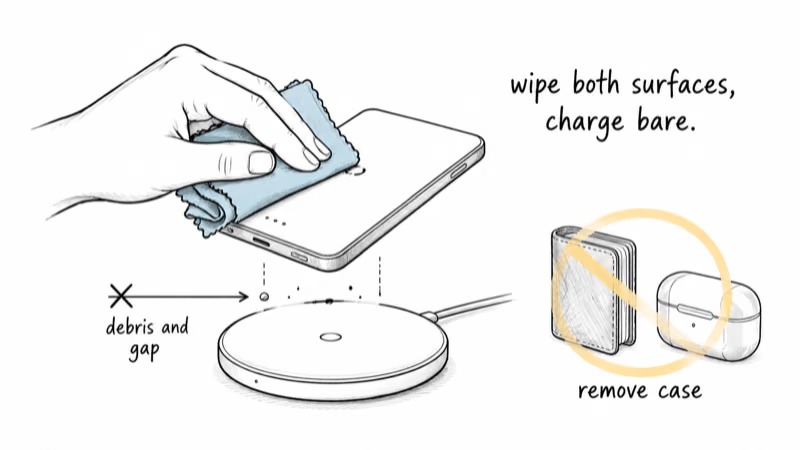
Thick charger cases and bumpers cause the same problem. A rugged MagSafe puck in a sleeve, or a charging stand with a raised lip, can hold the card far enough off the coil to stop charging. Remove the card from any wallet or sleeve and set it bare on the pad. If you use a multi-device charging stand, move the card to a single flat pad to rule out the stand geometry.
Heat is the warning sign to stop. Nomad’s safety guidance is blunt: if the card swells, runs hot, gives off an odor, or shows any damage, stop using it right away. A sealed card that grows warm or puffy has a failing cell, not an alignment issue, and that is a warranty case rather than a fix. The same logic applies across sealed rechargeable cards, including the ones we cover in our best wallet tracker card guide.
Common Charging Mistakes to Skip
A few habits stop a charge before it starts. Skip these and most cards recover.
- Charging through the wallet — a leather slot adds enough gap to break coupling. Pull the card out first.
- Edge placement — the card’s coil must sit over the pad’s coil, not its rim, so center the printed circle.
- Quitting too early — a drained card may need a short wake-up period before any LED shows. Give it time.
- Trusting a green-only memory — if you never saw red first, the card was never charging; reposition and watch again.
How Long Does It Take to Charge?
Nomad’s official charging guide states a full charge takes at least 2 hours, and that figure assumes good coil contact the whole time. The catch is the start: a deeply drained card may need a trickle of current before its charging circuit wakes up. Don’t judge a charge attempt by the first moment on the pad.
To confirm the charge is real rather than guessing from the LED, check the percentage in software. Nomad tells you to open the device in the Apple Find My app to read its battery percentage. If the percentage climbs during a clean charge, the card’s healthy and you simply caught it at a low point. If it never moves off zero after a solid two-hour session with a confirmed red light, the cell’s likely the problem.
A card that drained unusually fast is worth noting too. The Pro is rated for a 16-month battery, so a card that falls far short of that rating may have shipped with a fault. We walk through the battery and charging behavior in detail in our Nomad Tracking Card Pro review, and compare the charging design head-to-head in our Nomad vs Chipolo CARD comparison.
Resetting and Replacing the Card
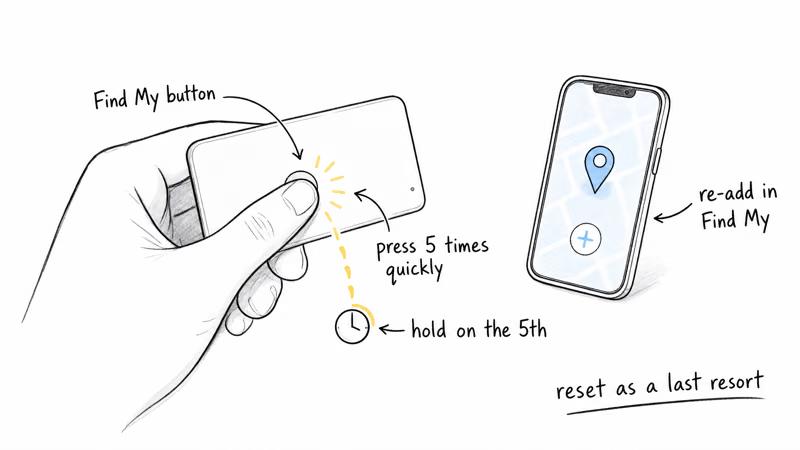
If alignment, a clean surface, and a full two-hour session all fail, reset the card. Nomad’s procedure is to “press the Find My button 5 times quickly and hold the button on the 5th press.”
A reset clears a stuck firmware or pairing state. After it, re-add the card in the Find My app and run one more clean charge from a known-good state before you give up on it.
Replacement is the honest call when none of that works. Because the battery is sealed and not user-serviceable, a card that won’t take a charge after a reset has no field repair. Nomad sells the Tracking Card Pro direct, so a charging fault inside the warranty window is a support-and-replace situation rather than a DIY one. For a network-level view of how this Apple-only card fits alongside other options, our Find My hub maps the full lineup.
Confirming the Battery in the Find My App
The Find My app is the only reliable readout of whether a charge is sticking, so use it to settle the question instead of trusting the LED alone. Nomad’s instruction is plain: to check the percentage, go to the device in the Apple Find My app. If the number climbs during the session, your card is healthy.
A flat percentage is the real failure signal. After a properly aligned two-hour charge with a confirmed red light, a card still reading 0% has a dead cell rather than a placement problem. That’s the point where troubleshooting ends and a warranty claim begins.
Bottom Line
A Nomad Tracking Card Pro that won’t charge is almost always a placement problem, not a dead battery. Center the printed circle over the coil, clear any debris or case in the gap, watch for the red LED, and give a drained card time to wake up. Only when a clean, well-aligned, two-hour charge still shows no light or no rising percentage should you reset and then pursue a warranty replacement.
FAQ
How do I know my Nomad Tracking Card Pro is actually charging?
Look at the small LED in the top-right corner. A red light means the card is charging, and a green light means it’s fully charged. If you see no light at all, the card and pad aren’t coupling, so reposition the circular graphic over the coil rather than waiting longer.
Why does my card show no light on the charger?
No light almost always means coil misalignment or a gap. The receiver coil sits under the printed circle, and inductive charging is sensitive to even a centimeter of offset. Center the circle over the pad’s coil, remove any case or sleeve, and wipe both surfaces clean of lint or debris.
How long should I leave the card on the charger?
Nomad recommends at least two hours, or until the LED turns green. A deeply drained card may need a wake-up period before the red light appears, so don’t judge the attempt immediately. Confirm progress by checking the battery percentage in the Apple Find My app.
Does the card need a MagSafe charger specifically?
No. The Tracking Card Pro works on any Qi or MagSafe charger. It has enough metal to sit on a MagSafe puck and receive a charge, but it has no magnet array, so it won’t snap into place. On a flat Qi pad you’ve got to position it by hand using the circular graphic.
My card gets warm while charging. Is that a problem?
Mild warmth from misalignment losses can happen, but real heat is a stop signal. Nomad says to stop using the card immediately if it becomes swollen, hot, emits an odor, or shows damage. A sealed card that puffs up or runs hot has a failing cell and should be replaced, not charged further.
How do I reset the Tracking Card Pro if it still won’t charge?
Press the Find My button five times quickly and hold the button on the fifth press to factory reset the card. This clears a stuck firmware or pairing state. After the reset, re-add the card in the Find My app and try a clean, well-aligned charge again before assuming the battery has failed.
Can I replace the battery if the card stops charging for good?
No. The Tracking Card Pro is a sealed unit with no replaceable battery and no user-serviceable parts. If a clean, centered, two-hour charge still produces no light or no rising percentage after a reset, the card needs replacement through Nomad’s warranty rather than a battery swap.