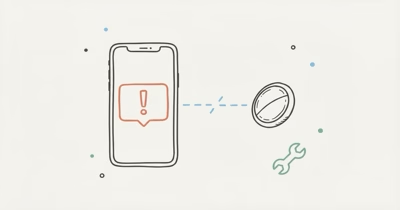
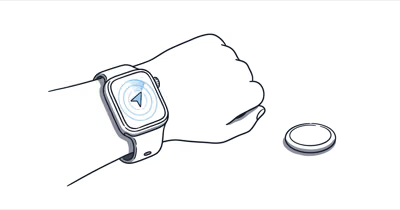
Precision Finding is the close-range direction-and-distance view in Find My. Apple now labels the action Find Nearby in current support instructions, so a missing button does not automatically mean the AirTag itself has stopped reporting to the Find My network.
- Precision Finding compatibility comes first — Apple lists iPhone 11 and later for original-AirTag Precision Finding, excluding iPhone SE (2nd and 3rd generation) and iPhone 16e.
- AirTag 2 has additional requirements — Apple requires iOS 26.2.1 or later and limits expanded range to iPhone Air or iPhone 15 and later, excluding iPhone 16e and iPhone 17e, with regional availability varying.
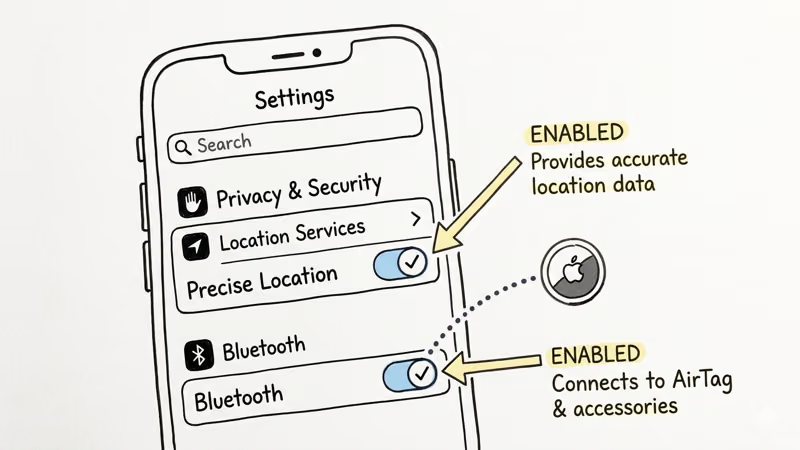
- Precise Location must be enabled — it’s a separate Find My permission under Location Services.
- Range is environmental — walls and objects between the phone and AirTag can affect the connection.
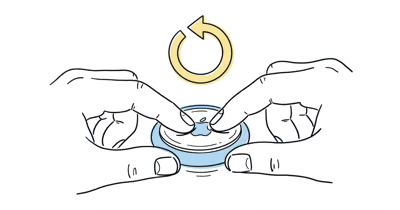
- Reset is a later step — AirTag 2 adds longer presses and waits to the familiar five-sound reset sequence.
Find My Map vs Find Nearby
Apple’s Find My location guide states that the map shows an AirTag’s current or last reported network location, while close-range finding can provide more exact guidance nearby. Find Nearby uses compatible Ultra Wideband hardware for that second task.
What Does a Missing Find Nearby Button Mean?
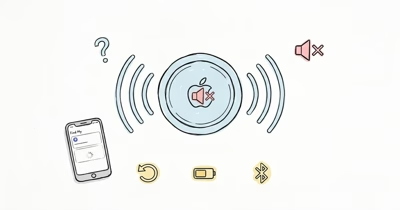
A missing or unavailable Find Nearby button usually means one of three things: the iPhone does not meet the Ultra Wideband requirement, the software or location permissions are not ready, or the AirTag is outside close-range finding distance.
That is different from a stale or missing map location. The map view comes from Find My network detections; Find Nearby adds short-range direction and distance once a supported iPhone can connect to the AirTag.
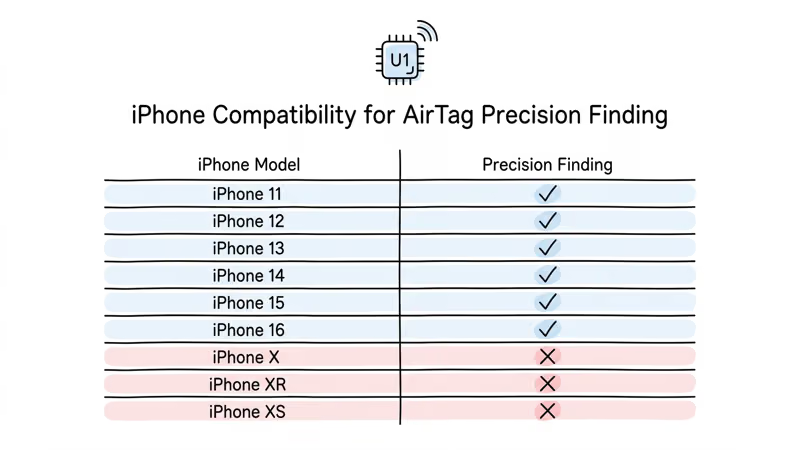
According to Apple’s technical specifications, Precision Finding for the original AirTag works with iPhone 11 models and later, excluding iPhone SE (2nd and 3rd generation) and iPhone 16e. This is safer than assuming every iPhone released after iPhone 11 includes the required Ultra Wideband hardware.
Apple’s current Find Nearby support guide confirms that AirTag 2 requires iOS 26.2.1 or later. For the second generation’s expanded Precision Finding range, Apple’s AirTag 2 specifications list iPhone Air or iPhone 15 and later, excluding iPhone 16e and iPhone 17e; availability also varies by region.
The First 4 Checks
1. Confirm the exact iPhone and AirTag generation. Check the model under Settings > General > About, then compare it with Apple’s generation-specific compatibility information. Don’t use release year or processor generation alone as proof: some newer iPhone models omit Ultra Wideband, and expanded AirTag 2 range has narrower requirements than original-AirTag Precision Finding.
2. Update iOS. Install the latest available iOS release. For AirTag 2, Apple currently specifies iOS 26.2.1 or later. After the update, reopen Find My and select the item again.
3. Enable Location Services and Precise Location. Go to Settings > Privacy & Security > Location Services > Find My. Turn on location access and Precise Location. Apple lists this as the permissions check when Find Nearby is unavailable.
4. Move toward the AirTag’s map location. If the AirTag is outside close-range finding distance, use the map or directions first. Apple says walls and intervening objects can affect performance, so change position and try again rather than treating one failed connection as a hardware diagnosis.
When Should You Reset the AirTag?
Reset only after compatibility, software, permissions and range have been checked. Apple’s reset article explains that the process is primarily needed when an AirTag was removed from another Apple Account while it was outside Bluetooth range. A reset is also a reasonable support step when pairing state is suspect, but it does not prove that the Ultra Wideband radio has failed.
For the original AirTag, remove and replace the battery until you hear five connection sounds; the fifth sound is different. For AirTag 2, Apple instructs you to press the battery for about two seconds after the first sound, wait 12 seconds after removing it, then repeat the cycle four more times. The fifth sound may require holding the battery for up to 12 seconds.
Apple’s complete reset instructions state that the sequence requires five connection sounds and explain the generation-specific timing. Follow that sequence while the battery cover is open. The battery and cover are choking hazards, so keep them away from children.
Why Precision Finding Can Drop During a Search
Apple does not publish a guaranteed indoor distance. Its support page says environmental factors, including wall materials and objects between the iPhone and AirTag, can affect performance. If direction and distance disappear, keep moving toward the last map location, reduce obstructions where practical, and retry Find Nearby.
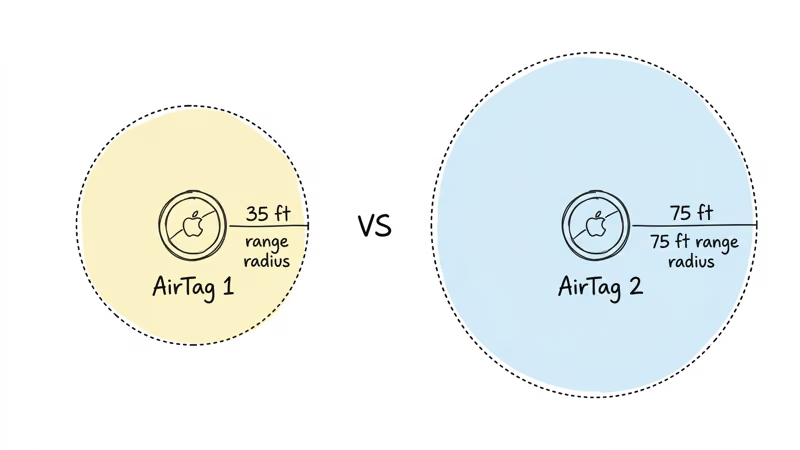
Apple’s launch announcement reports that AirTag 2 can start Precision Finding from up to 50 percent farther away than the previous generation. Apple’s specifications limit that expanded range to AirTag 2 paired with iPhone Air or iPhone 15 and later, excluding iPhone 16e and iPhone 17e, and note that availability varies by region. It’s not a fixed distance guarantee for every room or wall.
When to Contact Apple Support
Escalate when the exact iPhone and AirTag combination is supported, iOS and Find My permissions are current, the AirTag is physically nearby, and the problem continues after Apple’s reset procedure. Tell support whether the AirTag still appears on the map and plays a sound; those observations help separate general Find My connectivity from Find Nearby behavior.
If the map location itself is stale, use our AirTag location update guide. If the AirTag won’t connect or play a sound at all, the broader AirTag connection troubleshooter is the better starting point.
Bottom Line
Treat Find Nearby as a layered check: supported Ultra Wideband hardware, current iOS, Location Services with Precise Location, and close enough range. Reset only after those conditions are met. If a supported setup still fails nearby, Apple Support can investigate without guessing at a hardware fault.
FAQ
Why is Find Nearby missing for my AirTag?
The iPhone might not support Ultra Wideband, iOS might be out of date, Find My might not have Location Services and Precise Location enabled, or the AirTag might be outside close-range finding distance. Check those conditions in that order.
Which iPhones support Precision Finding with the original AirTag?
Apple lists iPhone 11 models and later, excluding iPhone SE (2nd and 3rd generation) and iPhone 16e. Check Apple’s current AirTag technical specifications for later models rather than assuming every newer iPhone includes Ultra Wideband.
What iOS version does AirTag 2 require?
Apple’s current support guide says AirTag 2 requires iOS 26.2.1 or later. Update the iPhone before troubleshooting Find Nearby.
How close must I be for Precision Finding?
Apple does not publish one guaranteed distance for every environment. Walls and objects between the iPhone and AirTag can affect performance. Use the map or directions to move closer, then try Find Nearby again.
Should I reset the AirTag when Find Nearby fails?
Reset after checking compatibility, iOS, permissions and range. Apple documents a five-sound reset, with different press and wait timing for AirTag 2. Follow the instructions for the correct generation.
Does AirTag 2 have longer Precision Finding range?
On supported hardware, yes. Apple says expanded Precision Finding works with AirTag 2 paired with iPhone Air or iPhone 15 and later, excluding iPhone 16e and iPhone 17e. Availability varies by region, and environmental conditions still affect performance.
Can a missing Precision Finding arrow mean the AirTag is broken?
Not by itself. The iPhone model, iOS version, permissions, distance and obstacles can all prevent Find Nearby from connecting. A supported nearby setup that still fails after Apple’s checks should go to Apple Support.