AirTag 2 Precision Finding on Apple Watch lets you walk to a tagged item using a radar-style arrow on your wrist. Apple’s new AirTag announcement states that it works on the wrist “for the first time” with Apple Watch Series 9 or later.
This guide covers the full setup, the exact hardware that supports it, and the reason the original AirTag is locked out.
- Watch-side Precision Finding needs Apple Watch Series 9+ or Ultra 2+ on watchOS 26.2.1 or later; the Apple Watch SE is excluded.
- It works only with AirTag (2nd generation), because the original AirTag lacks the second-generation U2 ultra-wideband chip.
- Setup takes under a minute: add Find Items to the Watch’s Control Center, choose your AirTag, and the arrow appears.
- Your iPhone still pairs and owns the AirTag, but you don’t need it with you to find the item from your Watch.
- The 50%-greater Precision Finding range needs AirTag 2 paired with an iPhone Air or iPhone 15 or later, excluding iPhone 16e and iPhone 17e.
AirTag Precision Finding on Apple Watch Explained
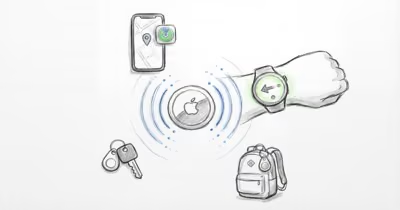
Precision Finding is the close-range guidance mode that turns a “somewhere nearby” Find My ping into a step-by-step walk to the exact spot. On the Apple Watch, it shows a radar-style arrow that rotates toward your tagged item, plus distance in feet and haptic taps that get stronger as you close in. When you are within reach, the screen turns green.
The point of the Watch version is finding things without your iPhone in your hand. You can leave the phone in another room, on the charger, or in a bag, and still track down a tagged backpack, jacket, or set of keys from your wrist. Our AirTag review covers how the U2 chip drives Precision Finding, and the Watch uses the same close-range guidance to point you through walls and furniture once a tag is within range.
It’s the same ultra-wideband technology that powers iPhone Precision Finding, just rendered for a 1.9-inch screen. The arrow and haptics are tuned for glances, not for staring at a map. The wrist arrow points to the same spot the iPhone arrow does, and the haptic taps make it easy to keep walking without looking down.
If you’re weighing whether that arrow is worth it, our explainer on how UWB differs from a plain Bluetooth tracker lays out what each radio actually does.
Which Apple Watches Support AirTag Precision Finding?
Watch-side Precision Finding has a strict hardware floor. Apple’s support page on how to use your Apple Watch to find an AirTag confirms that the feature requires Apple Watch Series 9 or later, or Apple Watch Ultra 2 or later, running watchOS 26.2.1 or newer. Older watches and every Apple Watch SE model are excluded.
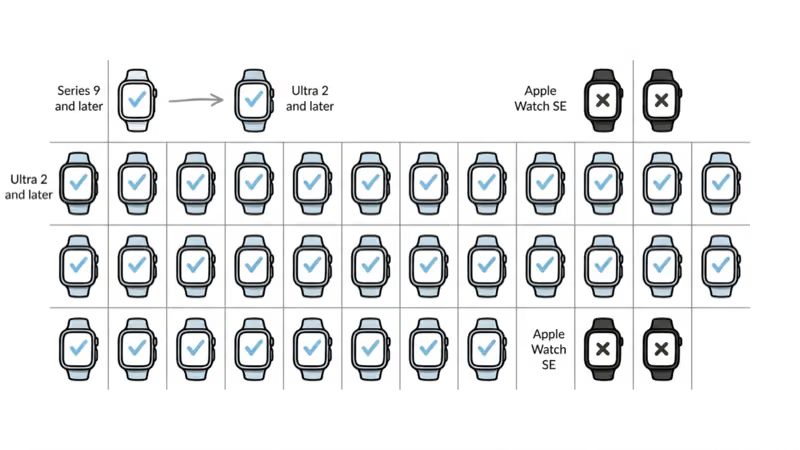
| Apple Watch model | Precision Finding support | watchOS required |
|---|---|---|
| Series 9 | ✓ Supported | 26.2.1 or later |
| Series 10 | ✓ Supported | 26.2.1 or later |
| Series 11 | ✓ Supported | 26.2.1 or later |
| Ultra 2 | ✓ Supported | 26.2.1 or later |
| Ultra 3 | ✓ Supported | 26.2.1 or later |
| Apple Watch SE (all generations) | Not supported | — |
| Series 8 and earlier | Not supported | — |
The cutoff isn’t arbitrary. Series 9 was the first Apple Watch to ship with a second-generation ultra-wideband chip, and the Ultra 2 followed that same year. Series 8 and the Apple Watch SE never received that chip, so no software update can add the feature to them. If you own an SE, your Watch can still show an AirTag’s last location in Find Items, but the live arrow stays off.
Before you start, open the Watch app on your iPhone, tap General, then Software Update, and confirm the watch is on watchOS 26.2.1 or higher. Anything older pairs the AirTag but hides the Precision Finding glance. On an out-of-date build, Find Items still lists the tag but greys out the arrow until the watch updates.
How Do You Set Up Precision Finding on Apple Watch?
Setup happens in the Watch’s Control Center, not in a separate app. The whole process runs under a minute once your AirTag 2 is already paired to your iPhone. Apple’s use your Apple Watch to find an AirTag page lists these official steps.
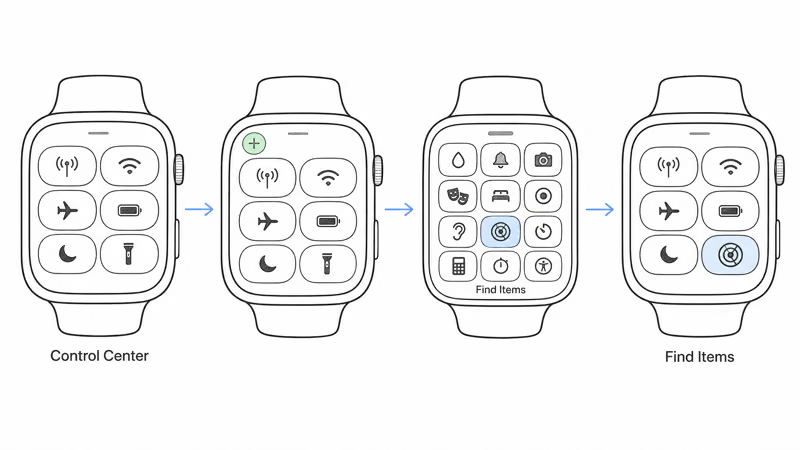
- Press the side button on your Apple Watch to open Control Center.
- Scroll to the bottom and tap Edit.
- Tap the green Add button (the plus icon).
- Choose Find Items from the list of controls and tap Done.
- Open Control Center again and tap the new Find Items control.
- Select Find AirTag, pick the item you want, and the arrow appears.
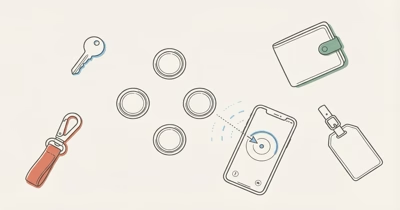
Once Find Items lives in Control Center, you skip the editing steps every time after. The Watch lists every AirTag and Find My item owned by your Apple ID, so a tagged wallet, a luggage tag, and a set of keys all show up in the same picker.
If the arrow refuses to appear at all, the problem is diagnostic rather than instructional. Our guide to Precision Finding troubleshooting walks through the ultra-wideband, Bluetooth, and permission checks that fix a missing arrow on both the iPhone and the Watch.
Why the Original AirTag Is Locked Out
The original AirTag is excluded for a hardware reason, not a software one. It carries Apple’s first-generation ultra-wideband chip, the same U1-class chip used since 2021. AirTag 2 ships the second-generation U2 chip, and Watch-side Precision Finding is built on that newer silicon. MacRumors confirmed in its coverage that the original AirTag is not supported precisely because it lacks the second-generation chip.
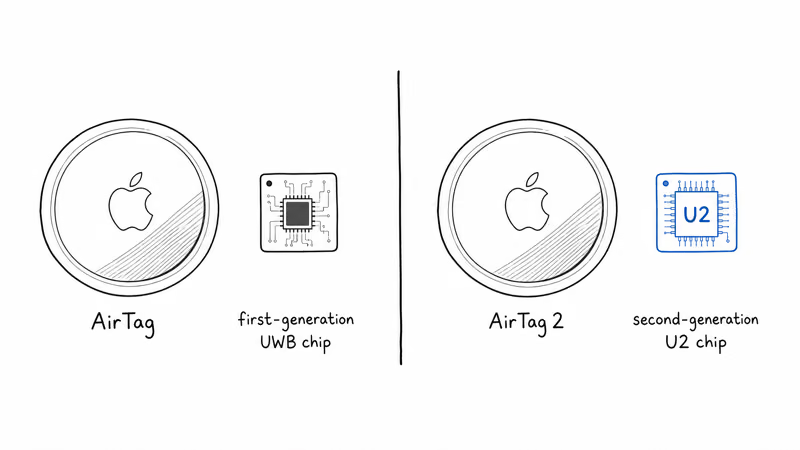
This is the same kind of gap that already exists across Apple’s lineup. The U2 is the chip Apple put in the iPhone 17 family, the iPhone Air, the Apple Watch Ultra 3, and the Series 11. A first-generation AirTag can’t be patched into a U2 device any more than an iPhone X can be patched to pair with an AirTag 2.
For most owners, that turns a limitation into a clear upgrade decision. If you want the feature, the second-generation AirTag is the only path to it, and at $29 for a single tag the cost is modest. If you are weighing every difference between the two generations, our AirTag 2 vs AirTag 1 comparison covers the U2 range gain and the louder speaker alongside the Watch support.
The iPhone Pairing Still Matters
Yes. The Apple Watch doesn’t replace the iPhone in the ownership chain. An AirTag 2 must first be paired and registered on an iPhone using the same Apple ID you use on your Watch. Apple’s how to set it up on Apple Watch walkthrough confirms that the tag must be owned by the Apple ID signed in to the Watch, so a tag owned by a separate Family Sharing account won’t expose the Watch arrow.
What changes is whether the iPhone needs to be with you. For Watch-side Precision Finding, it doesn’t. Once the pairing is done, the Watch handles the close-range guidance on its own, which is the entire reason to use the feature. If pairing itself fails before you reach the Watch step, our AirTag not connecting fixes guide covers the Bluetooth, iCloud, and two-factor checks that resolve setup failures.
There is a second, separate iPhone requirement worth keeping distinct. The 50%-longer Precision Finding range on AirTag 2 supports iPhone Air or iPhone 15 and later, excluding iPhone 16e and iPhone 17e, according to Apple’s current specifications.
Keep the two axes separate. The Watch feature itself works on any supported Watch regardless of which iPhone you own. The longer range is the part that depends on a newer iPhone.
Using Precision Finding on Your Watch in Real Life
A few habits make the Watch arrow behave the way you expect. The most reliable one is distance from your iPhone. When both the phone and the Watch can see the AirTag, Find My tends to hand the close-range job to whichever device has the stronger signal. If your iPhone is in the same room, it often wins, and the Watch arrow can stay quiet.
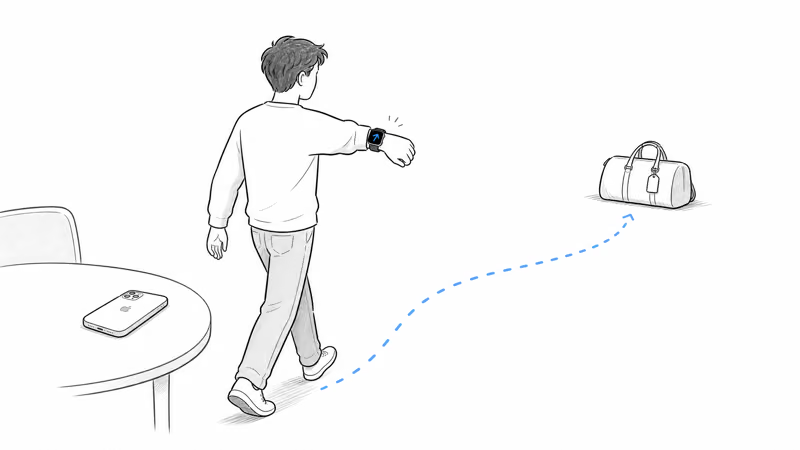
The practical fix is to step away from your iPhone before launching Find Items on the Watch. With the phone as the weaker signal source, the U2 handoff is more likely to favor the Watch. A full-room separation is usually a better cue than standing beside your phone.
Two more conditions matter. The Watch must be unlocked and on your wrist. If it’s passcode-locked or off-wrist, Find Items still shows the AirTag’s last location, but the live arrow greys out.
The green screen is your finish line. Once the display turns green, the item is within arm’s reach, so stop walking and look down rather than chasing the arrow further. For more everyday tagging setups, our best uses for AirTag guide covers where the wrist-finding workflow pays off most.
Bottom Line
AirTag 2 Precision Finding on the Apple Watch is a useful upgrade if you own a Series 9, Series 10, Series 11, Ultra 2, or Ultra 3 on watchOS 26.2.1 or later. Add Find Items to Control Center, keep your Watch unlocked and on your wrist, and step away from your iPhone so the handoff fires.
If you own the original AirTag or an Apple Watch SE, the feature is out of reach without new hardware. Upgrading to the second-generation AirTag is the only way in, and for $29 it’s a reasonable buy for anyone who wants to find tagged items from the wrist.
FAQ
Can I use Precision Finding on my Apple Watch with the original AirTag?
No. Watch-side Precision Finding works only with the second-generation AirTag. The original AirTag uses Apple’s first-generation ultra-wideband chip, and the Watch feature is built on the newer U2 chip found in AirTag 2. There is no software update that adds the feature to a first-generation tag.
Which Apple Watch do I need for AirTag Precision Finding?
You need an Apple Watch Series 9 or later, or an Apple Watch Ultra 2 or later. That includes Series 9, Series 10, Series 11, Ultra 2, and Ultra 3. Series 8 and earlier models can’t run the feature because they lack the required second-generation ultra-wideband chip.
Does the Apple Watch SE support AirTag Precision Finding?
No. Every Apple Watch SE generation is excluded. The SE never shipped with a second-generation ultra-wideband chip, so it can’t show the live Precision Finding arrow. An SE can still display an AirTag’s last known location in Find Items, but not the close-range guidance.
What watchOS version is required to find an AirTag from my Watch?
You need watchOS 26.2.1 or later. Apple Support confirms this as the minimum for AirTag 2 Precision Finding on the Watch. Check your version in the Watch app under General, then Software Update, and install any pending update before setting the feature up.
Do I need my iPhone with me to find an AirTag with my Apple Watch?
No. Your iPhone has to pair and own the AirTag first, but it doesn’t need to be with you when you use the feature. Once the AirTag is registered, the Apple Watch handles close-range Precision Finding on its own. Leaving the phone behind is the whole reason to use the Watch version.
Why does the original AirTag miss out on Apple Watch Precision Finding?
It’s a hardware gap. The original AirTag carries Apple’s first-generation ultra-wideband chip, while AirTag 2 ships the second-generation U2 chip that the Watch feature requires. The same U2 chip is in the iPhone 17 lineup and the newest Apple Watches. A first-generation tag can’t be upgraded to that chip.
Which iPhones unlock the longer Precision Finding range on AirTag 2?
The 50%-greater Precision Finding range needs AirTag 2 paired with iPhone Air or iPhone 15 and later, excluding iPhone 16e and iPhone 17e. This range boost is separate from Watch support.
How do I add Find Items to my Apple Watch Control Center?
Press the side button to open Control Center, scroll down, and tap Edit. Tap the green Add button, choose Find Items from the list, and tap Done. After that, open Control Center anytime, tap Find Items, then Find AirTag, and select the item you want to track.