If you bought a Pebblebee Card 5 expecting a “you forgot your wallet” warning, the missing left-behind alert is a common surprise. Owners open the Pebblebee app, hunt for an Alert mode toggle, and find nothing. The answer is split across three separate Pebblebee HelpDesk pages plus unanswered community threads, so this guide pulls it into one place: what the Card 5 actually does, and the two workarounds that get you a real separation alert.
- The Card 5 has no native Alert mode, so the in-app left-behind toggle is a Pebblebee Clip feature, not a Card feature
- Virtual Fence is the in-app workaround, a location-based geofence that warns you when the Card 5 leaves a saved zone like your home or office
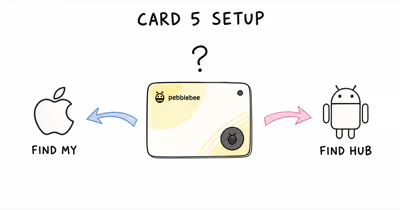
- Phone-level separation alerts work only when the Card 5 is paired to Apple Find My or Google Find Hub, not the Pebblebee app network
- iOS Notify When Left Behind fires the moment you walk away from your wallet, faster than a geofence
- The Pebblebee Clip 5 keeps the native Alert mode for buyers who want that feature without a workaround
Does the Pebblebee Card 5 Have a Left Behind Alert?
No. The Pebblebee Card 5 has no native left-behind Alert mode. When you open the Pebblebee app and look for a "leave it behind" or "separation alert" toggle, you won't find one. That mode lives on the Pebblebee Clip line, not the Card.
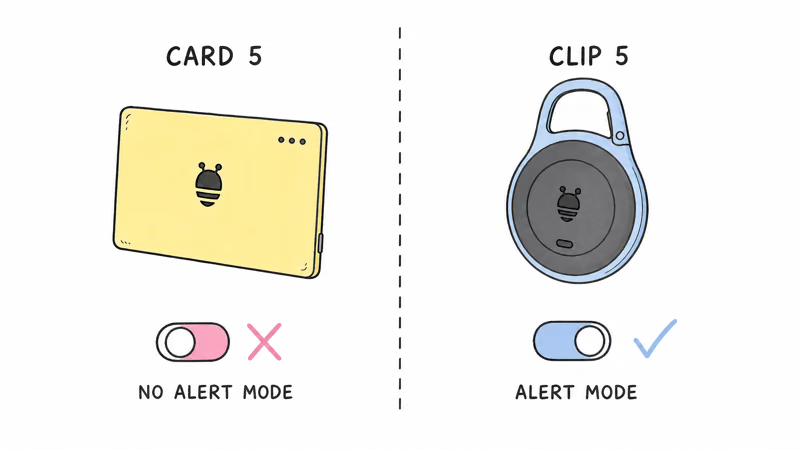
The Pebblebee app exposes a Virtual Fence option and a Find My handoff for Card 5, but no per-tracker Alert switch. That makes the workaround path different from the Clip 5's native Alert mode.
The confusion is reasonable. Pebblebee markets the Clip 5 with a built-in left-behind alert, and the Card 5 sits right next to it in the same product family, so buyers assume the feature carries over. It does not. The Card 5 is built around a different separation model that leans on the phone operating system and on geofencing rather than its own always-on alert engine.
What the Card 5 does instead is hand tracking off to a crowd-sourced network. According to Apple's Find My overview, once an item is on the network you can "get directions to its approximate location and, when you're nearby, play a sound or even get help finding its exact location."
That covers finding a wallet you already lost. It does not cover warning you the moment you leave it behind. Closing that gap is what the rest of this guide handles.
For the full hardware picture, our [Pebblebee Card 5 review](/pebblebee-card-5-review/) covers the 1.8mm design, Qi charging, and dual-network setup in depth. This guide stays narrowly on the missing alert.
 Top Pick
Why Alert Mode Is Missing on the Card 5
Pebblebee splits its lineup into two shapes with different jobs. The Clip is a keychain tracker built for keys, bags, and pet collars, the things that move with you and leave with you. A native left-behind alert makes sense there, because the Clip is meant to be the thing you walk out the door with. The Card is a wallet tracker, and Pebblebee designed it around a thinner, simpler internal layout.
At 1.8mm thick, the Card 5 has almost no room for extra components. Pebblebee's own Card 5 product page states that the card runs "up to 18 months on a single charge" in a body about the width of two credit cards. An always-on Alert engine that constantly measures Bluetooth distance draws more power and adds firmware complexity. On a card built for that 18-month runtime, the trade-off went the other way.
There is also a platform reason. The Card 5 is engineered to ride on Apple Find My or Google Find Hub, and both platforms already include their own separation-notification feature. Rather than duplicate that work in-app, Pebblebee leans on the phone OS for the left-behind warning. The result is a card that depends on either the OS or Virtual Fence for an alert, while the Clip 5 keeps the native feature.
None of this means the Card 5 is broken. It means the separation alert is a setup step, not a default. The next two sections walk through both paths.
How to Set Up a Separation Alert With Virtual Fence
Virtual Fence is the in-app workaround. It's a location-based geofence: you draw a zone around a place, and the Pebblebee app warns you when the Card 5 leaves that zone. It's not a true distance alert, but for a wallet that should stay home or stay at the office, it covers the realistic failure case.
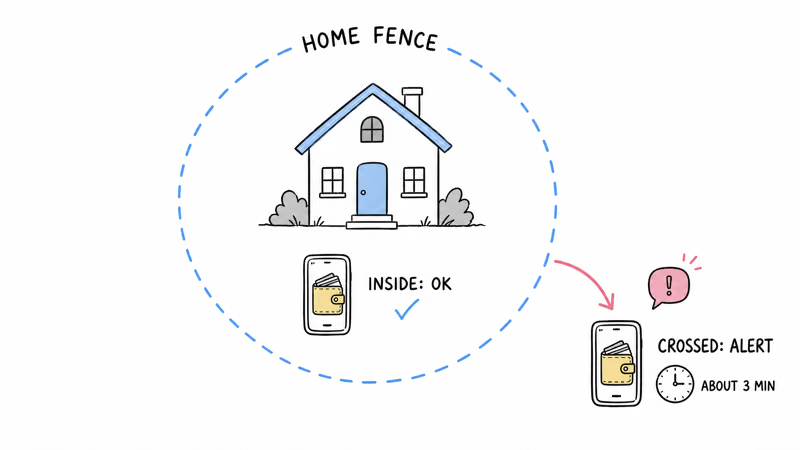
Here is the setup, step by step:
1. Open the Pebblebee app and tap your Card 5 from the device list. The app is where Virtual Fence lives. It's not a phone setting.
2. Find the Virtual Fence option in the tracker's settings. Pebblebee documents this on its HelpDesk support pages, and the company recommends granting the app "Always" location permission so the fence can run in the background.
3. Create a zone. The app uses your phone's current location as the center. Set the radius to cover the building you want the wallet to stay inside, since a tight radius around your house works better than a loose one that spans the whole block.
4. Name and save the fence. You can create more than one zone, so a "Home" fence and a "Work" fence can both stay active.
5. Verify it. Cross the saved fence boundary and wait for the Pebblebee notification. Geofences poll position periodically rather than continuously, so the alert can lag behind the exact moment you leave the zone.
The honest limitation: Virtual Fence triggers on your phone leaving a place, not on the wallet and phone separating. If you leave both phone and wallet at home, no alert fires. It's a "did I leave this somewhere" tool, not a "did I walk off without it" tool. For that second case, the phone-level notification below works better.
How to Use the OS-Level Separation Notification
Your phone has a built-in left-behind notification, and it's the closest thing to the Clip 5's Alert mode. The catch: it only works when the Card 5 is paired to Apple Find My or Google Find Hub, not the Pebblebee app network. The Card 5 makes you choose one network at setup, so this path depends on that choice. Our [Pebblebee Card 5 network choice guide](/pebblebee-card-5-network-choice-guide/) walks through picking Find My versus Find Hub.
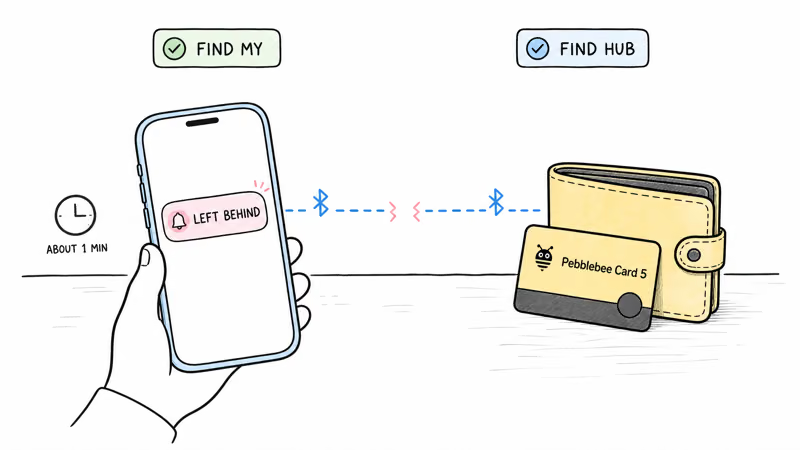
On iPhone (Find My network):
1. Open the Find My app and tap the Items tab. Your Card 5 appears here if it was paired to Find My.
2. Tap the Card 5, then tap Notify When Left Behind and turn it on.
3. Add any trusted locations where you don't want an alert, such as your home. iOS will then notify you when you move away from the Card 5 anywhere else.
An iPhone-paired Card 5 can use the phone-level left-behind notification instead of Pebblebee's geofence. That's usually the better fit for walking away from a wallet, because iOS watches the actual Bluetooth link between phone and item rather than a map zone.
On Android (Find Hub network): Google's left-behind feature is tied to the Find Hub network. As Google's lost-device support page confirms, Find Hub is "a crowdsourced network of Android devices that uses end-to-end encrypted location information." Open the Find Hub app, select the Card 5, and enable separation alerts in the item's settings. The exact wording shifts between Android versions, so look for a "separation" or "left behind" option in the device detail screen.
One thing to know up front: if you paired the Card 5 to the Pebblebee app network instead of Find My or Find Hub, the OS notification is unavailable. You would need to factory reset the card and re-pair it to the chosen network. The 9to5Google hands-on with the Gen 5 lineup reported that the Find Hub integration worked reliably across multiple test phones once the trackers were paired correctly.
Virtual Fence vs OS Notification: How to Choose
The two workarounds solve slightly different problems, and the right pick depends on how you actually lose your wallet.
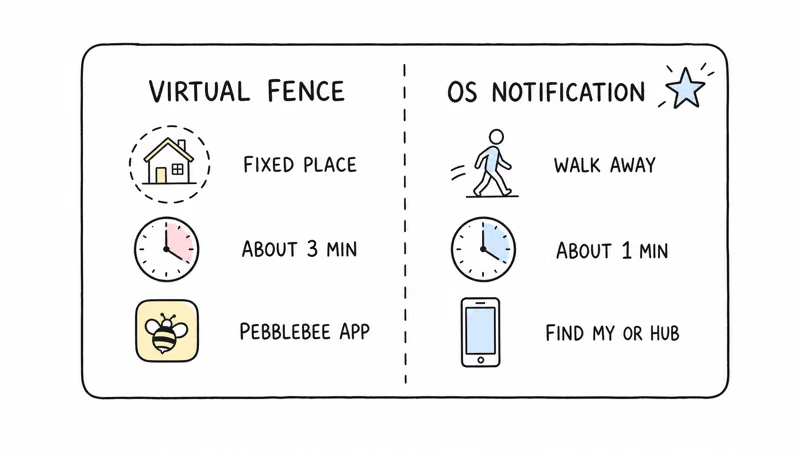
| Factor | Virtual Fence | OS Notification |
|---|---|---|
| Where it lives | Pebblebee app | Find My or Find Hub |
| What triggers it | Phone leaving a saved zone | Phone and Card 5 separating |
| Typical alert speed | Slower, geofence-polled | Faster, Bluetooth-link based |
| Network required | Any (works on Pebblebee app) | Find My or Find Hub only |
| Best for | Wallet left at a fixed place | Walking off without your wallet |
Use the OS notification if you can. It's faster, and it catches the most common real-world mistake: standing up and leaving a restaurant table or office desk without your wallet. It watches the live Bluetooth link, so the alert arrives while you are still close enough to turn around. The only requirement is pairing the Card 5 to Find My or Find Hub at setup.
Use Virtual Fence as a backup, or as your only option if you paired to the Pebblebee app network. It also helps in a case the OS alert misses: if you leave the wallet somewhere and your phone is also there, no separation alert fires, but a fence still flags the moment your phone later leaves that zone. Running both at once is fine, and it costs only a small amount of background battery on the phone.
For a different device, the iOS flow is identical to AirTag's. Our [AirTag left-behind notification](/airtag-left-behind-notification/) guide shows how Apple's separation alert behaves on Apple's own tracker, which is a useful contrast if you are weighing platforms.
Should You Get a Pebblebee Clip 5 Instead?
If the left-behind alert is the single feature you care about, the Pebblebee Clip 5 is worth a look. The Clip 5 ships with the native Alert mode the Card 5 lacks, so the separation warning is a built-in toggle rather than a workaround. Like the Card 5, it supports Apple Find My or Google Find Hub, with one active network per setup.
The trade-off is form factor. The Clip 5 is a keychain-style tracker with a built-in clip, and it won't slide into a wallet card slot the way the 1.8mm Card 5 does. For keys, a bag, or a pet collar, the Clip is the better shape. For a wallet, most people still want the card.
Here is the honest decision. If you keep your wallet in a slim cardholder and the workarounds above are good enough, keep the Card 5, because the OS notification gets you most of the way there. If you would rather not configure anything and you can live with a clip instead of a card, the Clip 5 removes the friction entirely. Our [Pebblebee brand review](/pebblebee-review/) covers the Clip 5 in full.

Bottom Line
The Pebblebee Card 5 has no native left-behind Alert mode, and no app update will add one, because that feature belongs to the Clip line. The fix is a setup step, not a defect. Pair the Card 5 to Apple Find My or Google Find Hub at setup, then turn on your phone's separation notification: that's the fastest left-behind warning you can get on this card because it uses the live Bluetooth link rather than a geofence.
Add a Virtual Fence around your home as a backup, especially if you paired to the Pebblebee app network and the OS alert is not available. If configuring two workarounds sounds like more effort than the card is worth, the Pebblebee Clip 5 ships the native Alert mode out of the box, just in a keychain clip instead of a wallet card.
If your Card 5 also won't hold a charge, our [Pebblebee Card 5 charging fix](/pebblebee-card-5-charging-troubleshooting/) covers that separate problem.
FAQ
Does the Pebblebee Card 5 alert me when I leave my wallet behind?
Not on its own. The Card 5 has no native Alert mode. You get a left-behind warning only after you set up Virtual Fence in the Pebblebee app or enable your phone's separation notification. The phone-level notification is the closest match to a true "you forgot your wallet" alert.
Why doesn't the Card 5 have an Alert mode like the Clip?
Pebblebee built the Card 5 around an ultra-thin 1.8mm body and an 18-month battery, which left no room for the always-on alert engine the Clip uses. The Card is also designed to ride on Apple Find My or Google Find Hub, both of which already provide their own separation notification, so Pebblebee leans on the phone OS instead.
What is Virtual Fence and how do I turn it on?
Virtual Fence is a location-based geofence inside the Pebblebee app. You draw a zone around a place like your home, and the app warns you when the Card 5 leaves that zone. Open the Pebblebee app, select your Card 5, find the Virtual Fence option in its settings, set a radius around your current location, and save. Granting the app "Always" location permission lets the fence run in the background.
Will iOS notify me when I leave the Card 5 behind?
Yes, if the Card 5 is paired to the Apple Find My network. Open the Find My app, go to the Items tab, tap your Card 5, and turn on Notify When Left Behind. iOS then alerts you when you move away from the wallet, except at trusted locations you add.
Does the separation alert work on the Pebblebee app network?
The phone OS separation notification does not. Apple's Notify When Left Behind and Google's Find Hub separation alert only work when the Card 5 is paired to Find My or Find Hub. If you chose the Pebblebee app network at setup, your only built-in option is Virtual Fence inside the Pebblebee app.
Is Virtual Fence reliable enough to trust with my wallet?
Virtual Fence is useful for catching a wallet left at a fixed place, but it's slower and less precise than the OS notification. It triggers on your phone leaving a zone rather than the phone and wallet separating. Treat it as a backup layer, not your only alert.
Should I return the Card 5 and get the Clip 5 instead?
Only if the native Alert mode matters more to you than the wallet card form factor. The Clip 5 includes the built-in left-behind alert and runs on both networks at once, but it's a keychain clip that won't fit a wallet card slot. If you keep your tracker in a wallet and the workarounds above are acceptable, the Card 5 is still the right shape.