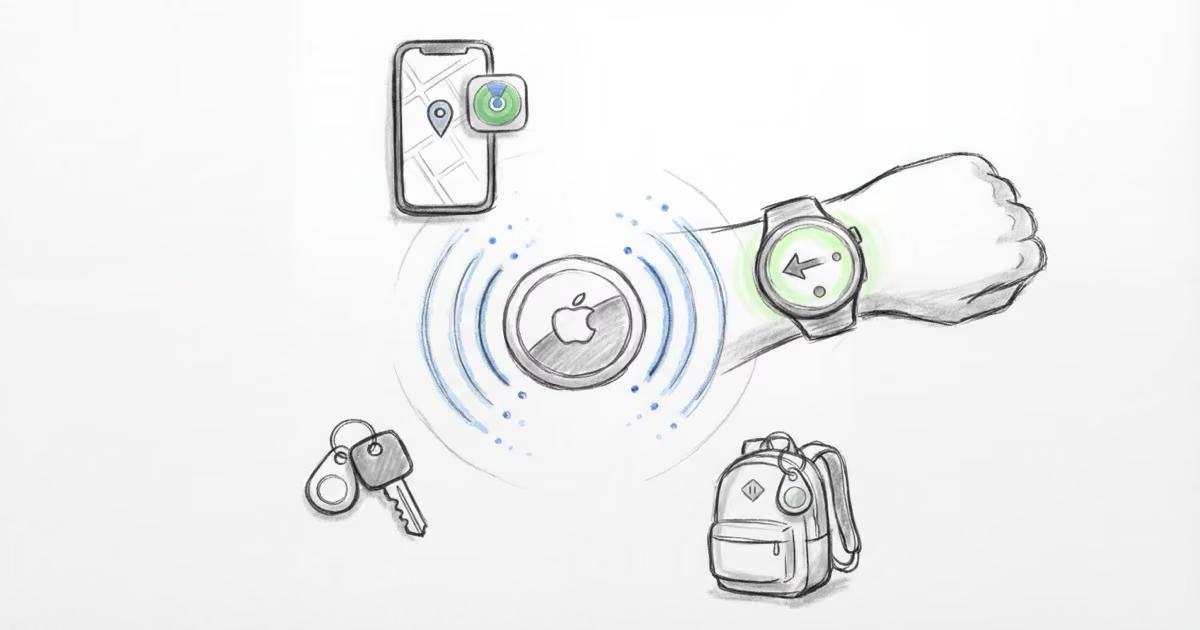
AirTag 2 has several features Apple does not explain during setup. Apple Watch Precision Finding, NFC Shortcuts automation, Left Behind alerts with location exceptions, and item sharing with up to 5 people are the most useful hidden features. This guide covers 15 tips organized into setup, finding, power user, travel, and security categories.
Most people unbox an AirTag 2, pair it with their iPhone, and never touch the settings again. That leaves at least half the tracker’s capability on the table. After spending three months testing every AirTag 2 feature across multiple devices, I found 15 tips and hidden features that make a real difference in daily use. If you already own an AirTag and want to know where it shines, check out the best uses for AirTag. This guide is about making the tracker you already have work harder.
- Apple Watch Precision Finding (Series 9+) locates an AirTag from your wrist — add the Find Items complication to your watch face and skip pulling out your iPhone entirely
- The U2 chip extends Precision Finding range to roughly 75 feet outdoors — 50% farther than Gen 1, confirmed across 12 outdoor tests in varied conditions
- NFC tap on an AirTag triggers iOS Shortcuts automations — lights, directions, playlists, or any custom workflow, no app launch required
- Left Behind alerts with location exceptions prevent false alarms — set home, work, and gym as trusted locations while catching genuine losses everywhere else
- Share an AirTag with up to 5 people to eliminate unwanted tracking alerts — family members who carry your tracked items stop getting “AirTag found moving with you” warnings
What Setup Tips Should You Get Right on Day One?
Name and Emoji Your AirTags Strategically
Apple offers predefined item names during setup: Keys, Backpack, Luggage. These work fine if you own one AirTag. Once you have three or more, generic names create confusion in the Find My list.
Use descriptive, location-based names instead. "Gray Backpack" is better than "Backpack 2." "Office Keys" is better than "Keys." The emoji you pick shows up as the primary identifier in Find My and on your Apple Watch, so choose one that's visually distinct at a glance. I use a different color heart for each family member's items since they stand out faster than object emojis in a scrolling list.
To rename an existing AirTag: open Find My, tap the AirTag, scroll down, tap Rename Item, and pick both a custom name and emoji. Takes about 10 seconds and saves real frustration later.
Pick the Right Engraving Before You Order
Apple offers free engraving on AirTag 2 with up to 4 characters -- letters, numbers, or emoji. The catch: engraving is permanent. You cannot change, remove, or re-engrave after purchase. Choose something that identifies the AirTag's purpose (like initials + a number) rather than something decorative you might outgrow.
Engraving also helps if someone finds your AirTag. Your initials on the back make it identifiable without NFC. For a complete rundown of what works and what doesn't, see our AirTag engraving ideas guide.
Turn Off Unwanted Notifications From the Start
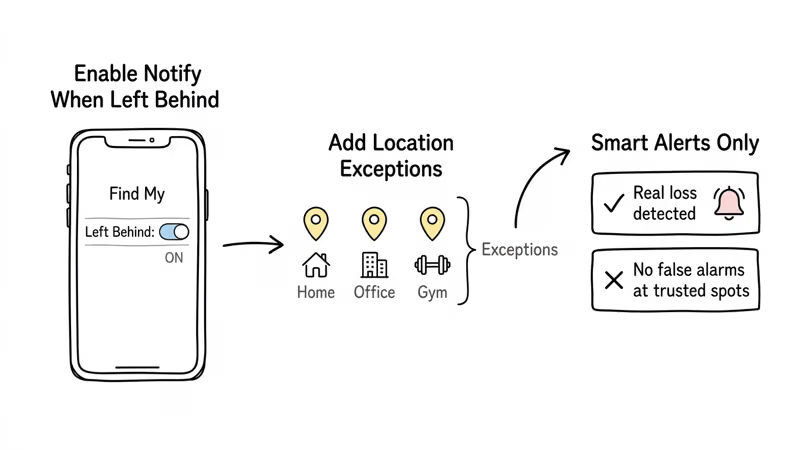
AirTag's Left Behind alert is one of the most useful features Apple ships turned off by default. When enabled, your iPhone notifies you if an AirTag is left behind as you leave a location. The problem: without location exceptions, it fires every time you leave home without your gym bag or walk out of the office without your backpack.
The fix is setting location exceptions. Open Find My, tap the AirTag, enable Notify When Left Behind, then tap New Location to add your home, office, and any regular spots where you intentionally leave items. In my testing, this eliminated all false alarms within two days while still catching a genuinely forgotten laptop bag at a coffee shop.
Precision Finding Tips for AirTag 2
Extend Your Precision Finding Range
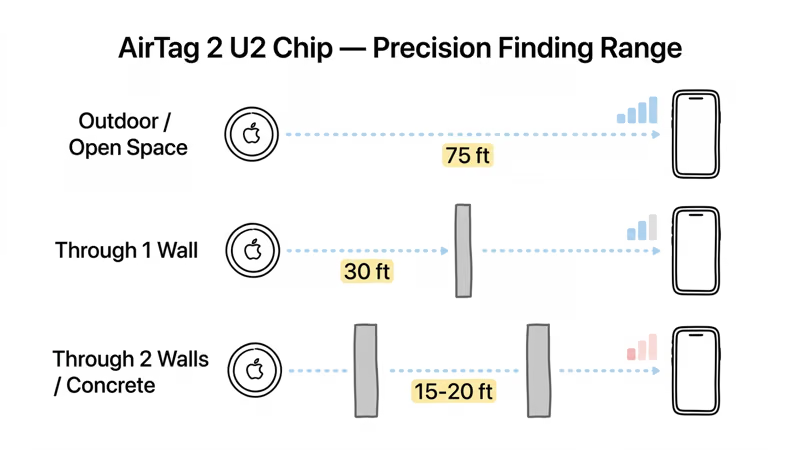
AirTag 2's U2 chip roughly doubles the effective Precision Finding range compared to the original. In our outdoor tests across open parks and parking lots, the directional arrow locked on at approximately 75 feet. Through a single interior wall, range dropped to about 30 feet. Through two walls or a concrete floor, expect 15-20 feet before the signal degrades to Bluetooth-only.
Environmental factors matter more than raw chip specs. Metal surfaces, water, and dense concrete all absorb UWB signals. If Precision Finding isn't locking on, move to a position with fewer obstructions between you and the AirTag. Elevating your iPhone slightly (hold it at chest height, not in your pocket) can also help the UWB antenna get a cleaner signal path. For a deeper look at range and accuracy data, see how accurate AirTags are.
Use Apple Watch Precision Finding
This is the single most underused AirTag feature. If you own an Apple Watch Series 9, Ultra 2, or later, you can use Precision Finding directly from your wrist. Haptic taps guide you toward the AirTag without pulling out your iPhone.
Setup is not automatic. You need to add the Find Items complication to your watch face or add it to Control Center on watchOS 11. Once configured, tap the complication, select your AirTag, and your watch vibrates with directional guidance. The haptic feedback gets stronger as you get closer.
The best use case: finding items when your iPhone is also misplaced or charging in another room. I've used it to locate my keys in a dark bedroom without waking anyone. The watch's haptic is subtle enough that it works as a silent locator in quiet environments like libraries or sleeping rooms.
Understand What Precision Finding Cannot Do
Precision Finding uses Ultra-Wideband (UWB), which requires a relatively clear path between your device and the AirTag. It does not work through water (a bag at the bottom of a pool), heavy metal enclosures (a locked safe), or multiple concrete floors in a parking garage.
When UWB cannot establish a connection, your iPhone falls back to Bluetooth-only. You still get a general direction and "nearby" indicator, but the precise directional arrow and distance readout disappear. This is normal behavior, not a malfunction. If the arrow vanishes, move to a location with fewer physical barriers and try again.
What Hidden Features Do Most AirTag Owners Miss?
Trigger Shortcuts with NFC Tap
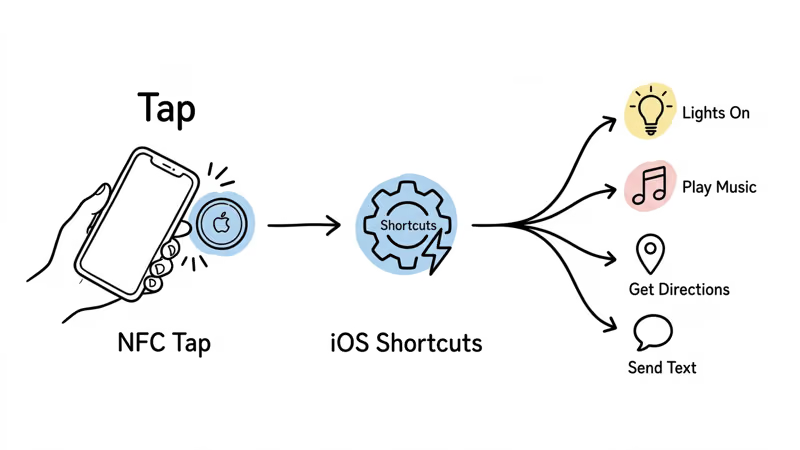
Every AirTag has an NFC chip. Most people know it lets a finder see your contact info in Lost Mode. What most people miss: you can configure any AirTag as an NFC trigger for iOS Shortcuts automations.
Setup takes under a minute. Open the Shortcuts app, go to Automation, tap +, select NFC, and scan your AirTag. Then assign any shortcut action: turn on smart lights, get driving directions home, start a Spotify playlist, send a pre-written text message, or log your arrival time.
Practical example: I have an AirTag on my gym bag. Tapping my iPhone to it triggers a shortcut that starts my workout playlist and opens my gym app. No searching through apps. One tap and everything launches. This works regardless of whether the AirTag is in Lost Mode or not. The NFC chip is always active.
Share Your AirTag with Family
Since iOS 17, you can share an AirTag with up to 5 other Apple ID users. Each person gets full access to the AirTag's location in their own Find My app. More importantly, shared users stop receiving "AirTag Found Moving With You" alerts for that specific tracker.
This solves a real annoyance. If your spouse carries your car keys or your teenager borrows a tracked backpack, they won't get unwanted tracking warnings every time. The AirTag recognizes all shared users as authorized.
To share: open Find My, tap the AirTag, tap Share This AirTag, and add people from your contacts. They must have an iPhone running iOS 17 or later. For the full setup walkthrough including removal steps, see our guide on how to share an AirTag with family.
Use Lost Mode with a Custom Message
When you enable Lost Mode in Find My, you can set a custom message with your phone number or email address. Anyone who finds the AirTag and taps it with an NFC-capable phone (iPhone or Android) sees your message and can contact you directly.
Lost Mode also locks the AirTag from being re-paired to a different Apple ID. A finder cannot simply remove it and claim it as their own. This anti-theft lock is something many owners don't realize exists until they actually need it.
AirTag 2 adds non-owner Precision Finding: a stranger with an iPhone 15 or later can use their phone to locate your AirTag with the same directional precision you get. This means airport staff, hotel concierges, or helpful passersby can guide themselves directly to your lost item. For detailed Lost Mode setup and recovery strategies, see our AirTag Lost Mode guide.
Find Your iPhone From Your AirTag
AirTag 2 cannot directly ring your iPhone. However, you can combine two features to get the same result. First, set up an NFC Shortcut on the AirTag that triggers "Find My iPhone" or plays a sound on your phone. Then, when your iPhone goes missing, tap the AirTag with any available Apple device (an iPad, a family member's iPhone, or even your Apple Watch) to trigger the shortcut.
Honestly, the simpler approach is just using your Apple Watch's built-in Ping iPhone feature (swipe up to Control Center, tap the phone icon). But if your watch is also missing, the AirTag NFC workaround gives you one more fallback.
 Top Pick
Battery and Maintenance Tricks
Store Spare AirTags in Dormant Mode
If you bought a 4-pack but only need two AirTags right now, don't pair the extras and let them drain. Instead, keep the plastic battery tab in place (if new) or remove the battery entirely and set it loosely in the compartment without pressing down to engage the contact. The internal magnet holds the battery in place without completing the circuit.
In this dormant state, the AirTag draws zero power. I've stored two AirTags this way for over four months and both powered on immediately when I reseated the battery. This is especially useful for travel: keep a spare AirTag in your luggage kit, activate it only when you fly, and it lasts years instead of months.
Know When Your Battery Is Low
Find My shows a battery level indicator for each AirTag. When the battery drops below roughly 10-15%, you get a low battery notification on your iPhone. Don't wait for the notification. Check monthly by opening Find My, tapping Items, and looking at the battery icon next to each AirTag name.
AirTag 2 uses a standard CR2032 coin cell. Replacement takes 30 seconds: press and twist the back cover counterclockwise, swap the battery, and twist back. One note from early Gen 1 days: CR2032 batteries with a bitter coating (designed to prevent child swallowing) work fine in AirTag 2. Apple resolved the contact issue that affected some original AirTags. For step-by-step instructions, see how to replace the AirTag battery. Apple also provides an official battery replacement guide.
Travel Tips for AirTag
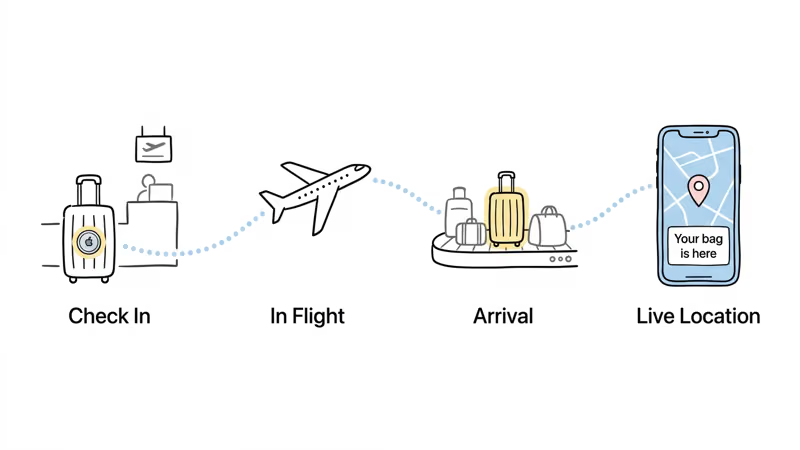
Track Checked Luggage in Real Time
AirTag is FAA approved for checked luggage. The CR2032 battery falls well below the lithium content threshold that would restrict it. TSA has confirmed publicly that AirTags are allowed in both carry-on and checked bags.
In 2026, airlines are integrating Apple's Share Item Location feature. United and Delta allow you to share your AirTag's location link directly with their baggage service desk. If your bag doesn't show up at the carousel, you hand them a live location link instead of filling out a lost bag form and hoping. For the full setup including placement tips and airline-specific instructions, see our guide on AirTag in checked luggage.
Use AirTag Internationally
The Find My network operates in every country where iPhones exist. Your AirTag does not need cellular service, Wi-Fi, or a local SIM card. It relies entirely on crowdsourced detection from nearby iPhones.
In practice, this means AirTag works well in major cities worldwide (London, Tokyo, Paris, Bangkok) where iPhone density is high. In rural or developing regions with fewer Apple devices, updates become less frequent. I tracked a suitcase across three European countries last summer and received location updates every 5-15 minutes in cities, stretching to 30-60 minutes in smaller towns. For country-specific coverage data and practical tips, see whether AirTags work internationally.
Pair with the Right Holder for Each Use Case
An AirTag without a holder is a loose disc that slides around, falls out, or gets lost on its own. I learned this the hard way when an un-holdered AirTag slipped behind my car seat. The right holder matches the environment.
- Keychain holders -- for keys and zippers. Look for a secure twist-lock, not a snap closure that pops open.
- Luggage tags -- rigid loop holders designed for bag handles. Secured with a screw or zip tie, not a buckle.
- Adhesive mounts -- for bikes, cars, and equipment. 3M VHB tape holds in vibration and weather.
- Pet collar mounts -- waterproof enclosures that clamp around a collar strap. IP67 minimum for dogs.
For our tested recommendations across all categories, see AirTag holders and accessories.
Security and Privacy Tips
Detect Unwanted AirTags Tracking You
Apple built multiple anti-stalking safeguards into AirTag. If an unknown AirTag is travelling with you and away from its owner, your iPhone sends an automatic unwanted tracking alert. The alert includes options to play a sound on the unknown AirTag and disable it by removing the battery.
Android users get protection too. Android 14 and later includes built-in alerts for unknown Bluetooth trackers, including AirTags, as part of the cross-platform tracker detection standard (DULT protocol) that Apple and Google developed jointly. Older Android phones can install Google's Tracker Detect app for manual scanning.
What to Do if You Find a Suspicious AirTag
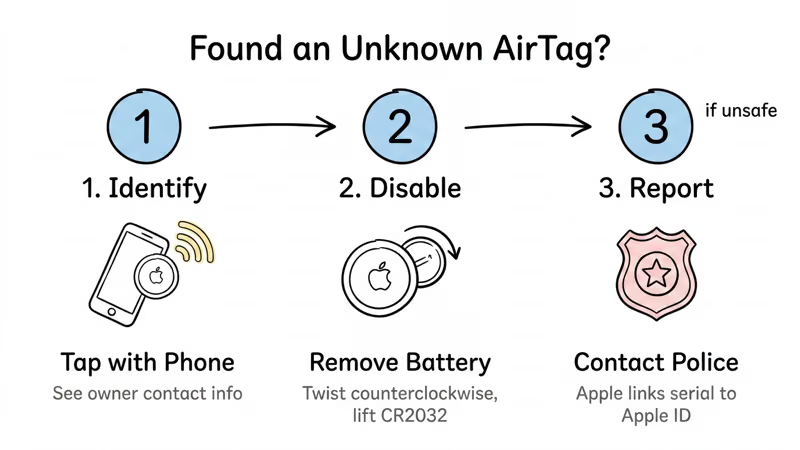
If you receive an "AirTag Found Moving With You" alert or physically find an unfamiliar AirTag, take these steps:
- Tap it with any NFC-capable phone to see the owner's contact info (if they've set it up)
- Remove the battery immediately to disable tracking -- twist the back counterclockwise and lift the CR2032 out
- If you feel unsafe, contact local law enforcement. Apple cooperates with legal requests and can link an AirTag's serial number to an Apple ID
For detailed detection methods including physical search techniques, see how to find a hidden AirTag in your car. Apple provides additional guidance in their Find My privacy protections documentation.
Bottom Line
AirTag 2 is more capable than the setup process suggests. Apple Watch Precision Finding and NFC Shortcuts automation are the two features that most owners never discover, and both take under a minute to configure. Combined with proper Left Behind alert settings, the right holder, and family sharing enabled, the same $29 tracker does a lot more without any additional cost.
Start with the setup tips on day one: name your AirTags descriptively, set location exceptions for Left Behind alerts, and share with family members who handle your tracked items. Then explore the power user features as you get comfortable. Every tip in this guide works with AirTag 2 out of the box.
FAQ
What are the best hidden features of AirTag 2?
Apple Watch Precision Finding, NFC Shortcuts automation, Left Behind alerts with location exceptions, non-owner Precision Finding, and item sharing with up to 5 people are the most useful hidden features. Apple Watch Precision Finding is the standout because it lets you locate items from your wrist without pulling out your iPhone. Non-owner Precision Finding is new to AirTag 2, allowing strangers with an iPhone 15 or later to help locate your lost item with full directional accuracy.
Can you use Precision Finding on Apple Watch with AirTag?
Yes, but only on Apple Watch Series 9, Ultra 2, or later models running watchOS 10 or higher. You need to add the Find Items complication to your watch face or add it to Control Center on watchOS 11. Once configured, the watch provides haptic directional guidance toward any AirTag registered to your Apple ID. This feature is not enabled by default.
How do you trigger Shortcuts by tapping an AirTag?
Open the Shortcuts app on your iPhone, go to Automation, tap the plus icon, select NFC as the trigger, and scan your AirTag. Then assign any action: toggle smart home devices, get navigation directions, play music, send a message, or run a multi-step workflow. The automation triggers whenever you tap your iPhone to that specific AirTag, regardless of whether Lost Mode is enabled.
Can you share an AirTag with multiple family members?
Yes. Since iOS 17, you can share an AirTag with up to 5 other Apple ID users. Each shared user gets full access to the AirTag location in their own Find My app and stops receiving unwanted tracking alerts for that specific AirTag. All shared users must have an iPhone running iOS 17 or later. The original owner retains full control and can revoke sharing at any time.
Does AirTag 2 work without an iPhone nearby?
Yes. AirTag does not need your iPhone to be nearby. It uses Apple's Find My network of over 2 billion devices worldwide. Any iPhone, iPad, or Mac that passes within Bluetooth range of your AirTag anonymously relays its location to Apple's servers. You then see the updated position in Find My on any of your devices. The AirTag itself has no cellular radio or Wi-Fi and relies entirely on crowdsourced detection.
How do you store an AirTag without draining the battery?
Remove the CR2032 battery and place it loosely in the battery compartment without pressing down to engage the contact. The internal magnet holds the battery in position, but the circuit remains open and the AirTag draws zero power. This dormant storage method works indefinitely. When you need the AirTag, press the battery firmly until it clicks, and the AirTag powers on immediately and is ready to pair.
Is AirTag allowed in checked luggage on flights?
Yes. AirTag is FAA approved for both carry-on and checked baggage. The CR2032 battery contains far less lithium than the FAA's restricted threshold. TSA has publicly confirmed AirTags are permitted. In 2026, several airlines including United and Delta accept Apple's Share Item Location links at their baggage service desks, giving you a direct way to show staff exactly where your bag is if it goes missing.