Quick Answer: To change AirTag ownership: (1) The current owner removes it in Find My app → Items tab → select AirTag → Remove Item. (2) If the AirTag isn’t within Bluetooth range for that step, the new owner manually resets it by pressing the battery down and releasing 5 times in a row. (3) The new owner holds the reset AirTag near their iPhone to pair it. The whole process takes under 5 minutes when the AirTag is in hand.
AirTags are linked to an Apple ID — you can’t simply hand one off without unlinking it first. Whether you’re selling a used AirTag, gifting one, or helping someone set up a secondhand purchase, the transfer process has a specific order that matters. Skip a step and the new owner will hit an error when trying to pair it.
Can You Transfer AirTag Ownership?
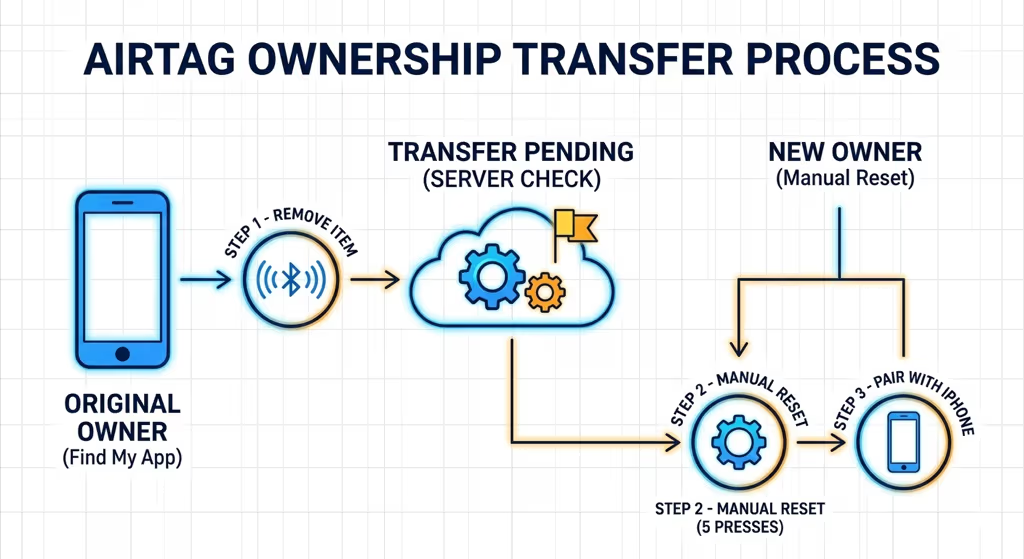
Yes — AirTags are fully transferable. Unlike some Apple devices, there’s no carrier lock or hardware restriction on reuse. The limitation is software: an AirTag paired to an Apple ID won’t pair to a second Apple ID until the original owner removes it from their account. Once removed (and reset, if needed), it behaves exactly like a new AirTag out of the box.
One thing worth noting for AirTag 2 specifically: the transfer process is identical to the original. Apple didn’t change the pairing or removal flow with the second generation, so if you’re working with a Gen 2 unit, the steps below apply exactly.
Step 1 — Remove the AirTag from Your Apple ID
This step can only be completed by the current owner, and only when the AirTag is within Bluetooth range of their iPhone (roughly 10m). If the AirTag is already with the new owner and you can’t get it back in range, skip to Step 2.
- Open the Find My app on your iPhone.
- Tap the Items tab at the bottom of the screen.
- Tap the AirTag you want to transfer.
- Scroll down and tap “Remove Item.”
- Tap “Remove” again on the confirmation prompt.
The AirTag is now unlinked from your Apple ID. It won’t appear in your Find My anymore, and it’s ready for the new owner to pair. If the AirTag was in Lost Mode, removing it from your account automatically deactivates Lost Mode.
Step 2 — Reset the AirTag (If Not in Bluetooth Range)
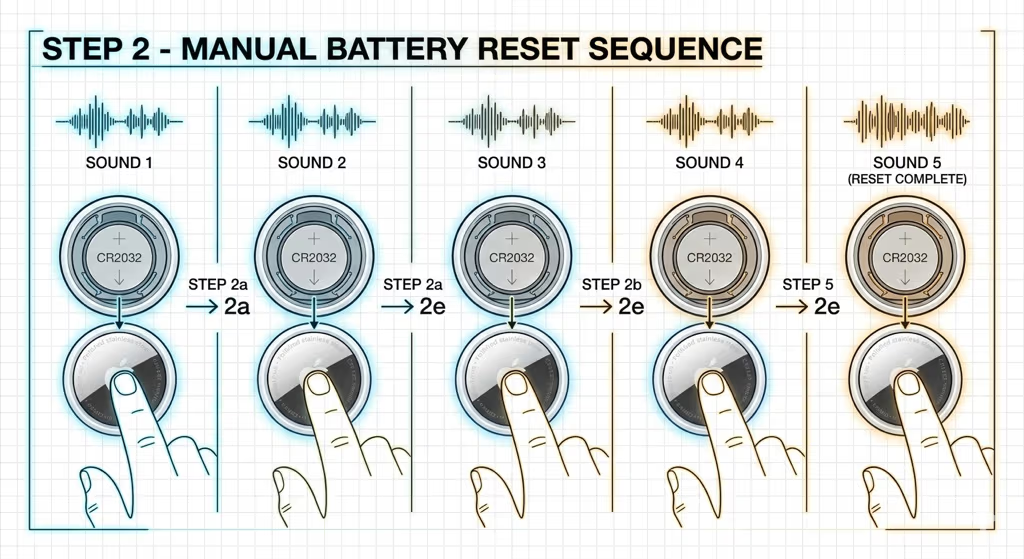
If the original owner couldn’t complete Step 1 — maybe the AirTag was already shipped, gifted without unlinking first, or purchased secondhand — the new owner can manually reset it. The reset wipes the previous owner association from the AirTag’s hardware, making it act like a brand new device.
How to manually reset an AirTag:
- Press down on the polished stainless steel back cover and rotate counterclockwise to open it.
- Remove the CR2032 battery.
- Place the battery back in and press down until you hear a sound — this confirms the battery has connected.
- Repeat steps 2–3 four more times (five total insertions). On the fifth time, you’ll hear a different, slightly longer sound that indicates the reset is complete.
- Replace the back cover by lining up the three tabs with the slots and rotating clockwise until it locks.
After the fifth insertion, the AirTag is fully reset and ready to pair. If you don’t hear the confirmation sound on the fifth press, try again — it needs to be five separate battery presses, not just one long hold.
⚠️ Important: If the original owner’s account removal is still pending and the AirTag has not been removed from their Apple ID, the reset will succeed locally but Apple’s servers will still show it linked to the previous owner. The new owner will see an “AirTag Already Active” error when pairing. The original owner must complete Step 1 to fully release the AirTag — the manual reset alone is not enough if the previous owner still has it in their Find My.
Step 3 — Pair AirTag with the New Owner’s iPhone
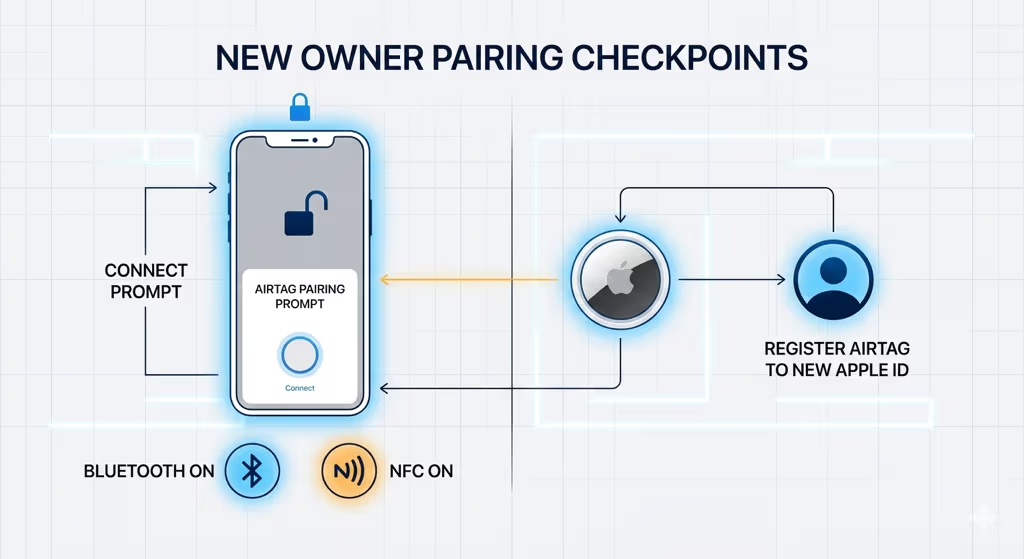
Once the AirTag has been removed from the previous account (and reset if needed), the new owner pairs it the same way they would a brand new AirTag.
- Make sure Bluetooth and NFC are both on (enabled by default on iPhone).
- Hold the AirTag close to an unlocked iPhone — within a few centimeters.
- Wait for the “Connect” prompt to appear on screen. Tap it.
- Choose a name for the AirTag when prompted (Keys, Wallet, Bag, etc.).
- Tap “Register AirTag” to link it to the new owner’s Apple ID.
The AirTag now appears in the new owner’s Find My app under the Items tab. They can rename it, enable Lost Mode, or share its location at any time from there.
Buying a Used AirTag: What to Check First
If you’re buying a secondhand AirTag — from a friend, eBay, Facebook Marketplace, or wherever — ask the seller to remove it from their Apple ID before the handoff. An AirTag that’s still linked to the previous owner’s account will show an “AirTag Already Active” error when you try to pair it, and you’ll need to contact the seller to get them to remove it remotely.
When evaluating a used AirTag, check:
- Battery life: Ask how old it is. CR2032 batteries last about a year. If it’s older, factor in a $1–2 battery replacement.
- Physical condition: Check the stainless steel back for warping or damage that might prevent a good battery seal.
- Gen 1 vs Gen 2: AirTag 2 (released January 2026) has a 60m detection range vs 40m on the original, and a 50% louder speaker. If buying used, check the box or Settings → General → About after pairing to confirm the generation.
If the price difference between used Gen 1 and new Gen 2 is small, the AirTag 2 at $29 new is the better value — the range upgrade alone is worth it for luggage or ski gear tracking. See our full AirTag 2 review for a detailed comparison of what changed. If you decide AirTag isn’t the right fit for your needs, our AirTag alternatives guide covers cross-platform options that work with Android as well.
Troubleshooting AirTag Ownership Transfer
“AirTag Already Active” error: The AirTag is still linked to a previous Apple ID. Only the original owner can fix this by removing it from their Find My app. If you can’t reach the original owner — for example, a secondhand purchase from a stranger — Apple Support can assist after verifying the purchase, but this requires proof of purchase and takes time.
AirTag won’t pair after reset: Confirm you pressed the battery five separate times (not four, not holding). Each press should produce a sound. If the battery is low, replace the CR2032 before attempting the reset — a weak battery can cause the reset sequence to not register correctly.
New owner gets “Unable to Connect” during pairing: Ensure the iPhone’s Bluetooth and NFC are both on, and that the AirTag is held close (2–3cm) from the top of the iPhone. Restart the iPhone if needed. If the error persists after a confirmed reset, the AirTag hardware may be faulty.
AirTag 2 — If You’re Starting Fresh
Apple AirTag 2 (January 2026)
✅ What’s New in Gen 2
- 60m UWB Precision Finding (vs 40m Gen 1)
- 50% louder speaker
- Apple Watch Series 9+ Precision Finding
- Non-owner Precision Finding (faster Lost Mode)
Same as Gen 1
- $29 price, no subscription
- CR2032 replaceable battery (~1 year)
- IP67 water resistance
- Same 31.9mm diameter, so all Gen 1 accessories still fit
Buy AirTag 2 (1-Pack) → Buy AirTag 2 (4-Pack) →
Frequently Asked Questions
How do I change AirTag ownership?
Remove the AirTag from the current owner’s Apple ID in the Find My app (Items tab → select AirTag → Remove Item). If that’s not possible because the AirTag isn’t in Bluetooth range, the new owner manually resets it by pressing the CR2032 battery in and out five times. After removal or reset, the new owner holds the AirTag near their unlocked iPhone and follows the pairing prompt.
Can I transfer AirTag ownership without the original owner?
You can perform the hardware reset (five battery presses) without the original owner’s involvement, but the AirTag may still show as active in Apple’s system if the original owner hasn’t removed it from their Apple ID. If that’s the case, you’ll need either the original owner to remove it or Apple Support to release it with proof of purchase. The hardware reset alone isn’t enough if the previous account removal hasn’t happened.
Do I have to factory reset an AirTag before giving it away?
Only if you can’t remove it from your Apple ID while it’s in Bluetooth range. If you can do the Find My app removal (Step 1 above) before handing it off, the new owner doesn’t need to do the manual battery reset — the app removal is sufficient. The battery reset is the fallback for when app removal wasn’t possible.
Can two people share one AirTag?
No. An AirTag can only be registered to one Apple ID at a time. The only way for two people to see the same AirTag’s location is to share the same Apple ID on both devices, which is not recommended for privacy reasons. If you need location sharing for an item, use the Share Item Location feature in Find My — the registered owner can share a live location link without transferring ownership.
Can the new owner rename an AirTag after transfer?
Yes. After pairing, the new owner can rename the AirTag at any time in the Find My app: Items tab → tap the AirTag → Edit → change the name and icon. The name and icon are stored on the owner’s Apple ID, not on the AirTag hardware, so there’s no trace of the previous owner’s name after a transfer.
What happens if someone finds my AirTag?
An AirTag in Lost Mode (or any paired AirTag) can be tapped by someone with an NFC-capable smartphone — iPhone or Android — and they’ll see a message with the owner’s contact information (your name and phone number). They don’t need the Find My app or an Apple device to see this information. See our AirTag Lost Mode guide for full details on how to enable and configure it.
How do I know if a used AirTag is still linked to someone else’s account?
Try pairing it with your iPhone (hold it close to an unlocked device). If it’s still linked to another Apple ID, you’ll see an “AirTag Already Active” error message. If the pairing screen appears normally with a name prompt, the AirTag is unlinked and ready to use. Always confirm with the seller before purchase — buying an AirTag that’s still linked to someone else’s account creates a transfer problem you may not be able to resolve quickly.
Does AirTag 2 have a different transfer process than the original?
No — the ownership transfer process is identical for both generations. Same Find My app removal, same five-press battery reset, same pairing procedure. The AirTag 2 improvements (longer range, louder speaker, Apple Watch support) don’t affect the transfer flow at all. Our AirTag 2 review covers what actually changed between generations.
Can I transfer an AirTag to someone without an iPhone?
No. AirTag pairing requires an iPhone with iOS 14.5 or later. Android users cannot pair or track an AirTag. If the new owner doesn’t have an iPhone, an AirTag won’t work for them — consider a cross-platform tracker like Tile or Chipolo Pop instead, both of which work on Android and iOS.