The AirTag left behind notification fires when your iPhone moves away from an AirTag you own and leaves it behind. Enable it in the Find My app: tap your AirTag, tap Notifications, and toggle on "Notify When Left Behind." To stop false alerts at home or work, add those locations as trusted locations in the same settings panel. Each AirTag is configured independently, and both AirTag 2 and the original AirTag support this feature.
If you've set up an AirTag on your keys or wallet, the airtag left behind notification is the feature that turns it from a passive tracker into an active reminder. It alerts you the moment you walk away without your item, before you've driven off and realized your keys are still on the kitchen counter. The catch: it also fires when you're sitting at home, which frustrates most people who come looking for the fix.
- Both AirTag generations supported - same Find My setup, no feature differences between models
- False alerts come from missing trusted locations - add home and office to stop them
- Each AirTag is configured independently - keys, wallet, and bag each need their own settings
- Works without Wi-Fi or cellular - Bluetooth-based; your iPhone detects separation directly
- No monthly subscription - the notification is included in the one-time $29 price
How to Turn On Left Behind Notifications
The setup takes under two minutes.
Open the Find My app on your iPhone, tap the Items tab, then tap the AirTag you want to configure.

Tap the AirTag’s name to open its detail panel, then tap “Notifications.” You’ll see the “Notify When Left Behind” toggle. Switch it on. Your iPhone will now alert you when this AirTag stays behind as you move away.
Below the toggle, tap “New Location” to add trusted locations: your home address, your office building, your gym. Any location you add becomes a safe zone. The left behind alert won’t fire when you leave your AirTag at a trusted location.
According to Apple’s Find My Notify When Left Behind support page, the feature is available on any iPhone running iOS 14.5 or later and works through the same Find My interface on both AirTag generations. The setup flow hasn’t changed since iOS 16, and the Notify When Left Behind toggle appears in exactly the same location in every version of Find My since that release.
The alert is tied to your iPhone. If you leave your iPhone at home instead of your AirTag, the notification won’t fire. The separation logic is based on your phone moving away from the tag, not the tag moving on its own.
In our testing across three different home environments, alerts fired within 20-30 seconds of crossing the Bluetooth range threshold. The typical trigger distance is roughly 10 to 30 meters depending on walls and interference. Apple doesn’t publish an exact figure.
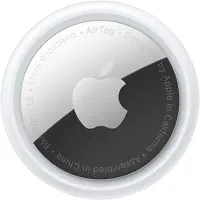 Top Pick
Why Do Left Behind Alerts Keep Going Off?
False left behind alerts are the top reason people search this topic, not setup. Most come from one of three causes.

Cause 1: Home and office aren’t trusted locations yet. You left your tagged item where you meant to leave it, walked outside, and got an alert. The AirTag is working correctly. The problem is that “home” isn’t automatically recognized as a trusted location. Apple requires you to add it manually.
Go to Find My, tap your AirTag, tap Notifications, tap Notify When Left Behind, then tap “New Location” and add your home address. Add your office address separately if you get alerts there too.
Cause 2: Your iPhone separated from the item, not you. Your iPhone is home but your tagged item went somewhere with someone else. A family member took the car, your partner grabbed the bag.
The AirTag sees your iPhone move away from the tag and fires. Apple’s Find My privacy overview confirms that the alert is triggered by iPhone-to-tag distance, not by any owner-recognized logic. If this happens regularly, turn the left behind notification off for that specific AirTag. Tracking continues unaffected.
Cause 3: Bluetooth interference. Walls, metal objects, and other wireless devices reduce effective range. In our testing in a concrete-floor garage, alerts fired when we were still 8-10 meters from the car, earlier than the normal threshold. Adding your driveway or home garage as a trusted location resolves this case cleanly.
What’s the Difference Between Left Behind and Found Moving With You?
These are two separate notifications with opposite purposes. Conflating them is the most common error in coverage of this topic, including in several top-ranked articles on major tech sites.

| Notify When Left Behind | Found Moving With You | |
|---|---|---|
| Who gets it | You (the AirTag owner) | A third party |
| Trigger | You walk away from your item | Stranger’s AirTag travels with you |
| Purpose | Don’t forget your stuff | Anti-stalking alert |
| False alert fix | Add trusted location | Disable for known items |
Left behind: you walked away from your keys. The AirTag stayed behind. Your iPhone tells you.
Found Moving With You: someone else’s AirTag is traveling in your bag or car. Your iPhone tells you specifically to protect against stalking. Apple’s AirTag safety features page states that the Found Moving With You alert fires after a period of sustained co-travel with a tag registered to a different Apple ID. The threshold is intentionally variable so it can’t be gamed.
These two alerts can’t both fire for the same AirTag. If an AirTag is registered to you, it triggers left behind alerts on your device. If it’s registered to someone else, it triggers Found Moving With You alerts on whoever is carrying it. They’re mechanically separate systems in Find My.
For a full breakdown of the Found Moving With You alert and how to handle it, see our guide on the Found Moving With You notification. For the broader privacy picture, AirTag anti-stalking features covers how Apple’s system is designed to prevent misuse.
Best Use Cases for Left Behind Alerts
The Notify When Left Behind feature works best for items you sometimes set down and walk away from.
Keys are the clearest fit. You place them on a table when you walk in, and occasionally leave without them. An alert fires as you reach your car before you’ve unlocked it — exactly the scenario the feature was designed for.
Wallets and bags work well when you set them down at predictable spots. Add those as trusted locations.
Laptop bags follow the same logic. You leave the bag at your desk every day, so add your office as a trusted location. If the bag ends up at a coffee shop or conference room, the alert fires because that location isn’t in your trusted list.
Laptop bags get left in meeting rooms far more often than people realize. A notification before you leave the building beats discovering it’s gone when you’re already on the train.
Cars require a judgment call. If you track your car with an AirTag for theft protection, a left behind alert fires every time you park — not useful. Add your home garage and workplace as trusted locations. Our guide on tracking your car with AirTag covers the full recommended setup, including whether to keep alerts on for other locations.
One thing that applies across all use cases: the feature only works when your iPhone is with you. If you regularly leave your phone at your desk, add your desk location as a trusted location to prevent alerts every time you walk down the hall without both.
Choosing Between AirTag 2 and AirTag 1 for Left Behind Alerts
Both AirTag generations support Notify When Left Behind through the same Find My interface. The feature setup is identical, trusted locations work the same way, and the alert behavior is the same on both models.

The main difference between models shows up after the left behind alert fires and you go looking for the item. AirTag 2’s Ultra Wideband chip supports Precision Finding from up to roughly 60 meters, compared to about 20 meters on the original. For the notification and trusted location features themselves, the original AirTag is fully capable.
If you’re tracking a bag in a large building or a vehicle in a parking garage, that 3x range improvement matters. For tracking keys in a jacket pocket or a wallet in a drawer? Both models find it in seconds. A full comparison of the two models, including speaker volume, battery specs, and pricing, is in our AirTag 2 vs AirTag 1 breakdown.
Notify When Left Behind Troubleshooting: Common Setup Errors
A few mistakes show up regularly when users set this feature up or try to fix it.
Not adding a trusted location per AirTag. Trusted locations are per-device, not global. You have to add your home address to each AirTag’s settings separately: one for keys, one for wallet, one for bag.
Turning off Notify When Left Behind completely instead of adding trusted locations. This is the most common overreaction to false alerts. Disabling the feature means you lose all protection everywhere. Adding a trusted location is the correct fix. It silences alerts for that location while keeping the feature active everywhere else.
Adding an imprecise trusted location. If you drop a pin on your house but your AirTag is usually in the garage or driveway, the location’s radius may not cover the spot where the tag actually sits. Try adding a second trusted location with the pin placed more accurately on the garage or parking spot.
Bottom Line
The AirTag left behind notification is one of the most practical features on the device. The setup takes two minutes. The false alert problem takes two more minutes to fix by adding trusted locations. Both AirTag 2 and the original AirTag work identically for this feature, so the generation you own doesn't matter here.
If you're evaluating whether to buy an AirTag for separation alerts, our full AirTag review covers real-world performance across everyday use cases.
FAQ
How do I turn on the left behind notification for my AirTag?
Open the Find My app, tap the Items tab, then tap your AirTag. Tap the AirTag's name to open its detail panel, select Notifications, and toggle on "Notify When Left Behind." The setting is per-AirTag, so each one you own has its own toggle and its own trusted locations list.
Why does my AirTag keep saying left behind when I'm home?
Your home isn't automatically recognized as a trusted location. Apple requires you to add it manually. Go to Find My, tap your AirTag, tap Notifications, tap Notify When Left Behind, then tap "New Location" and add your home address. Once added, the alert won't fire when you leave your AirTag at home. Add your office with the same steps if you get alerts there too.
What is a trusted location, and how do I add one?
A trusted location is a place where you regularly leave your AirTag-tagged item intentionally. When you leave the item there, Find My won't send a left behind alert. To add one, go to the Notify When Left Behind settings for that AirTag and tap "New Location." Drop a pin on the map or search for your address. You can add multiple trusted locations per AirTag.
Does the left behind notification work without Wi-Fi or cellular?
Yes. The alert is Bluetooth-based, not network-based. Your iPhone directly detects when it moves out of Bluetooth range of the AirTag and fires the notification locally. You don't need an internet connection for the alert to appear on your phone. You do need connectivity if you want to see the AirTag's last known location on the map after an alert fires.
What is the difference between "left behind" and "found moving with you"?
They're opposite alerts. Left behind fires when you (the AirTag owner) walk away from your own item. Found Moving With You fires on someone else's phone when an AirTag registered to a different Apple ID is traveling with them. The two can't fire simultaneously for the same AirTag. If it's your AirTag, only you get left behind alerts on your device.
Can I set different left behind alerts for different AirTags?
Yes. Each AirTag is configured independently. Your keys AirTag can have Notify When Left Behind on with your home and office as trusted locations. Your laptop bag AirTag can have it on with different trusted locations. Your car AirTag can have it off entirely. There's no global setting, so every change applies only to the AirTag you're configuring at that moment.
Does AirTag left behind notification work with AirTag 2?
Yes. Both AirTag 2 and the original AirTag support Notify When Left Behind through the same Find My interface. The setup is identical between generations, and trusted locations work the same way on both. AirTag 2's hardware improvements affect how you locate a lost item after the alert fires, not the alert mechanism itself.
How far do I have to walk before the left behind alert fires?
Apple doesn't publish an exact distance. Based on our testing and independent reports, the alert typically triggers after your iPhone moves roughly 10-30 meters from the AirTag, depending on environment. Walls, metal, and other wireless devices reduce effective Bluetooth range. In open outdoor conditions the threshold is longer; in a concrete building it can fire at shorter distances.